Browser Sync & Backup
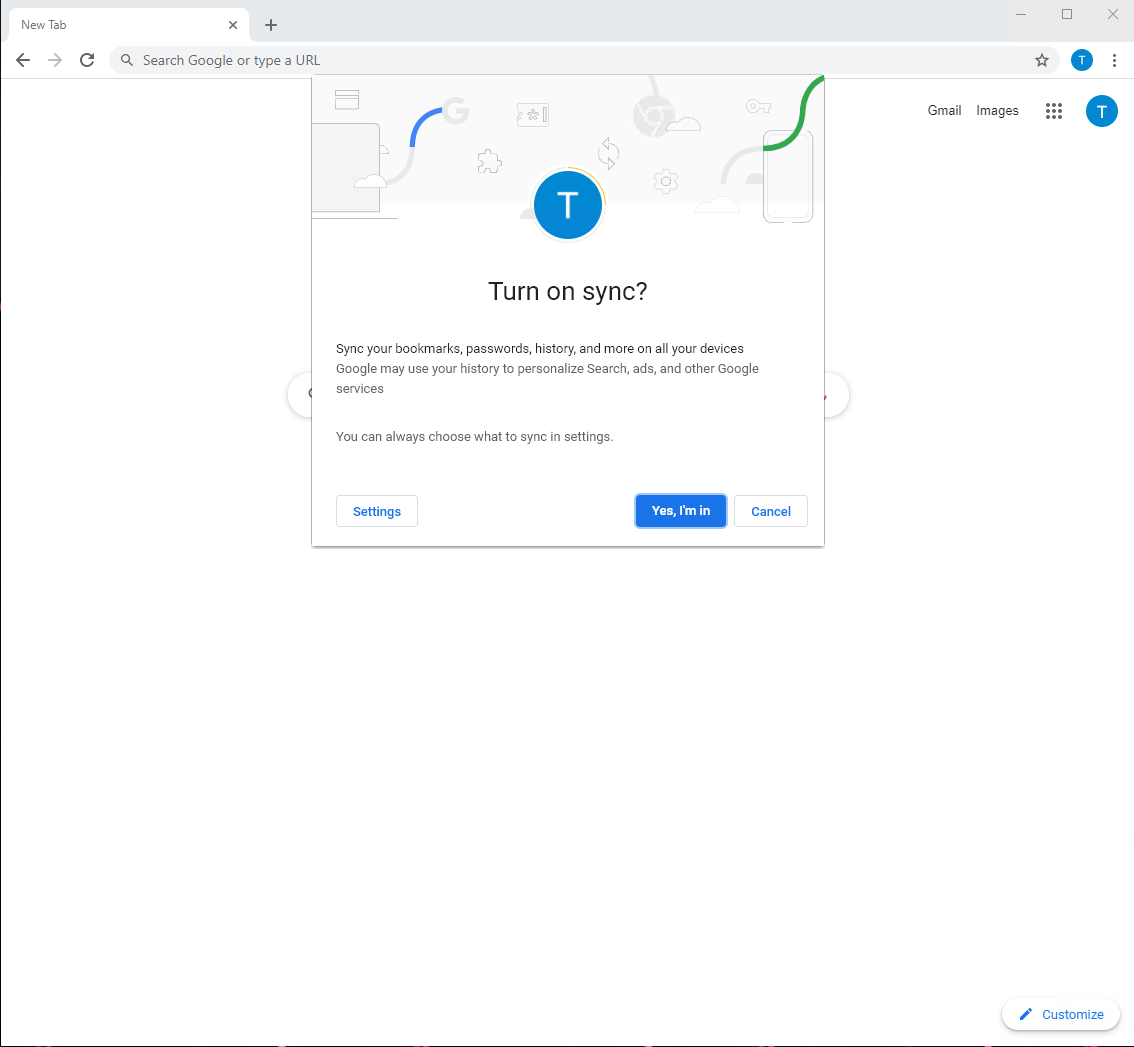
Setting up Chrome Sync
Chrome Sync allows you to link and synchronize your bookmarks, passwords, and history with your work email account.
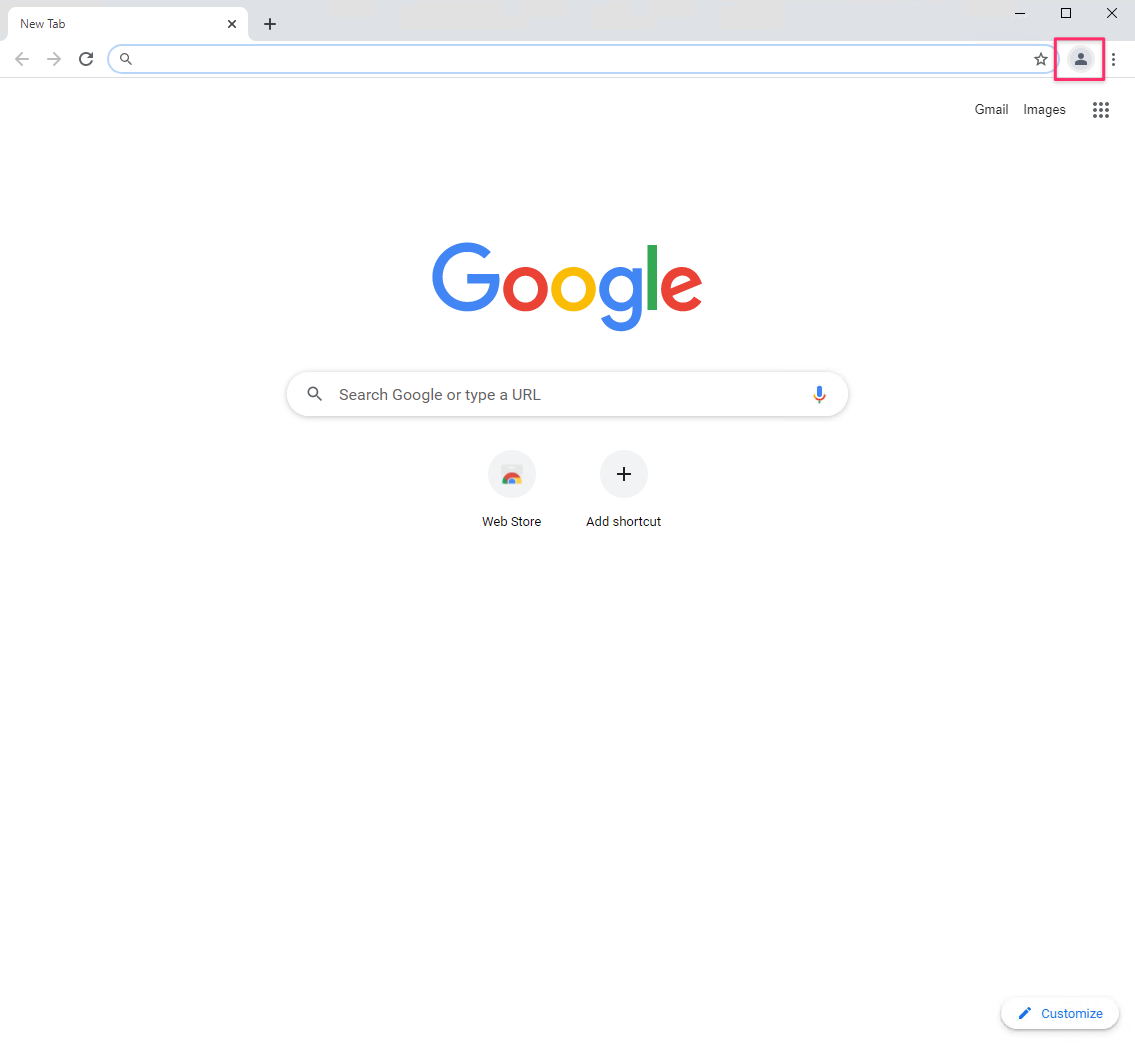
1. Click on the Profile icon
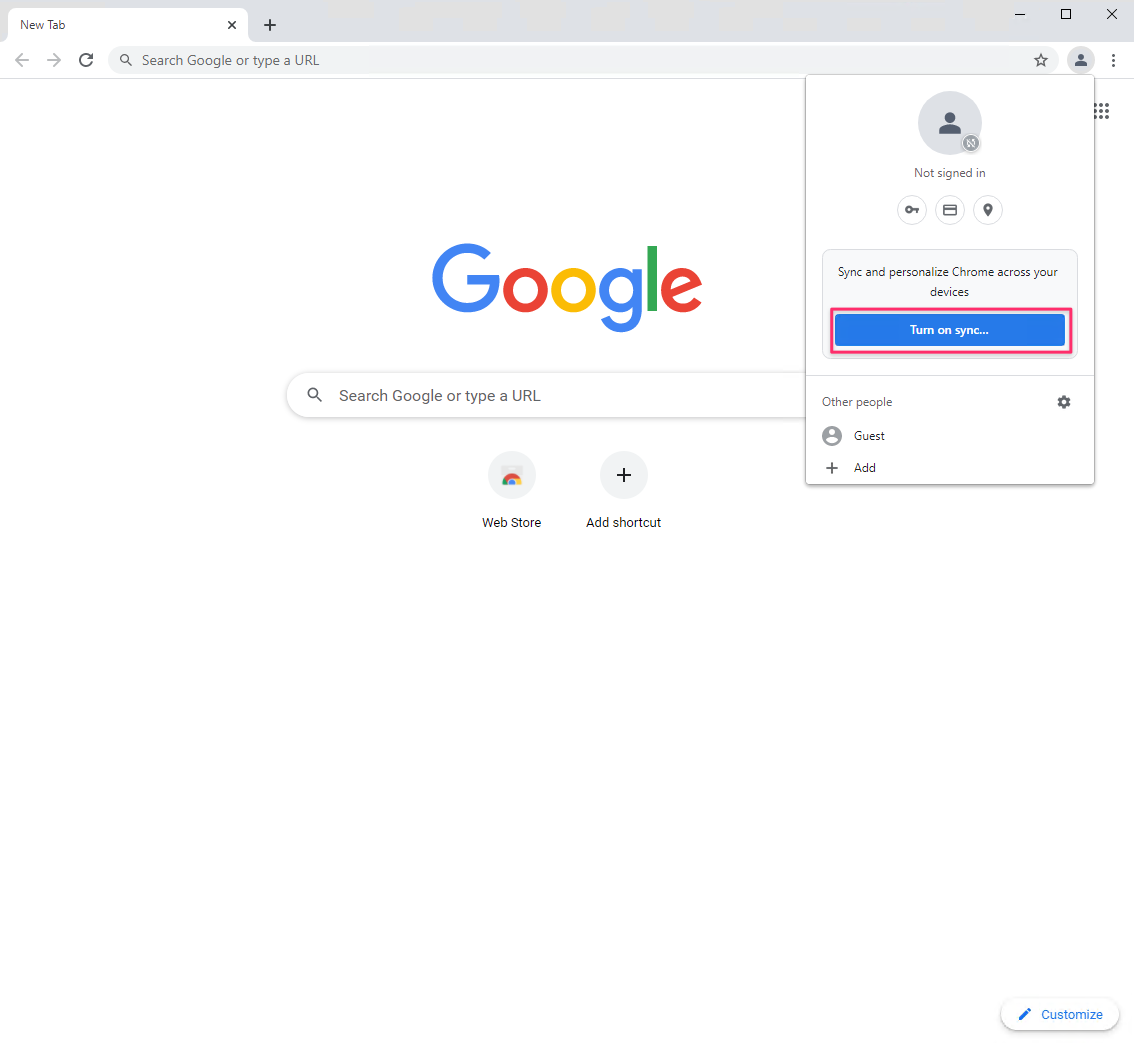
2. Select Turn on sync…
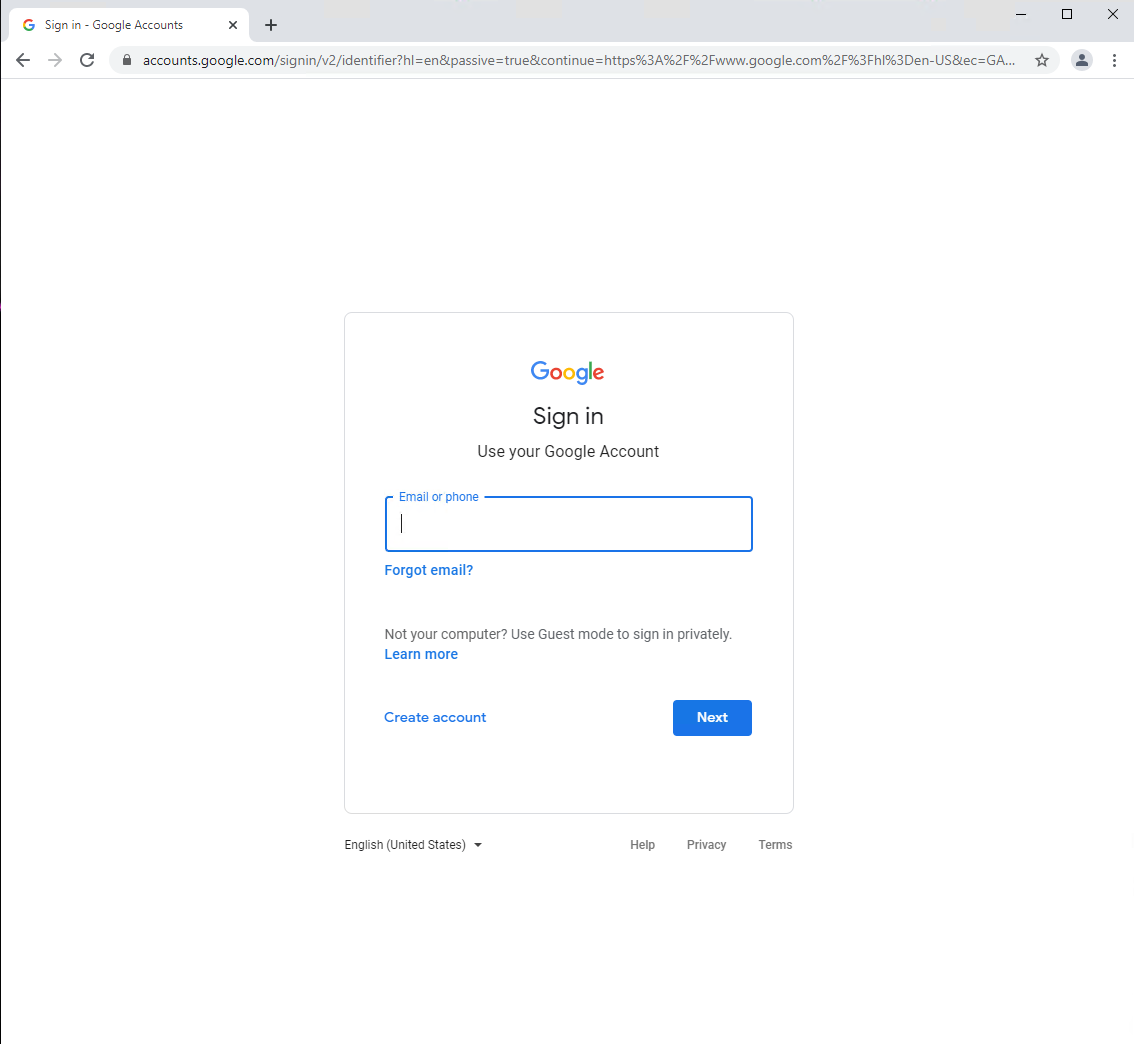
3. Sign into Google, using your work email account
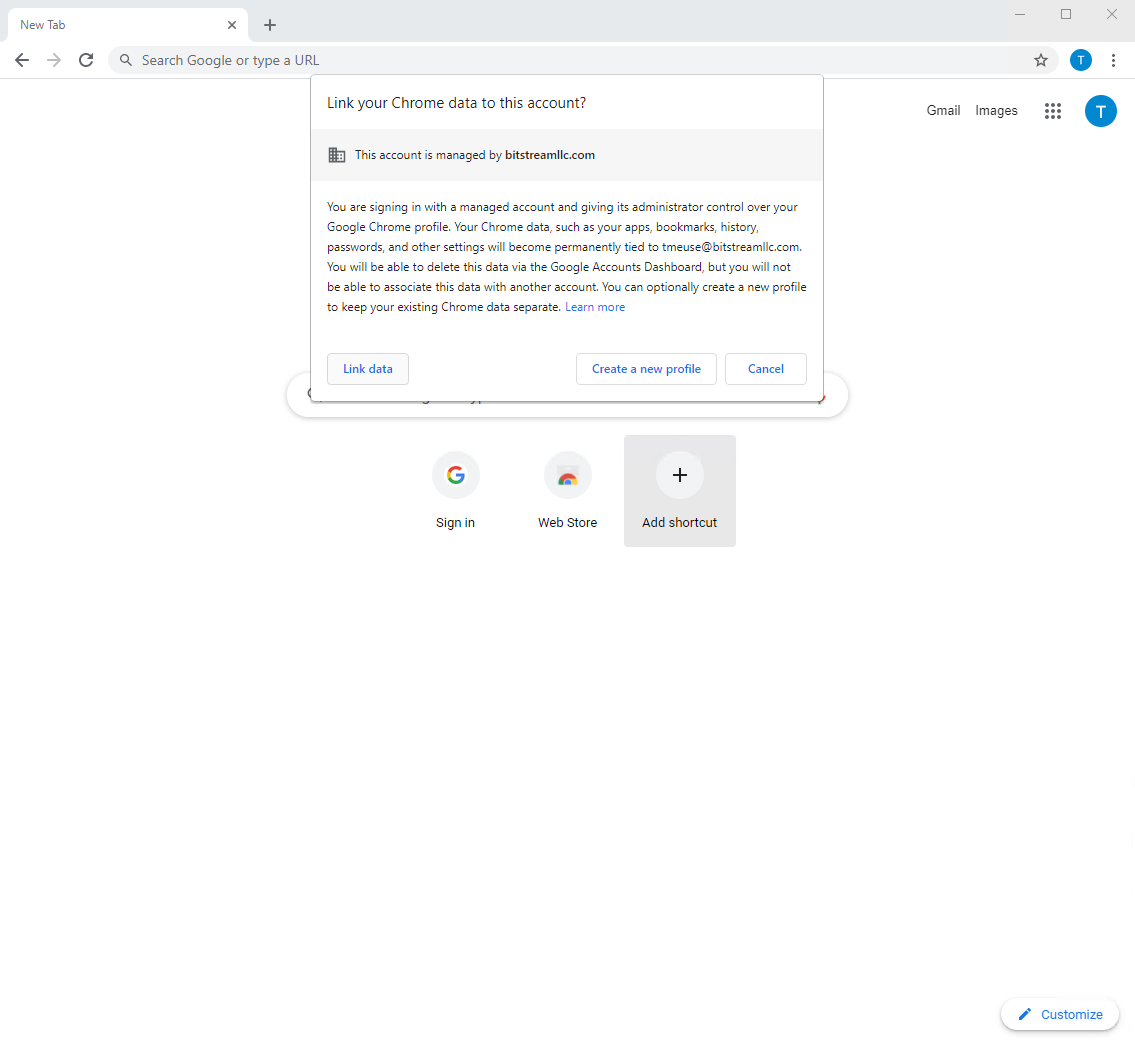
4. Select Link data
5. Select Yes, I’m in
Backing Up Bookmarks
Select your browser:
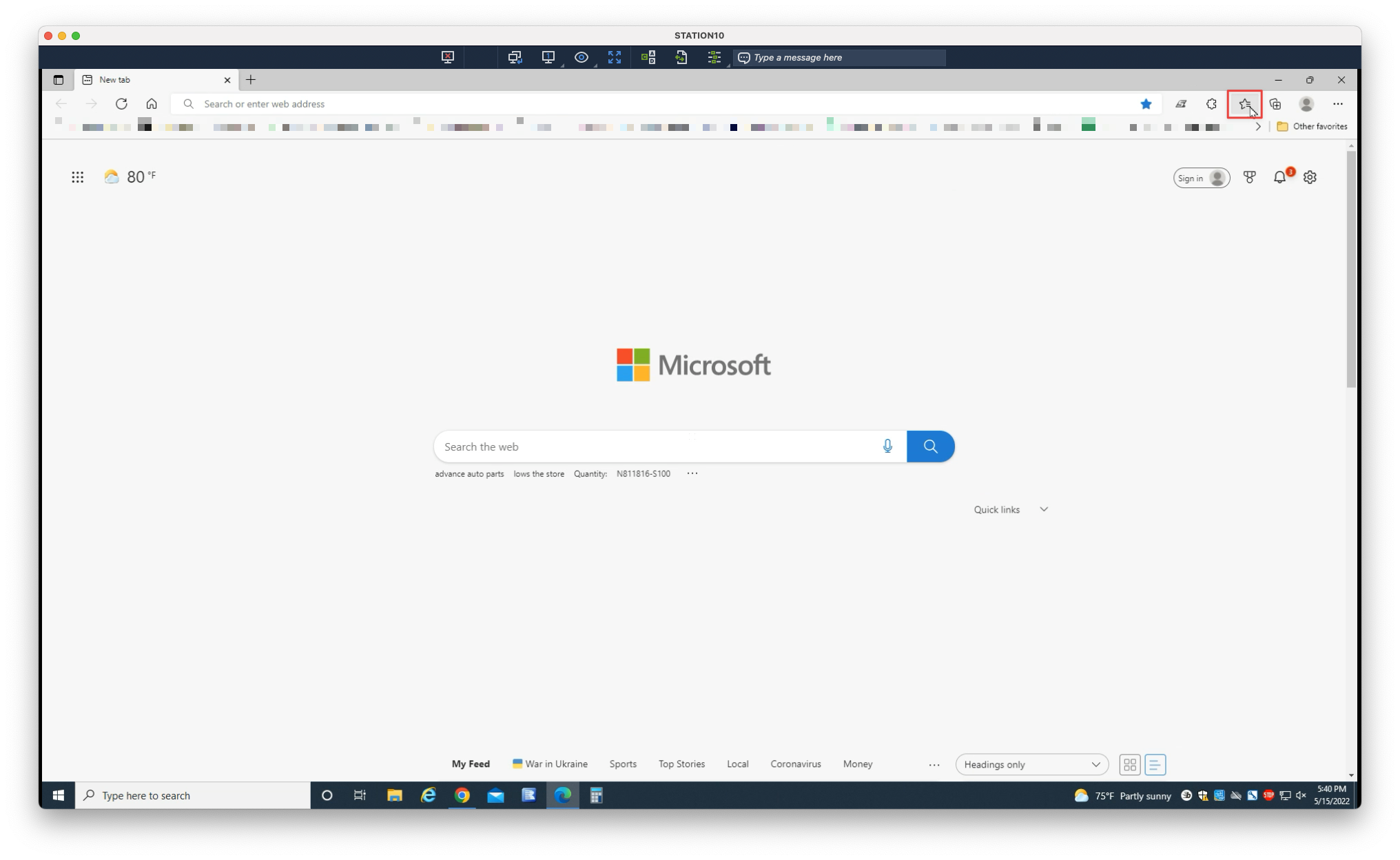
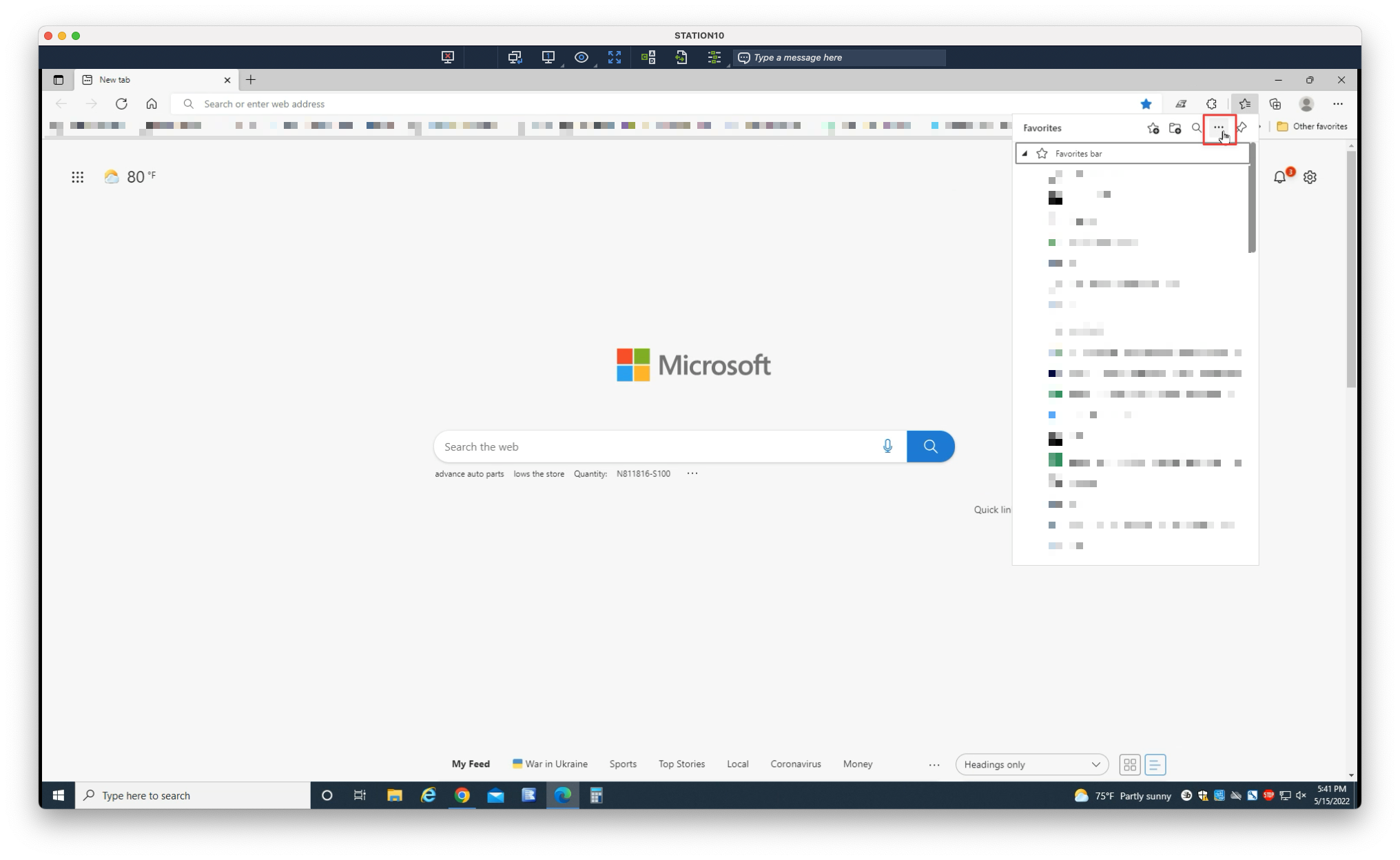
1. Click the overflow menu in the upper-right corner
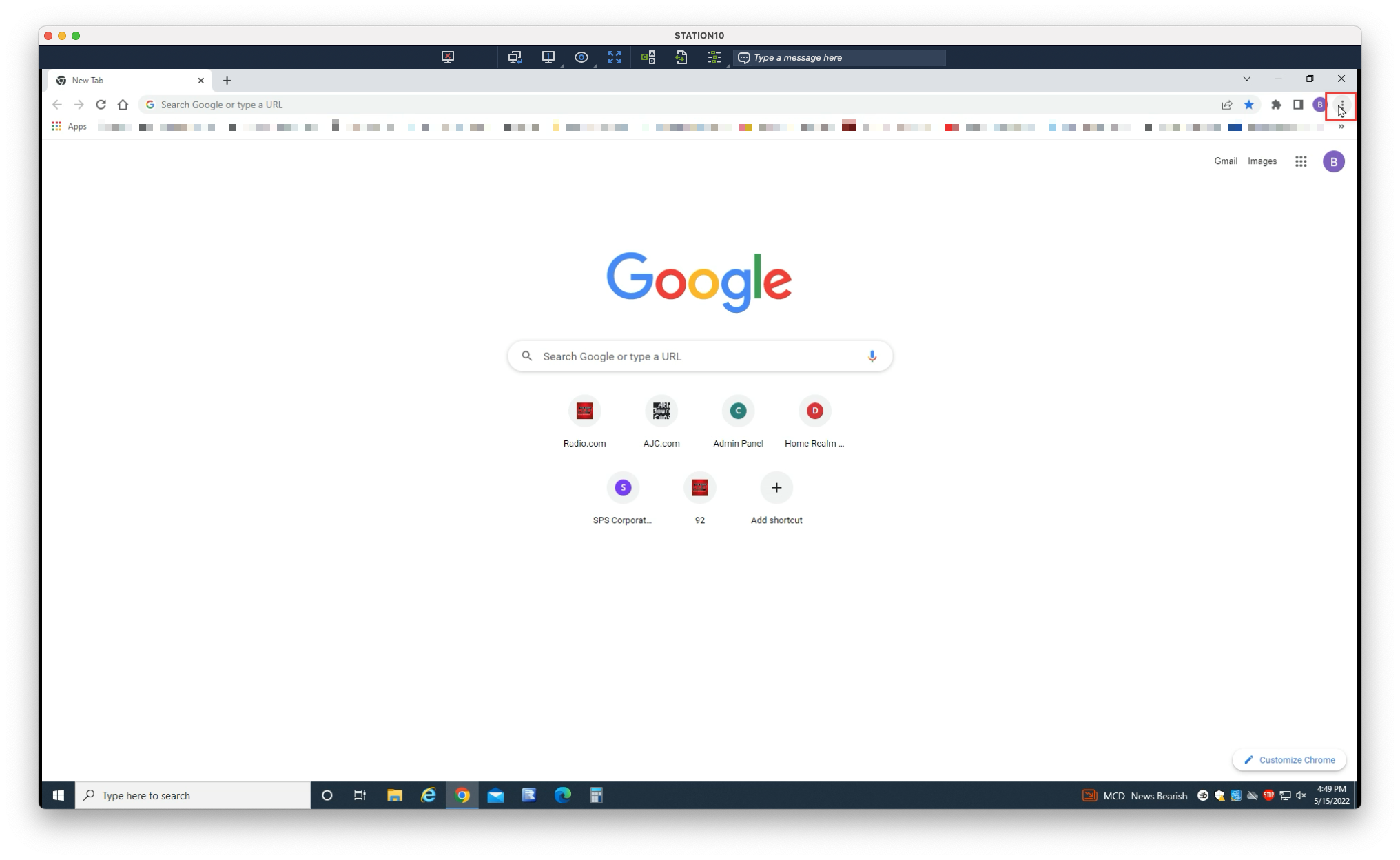
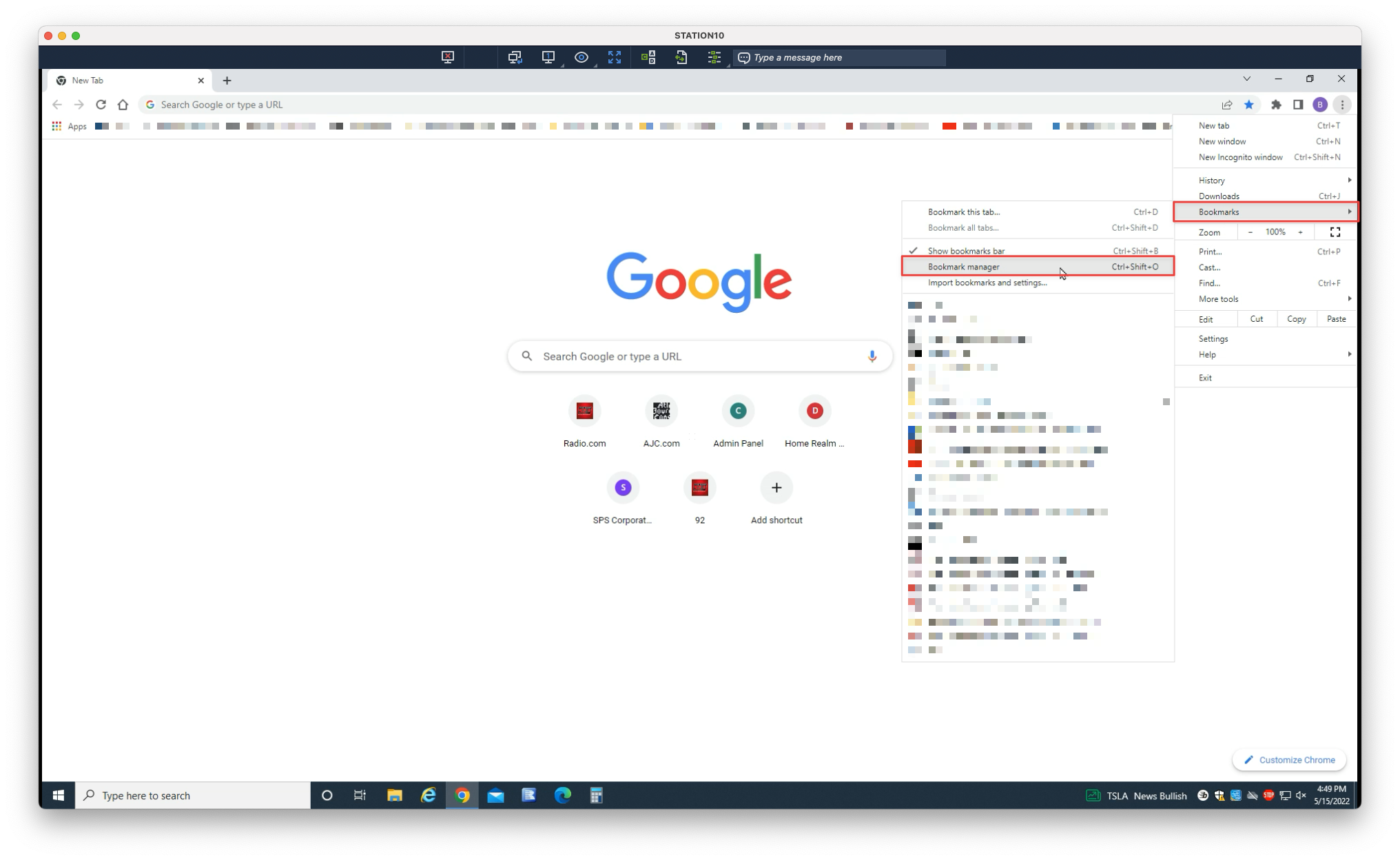
2. Select Bookmarks > Bookmark manager
3. Select the overflow menu within the page
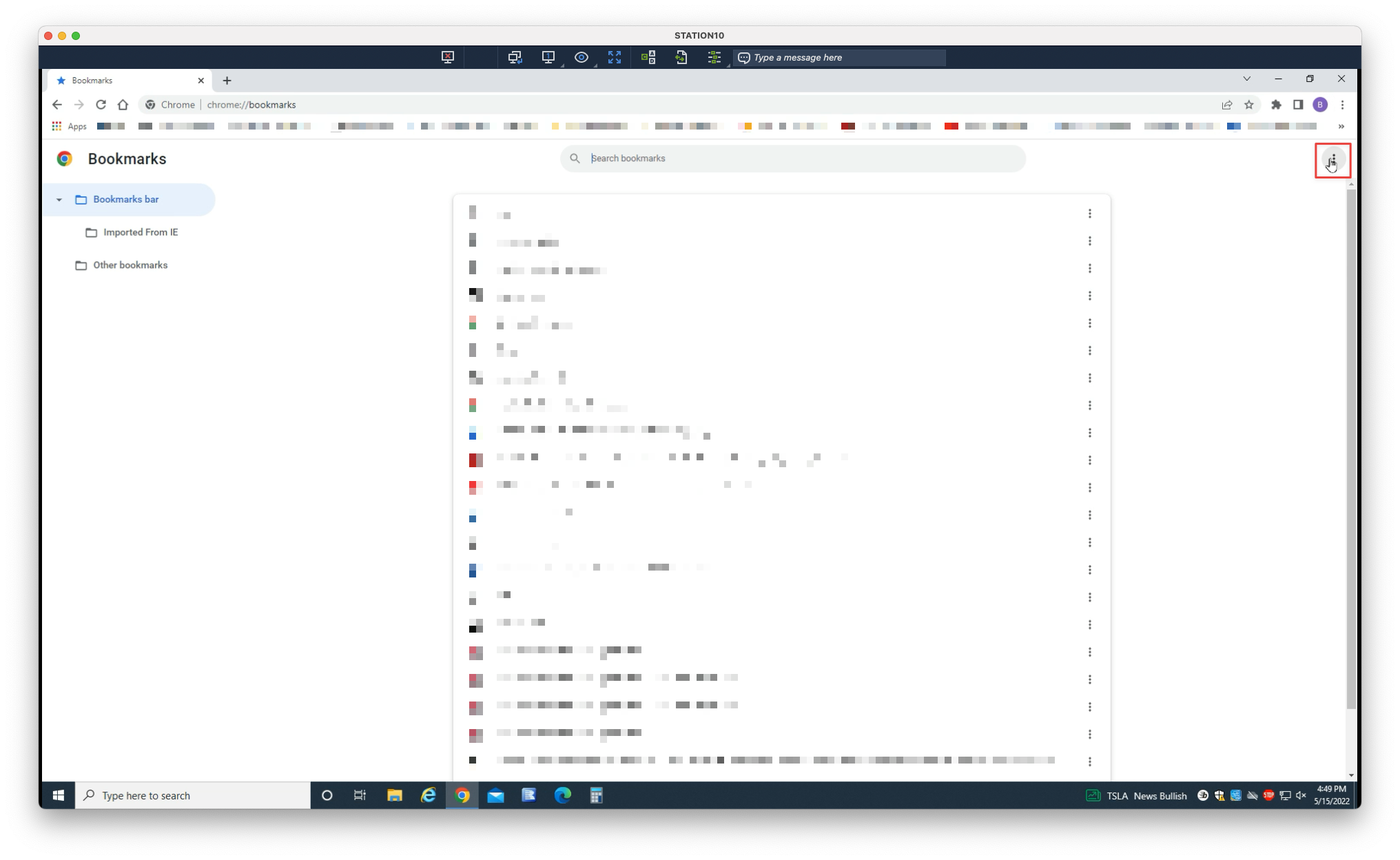
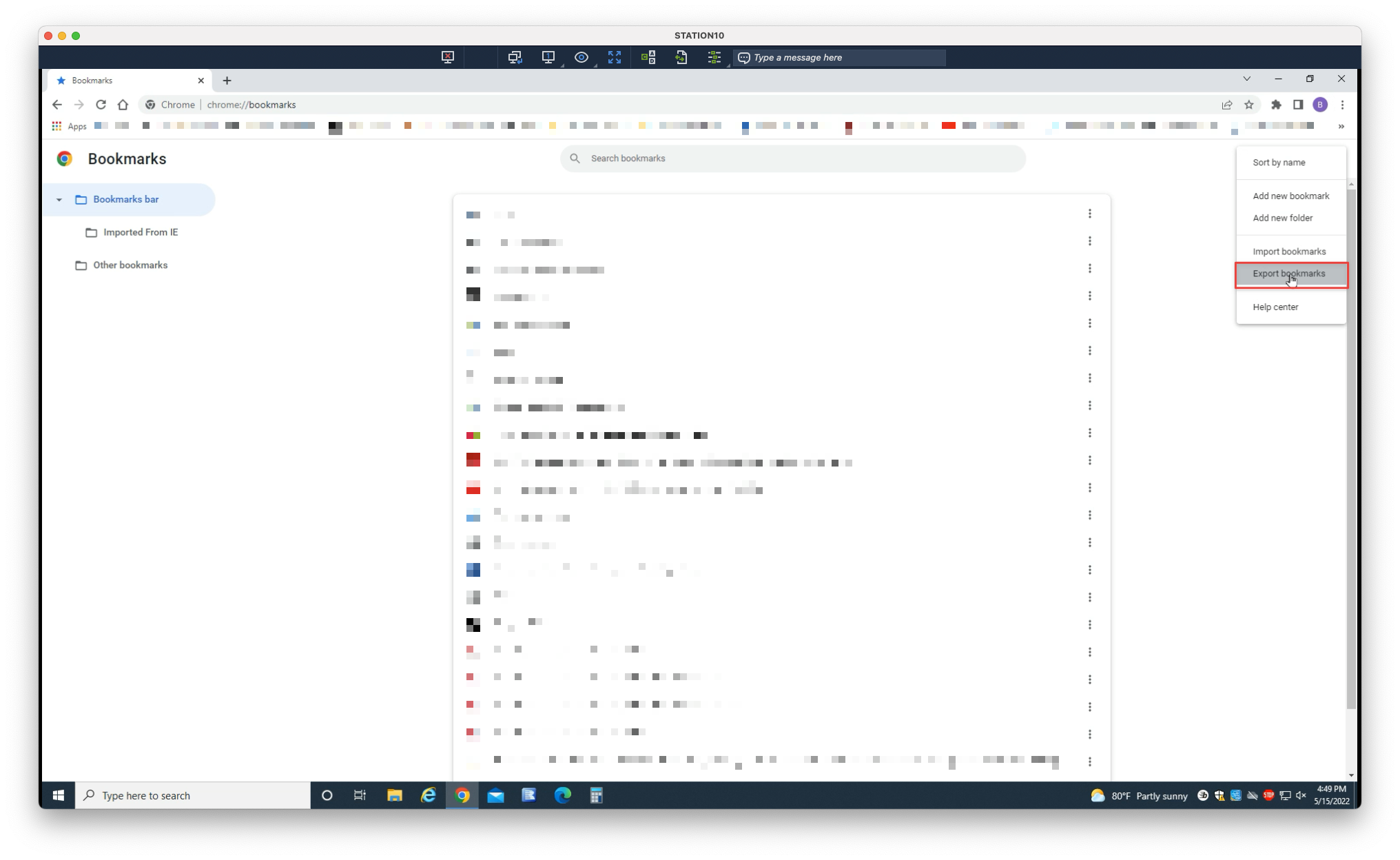
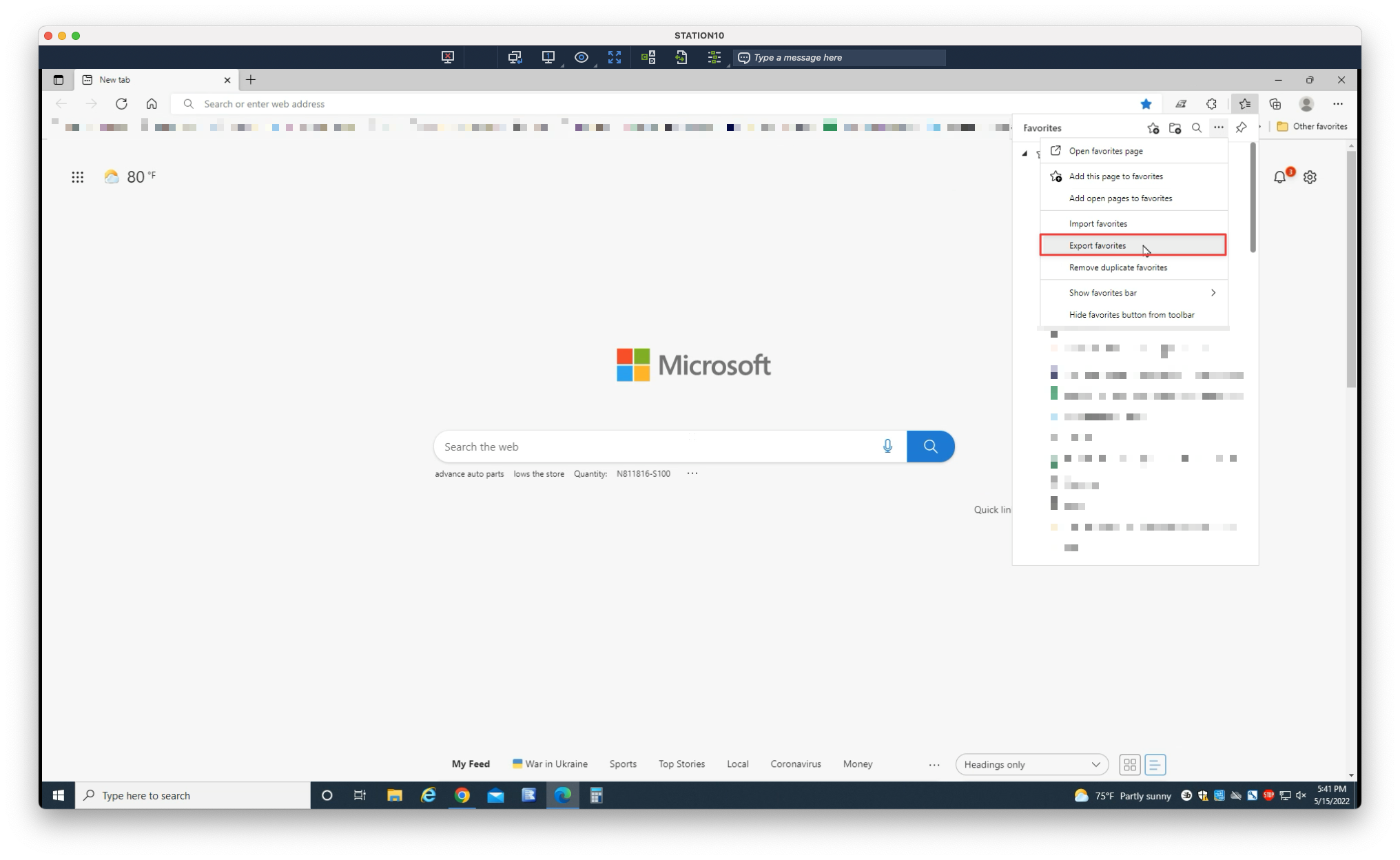
4. Select Export bookmarks
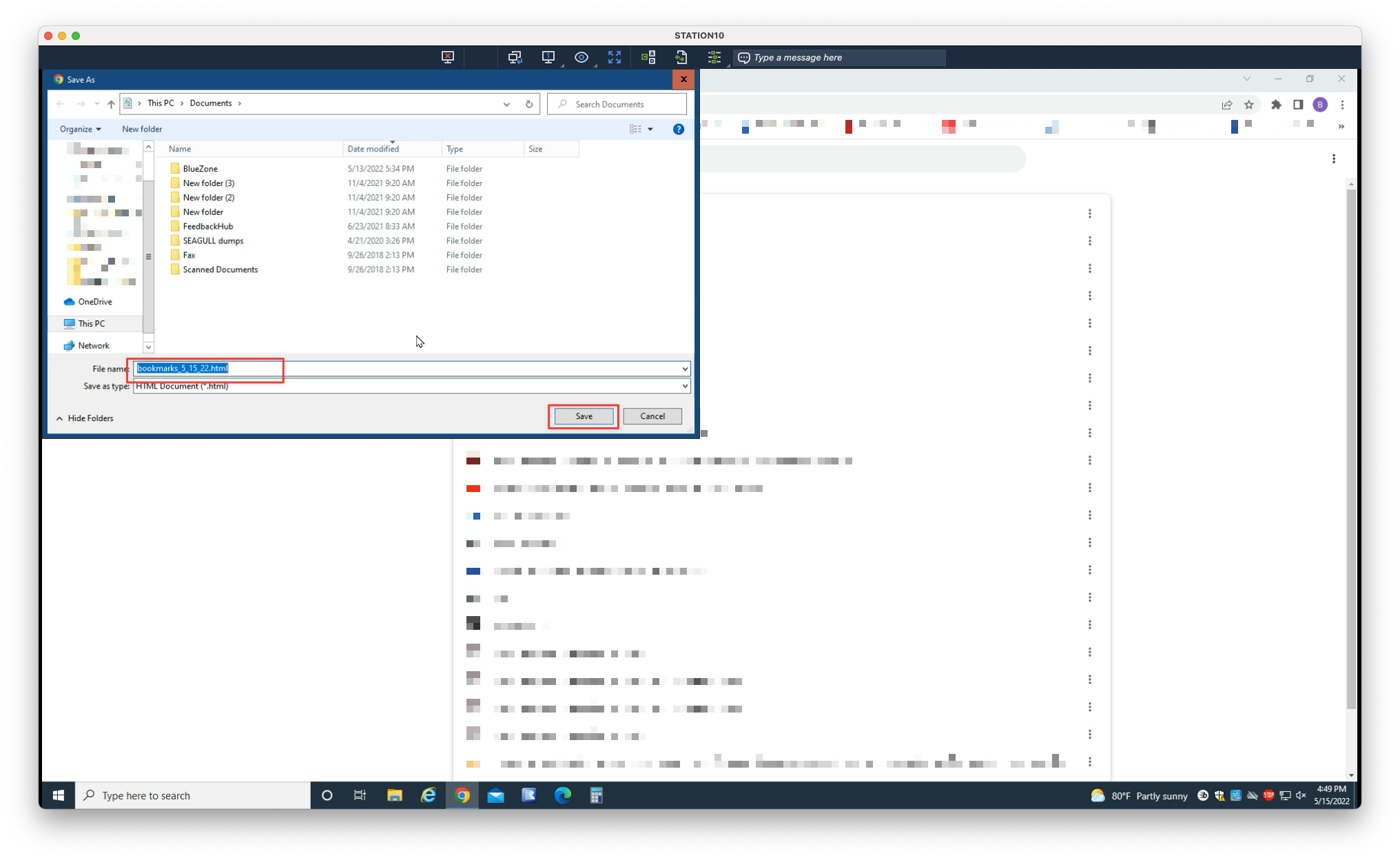
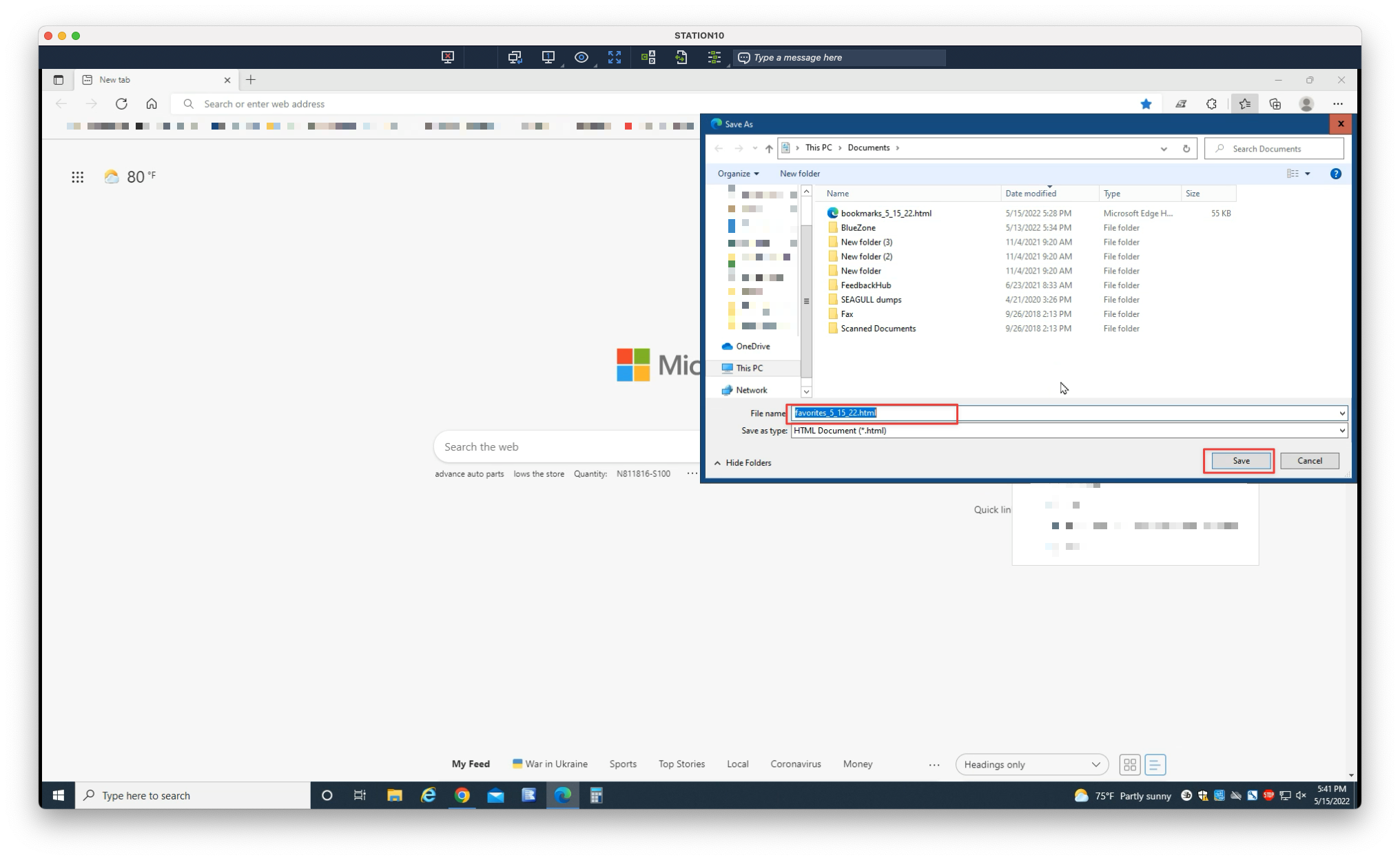
5. Navigate to an appropriate location (eg. Documents), optionally name the file, then select Save
Restoring Bookmarks
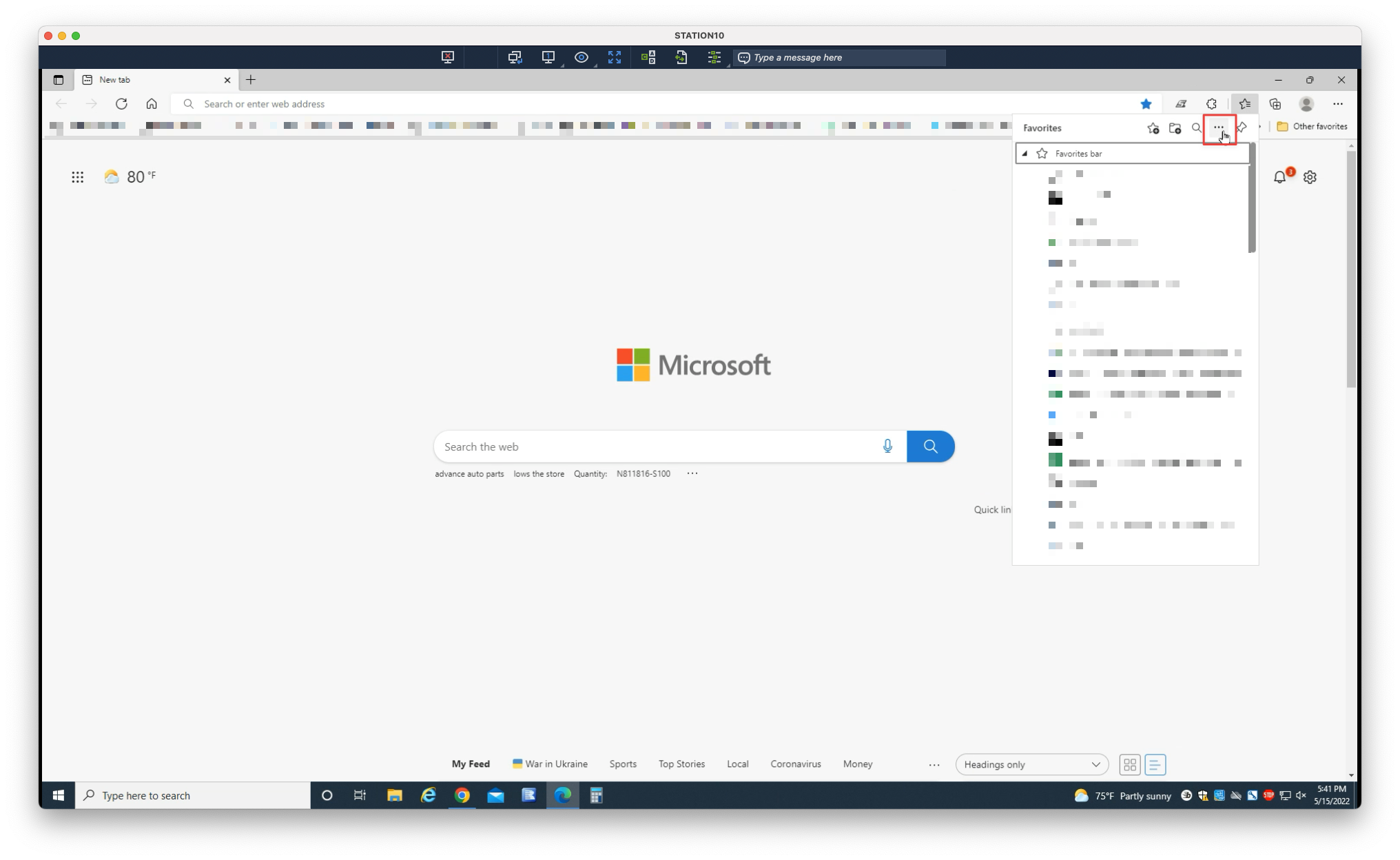
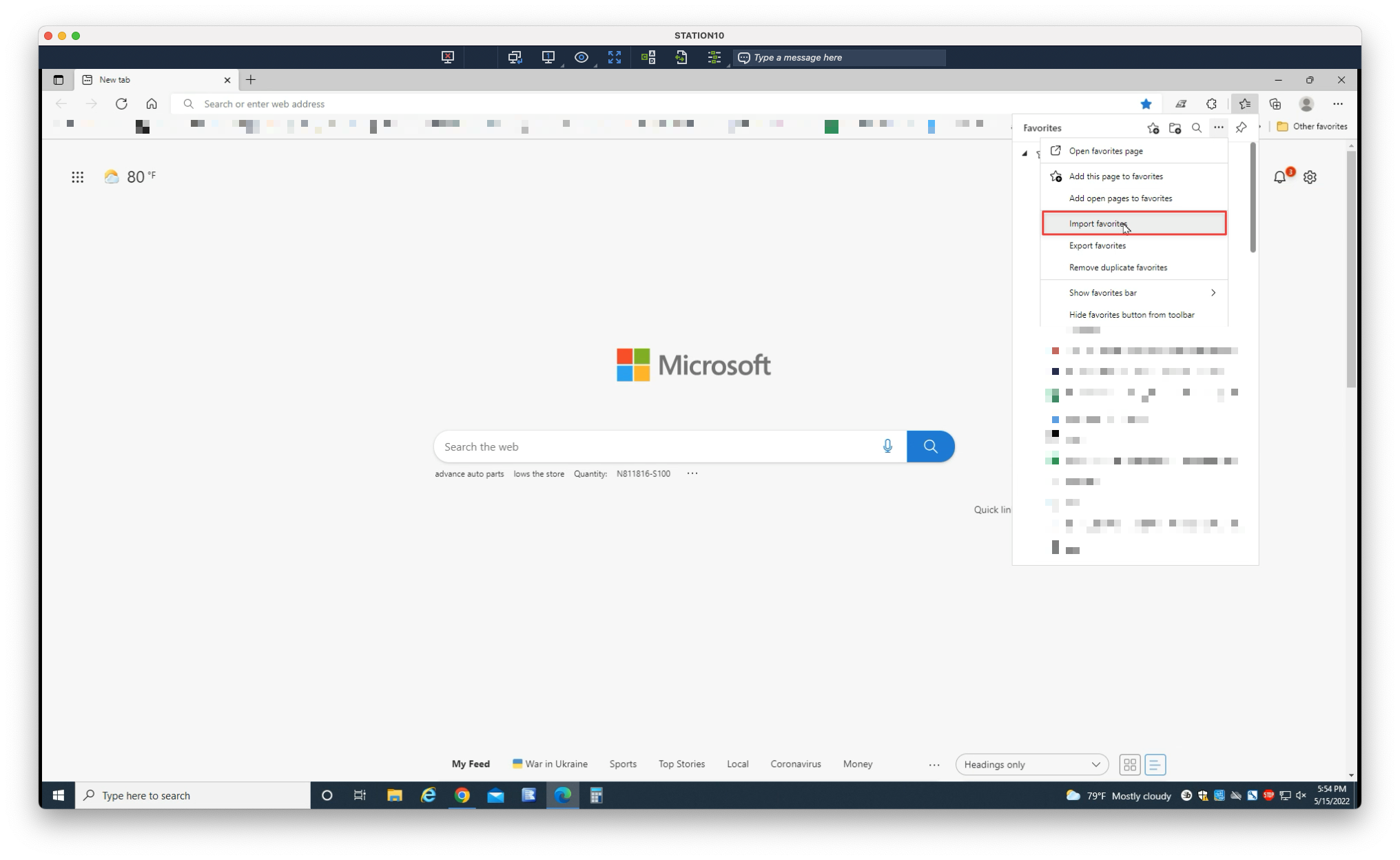
Select your browser:
1. Click the overflow menu in the upper-right corner
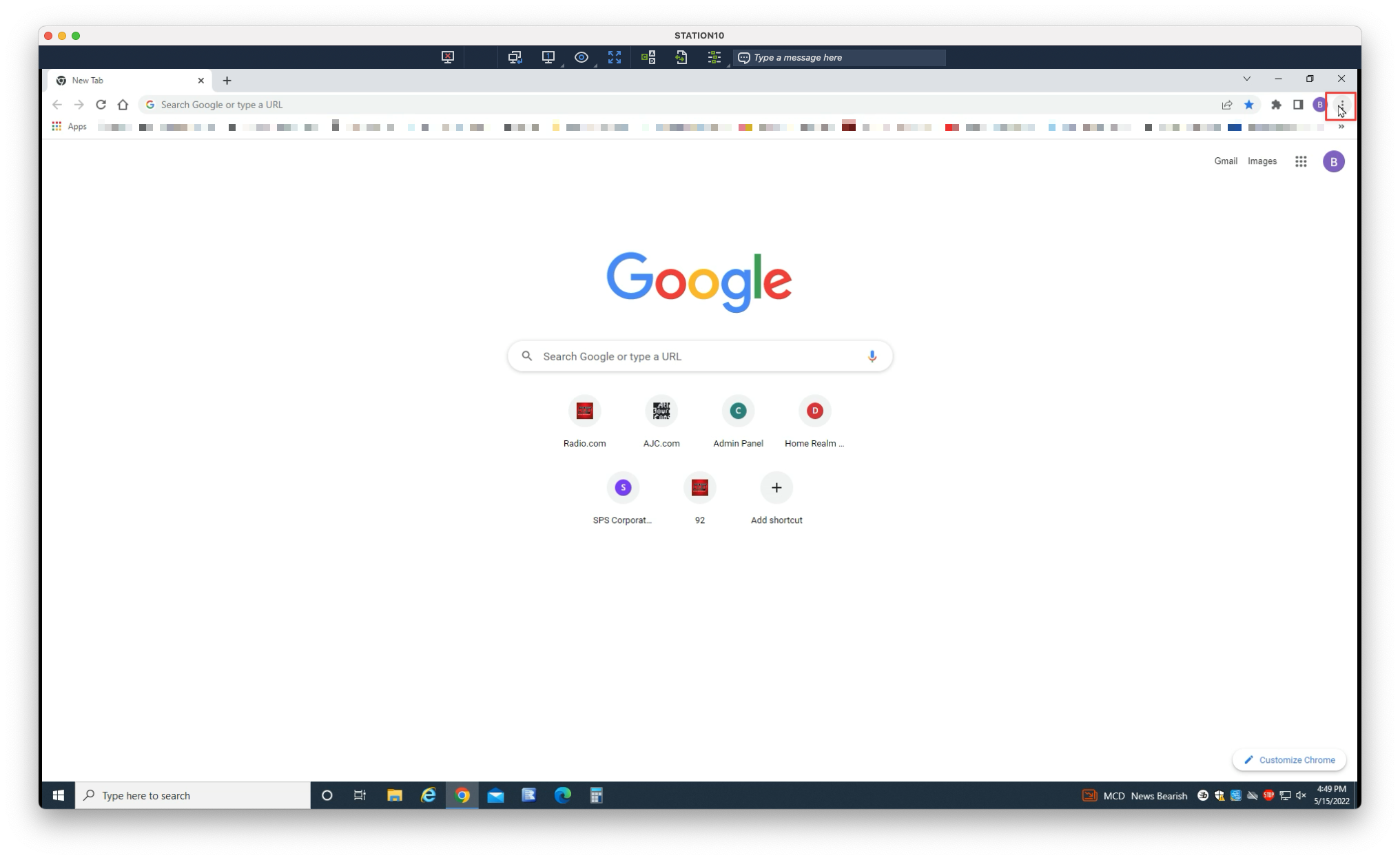
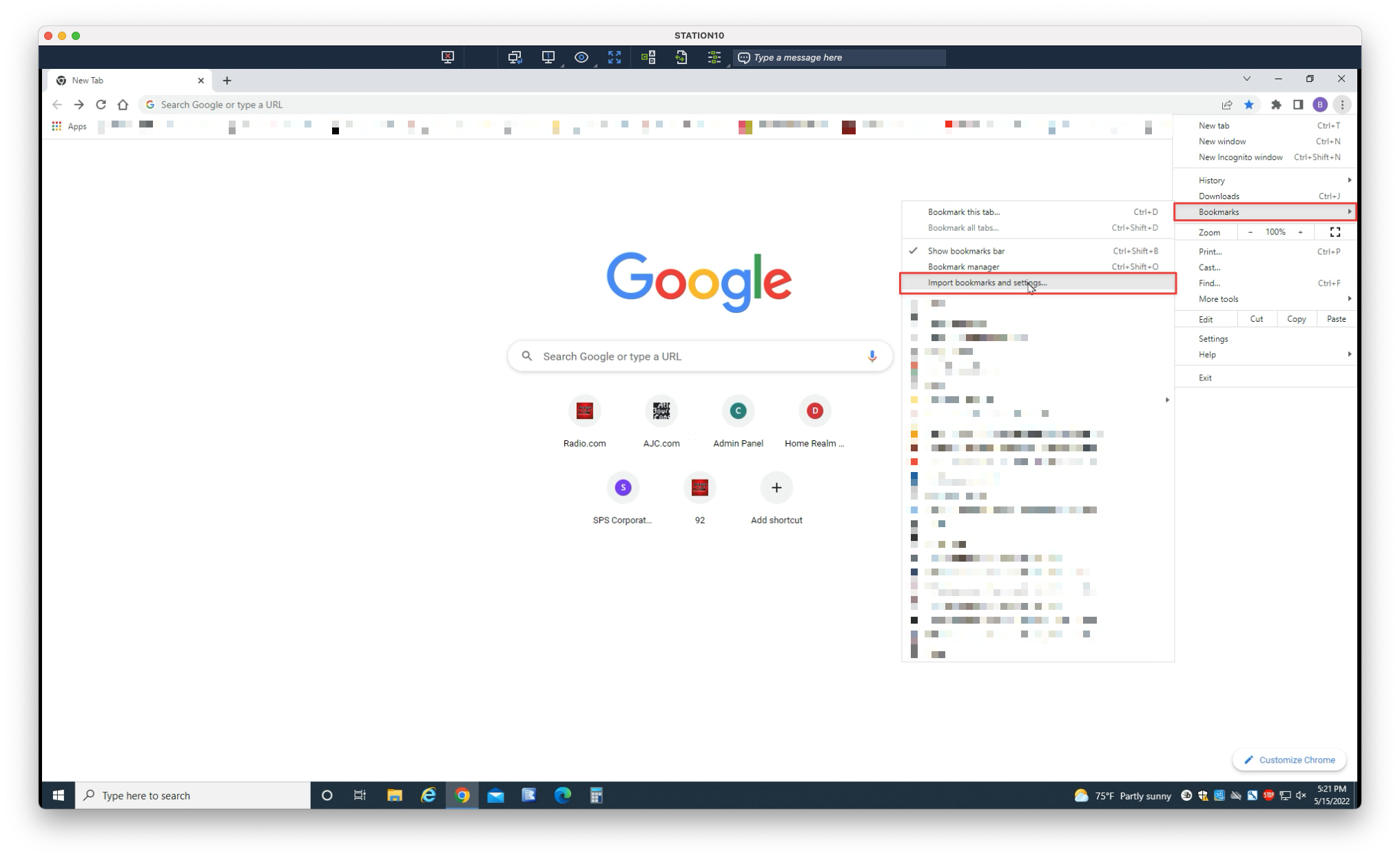
2. Select Bookmarks > Import bookmarks and settings…
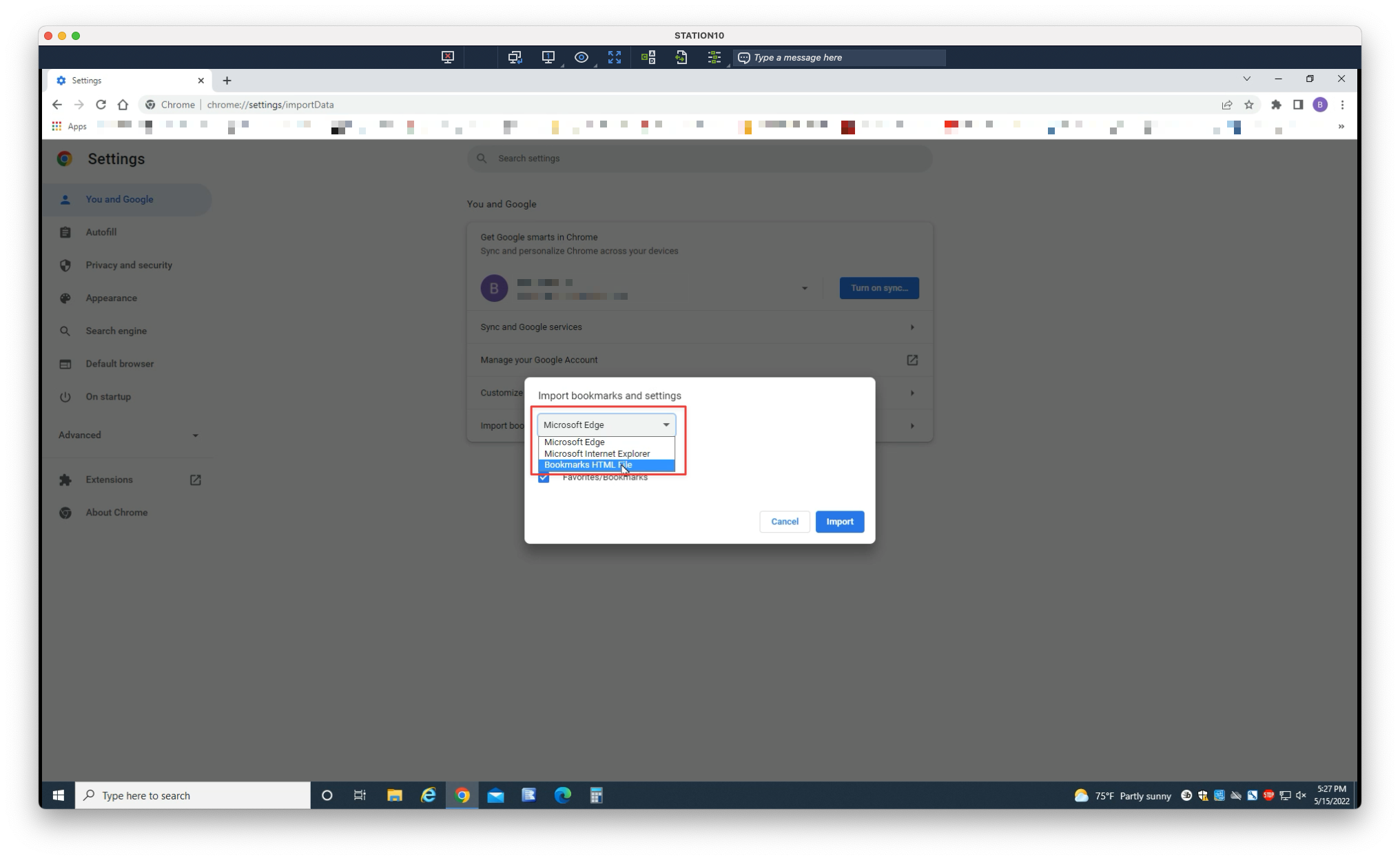
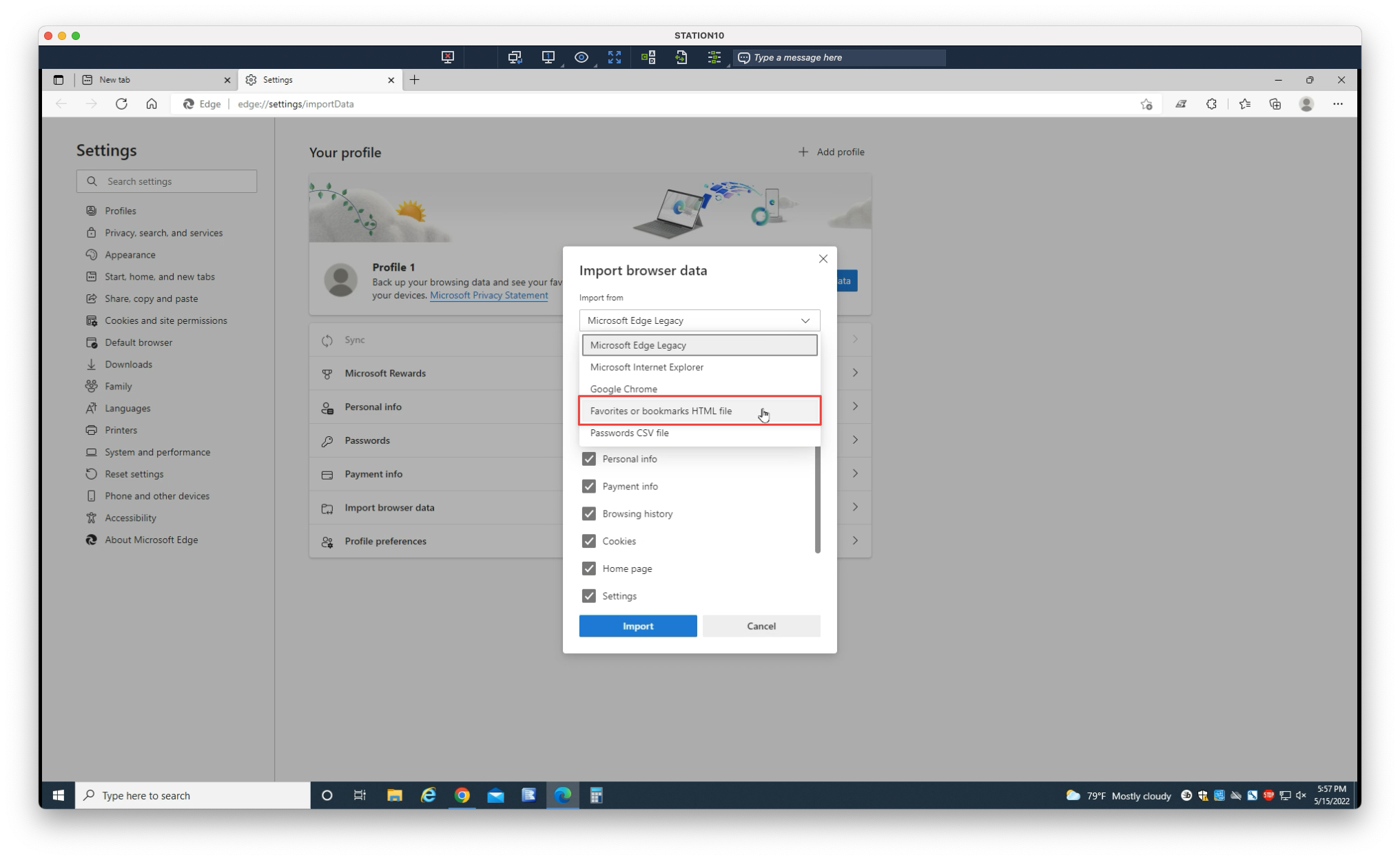
3. You may choose to import from other installed browsers, or from a bookmarks backup file (.html). Select Bookmarks HTML File
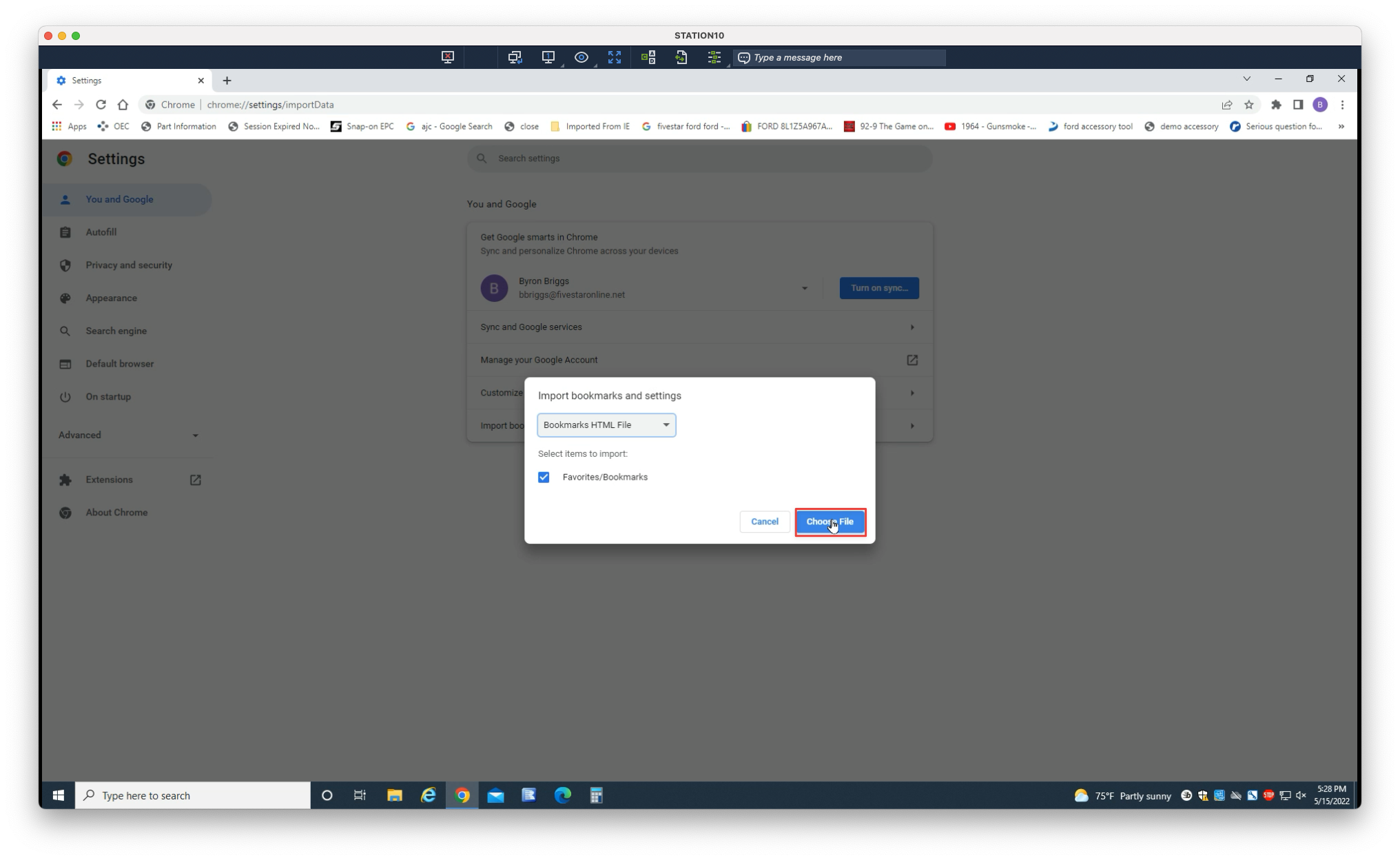
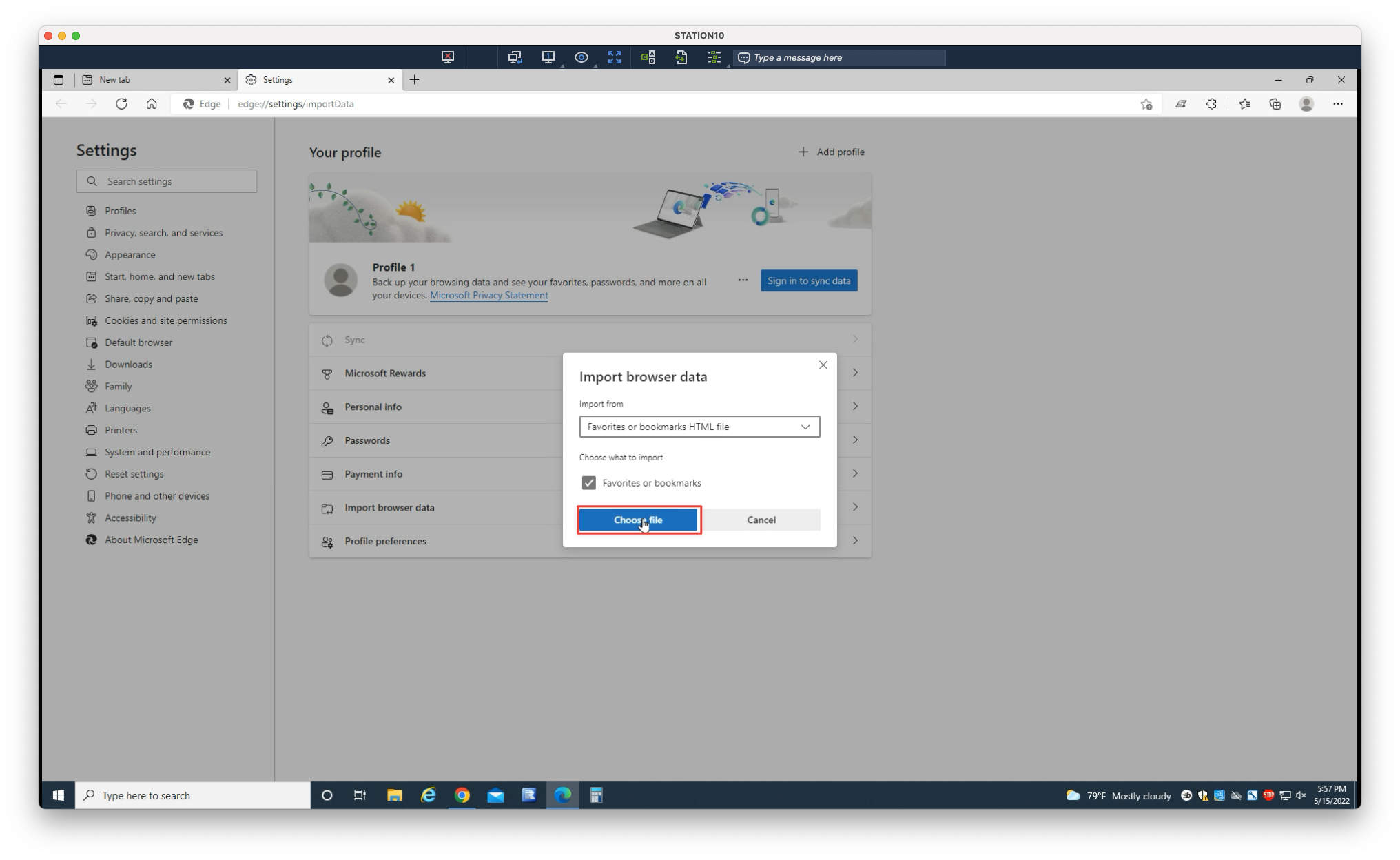
4. Select Choose File
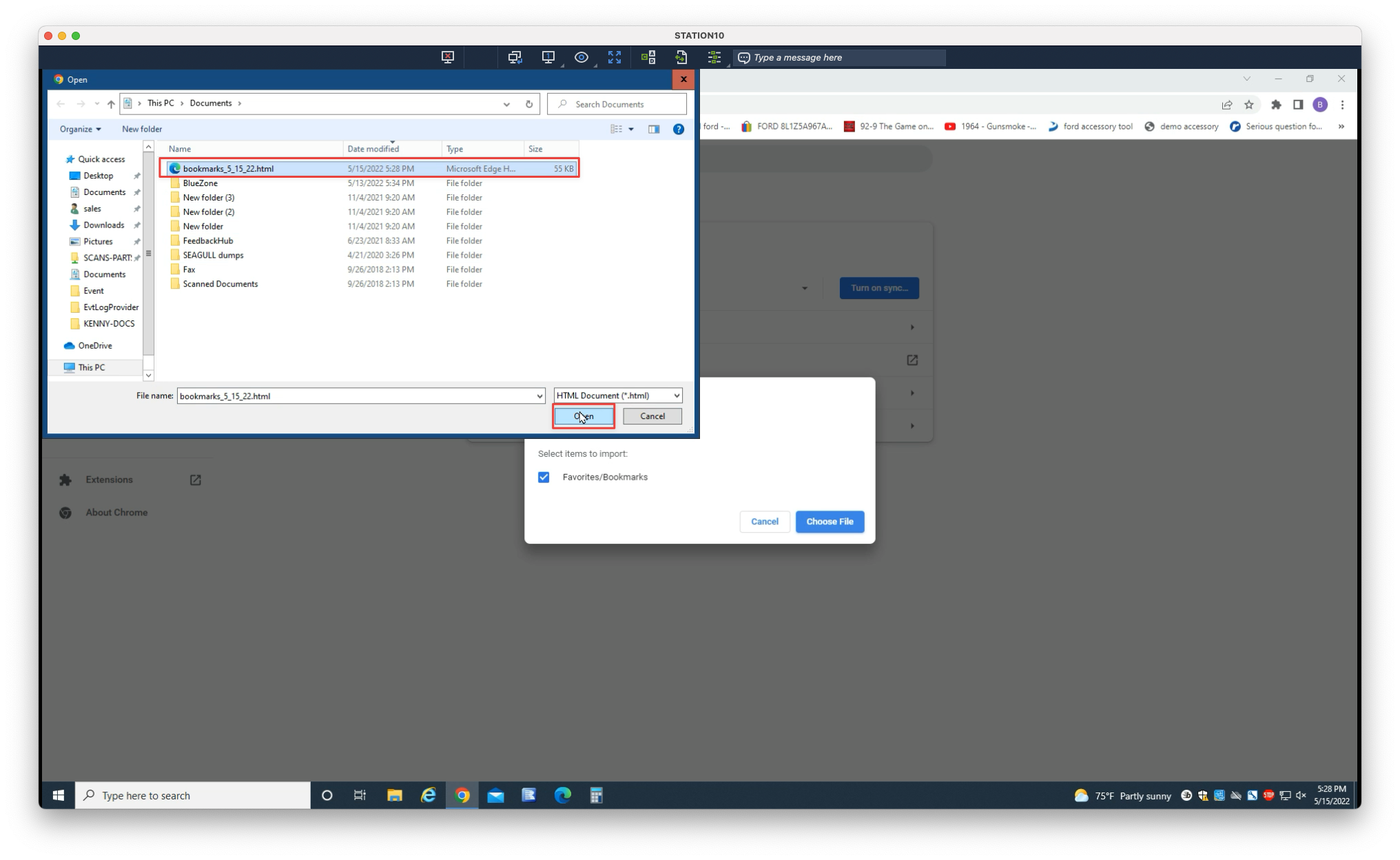
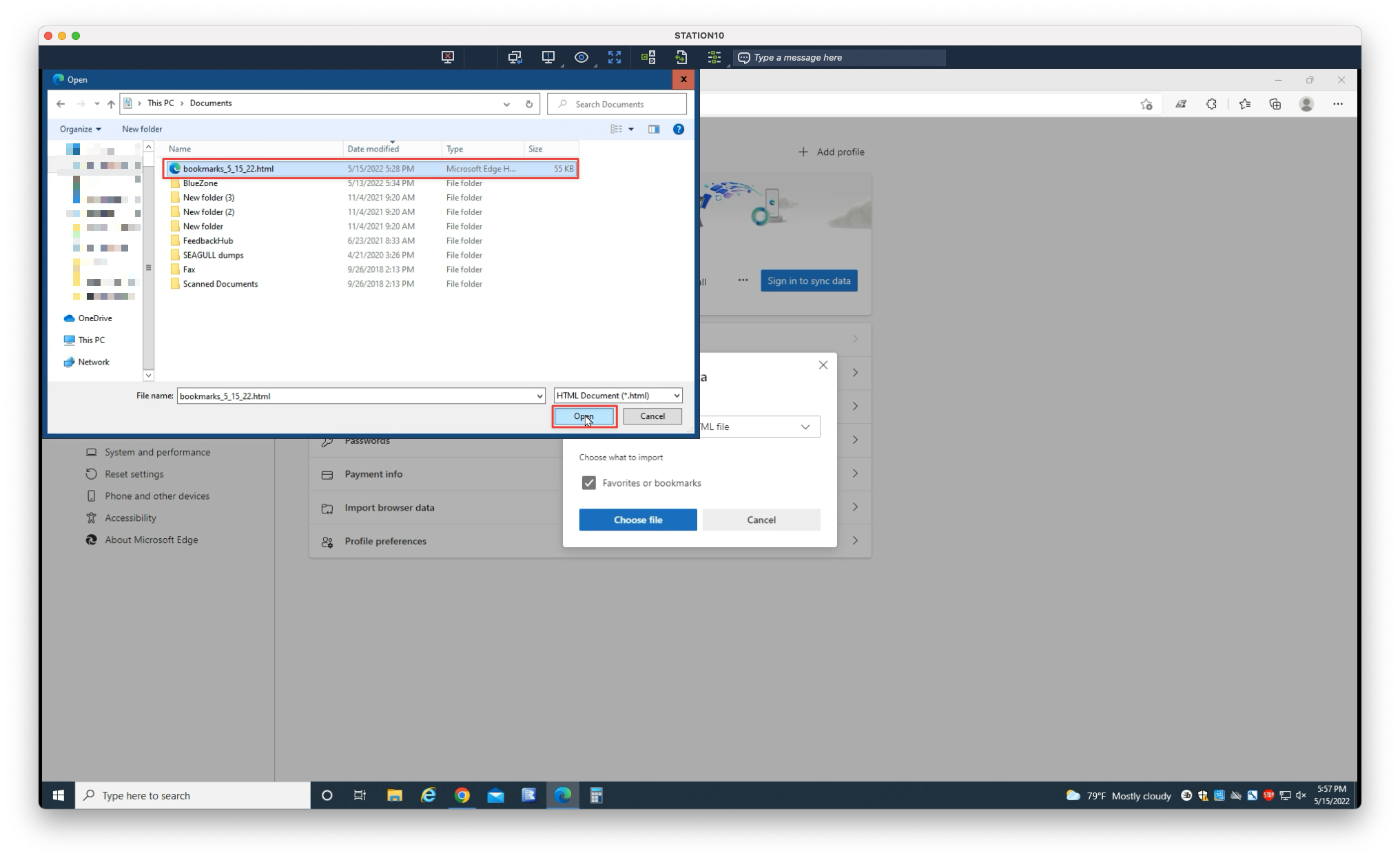
5. Navigate to and select your bookmarks file. Select Open
Backing Up Passwords
Store this file safely
This process produces a temporary, unencrypted CSV file containing your saved passwords. Anyone with access to this file will be able to read its contents. Never save this file to a shared location, and securely delete it when you are finished restoring.
Select your browser:
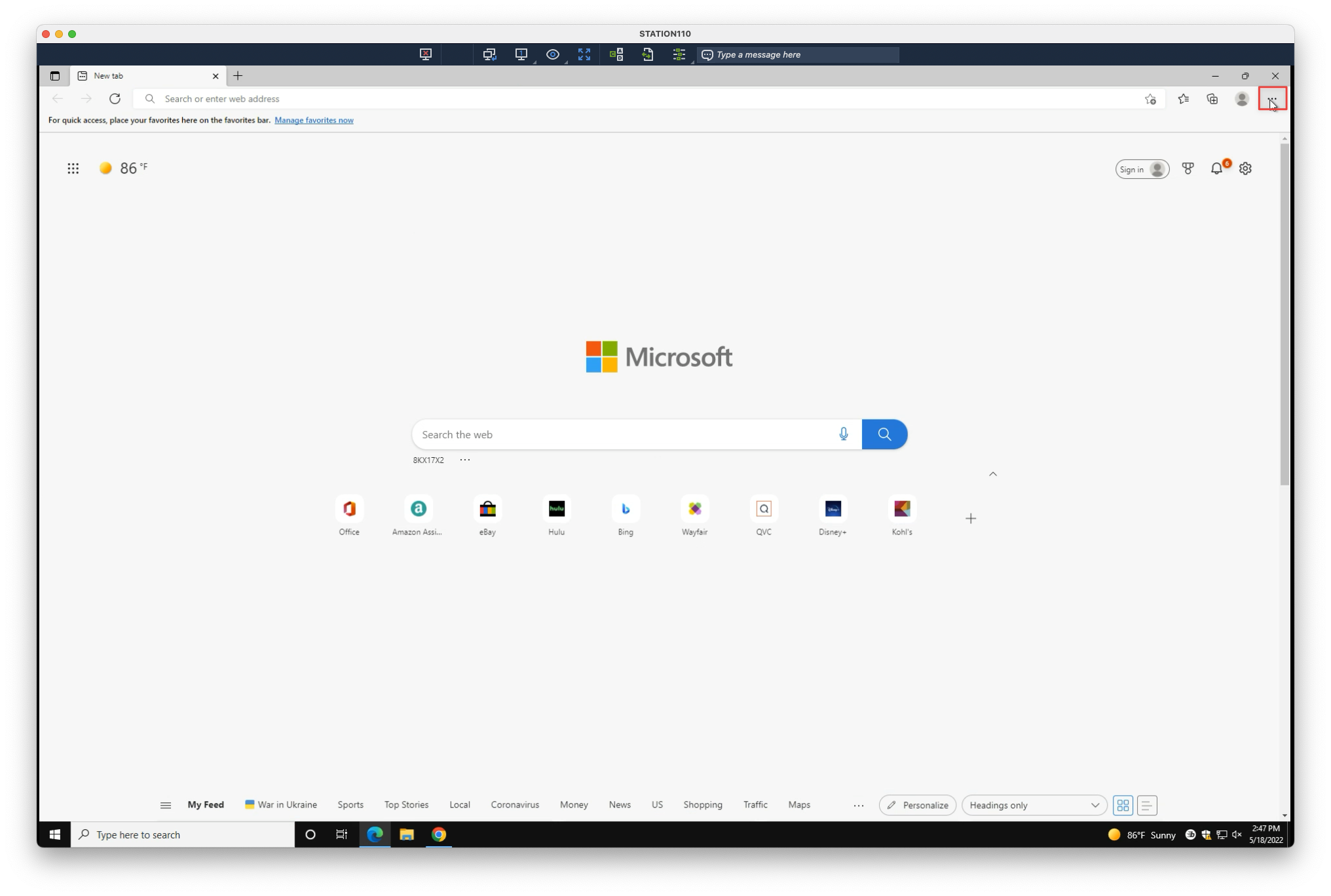
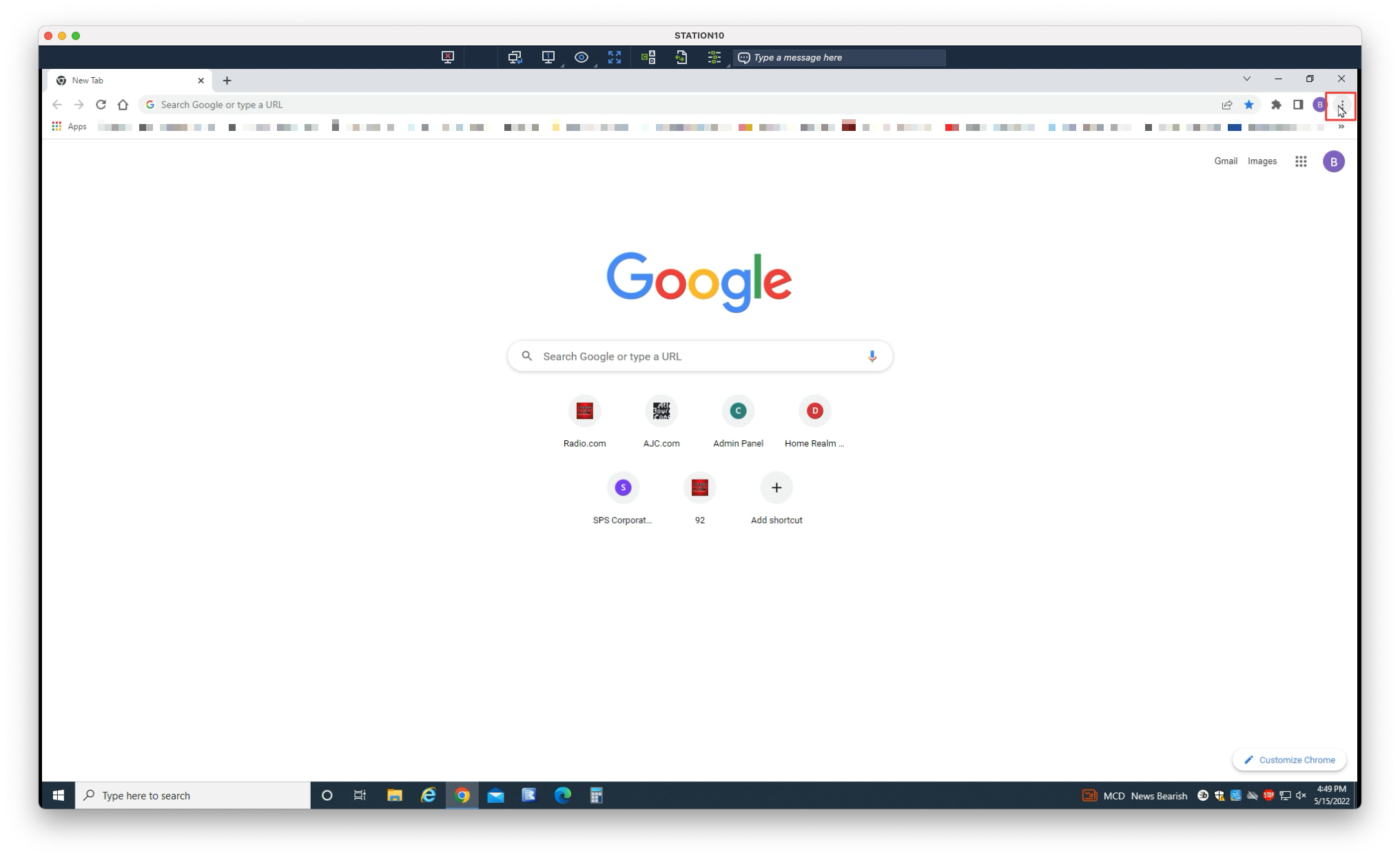
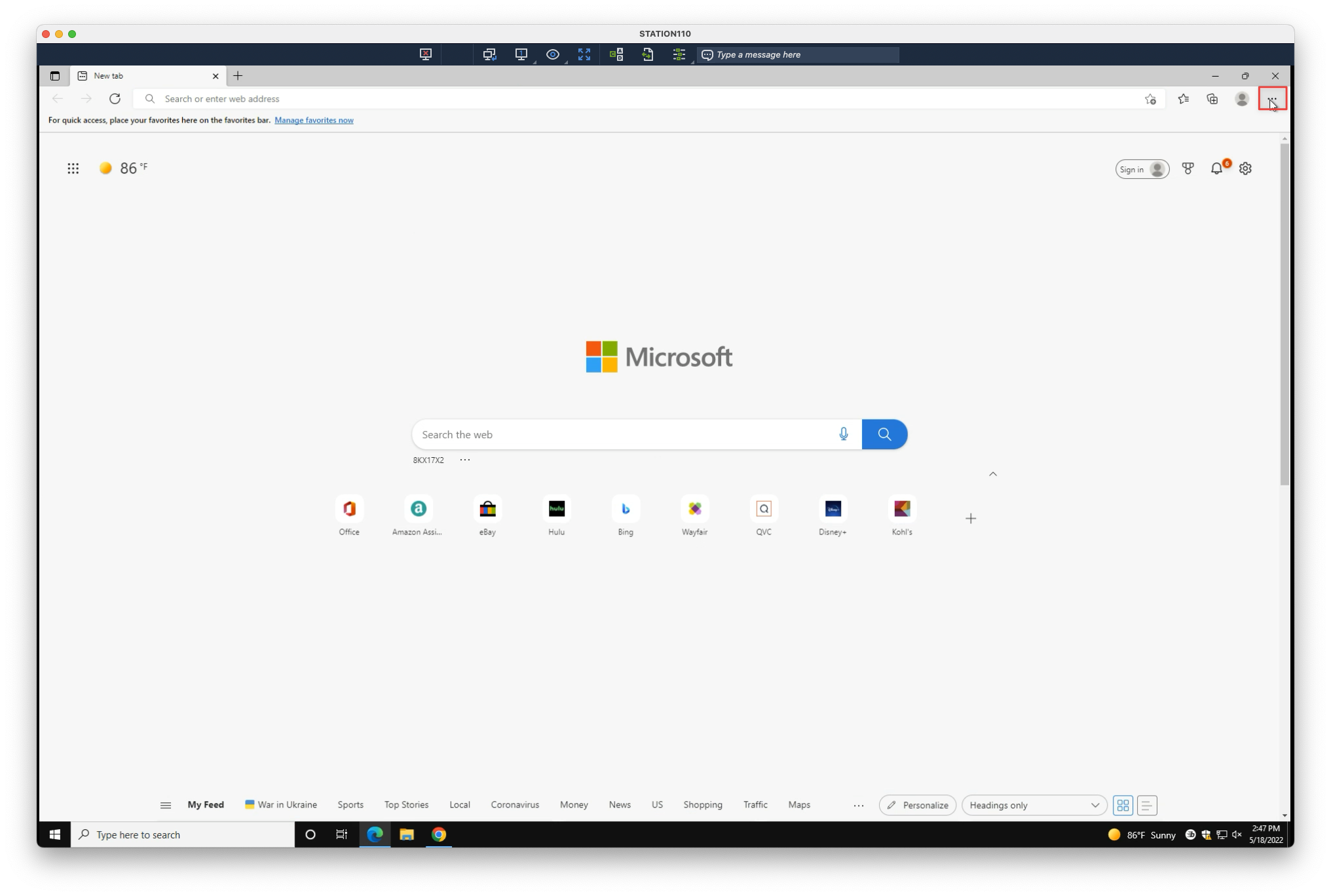
1. Click the overflow menu in the upper-right corner
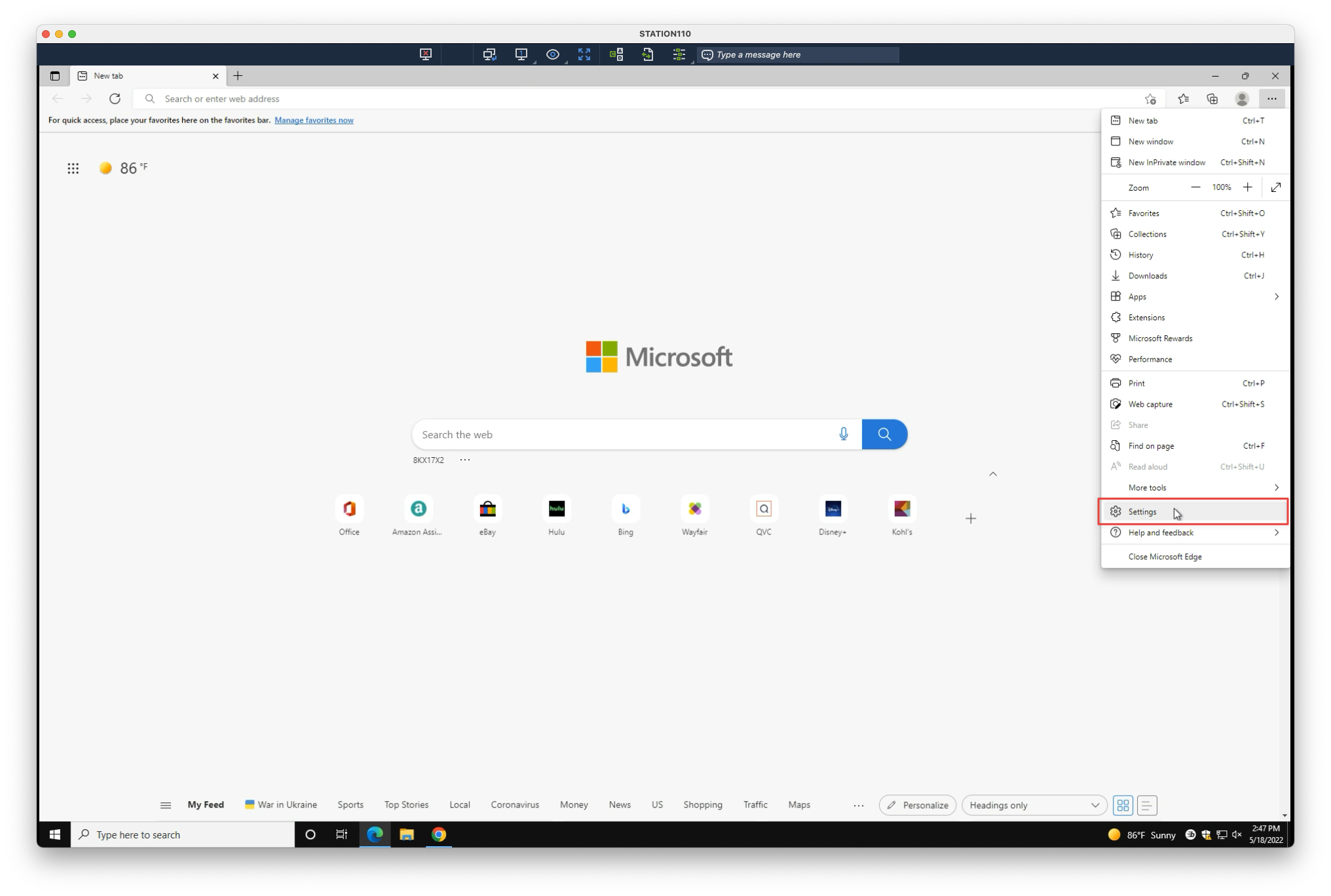
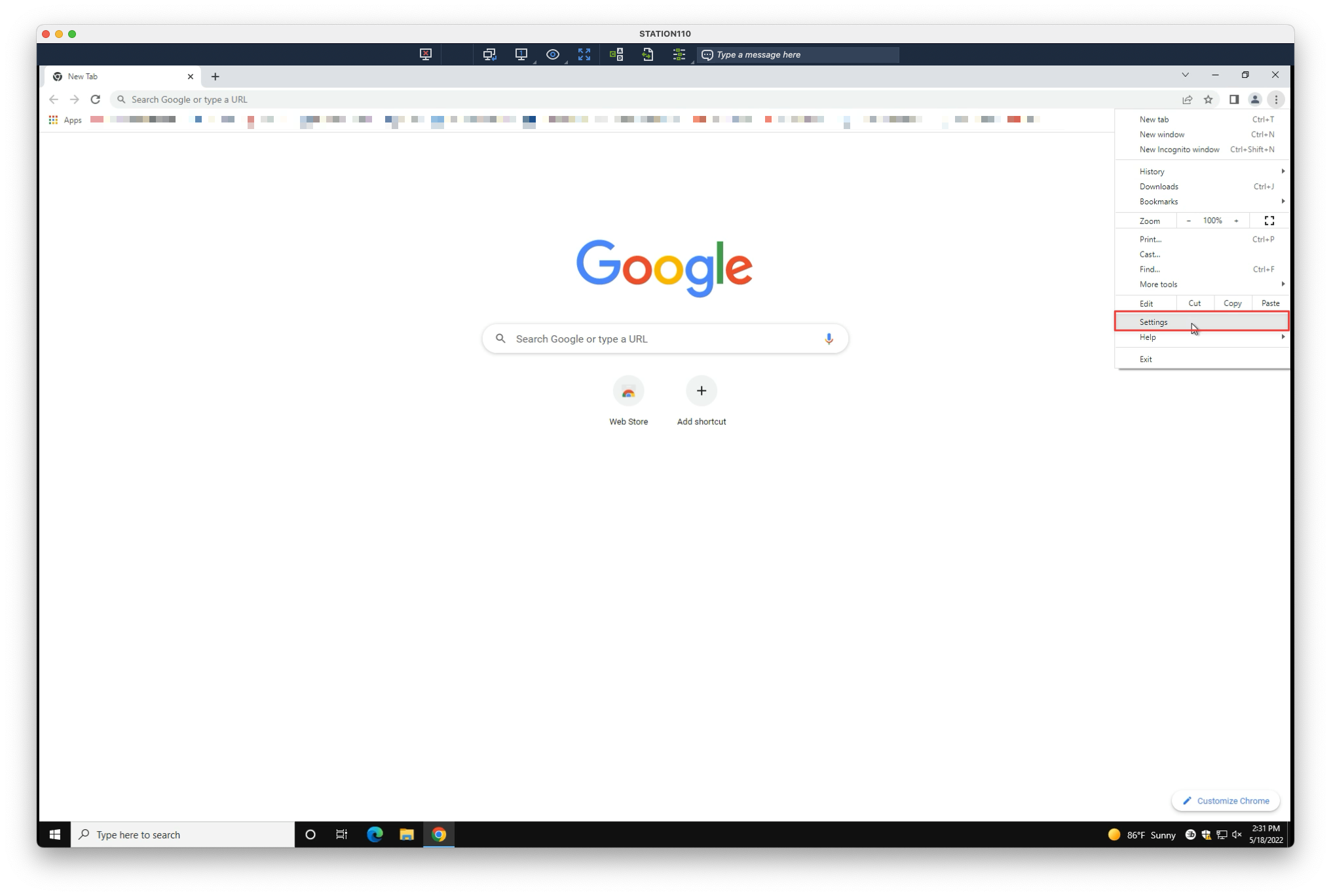
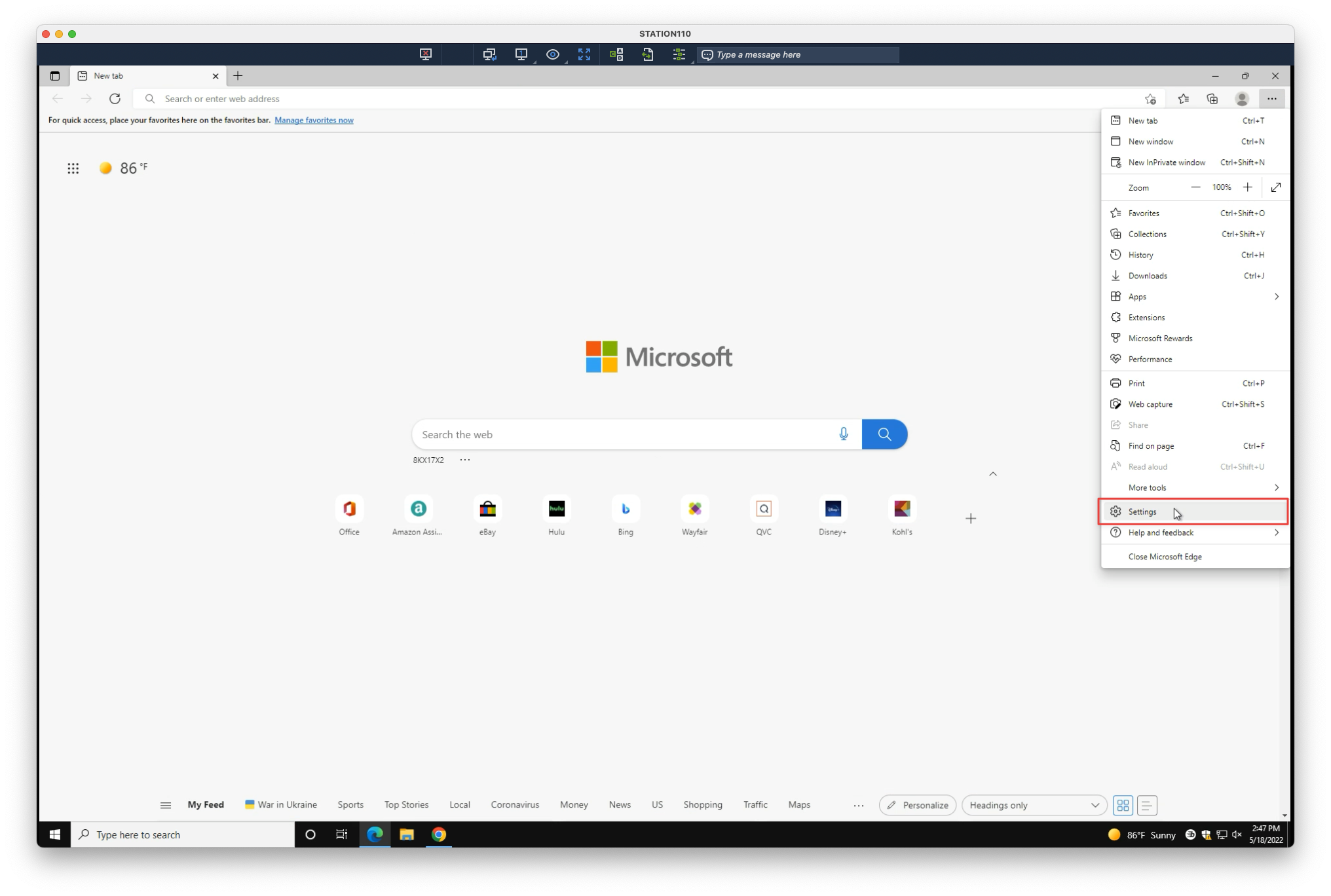
2. Select Settings
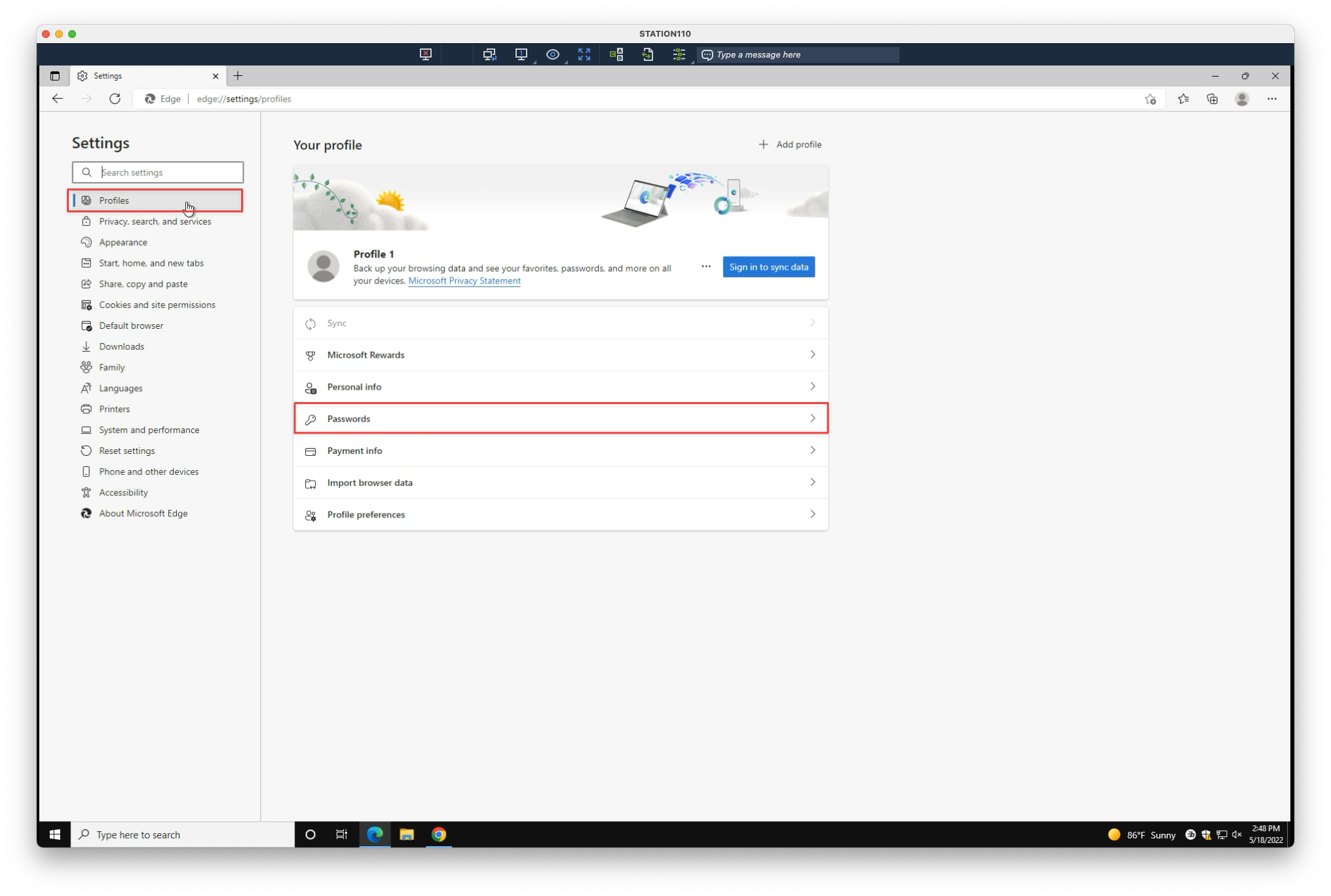
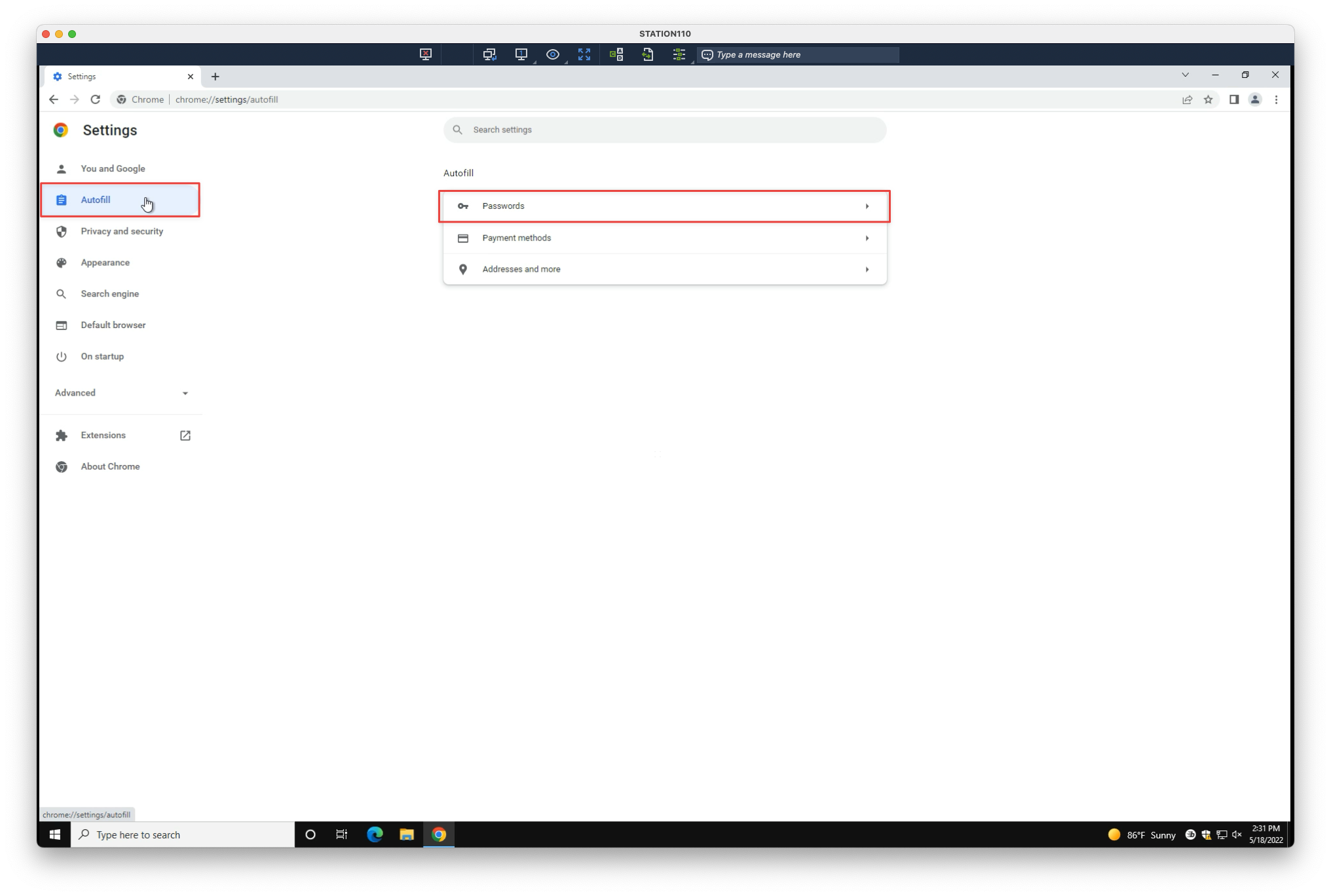
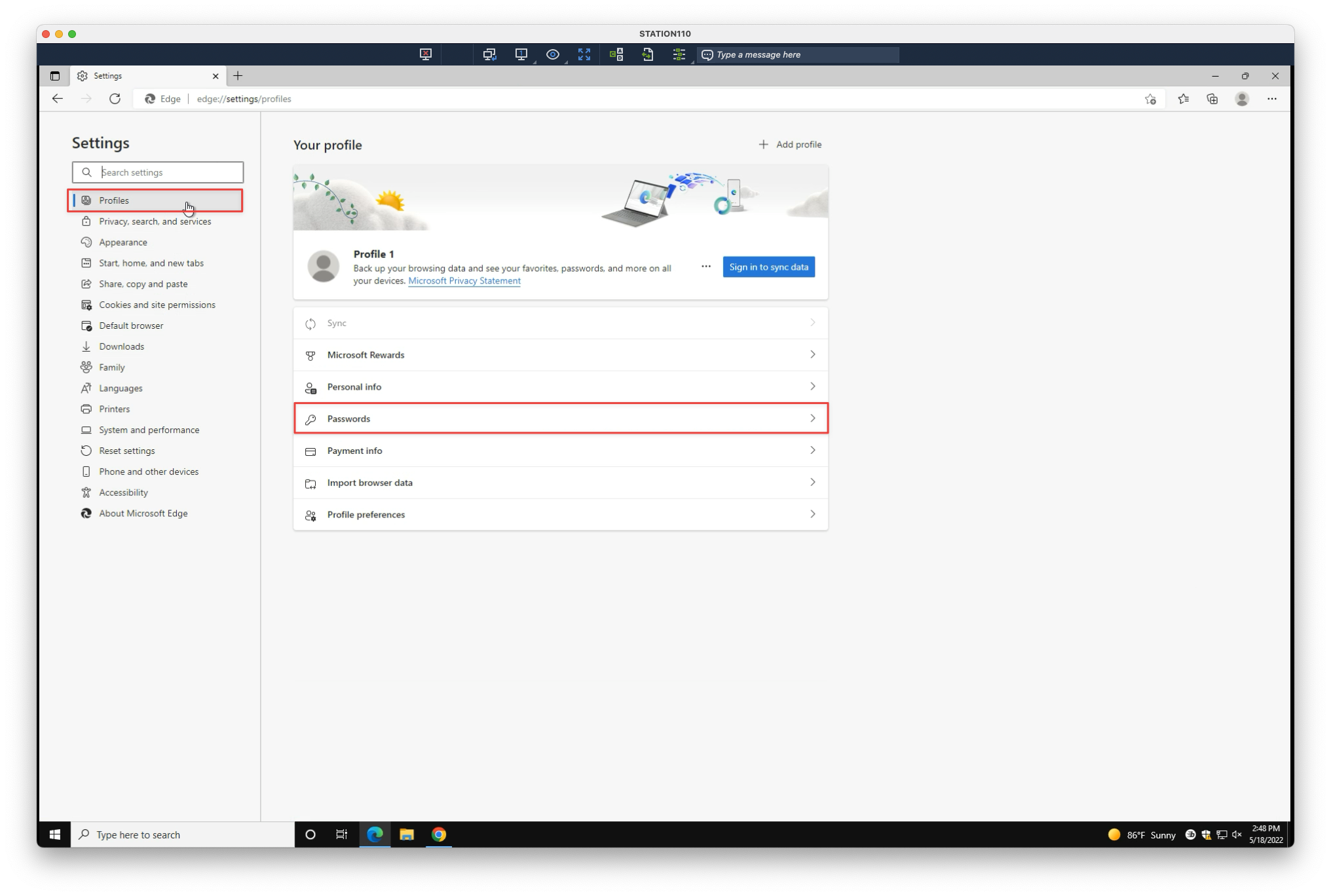
3. Navigate to Autofill > Passwords
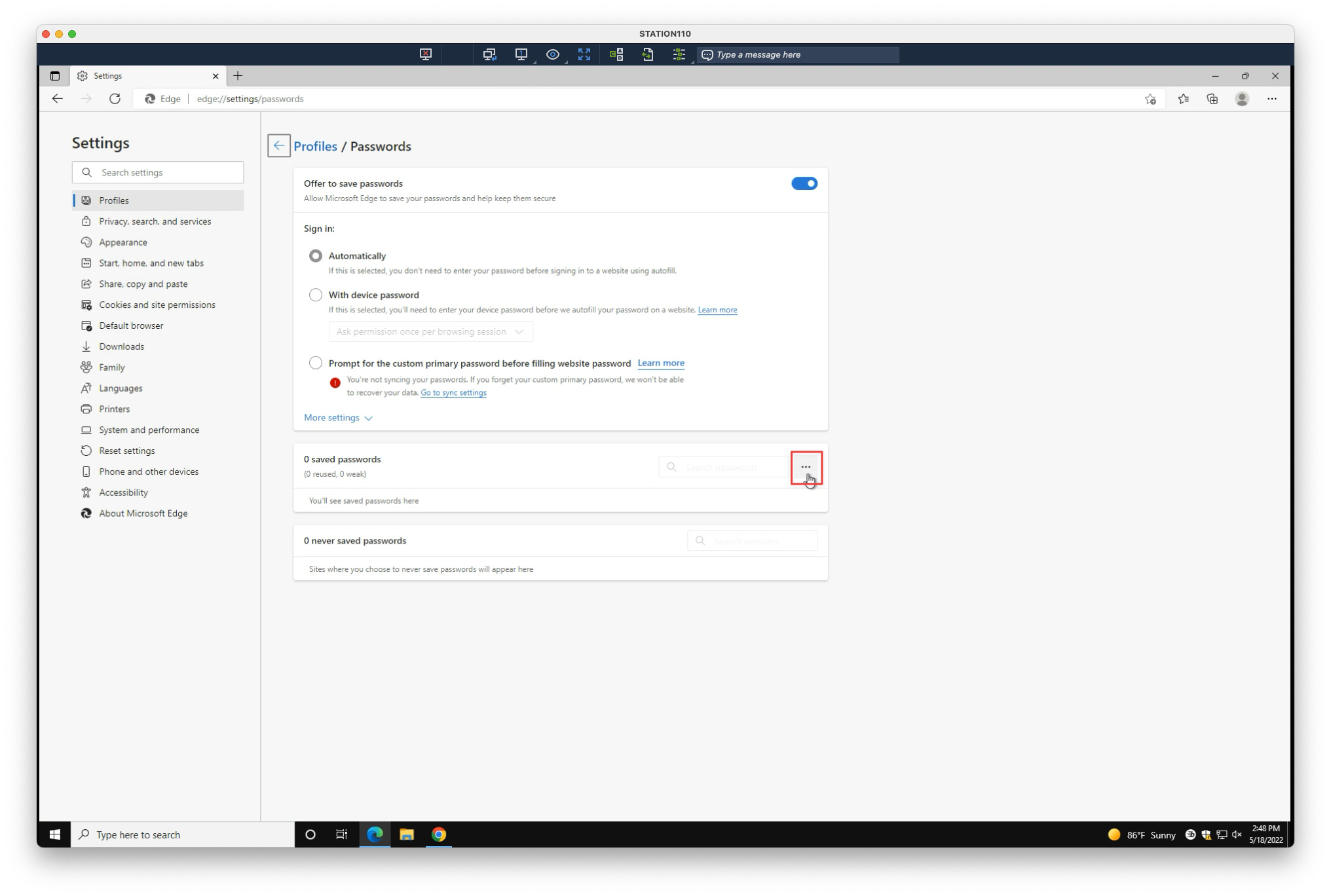
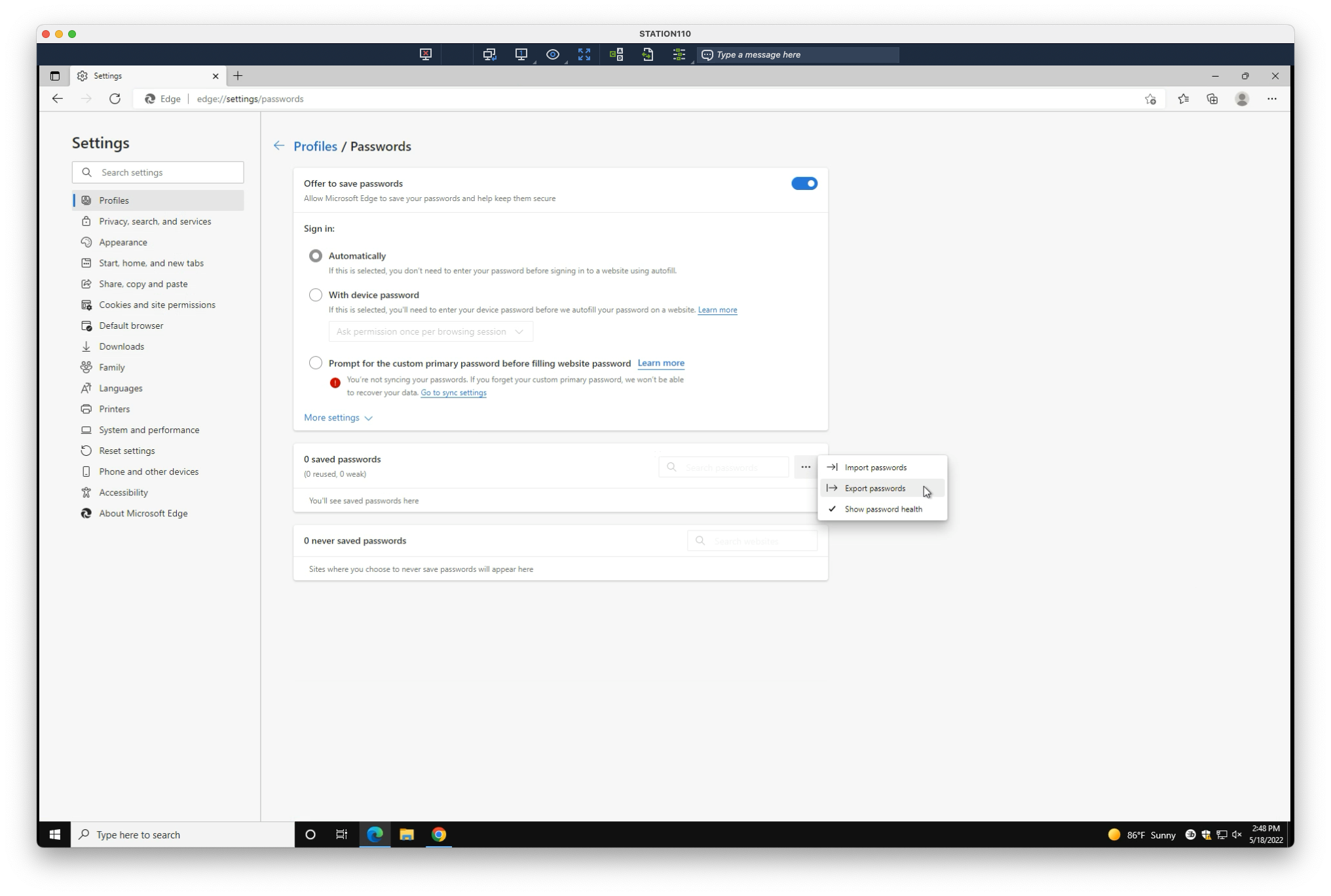
4. Select the overflow menu
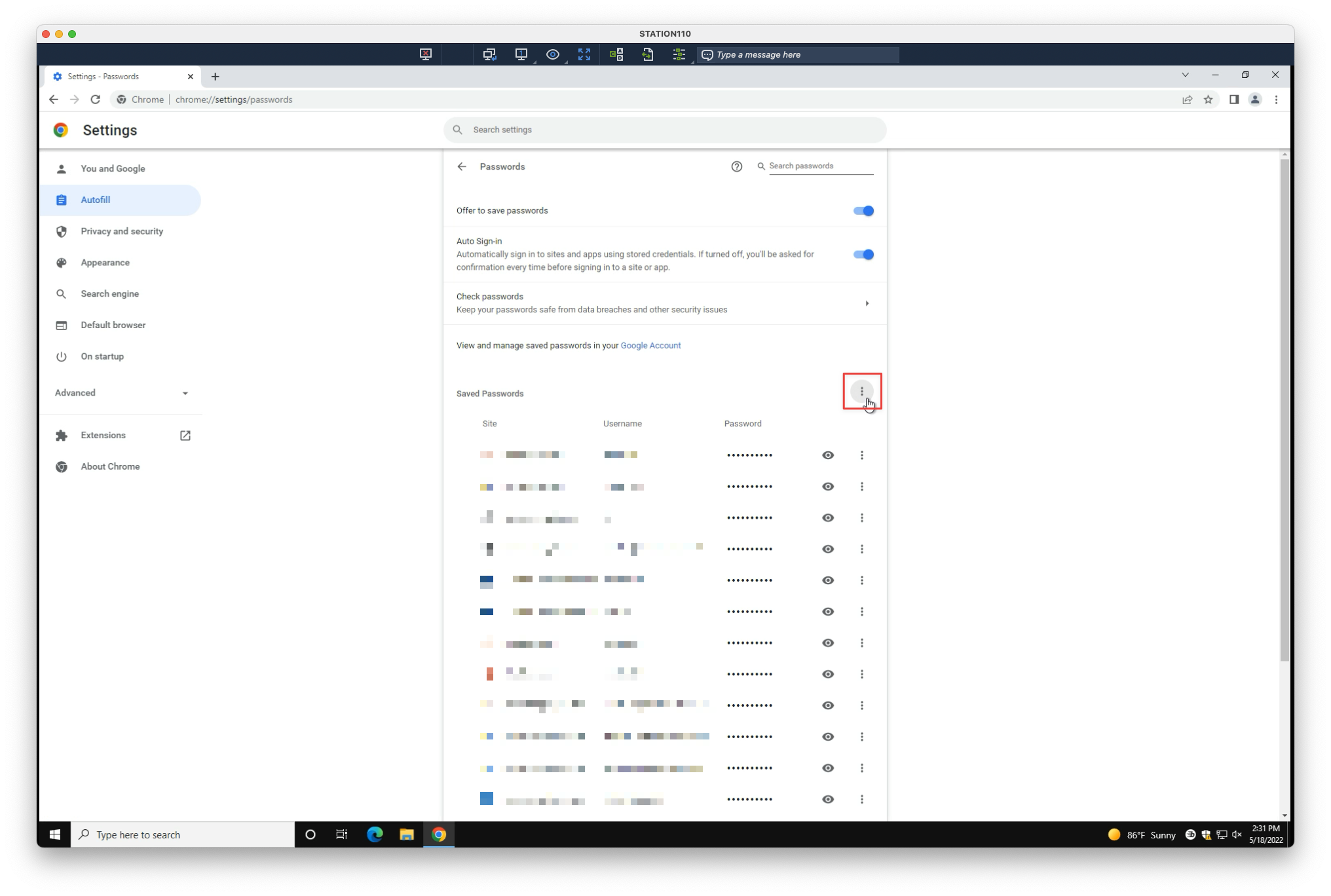
5. Select Export passwords…
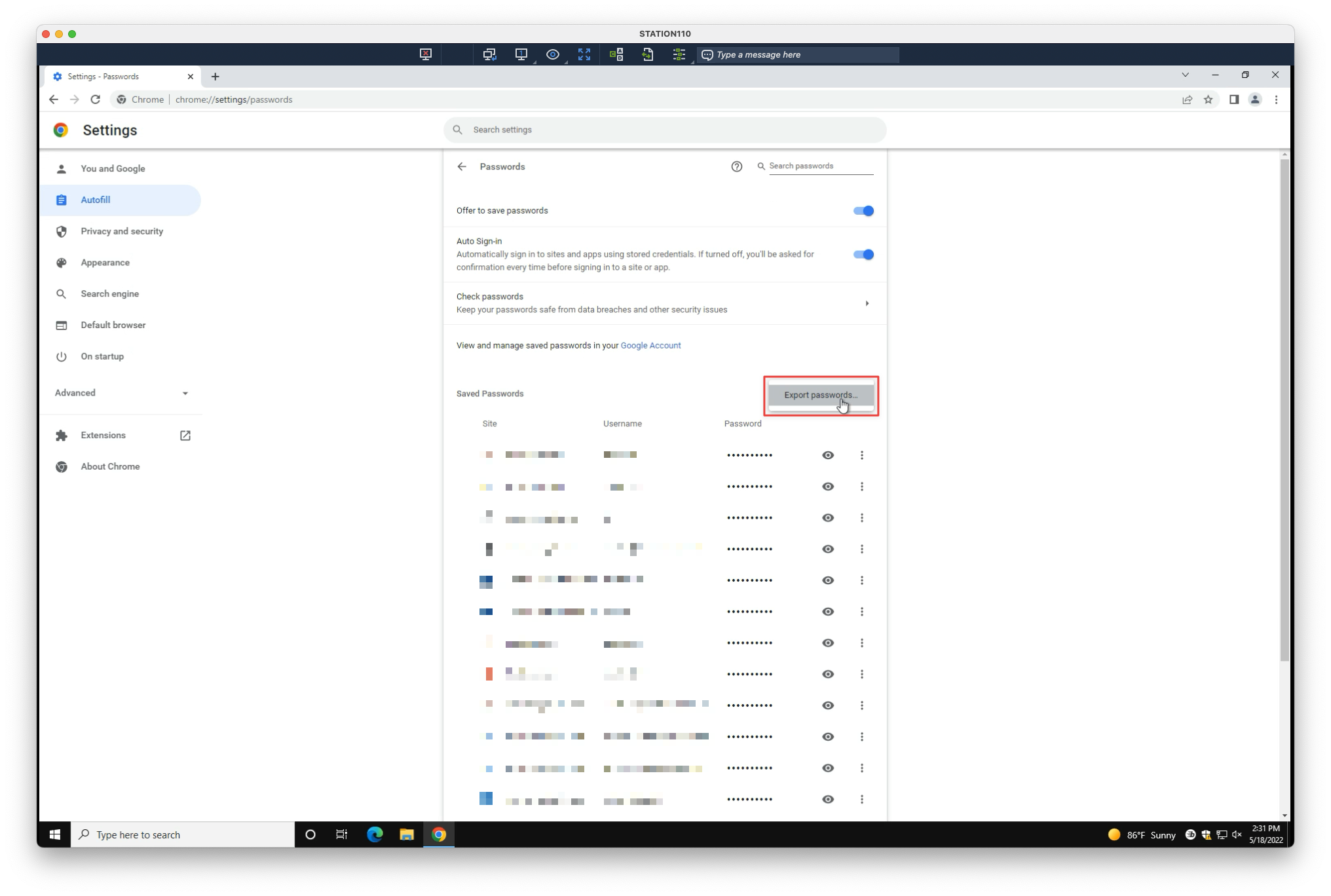
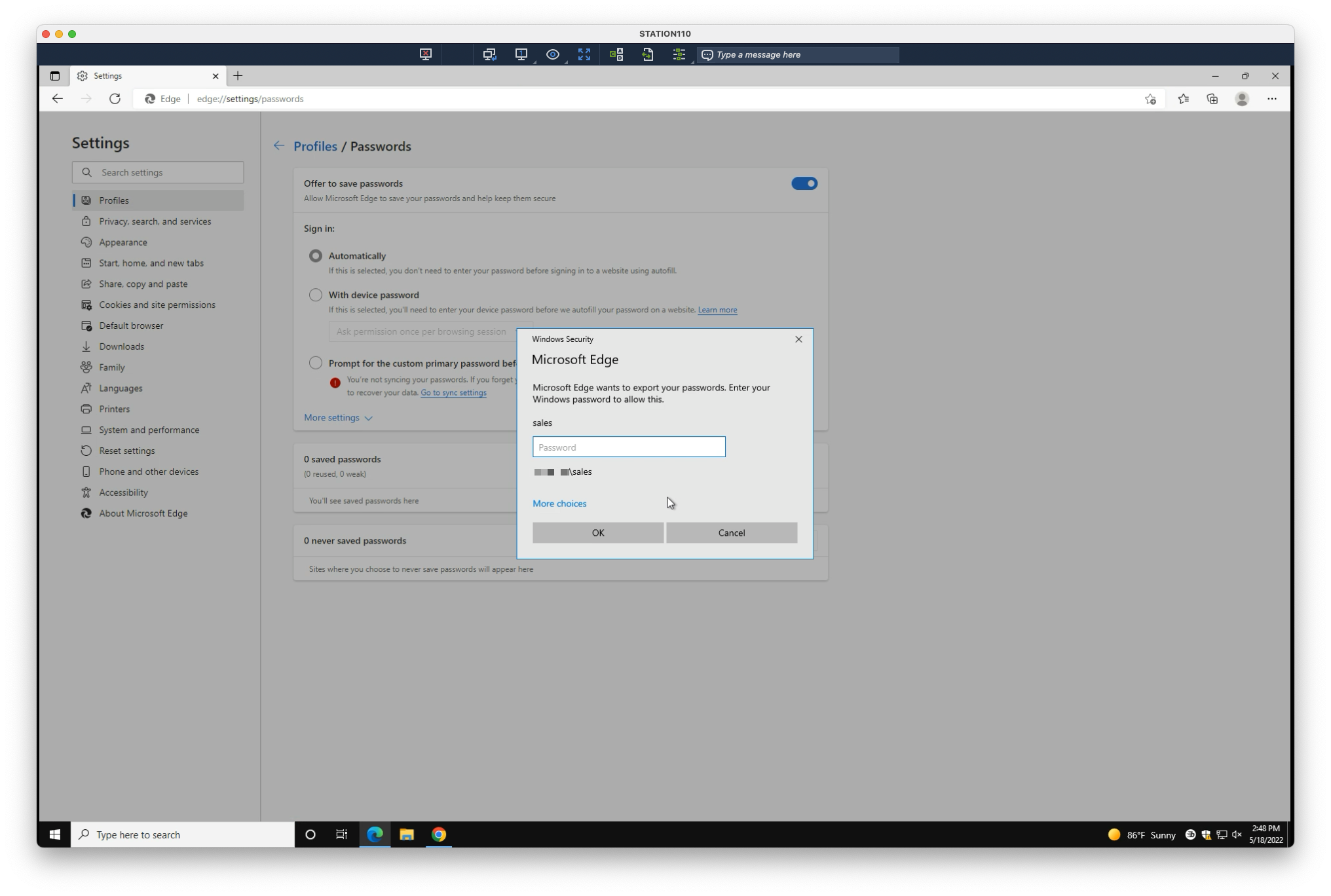
6. Enter your Windows (computer) password when prompted
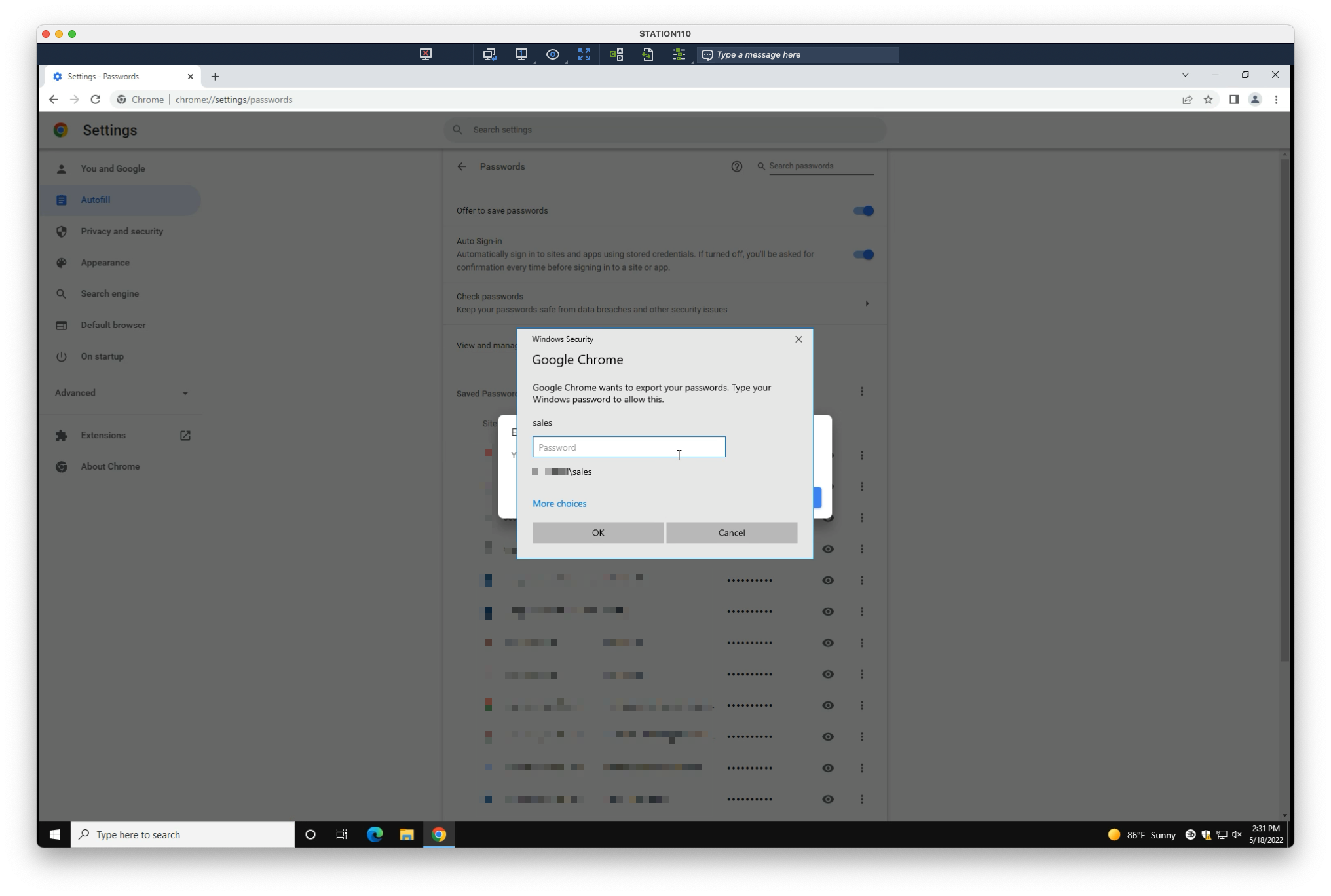
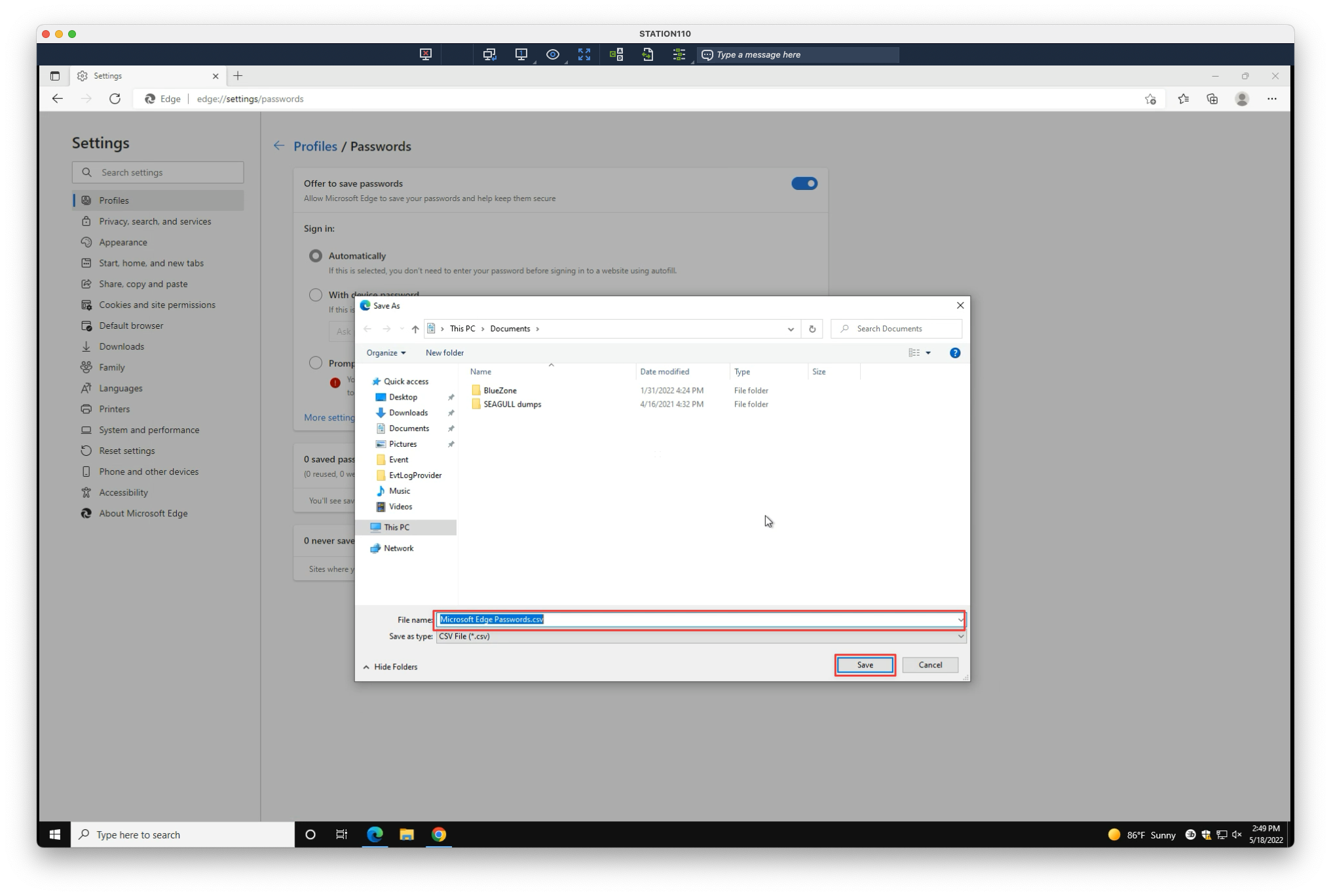
7. Navigate to an appropriate location (eg. Documents), optionally name the file, then select Save
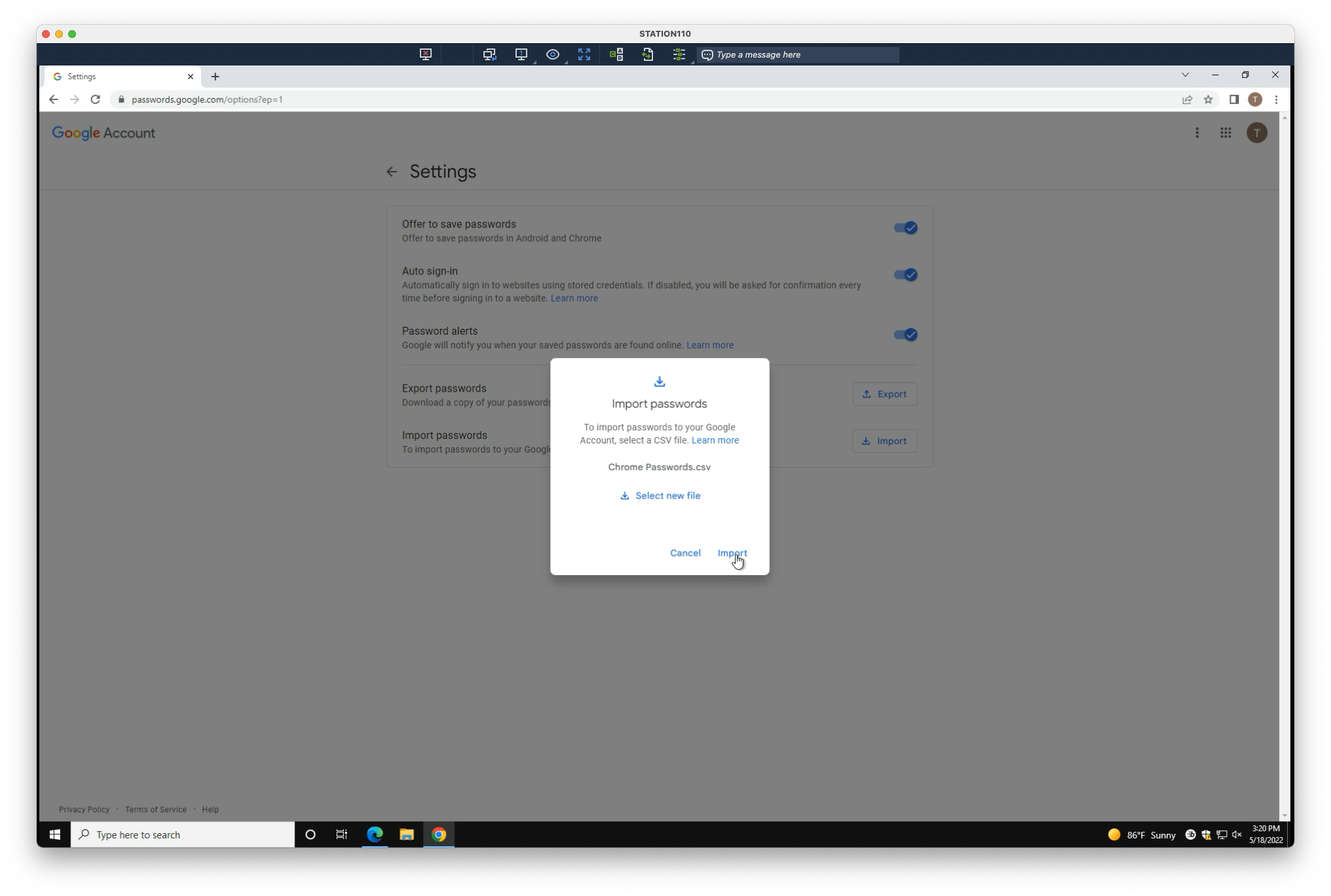
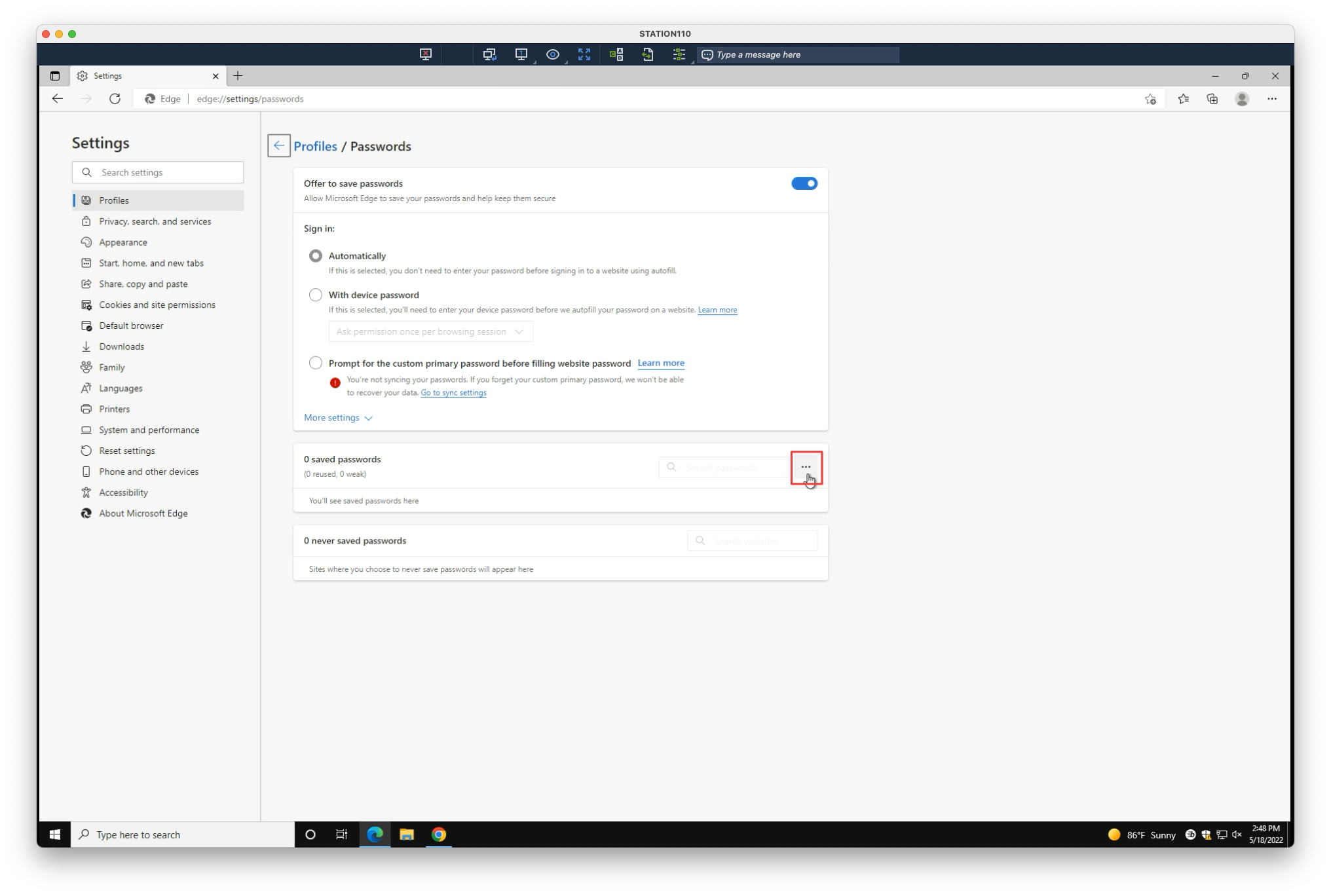
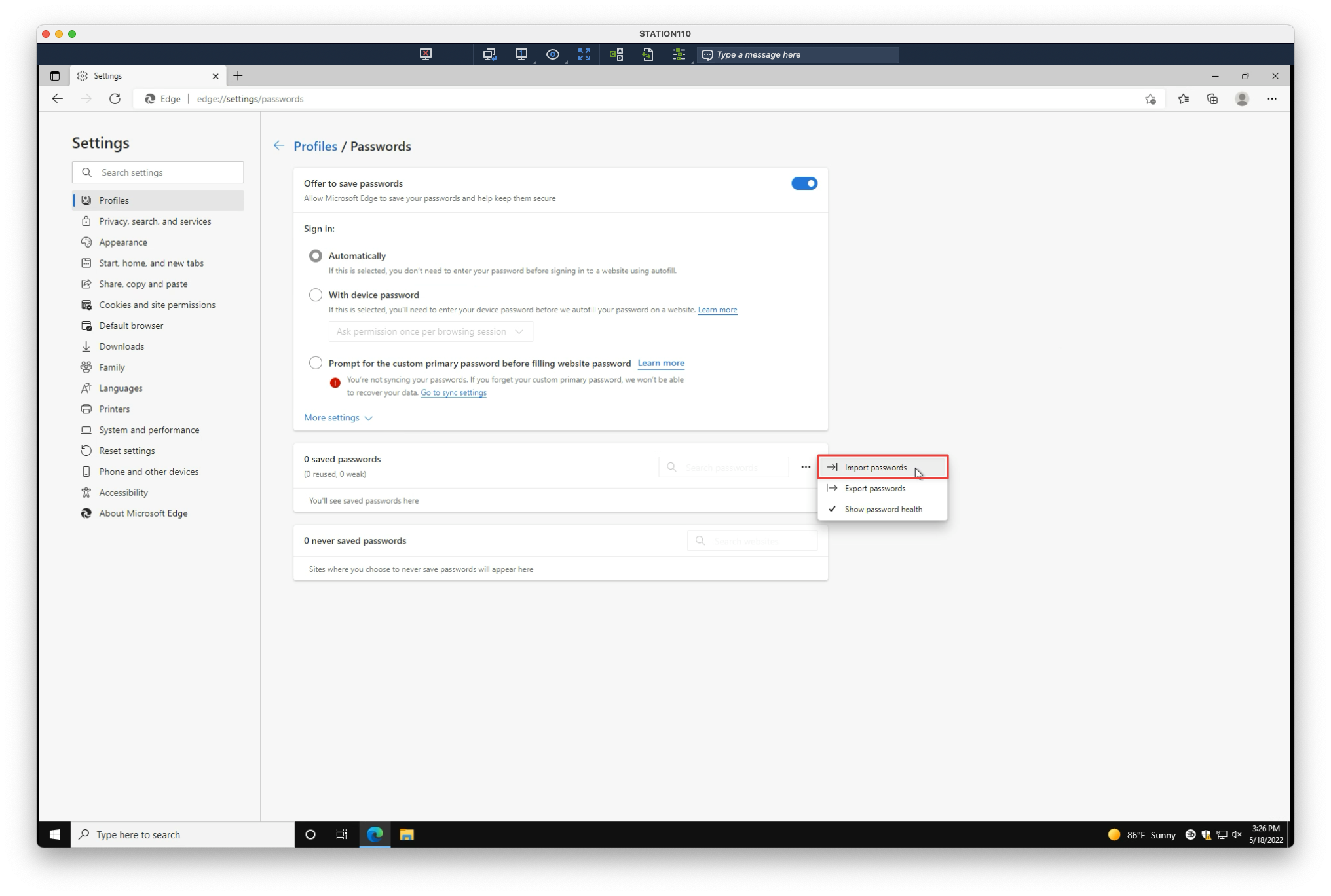
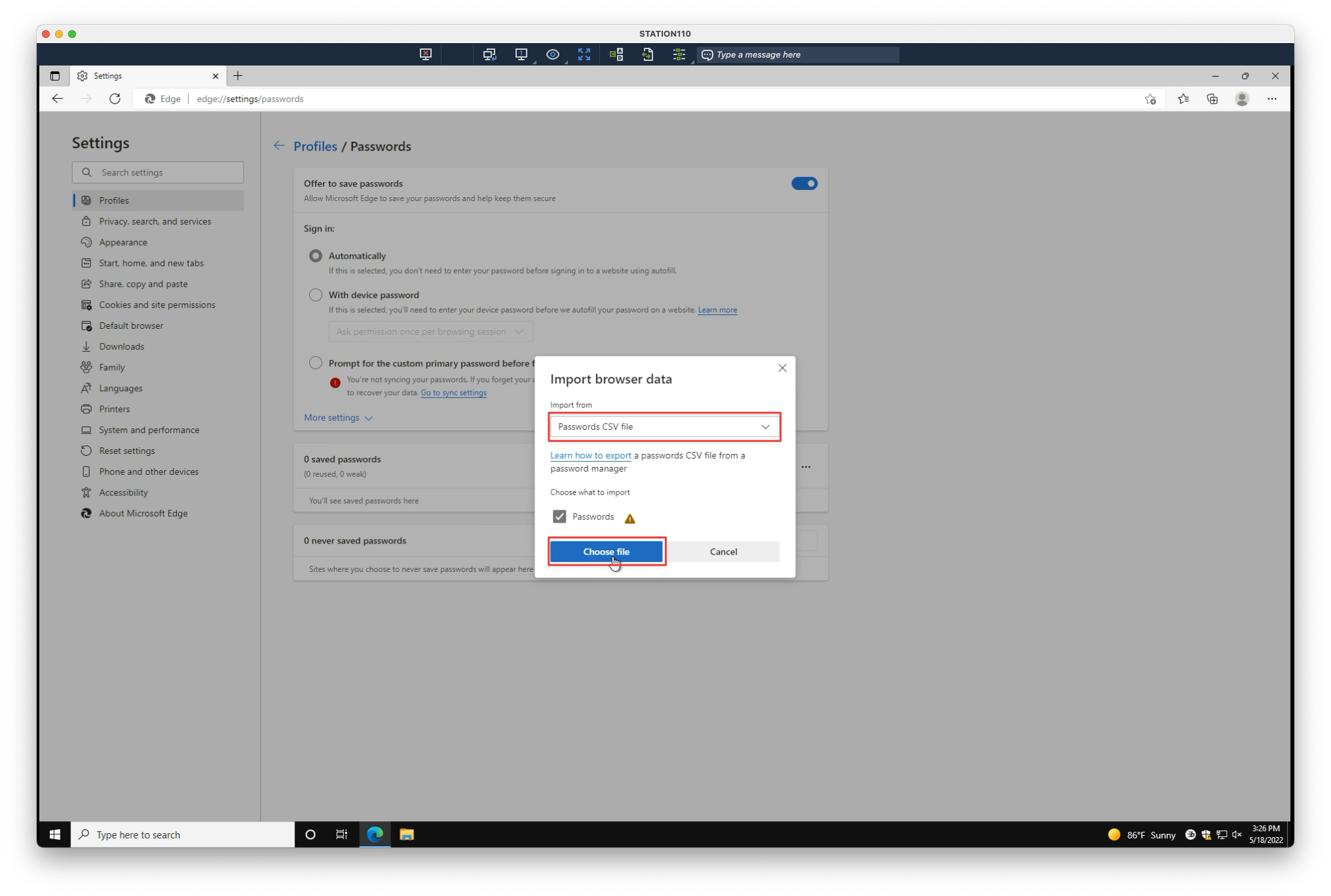
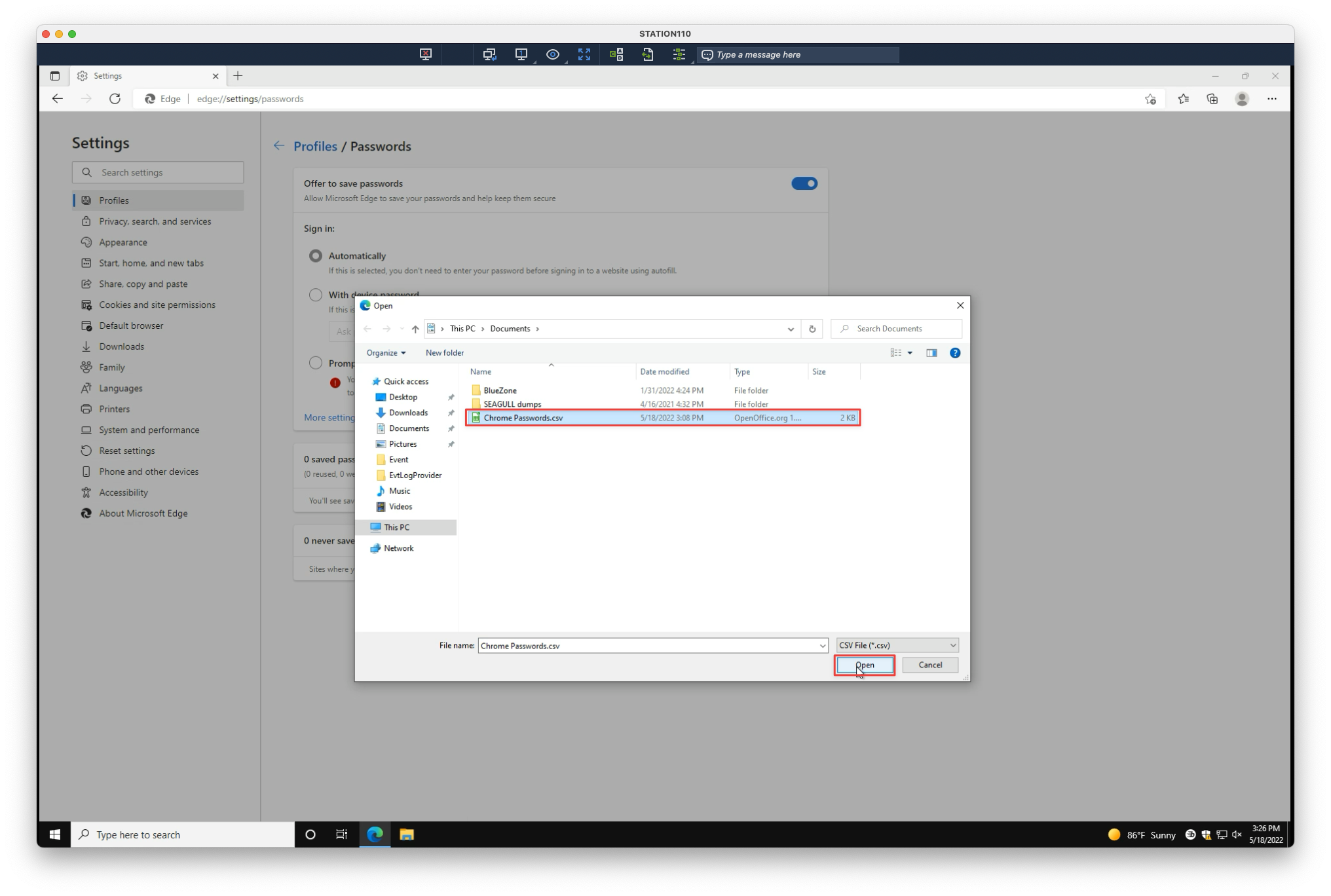
Restoring Passwords
Select your browser:
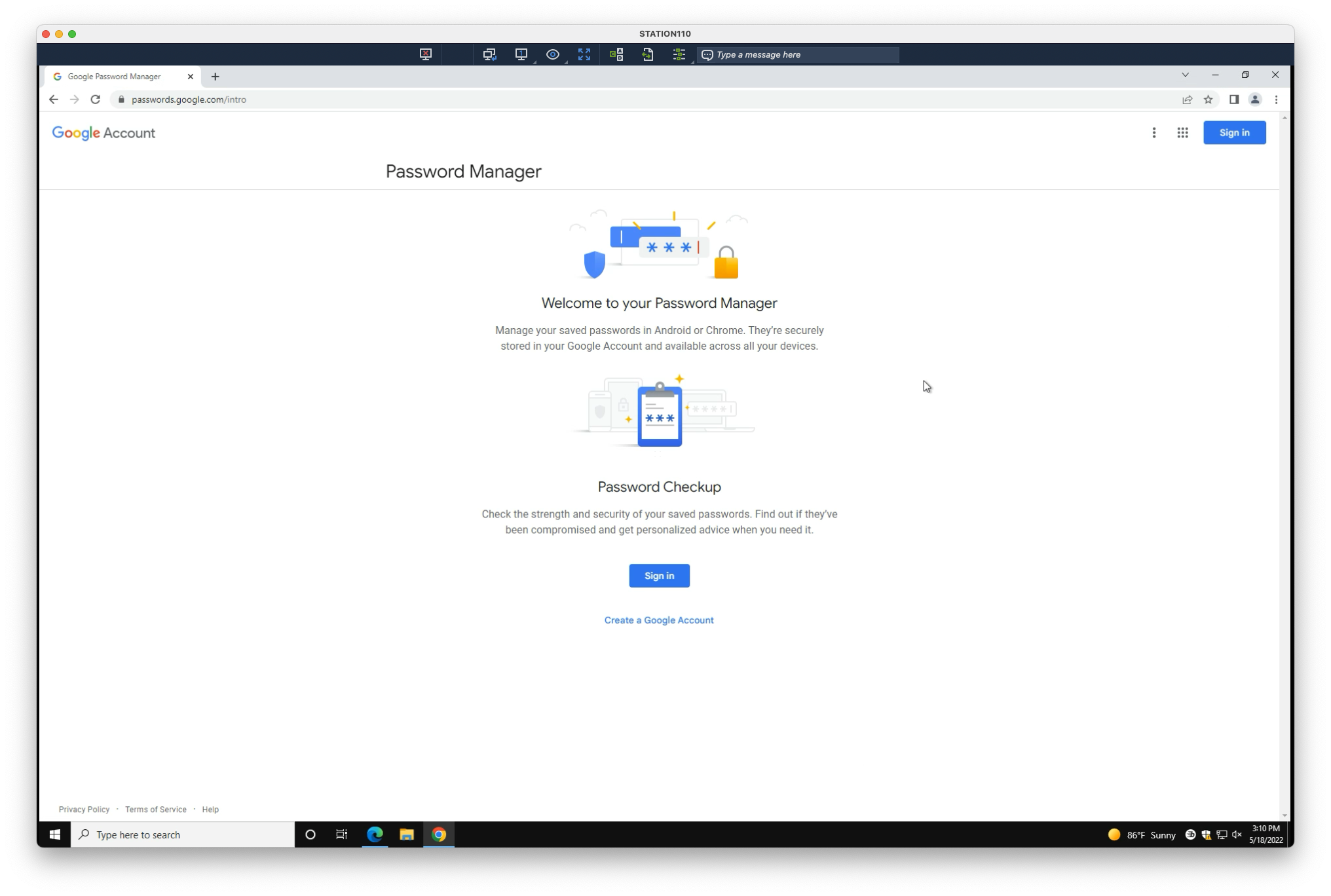
1. Navigate to the following:
2. Sign into your Google account, if needed. You may need to navigate back to the original link above, after signing in
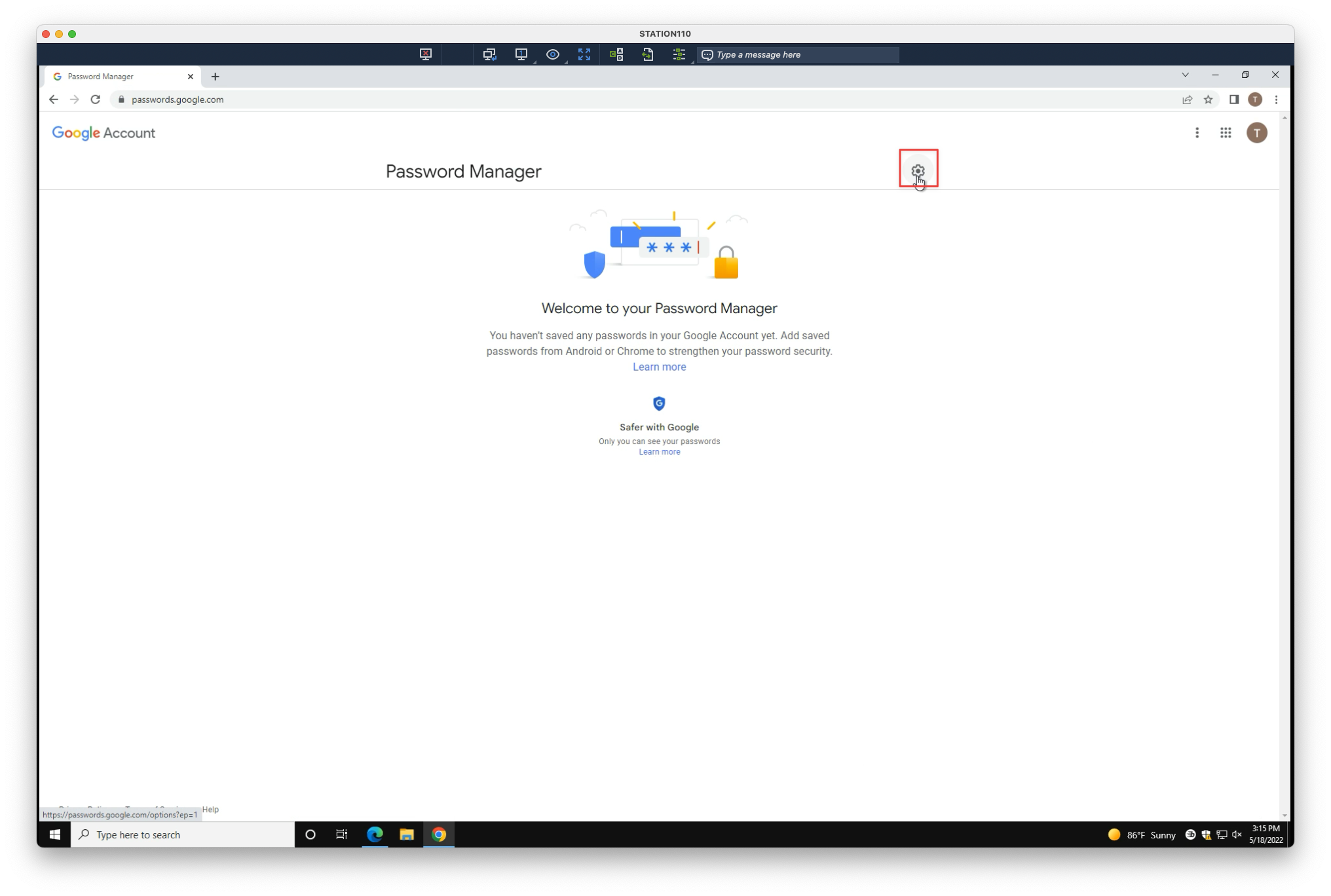
3. Select its Settings
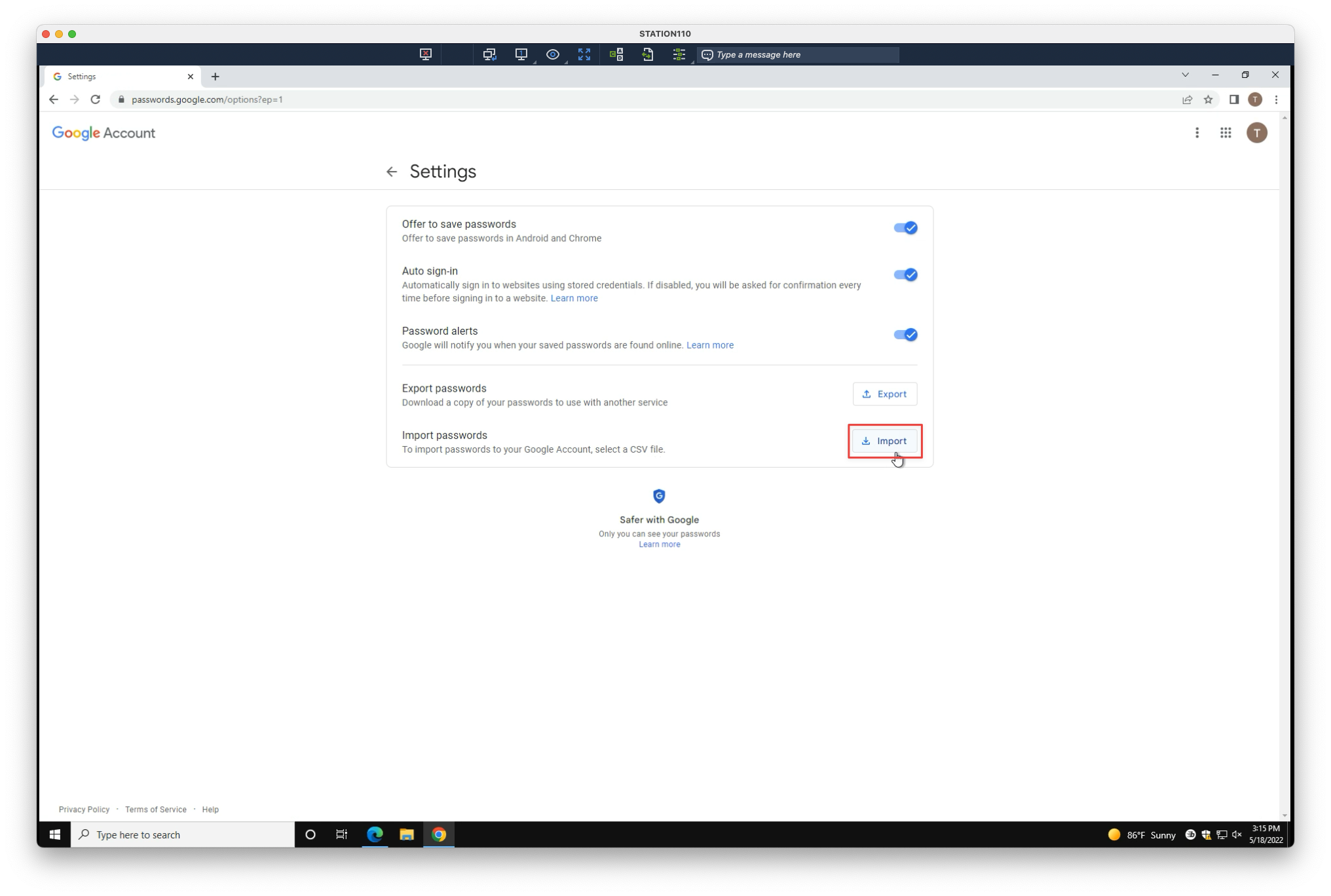
4. Select Import, under Import passwords
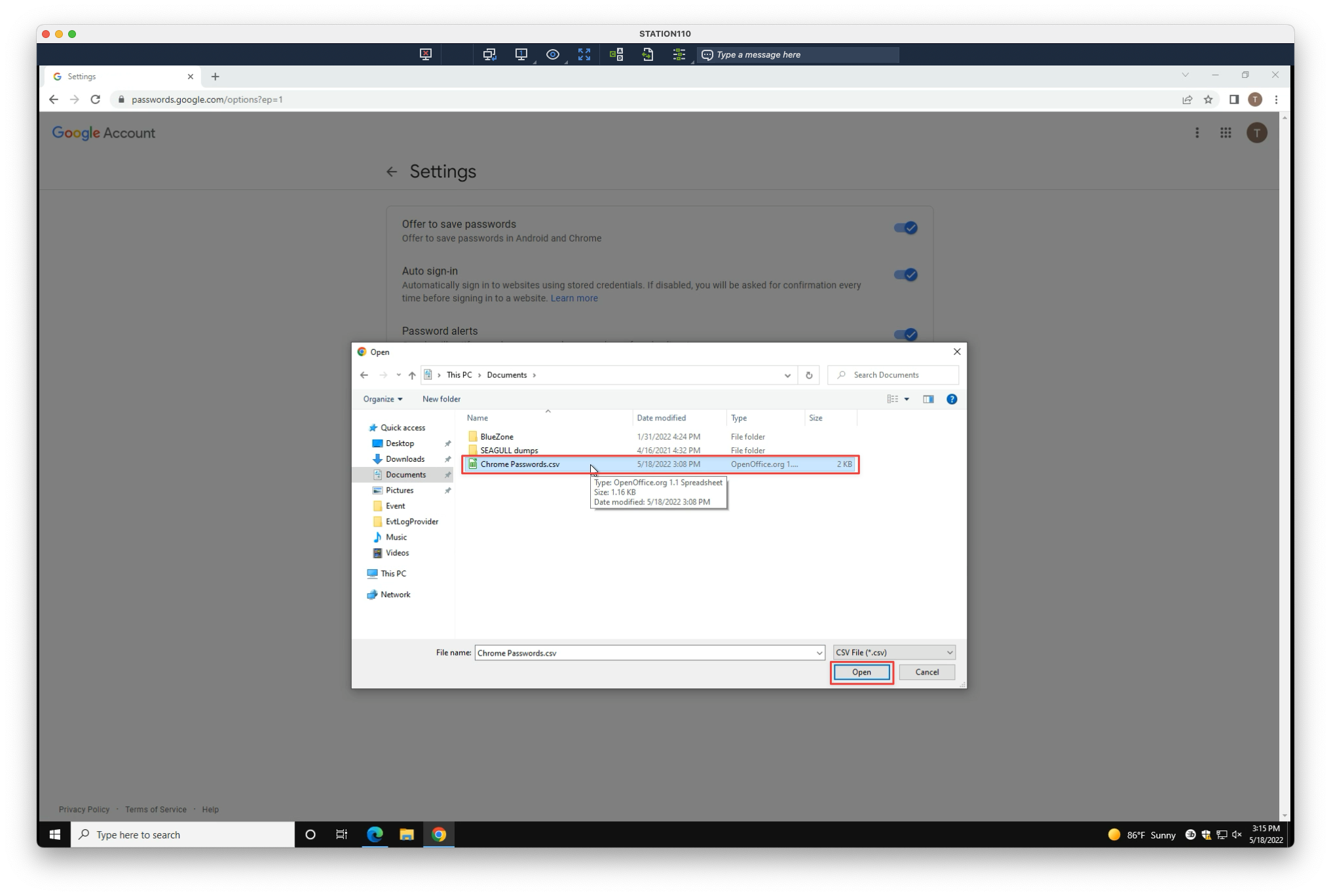
5. Navigate to the location of your passwords CSV file. Select it, then select Open
6. Select Import