PDF Software
Setting Adobe Acrobat as Default
In some instances, PDFs need to be opened in Adobe Acrobat, rather than your web browser (default). In the event you open a PDF which requires Adobe Acrobat, or just prefer the software, follow this guide to set it as your default PDF handler.
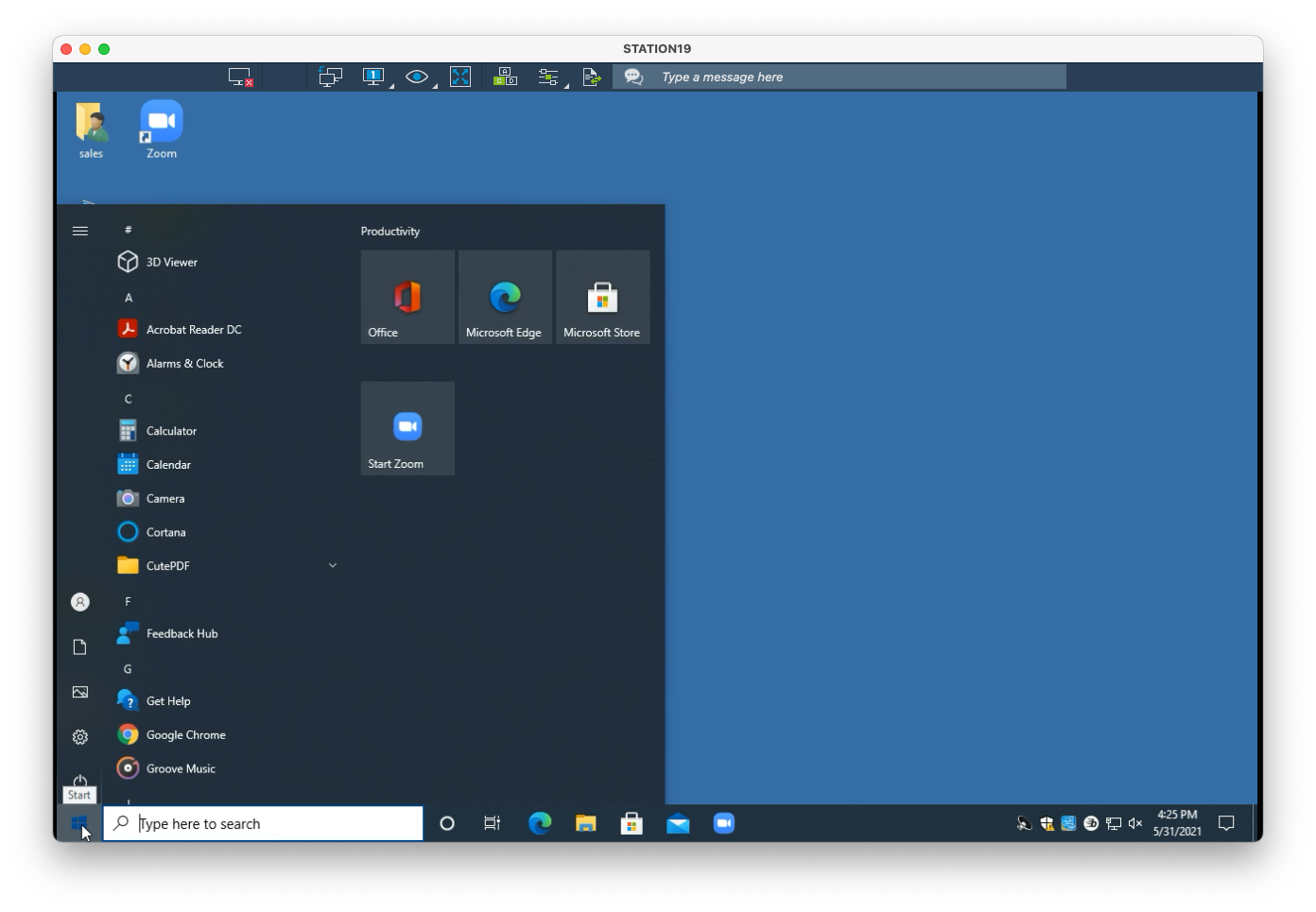
1. Click on the Start Menu
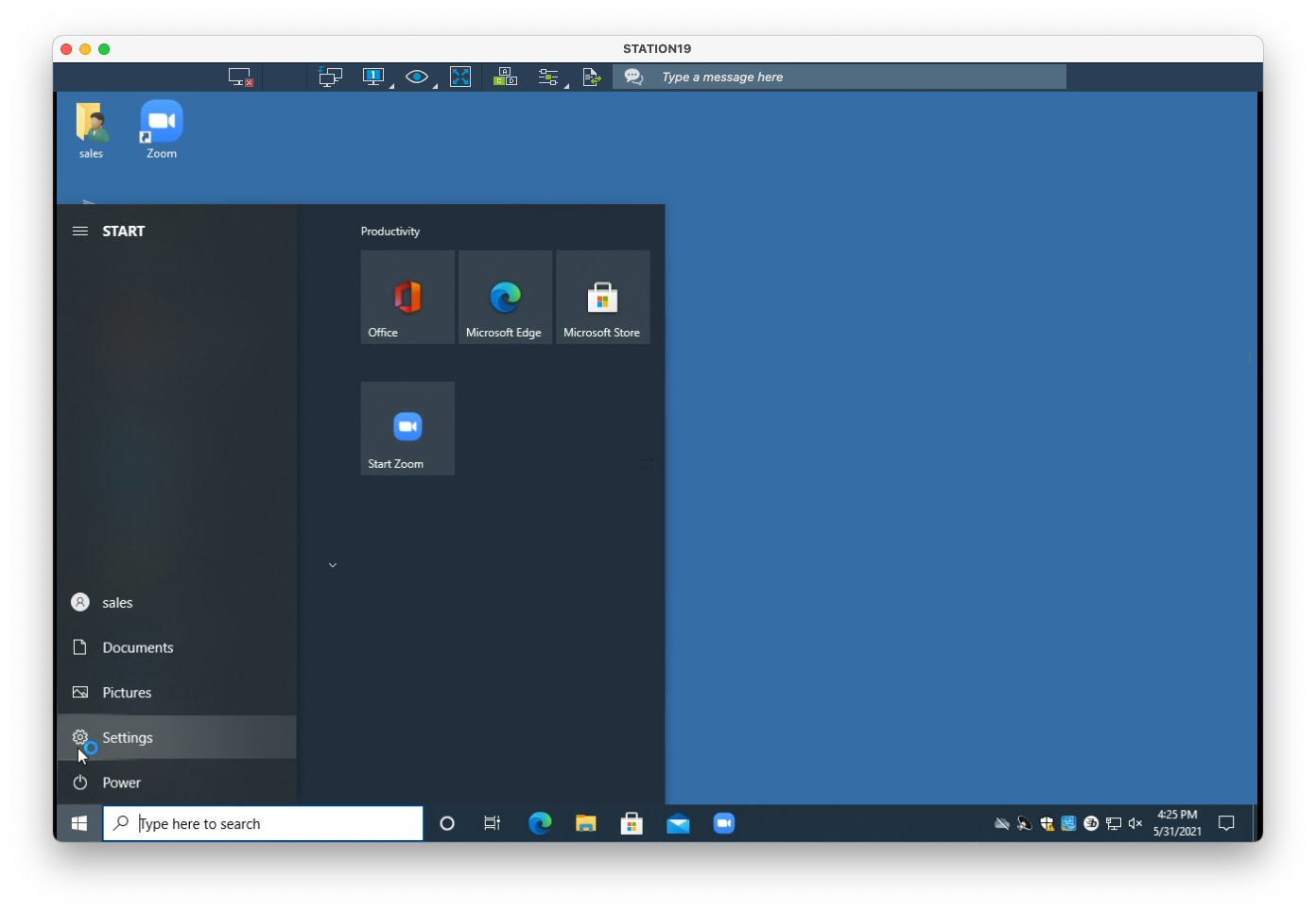
2. Click on Settings
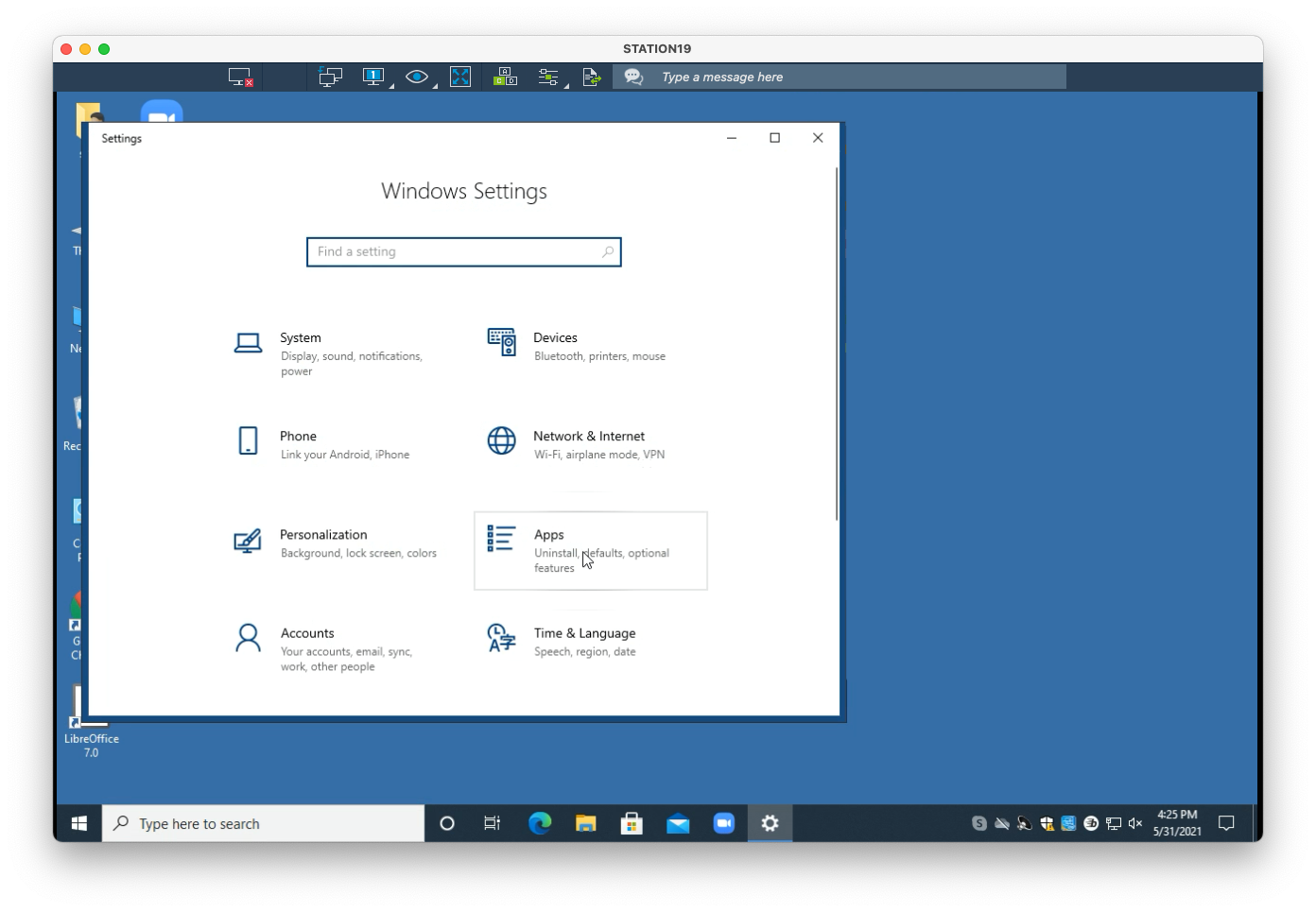
3. Select Apps
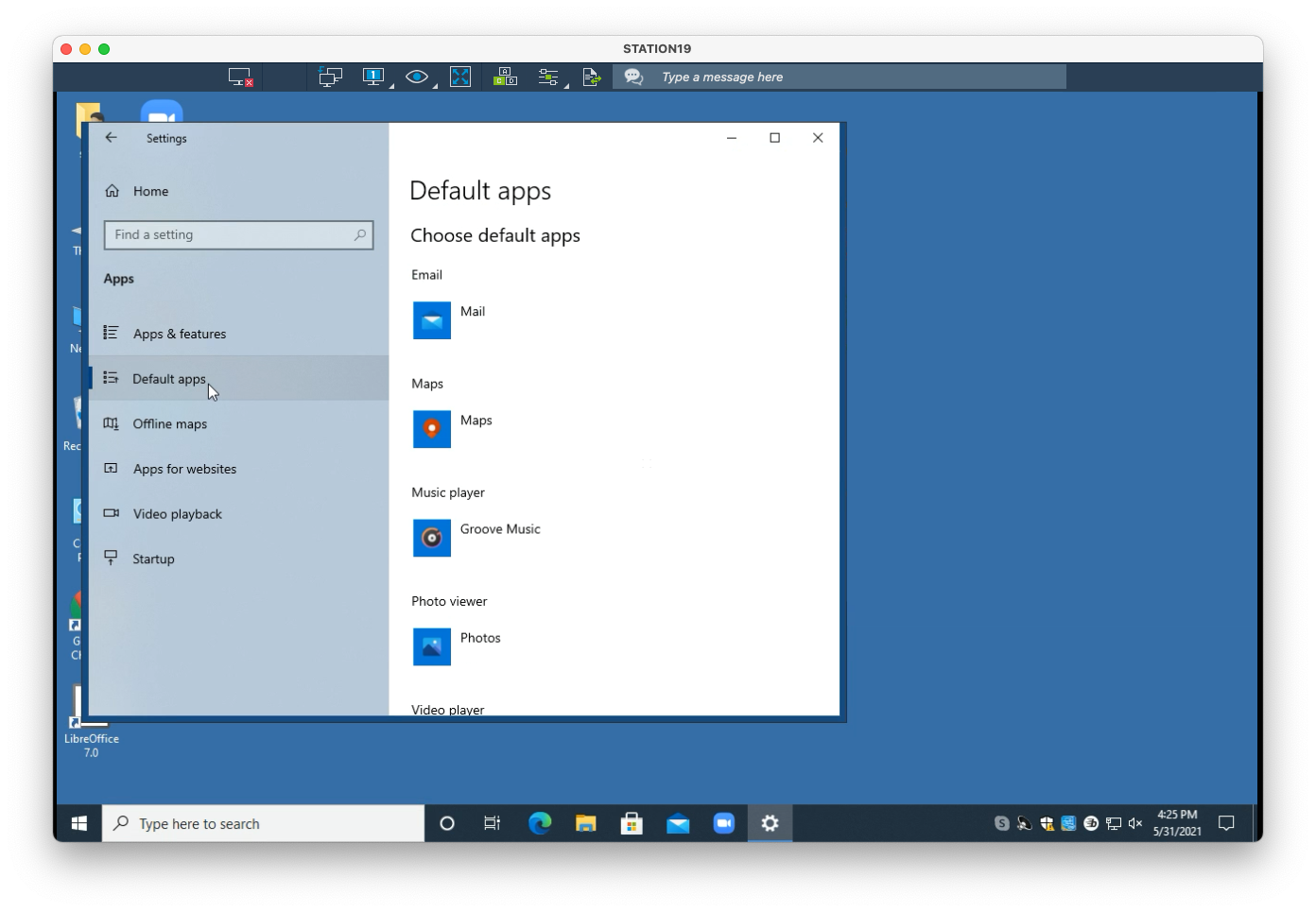
4. Select Default apps
5. Scroll down and select Set defaults by app
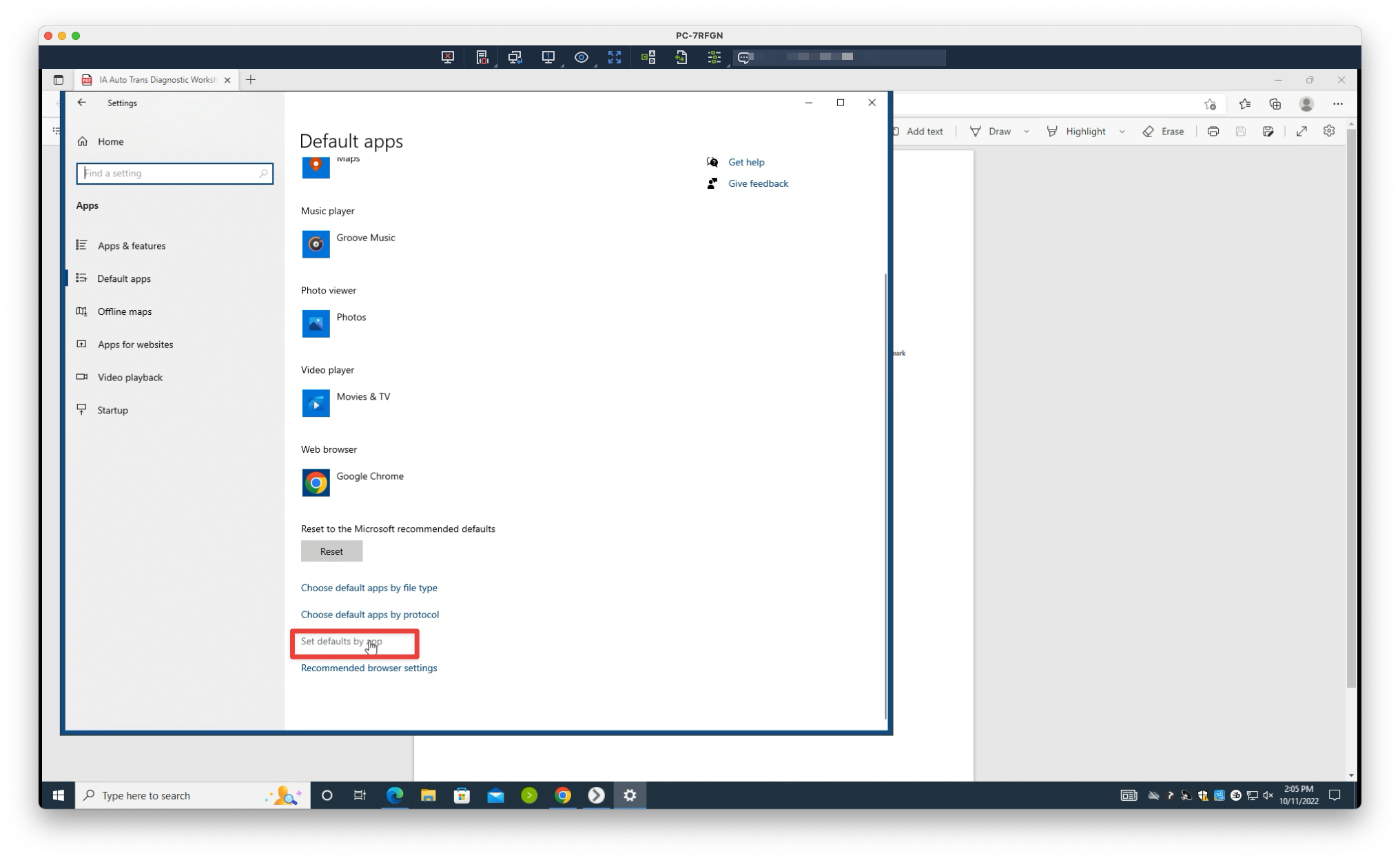
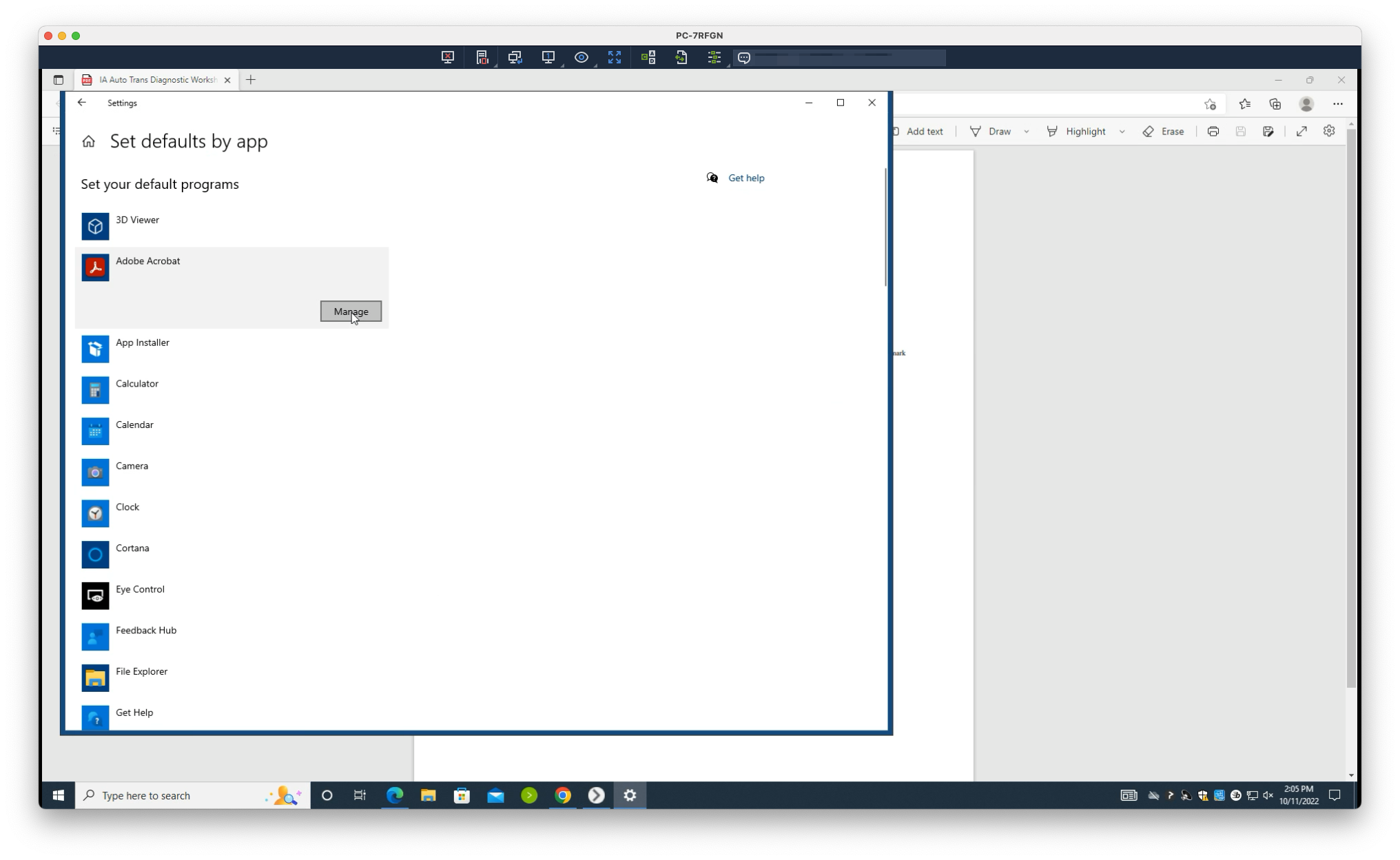
6. Select Adobe Acrobat > Manage
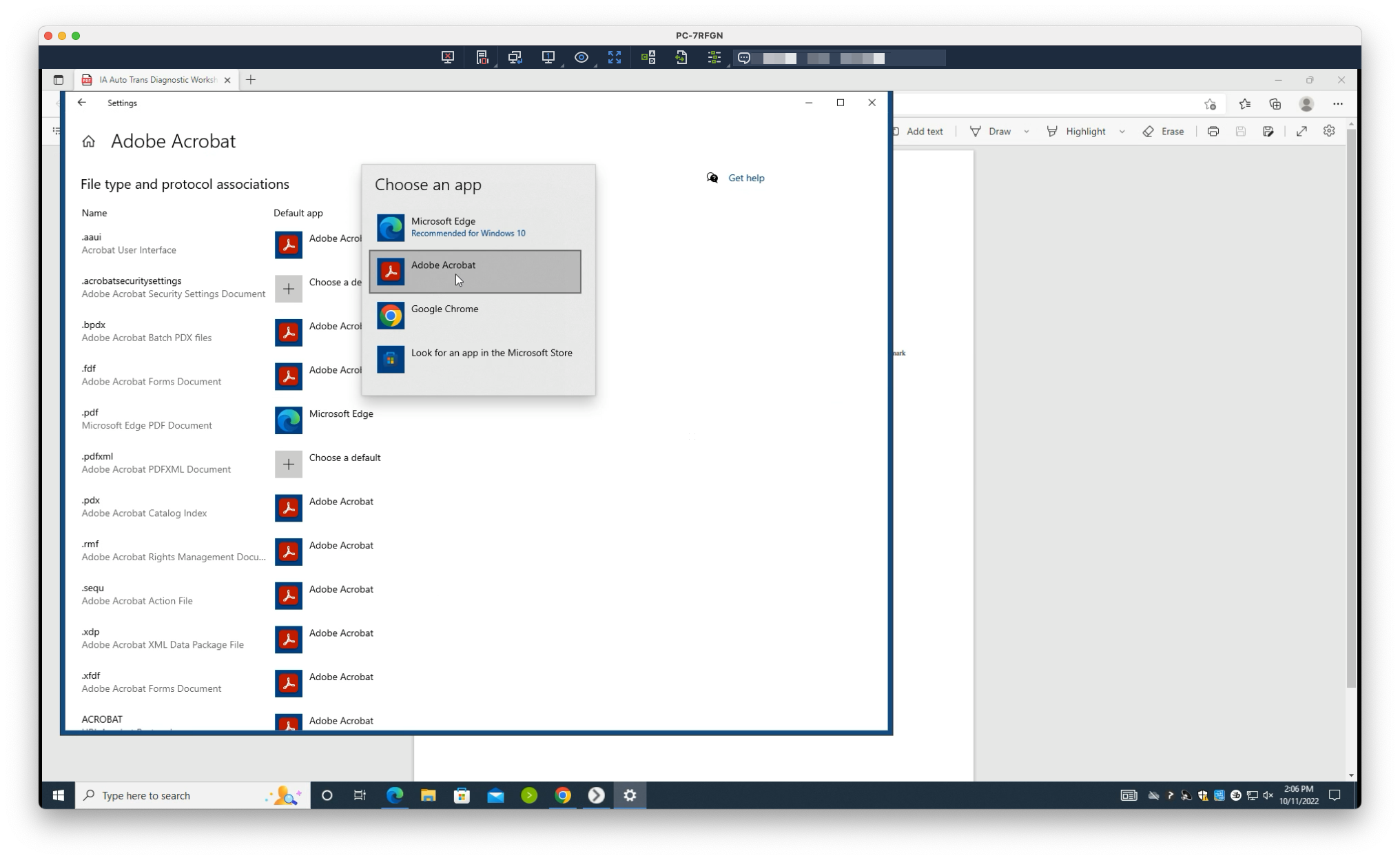
7. Select .pdf, then choose Adobe Acrobat
If prompted, choose Switch anyway
Setting Your Browser to Download PDFs
If PDFs still do not open in your default PDF software, your browser may be overriding this behavior. Set it to explicitly download PDFs:
Google Chrome
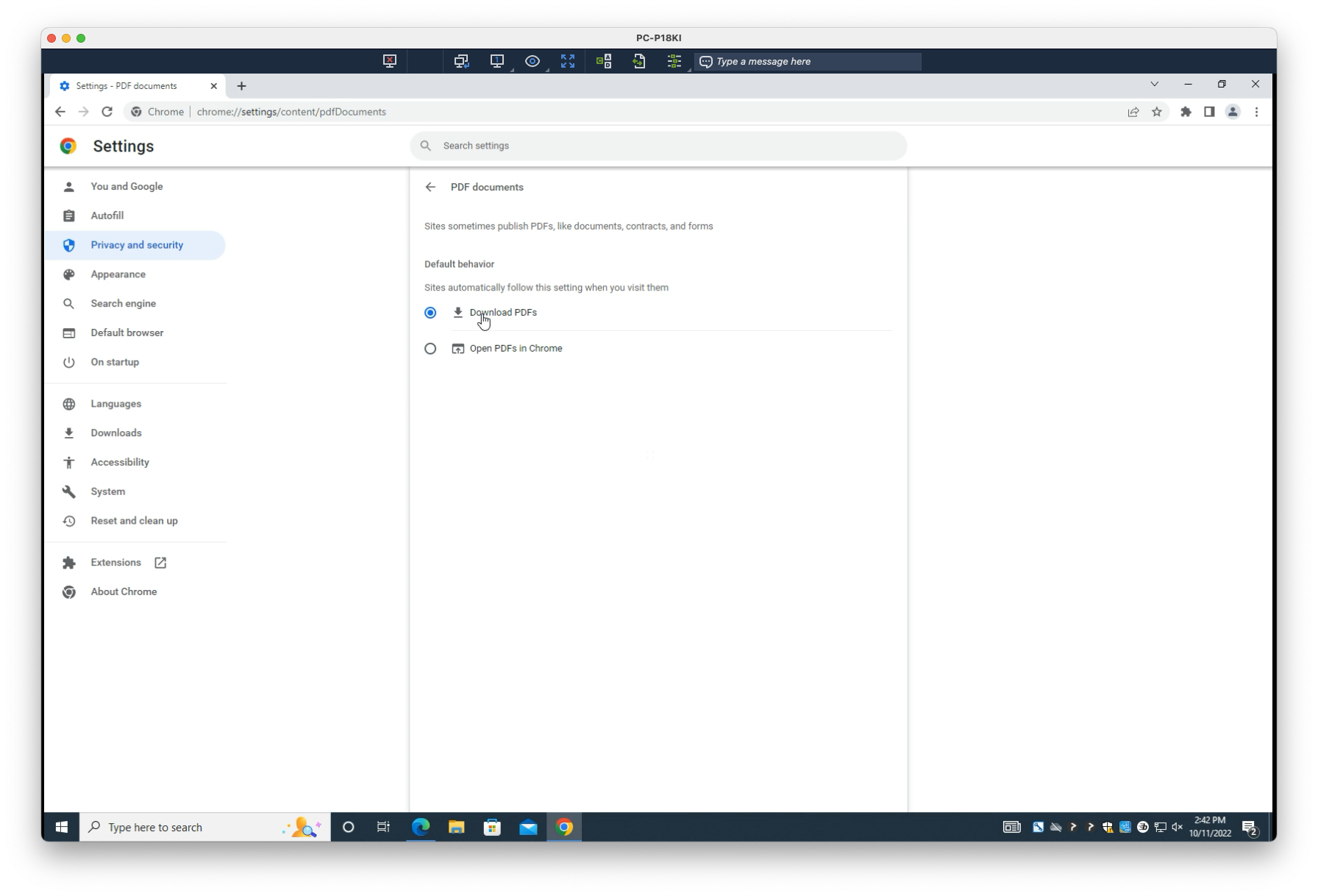
1. Navigate to:
PDF Settings2. Select Download PDFs
Microsoft Edge
1. Navigate to:
PDF Settings2. Select Always download PDF files
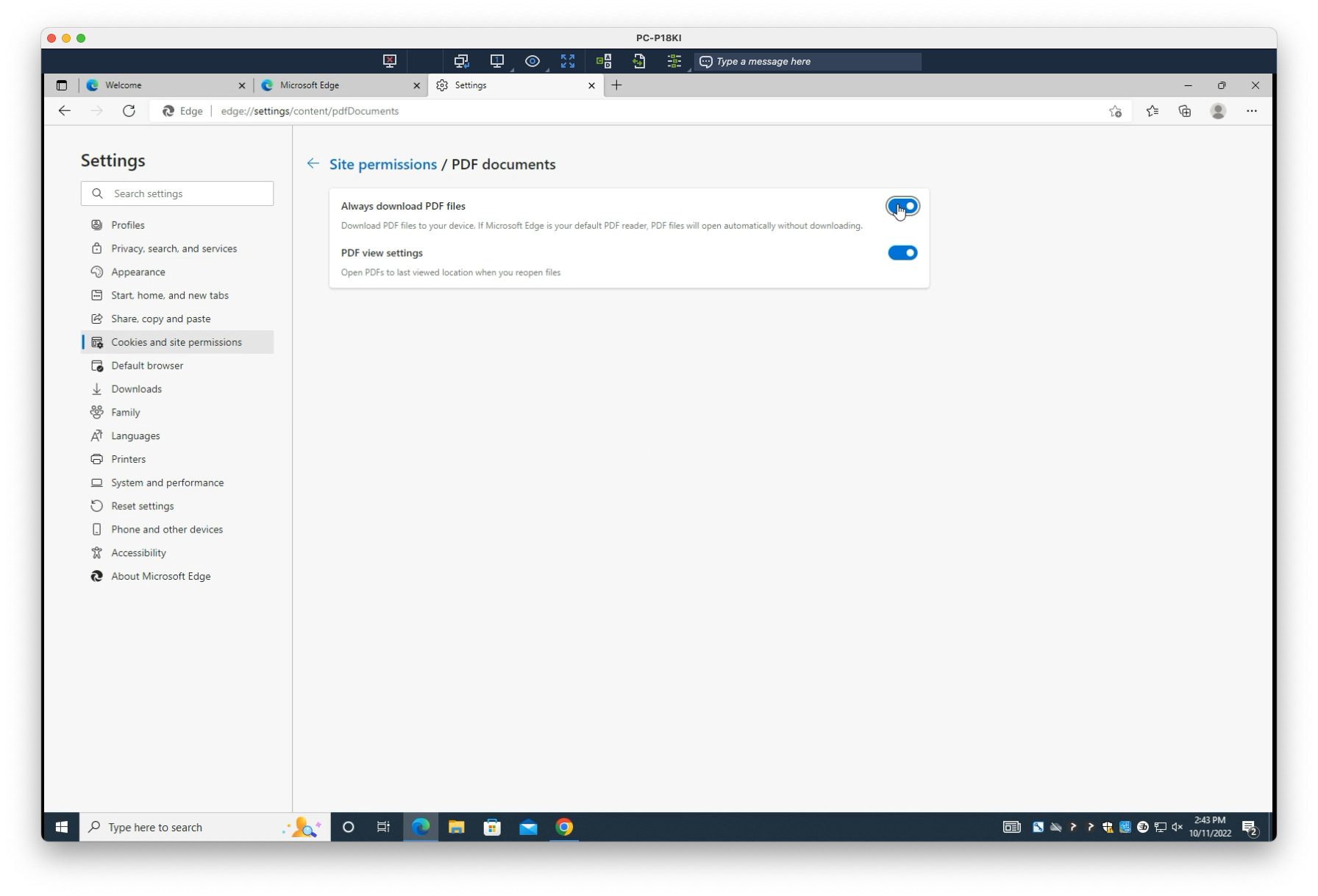
That’s it! PDFs will now download in your browser, and open in Adobe Acrobat, by default.
Still need help?
Submit a Ticket