Mopar VCI Setup Utility
Setting up a microPod is a simple but multi-step procedure. Please follow this guide in its entirety.
Installing/Updating Utility
If you need VCI Setup Utility installed on your machine, or have been prompted for an update — we must provide elevation. Please submit a ticket for assistance.
Initializing a microPod
Before you begin
All microPod users, including the user or manager who is setting it up, must be assigned to the microPod at least (1) hour before set up.
Users can be assigned at mopartsp.com.
1. Connect the microPod to your computer, using the included USB cable
2. From your desktop, double-click the VCI Setup Utility icon
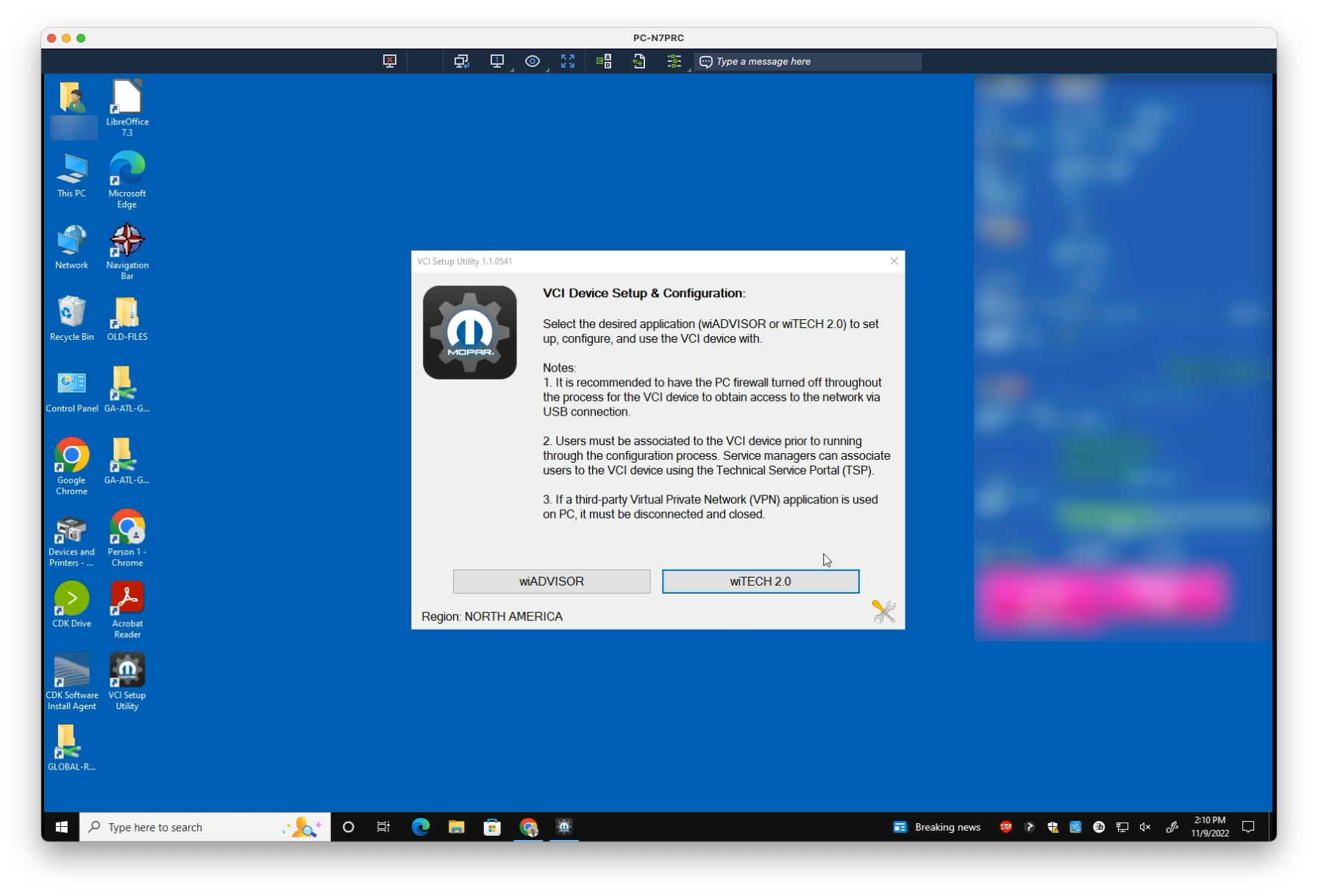
3. Select either wiADVISOR or wiTECH
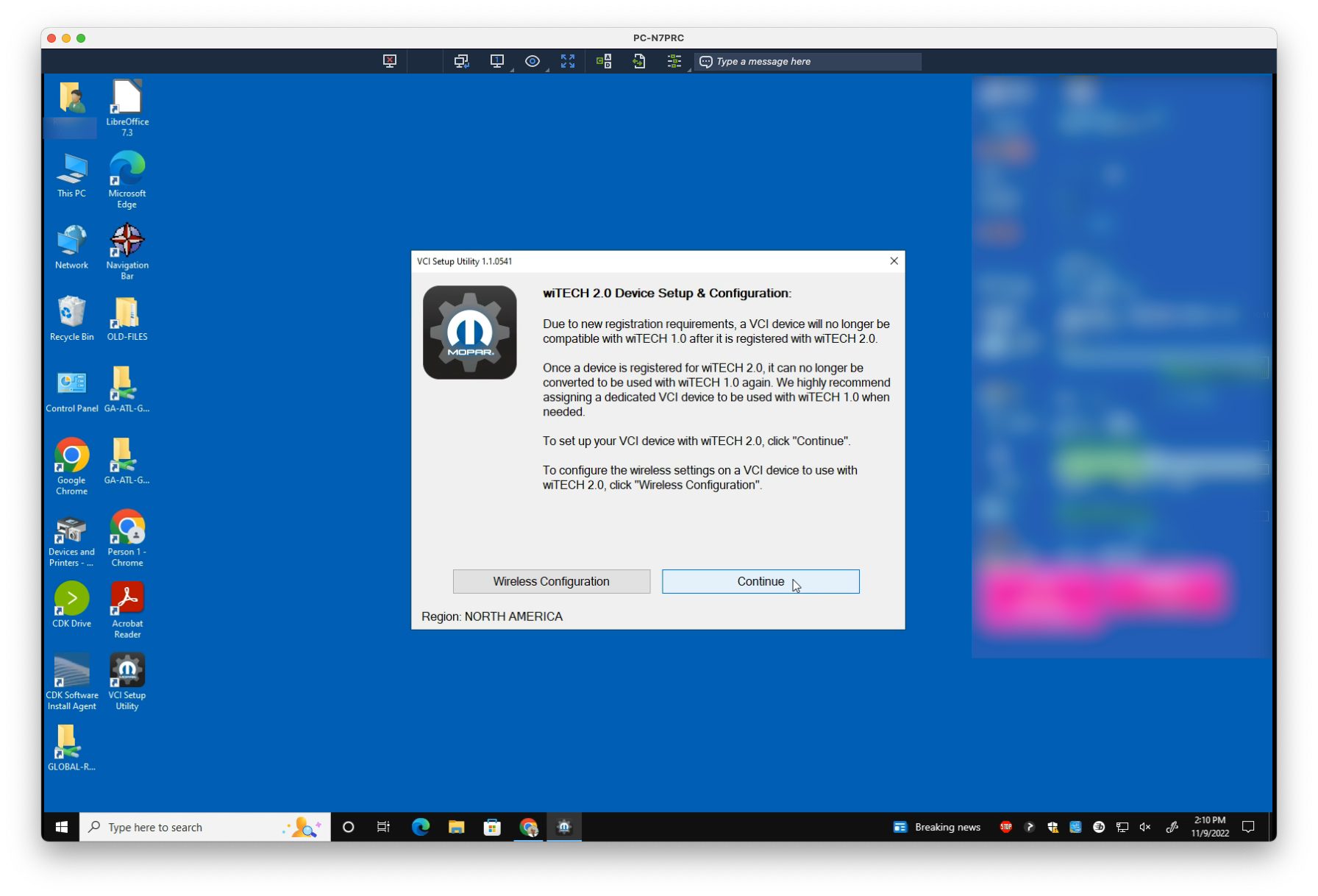
4. Select Continue
5. Confirm that your users have been assigned, by selecting Continue
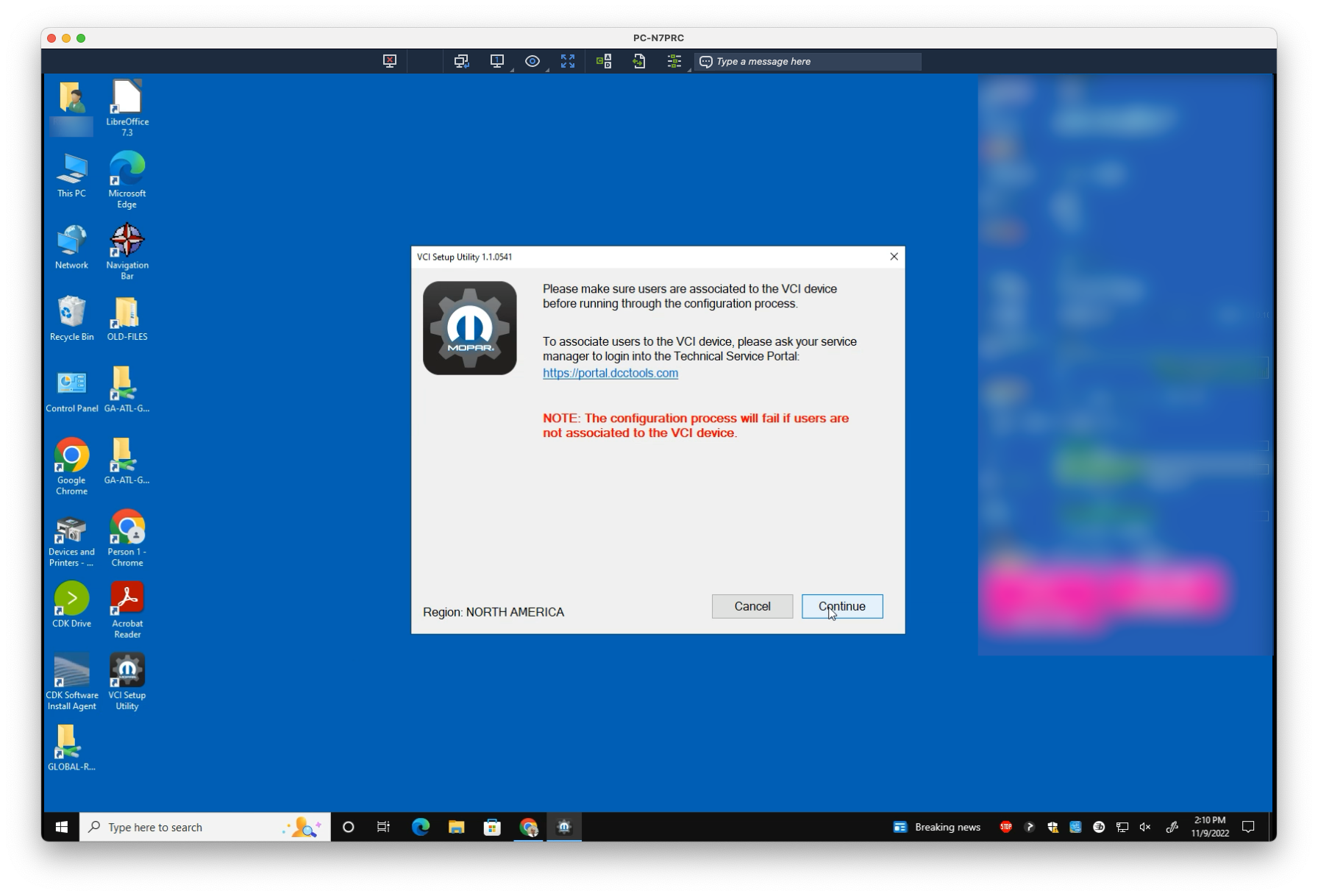
6. Confirm again by selecting Yes
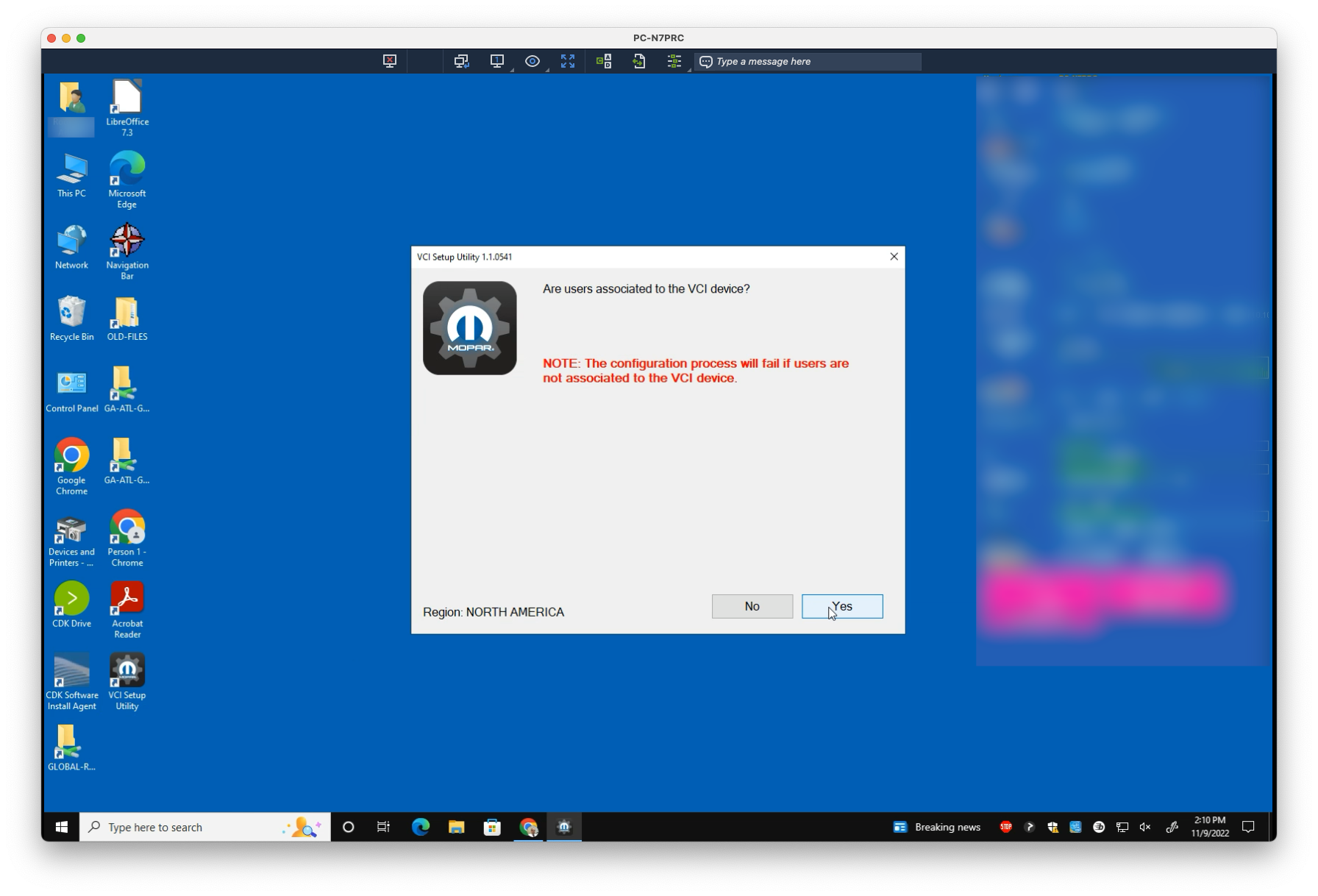
7. Select Continue
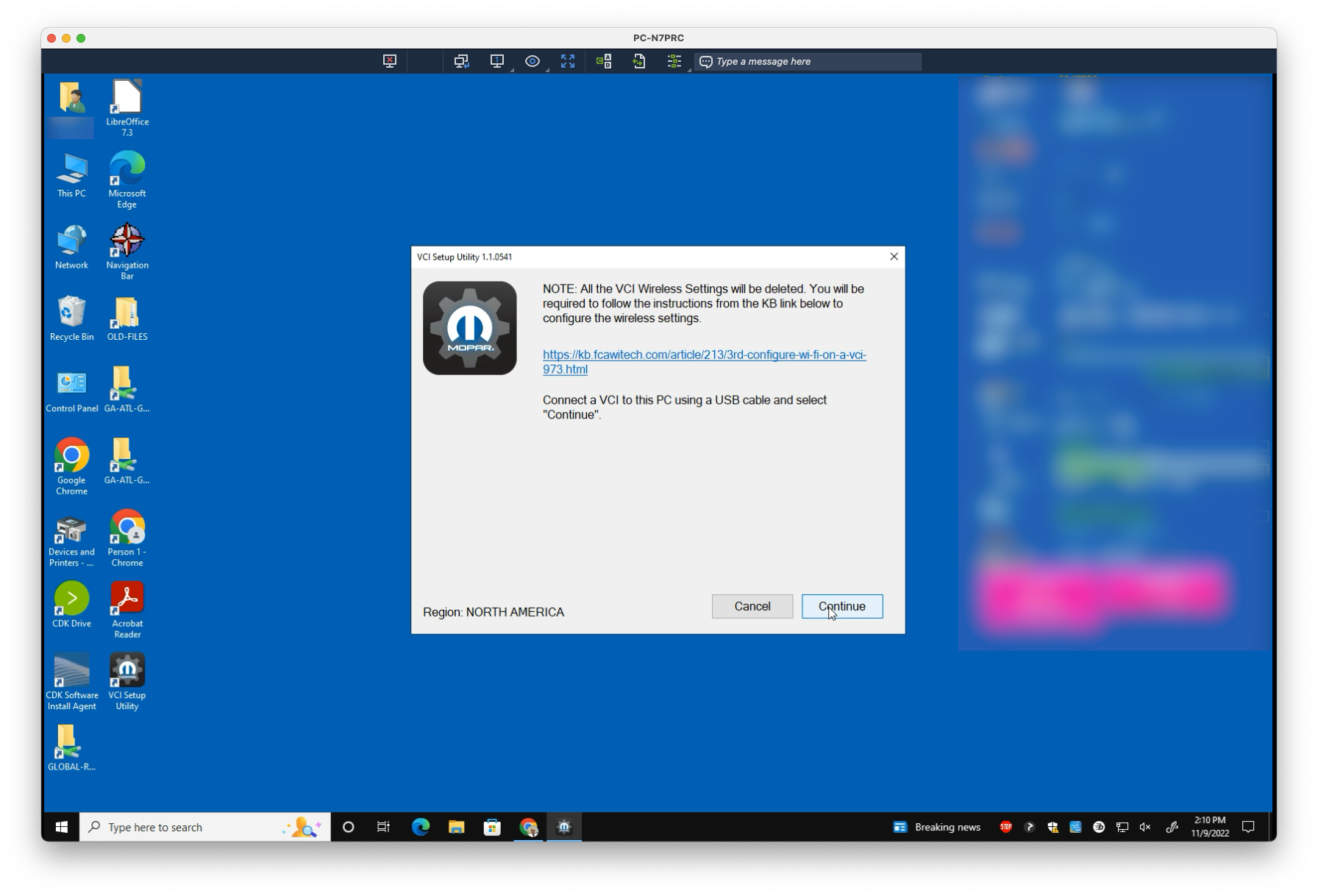
Wait for the Setup Utility to find the microPod
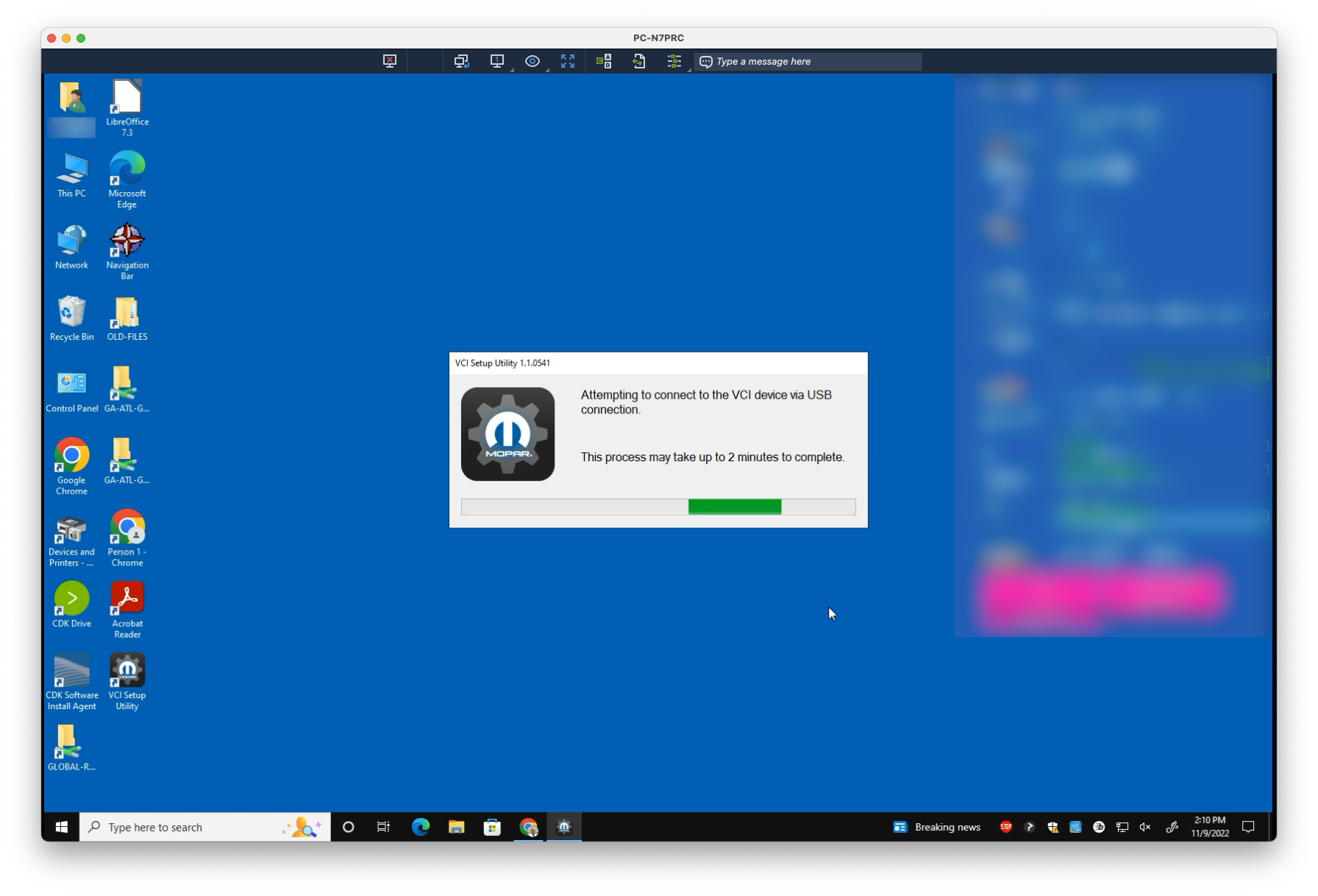
8. Once found, select Continue
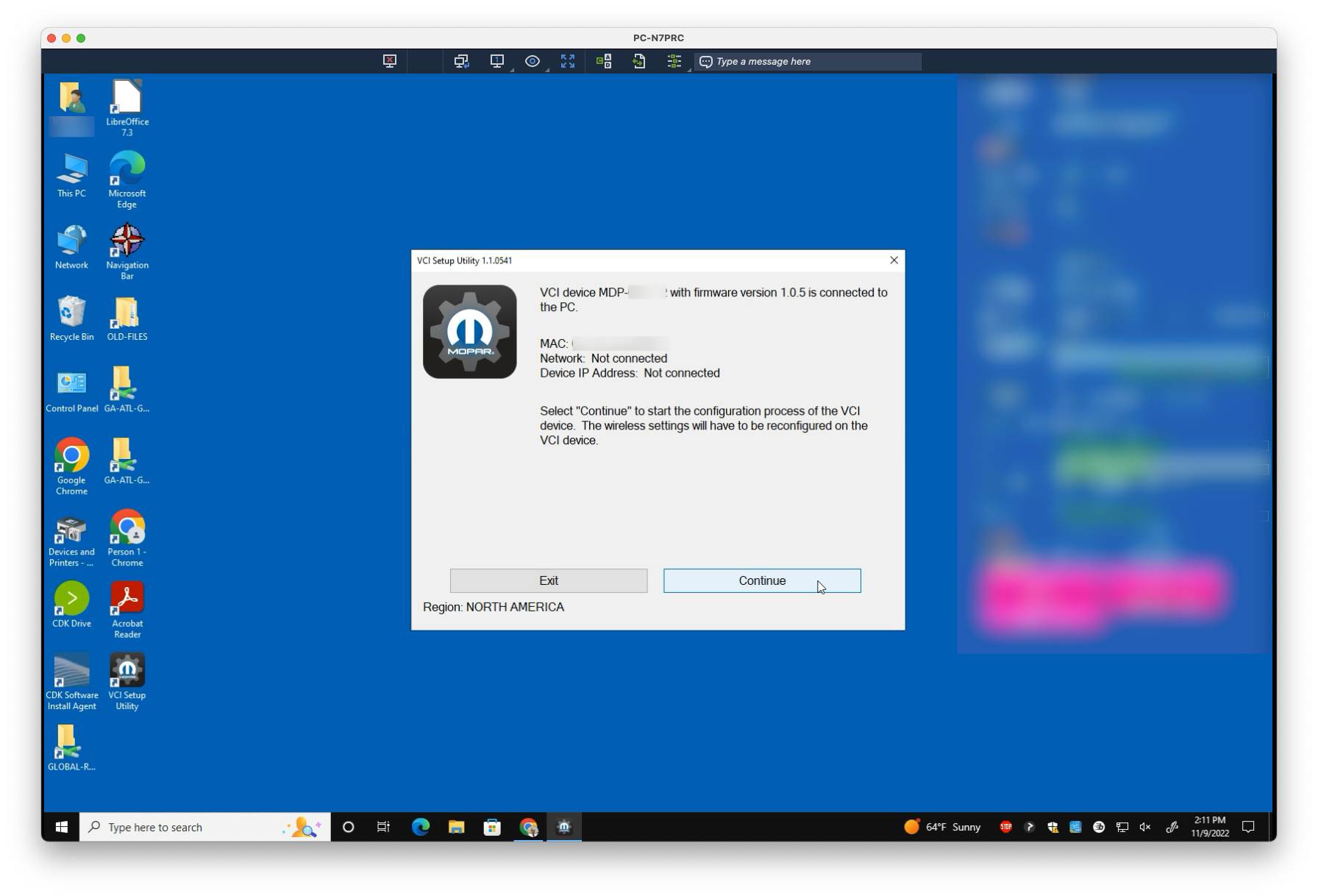
Wait for the microPod to be initialized
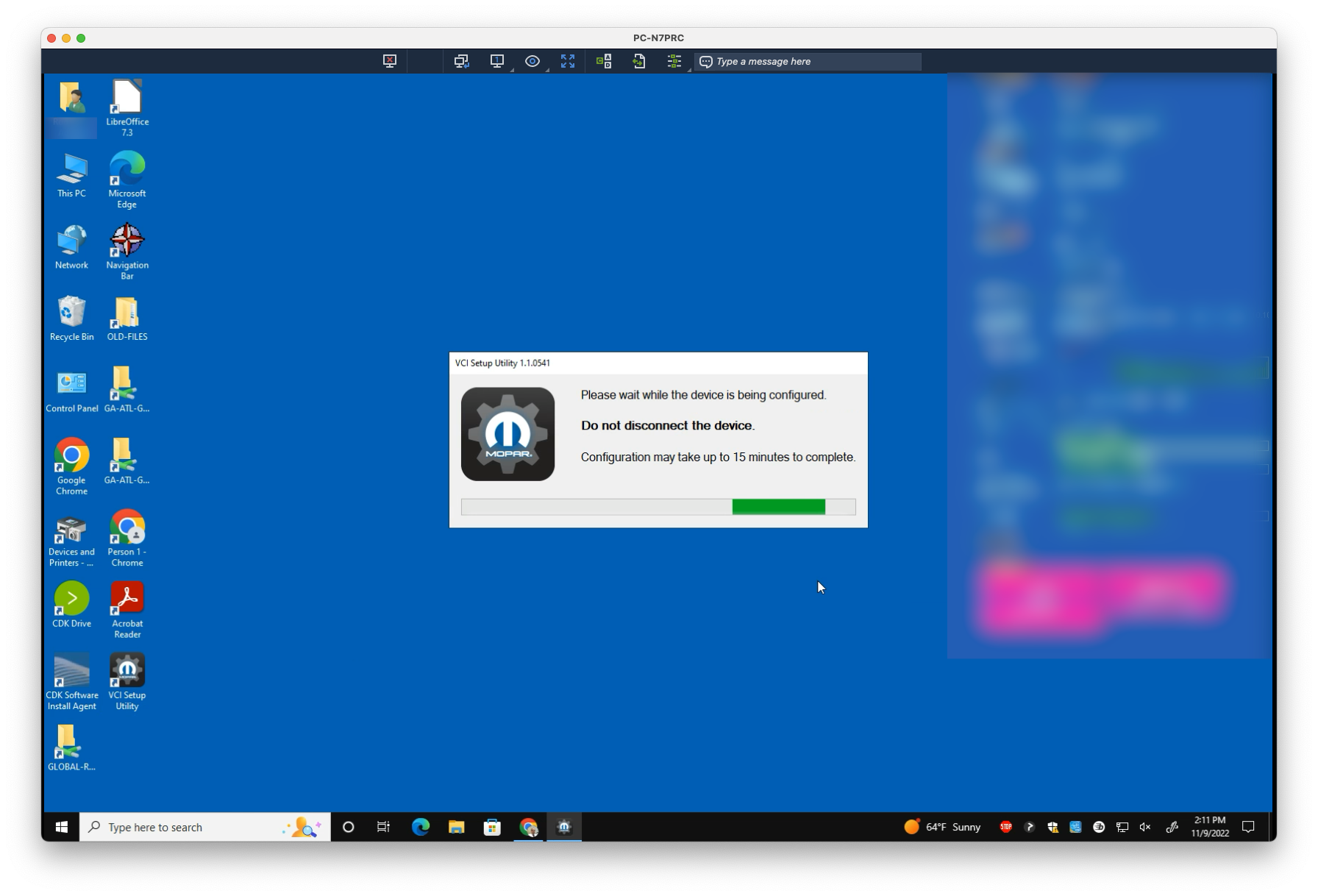
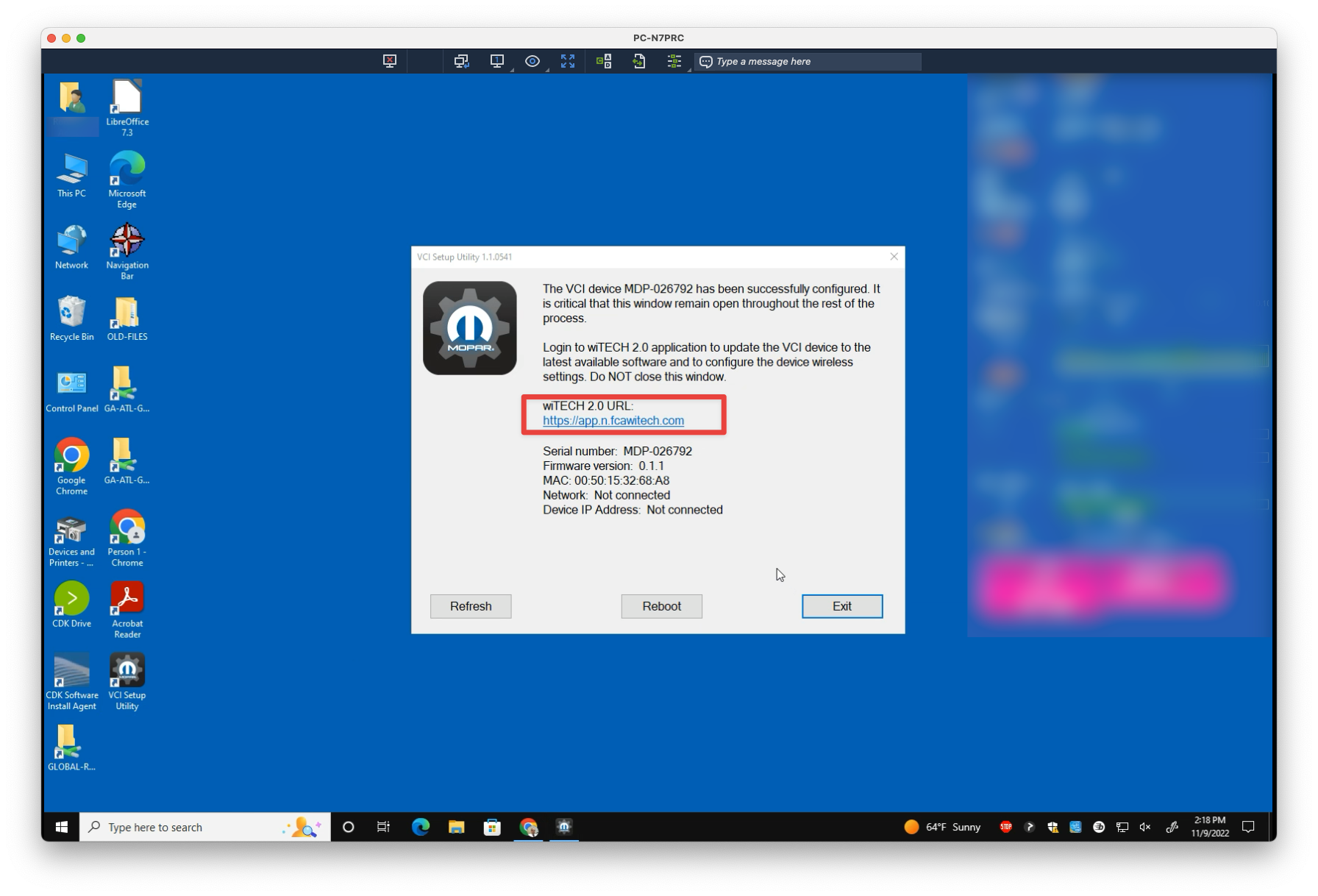
9. Once initialized, click on the link provided in the dialog. Either wiADVISOR or wiTECH will open
Updating microPod Firmware
From wiTECH or wiADVISOR:
1. Log in using the credentials of an assigned user
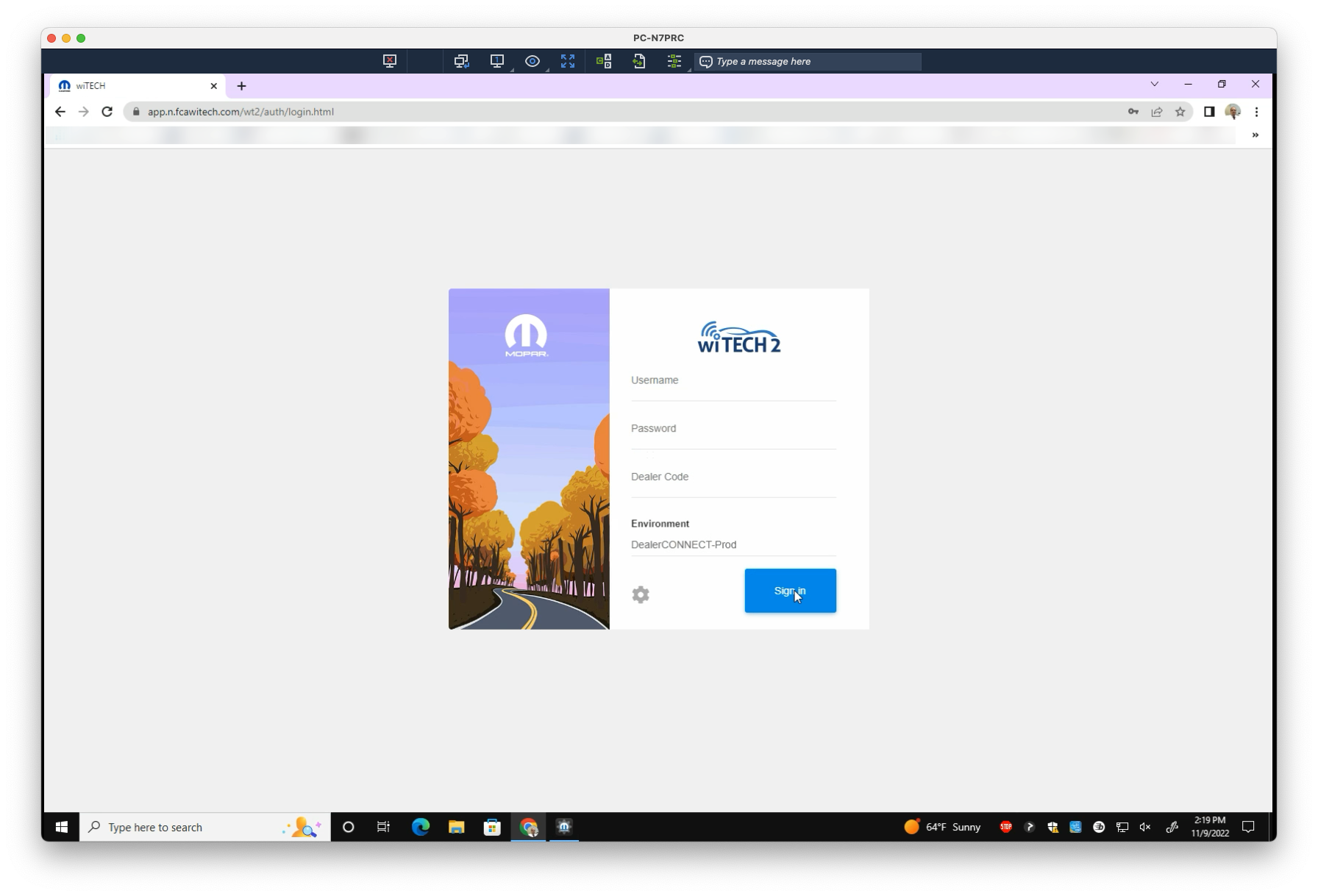
2. You should see the microPod appear in the list, with a Device Update Required indication. Select Update
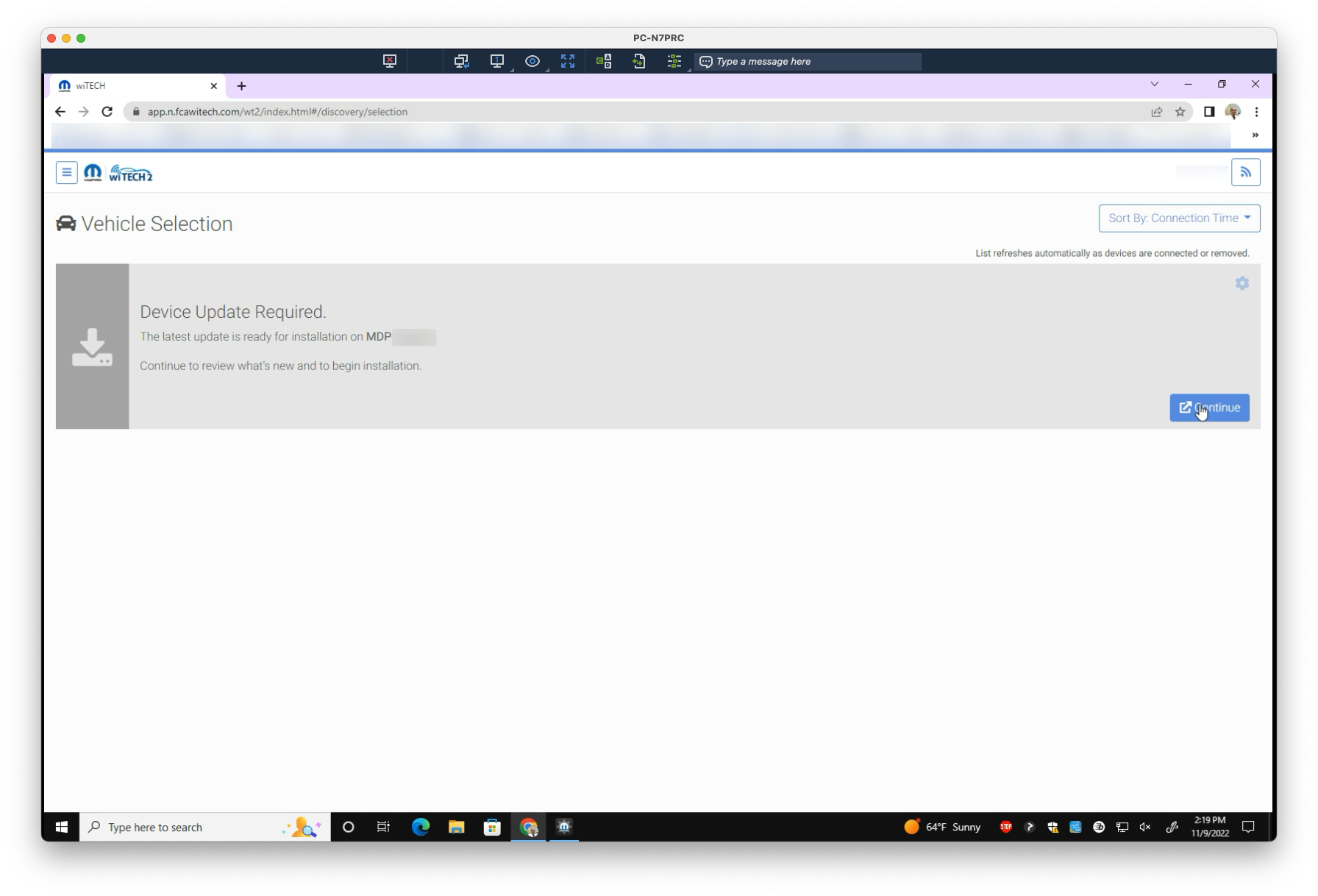
3. A new tab will open. Select Update Now
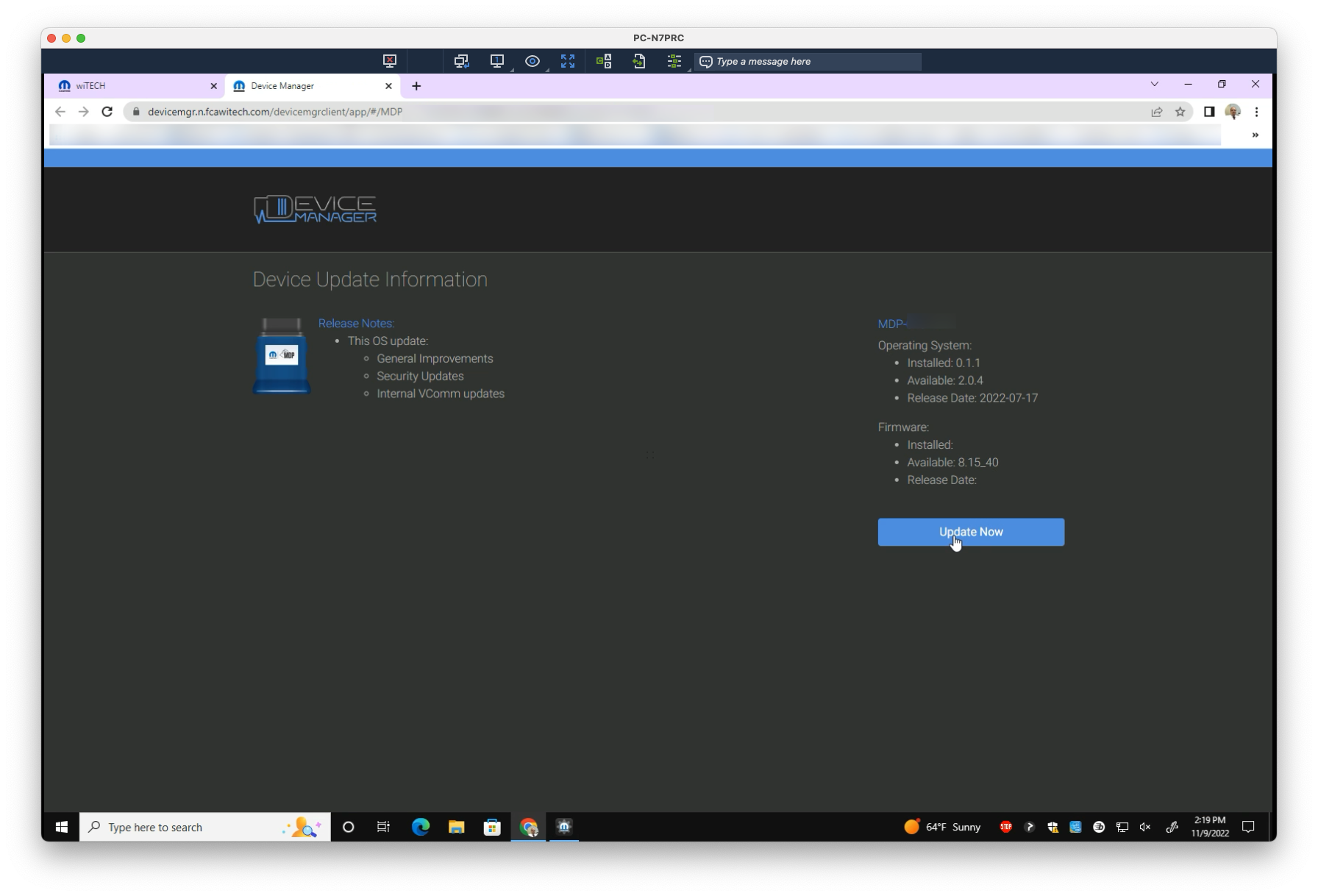
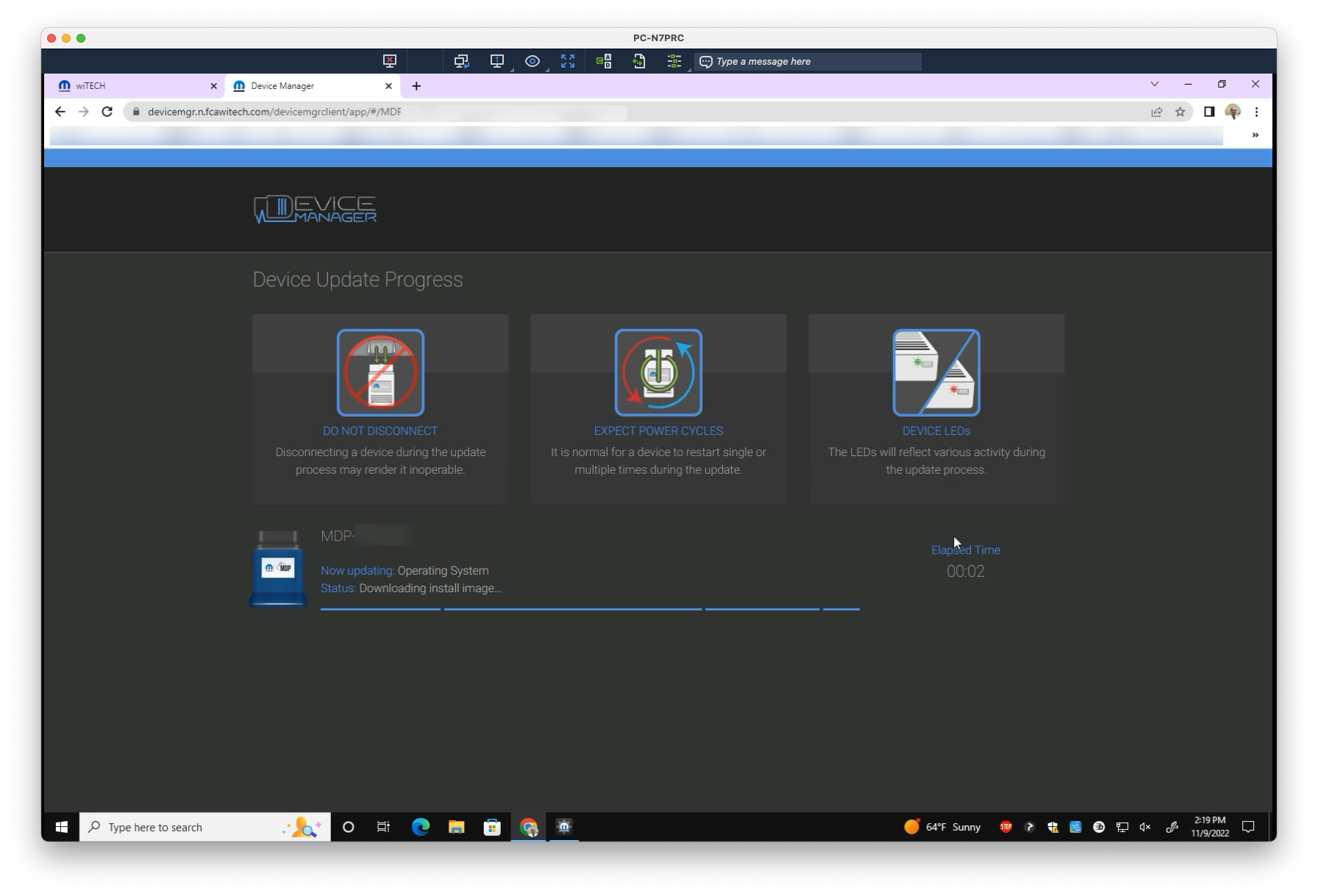
Allow the update to complete (generally ~10 minutes)
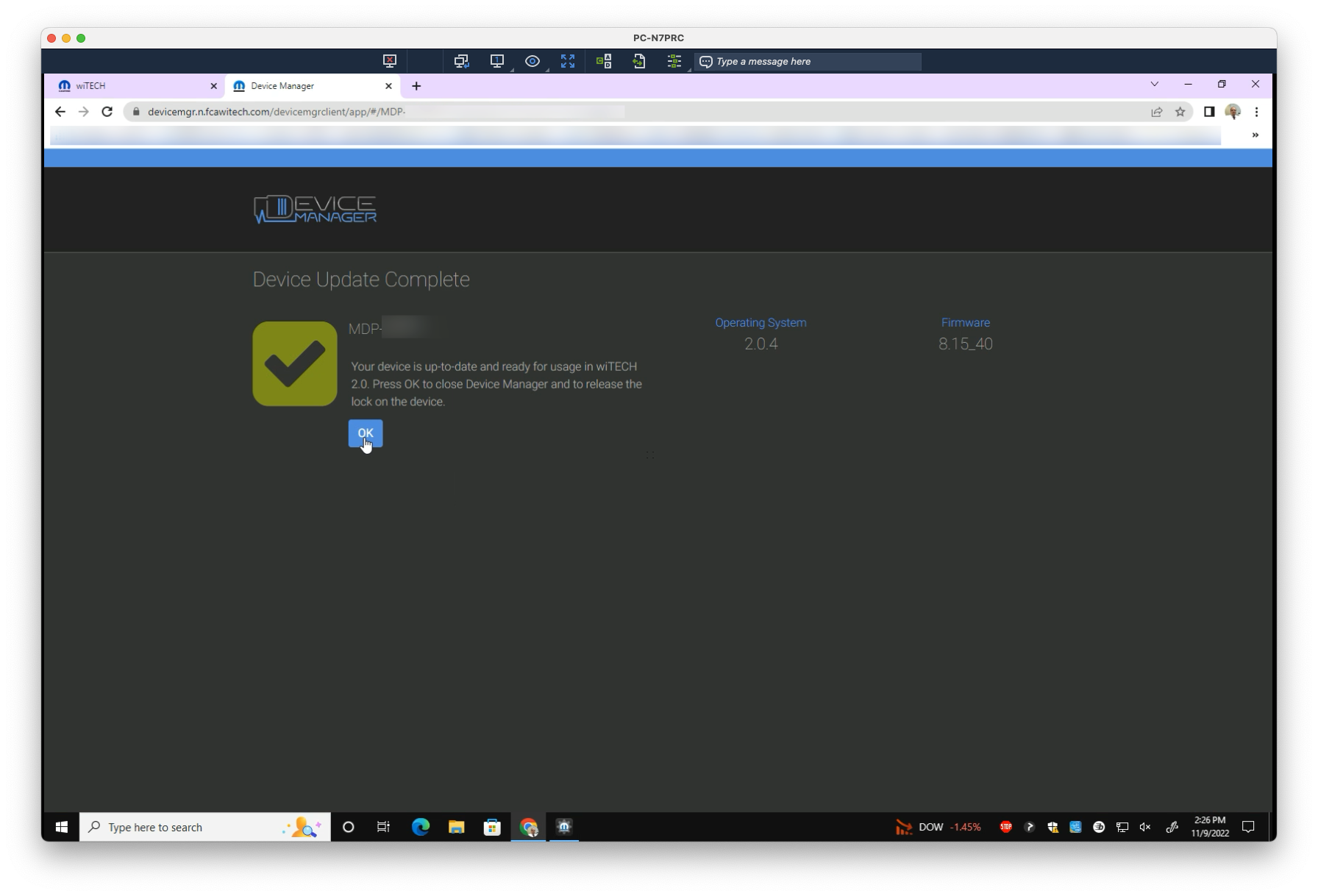
4. Once complete, select OK
Connecting a microPod to WiFi
From the wiADVISOR/wiTECH device list:
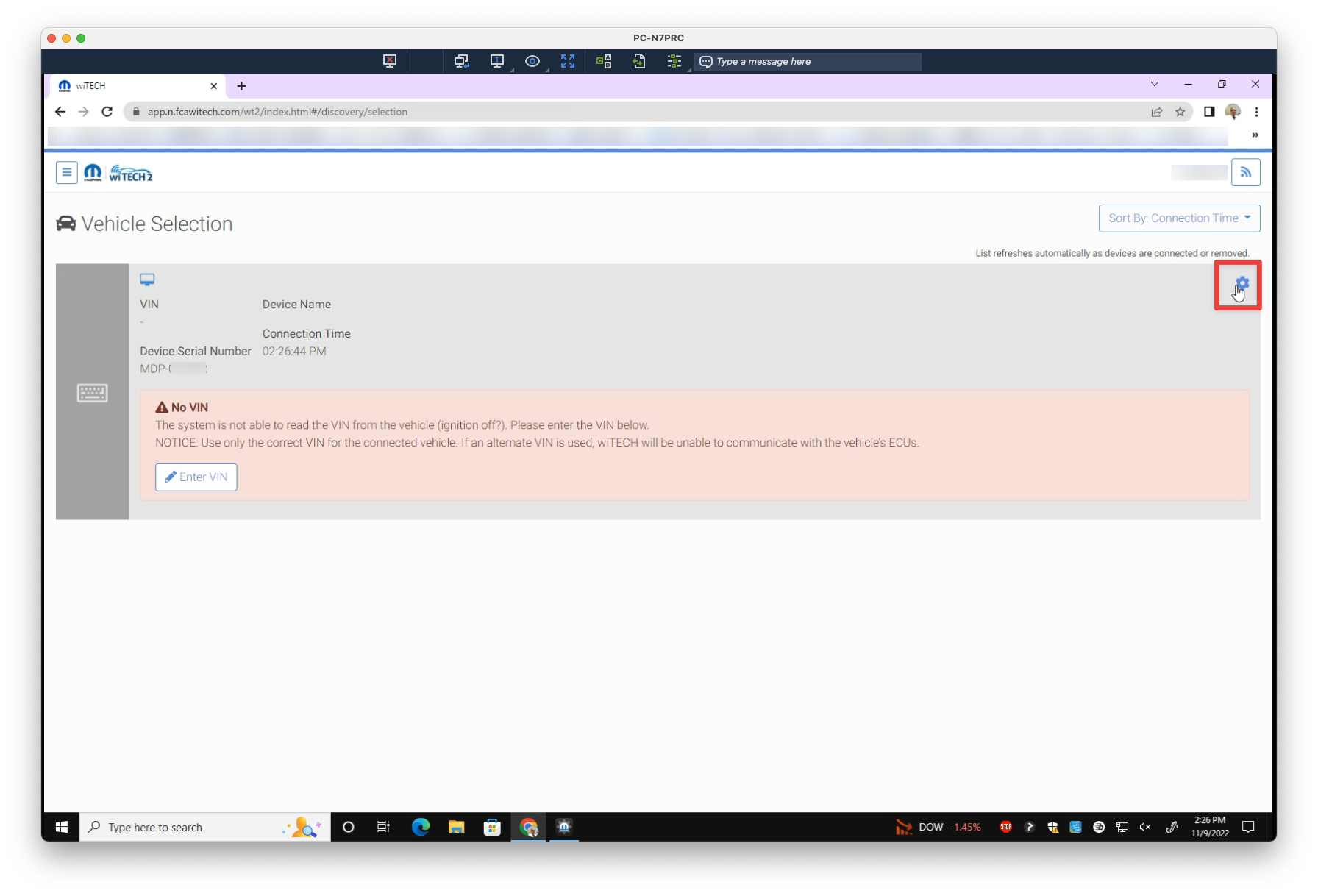
1. Select the Settings icon next to the microPod
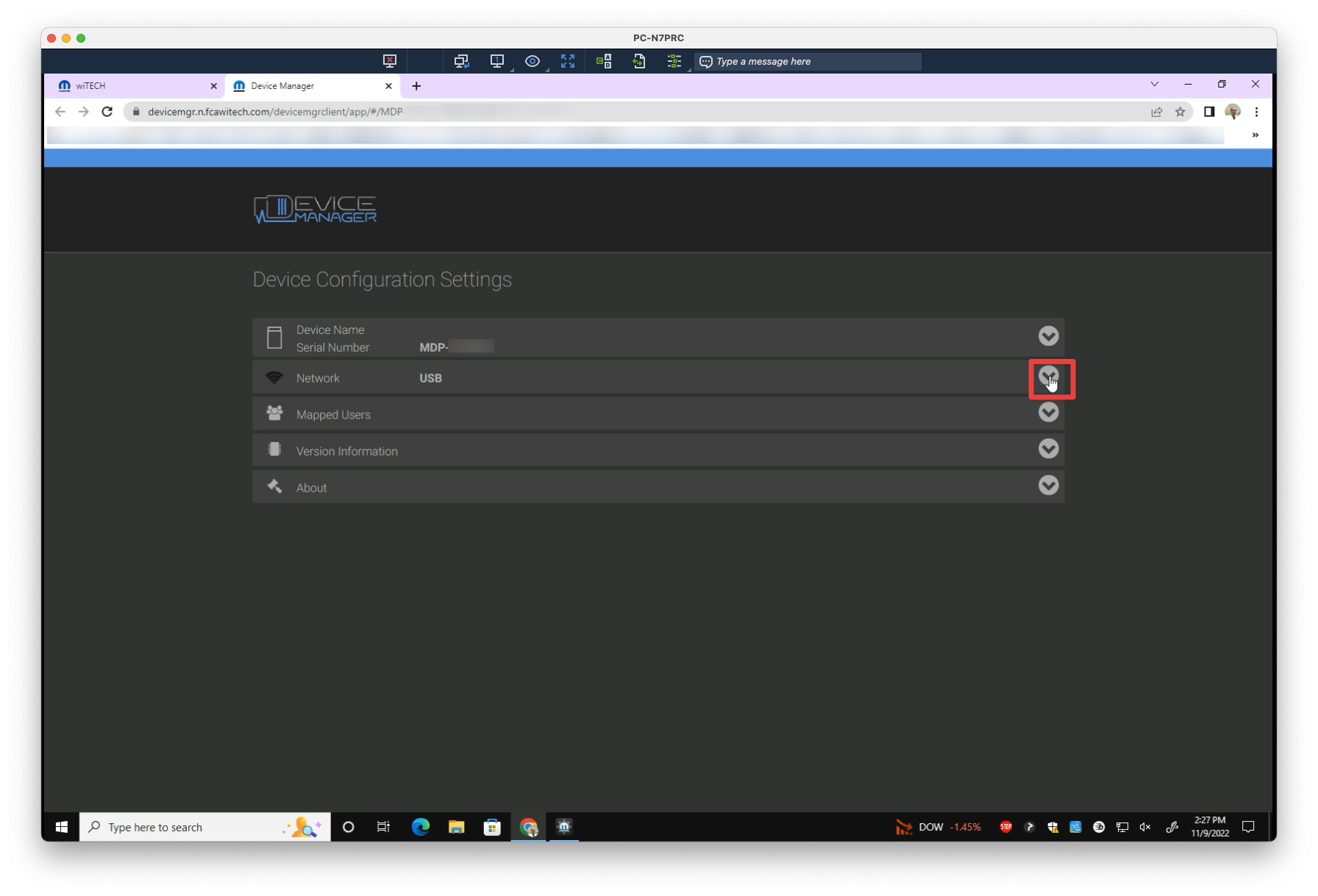
2. Under Network, click on the dropdown arrow (↓)
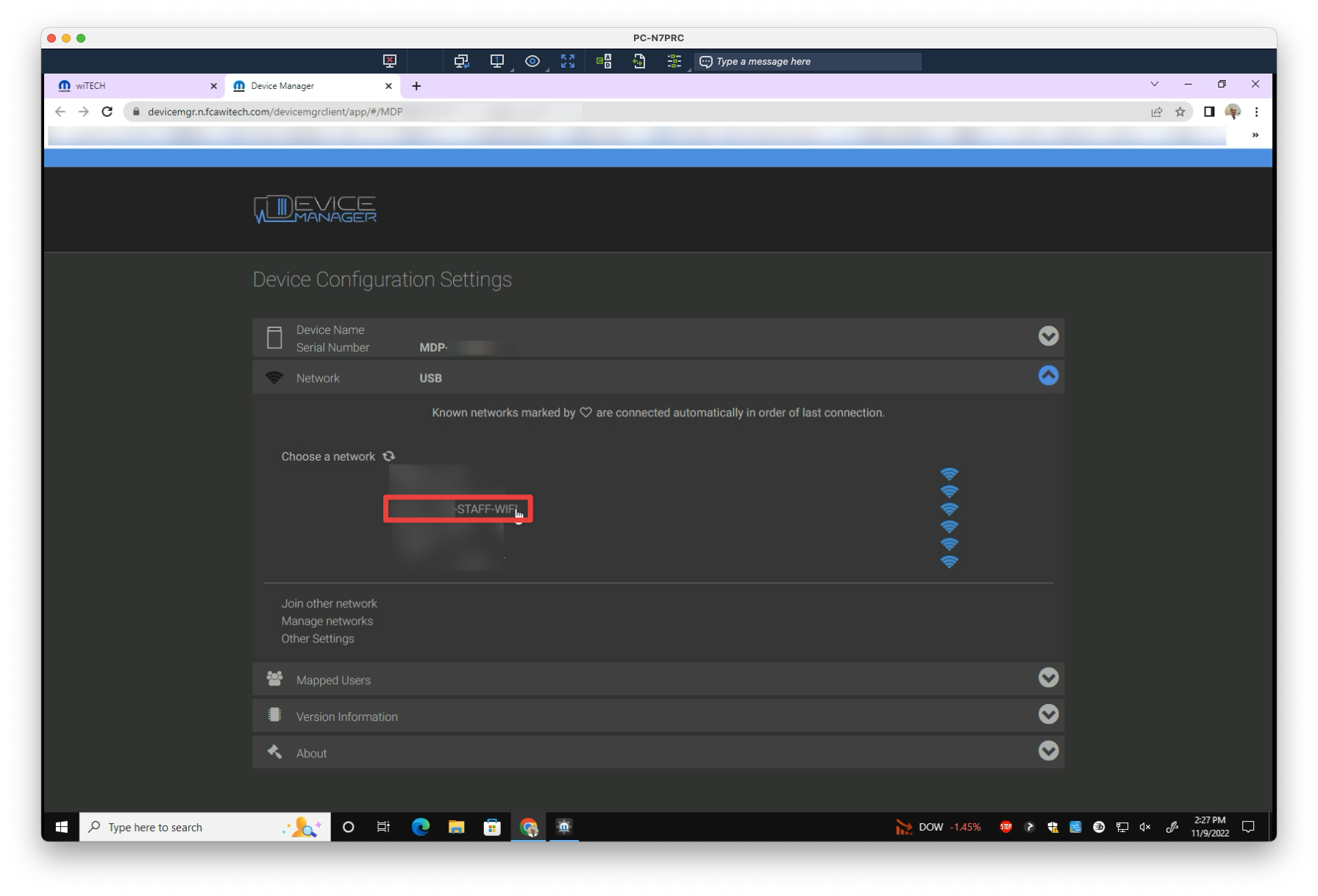
3. Select your store’s STAFF-WIFI from the list
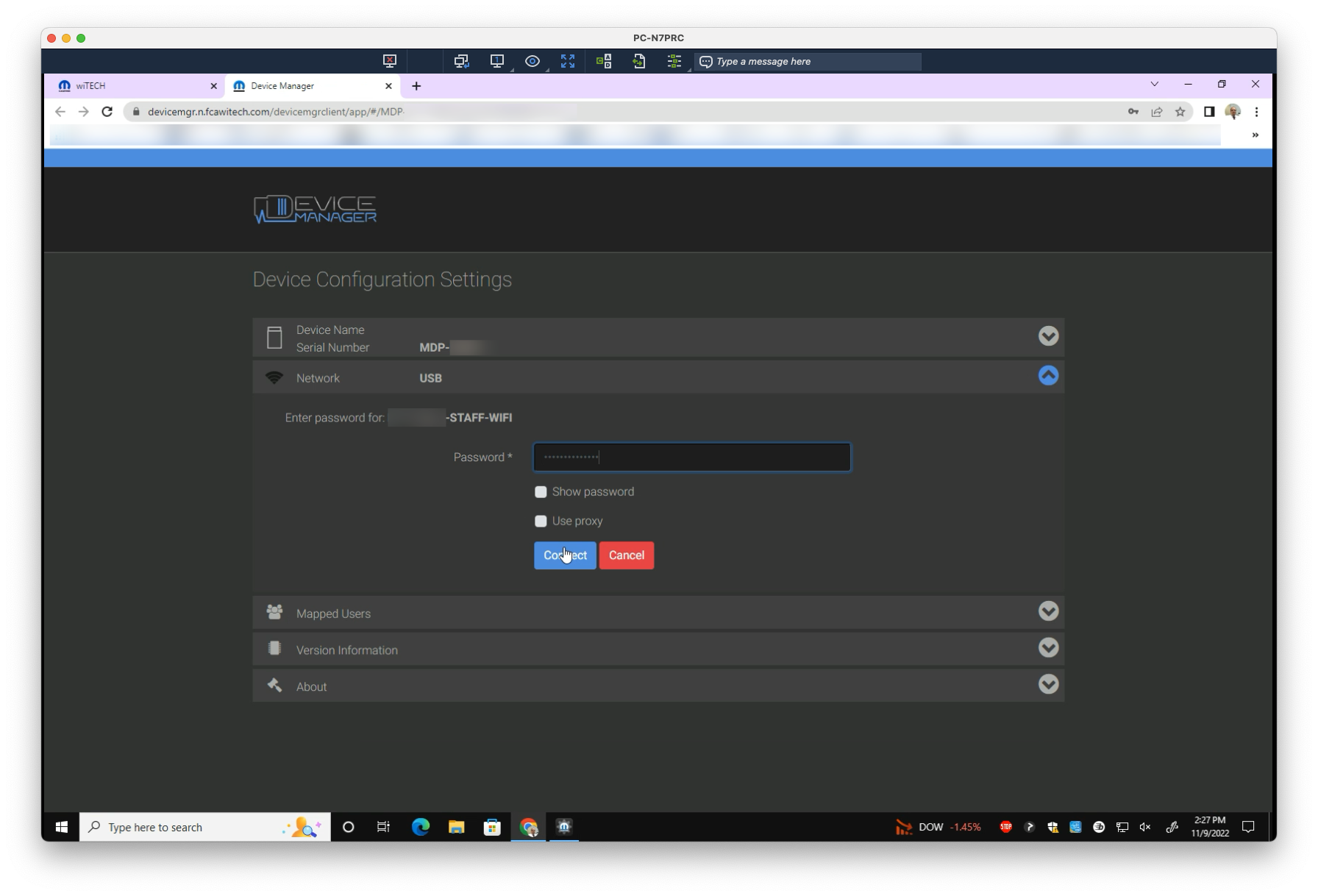
4. Enter the associated password (submit a ticket if you require this information). Select Connect