Setting up Internal Forwarding
Setting up Internal Forwarding
Applies to Microsoft 365 users
Never forward your email to an external recipient. Only forward your email to a trusted internal party.
Microsoft Outlook users may opt to set up internal mail forwarding on their account. This allows emails destined for you to be forwarded to another recipient in your organization. This is particularly useful for a Vacation or Out-of-office scenario.
1. Navigate to
outlook.office.comSign in if necessary.
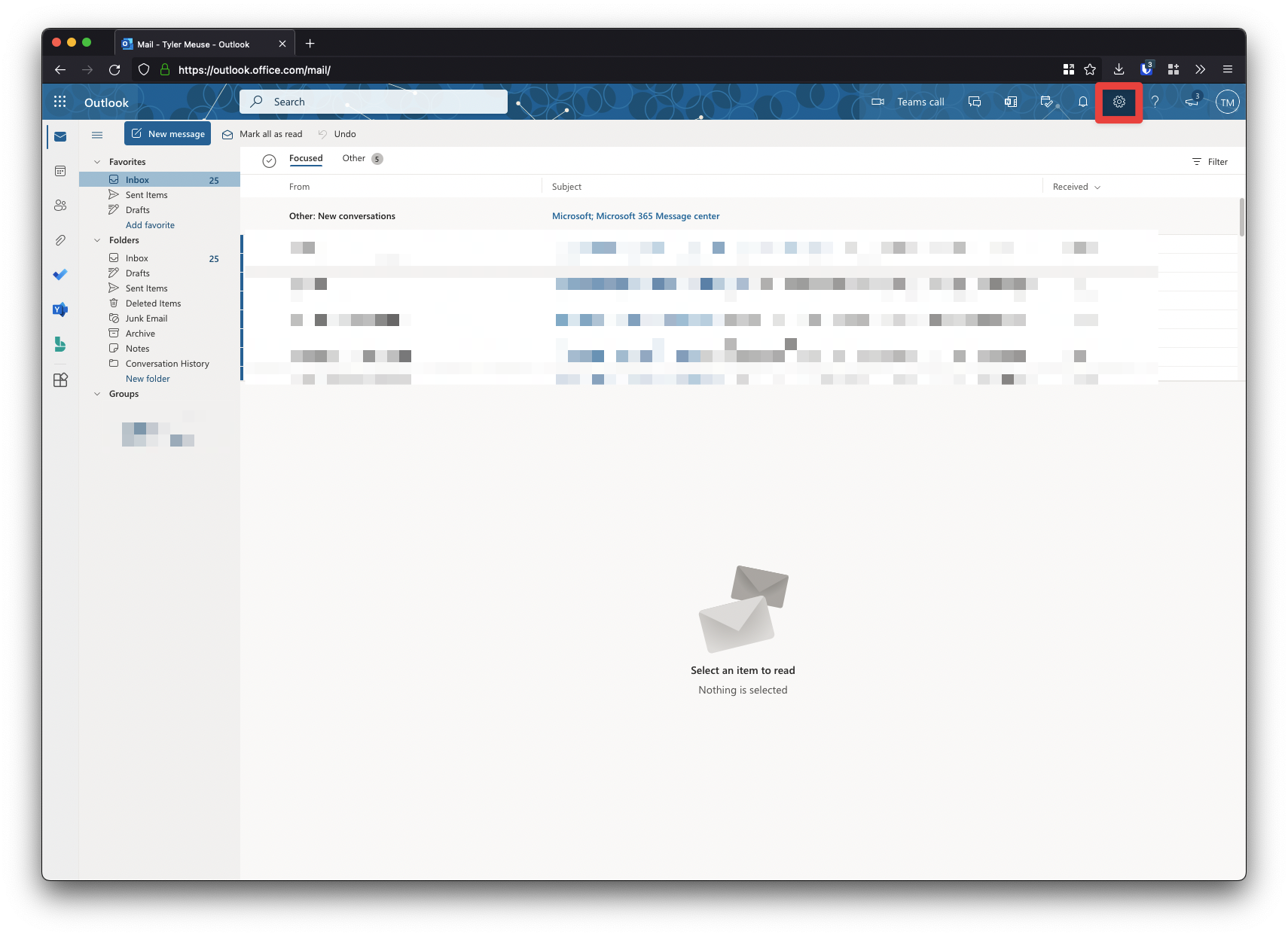
2. Click on the settings icon in the upper-right corner.
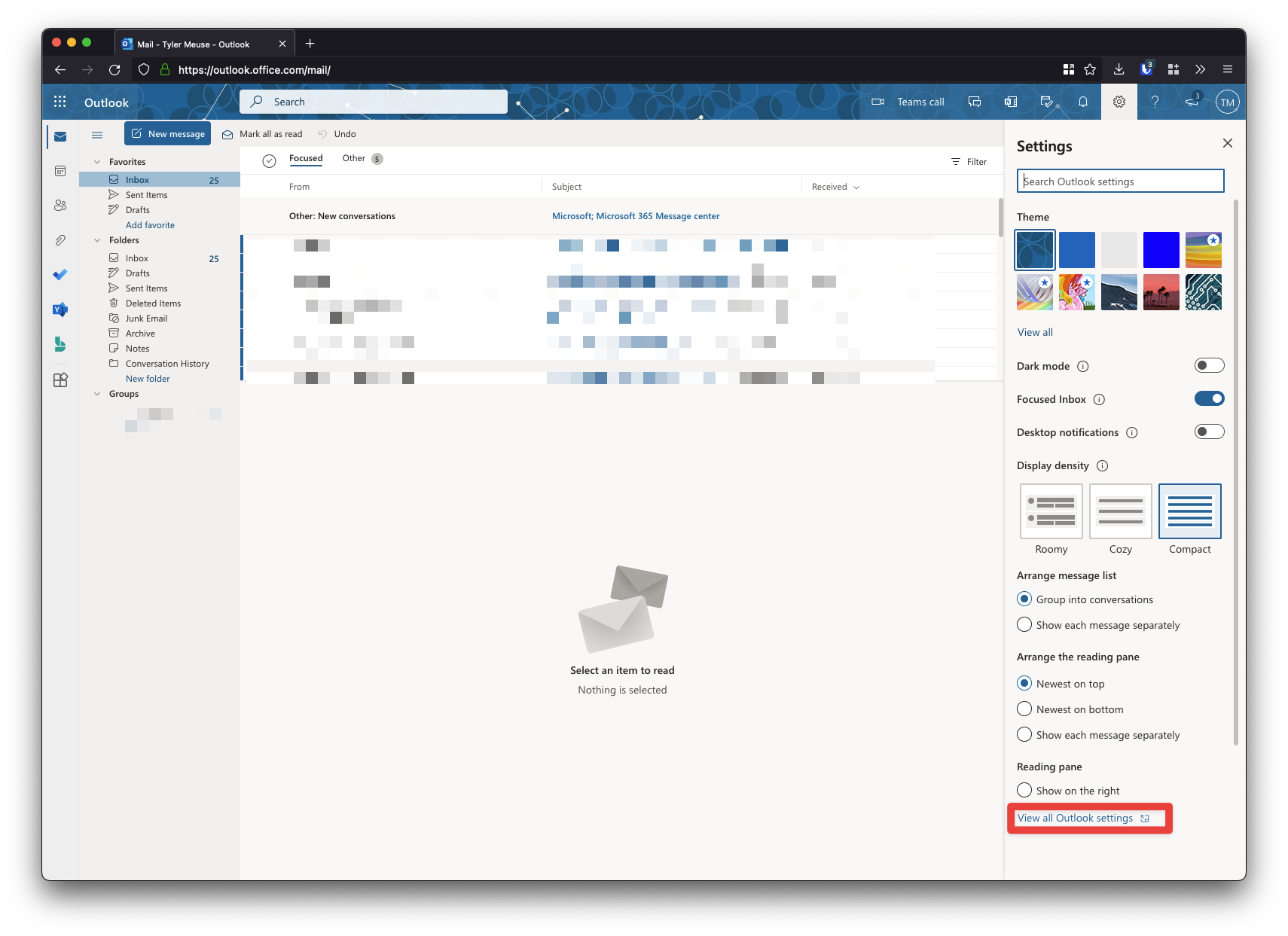
3. Select View all Outlook Settings
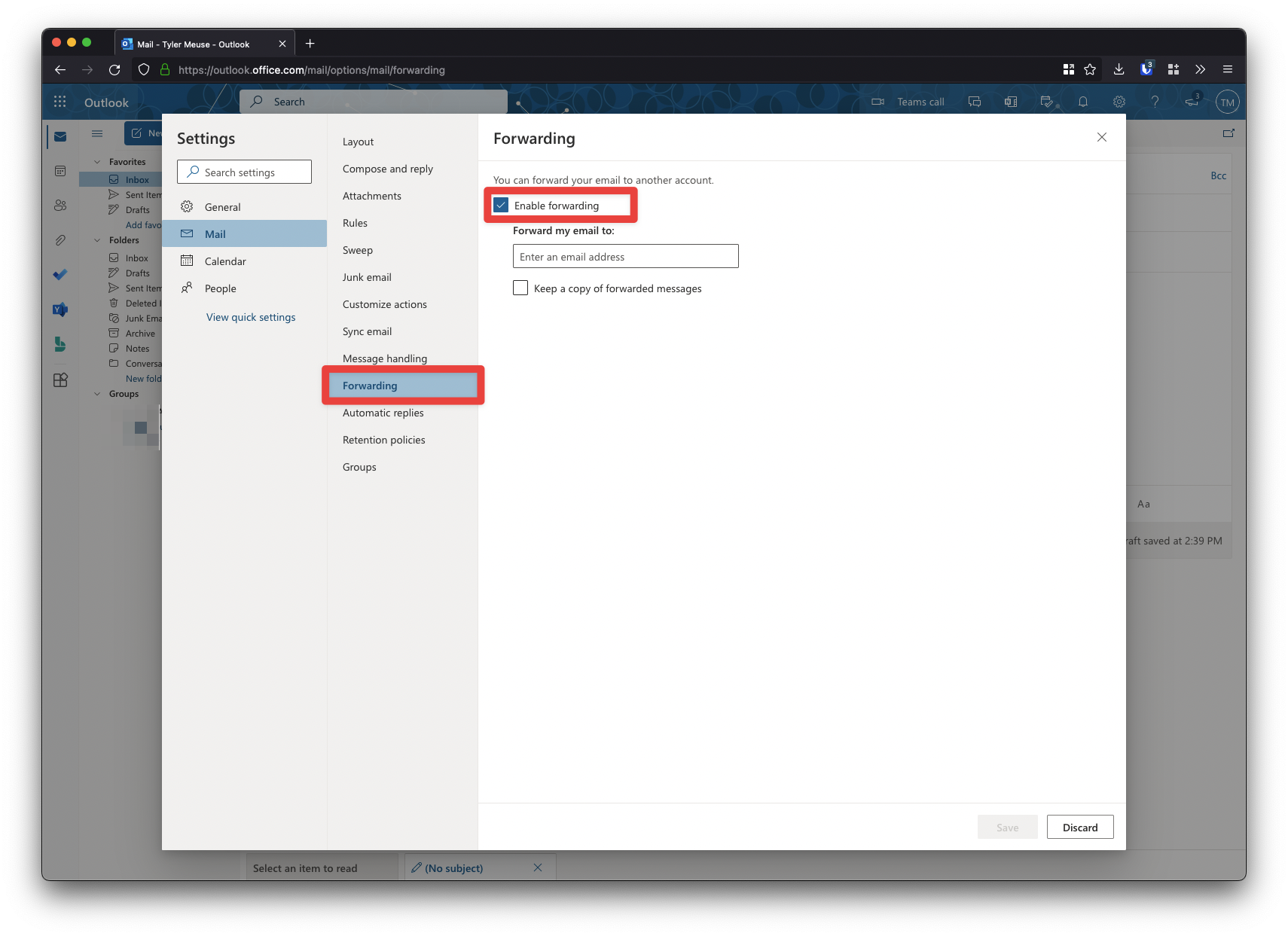
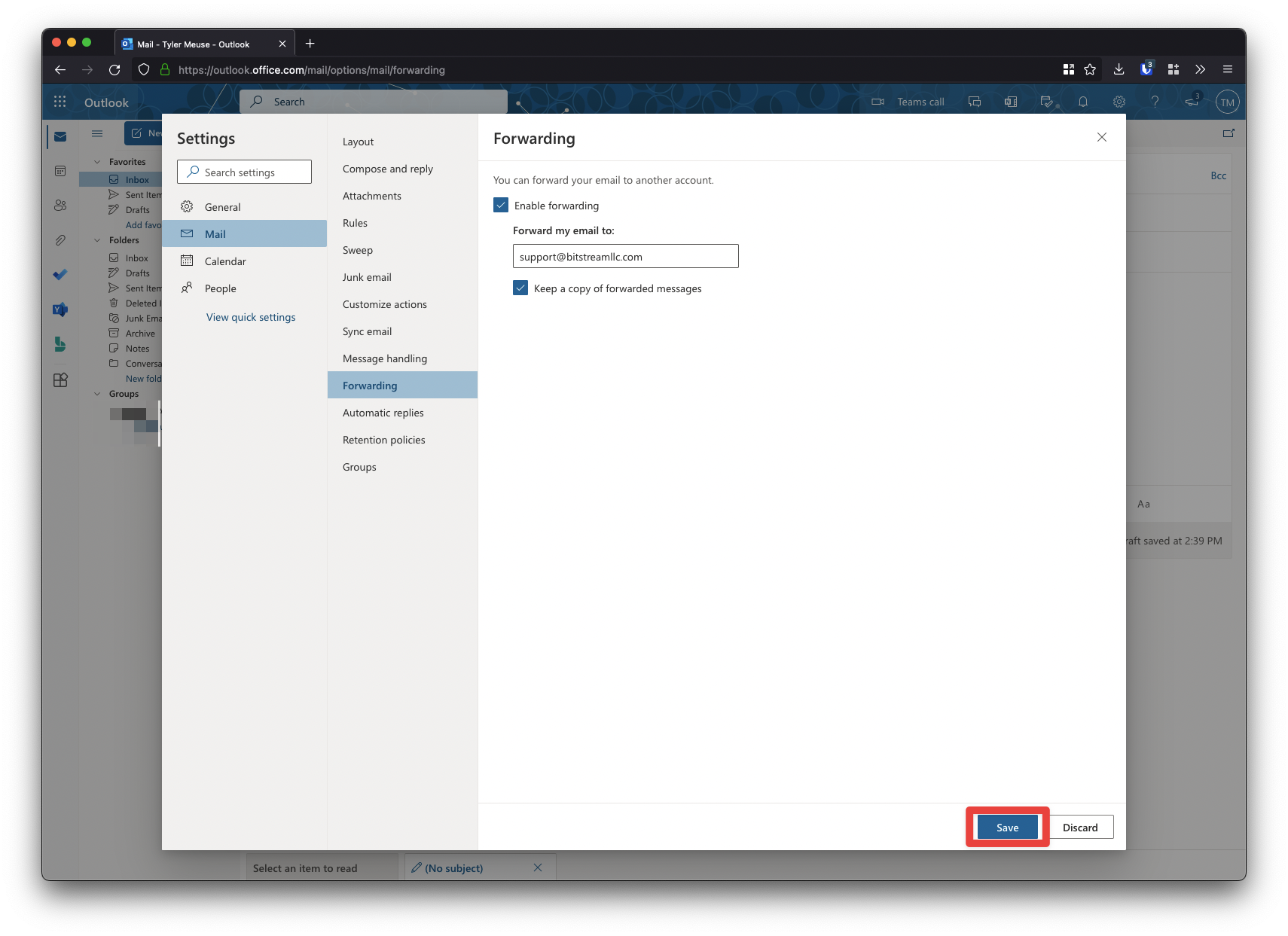
4. Navigate to Mail > Forwarding. Select Enable Forwarding
5. Enter the internal recipient you wish to forward your mail to. It is advised to select Keep a copy of forwarded messages, so that you receive a copy of the emails.
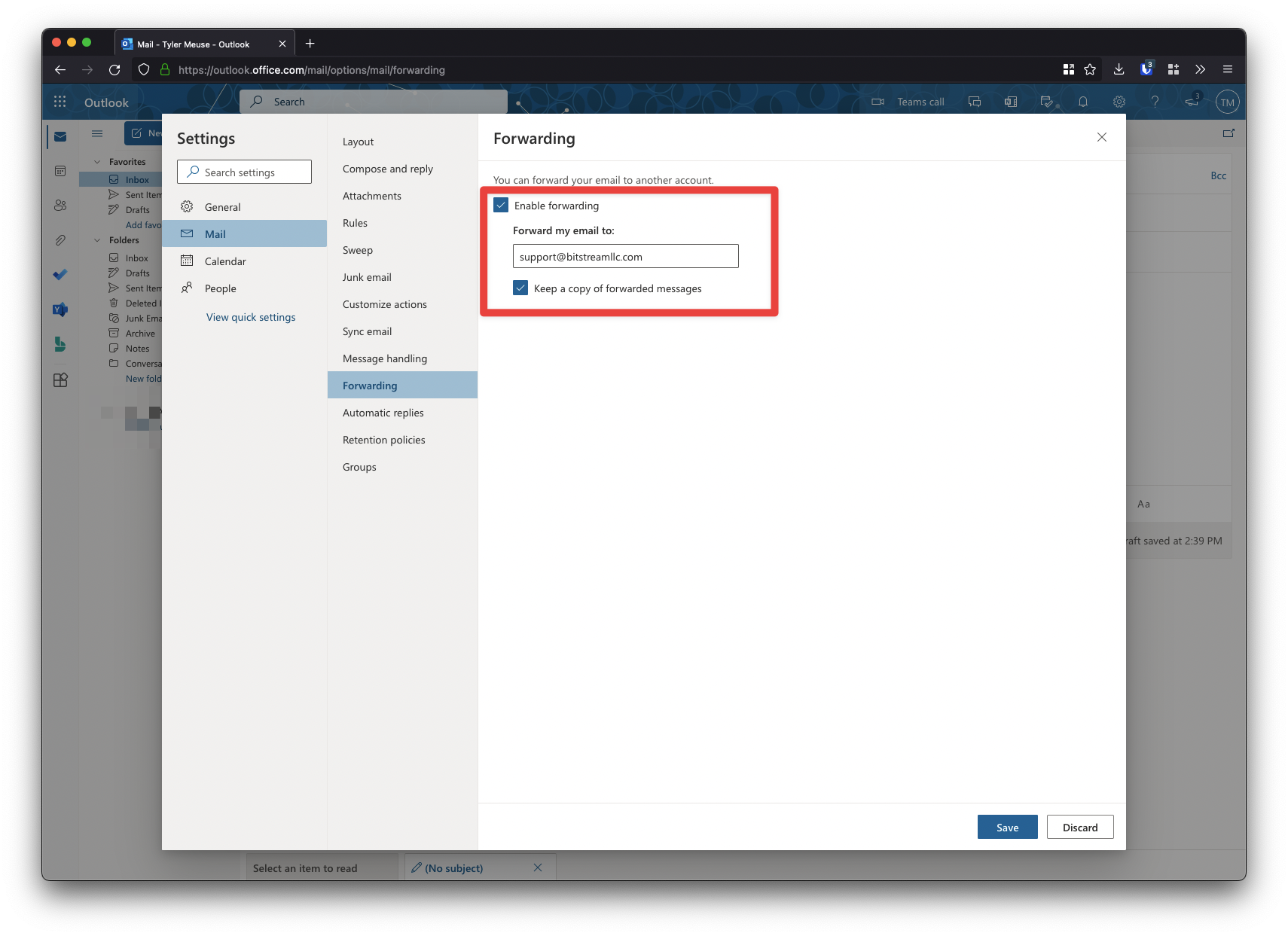
6. Select Save
✓ That’s it! Remember to disable this when you’ve returned!
Still need help?
Submit a Ticket