Mozilla Thunderbird
Opening Thunderbird
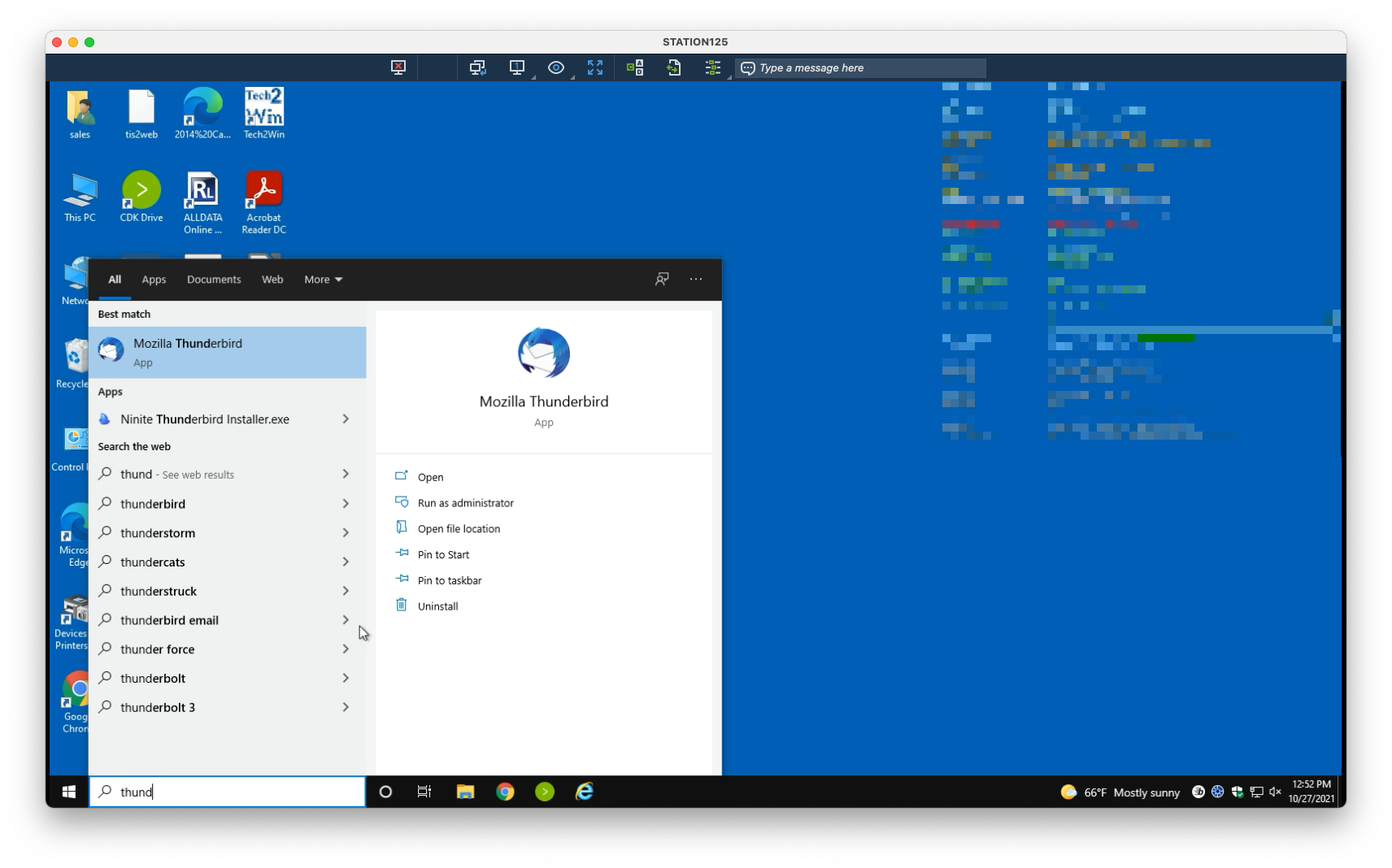
1. Click on the Start Menu. Begin typing “thunderbird”. Mozilla Thunderbird should appear as the first result
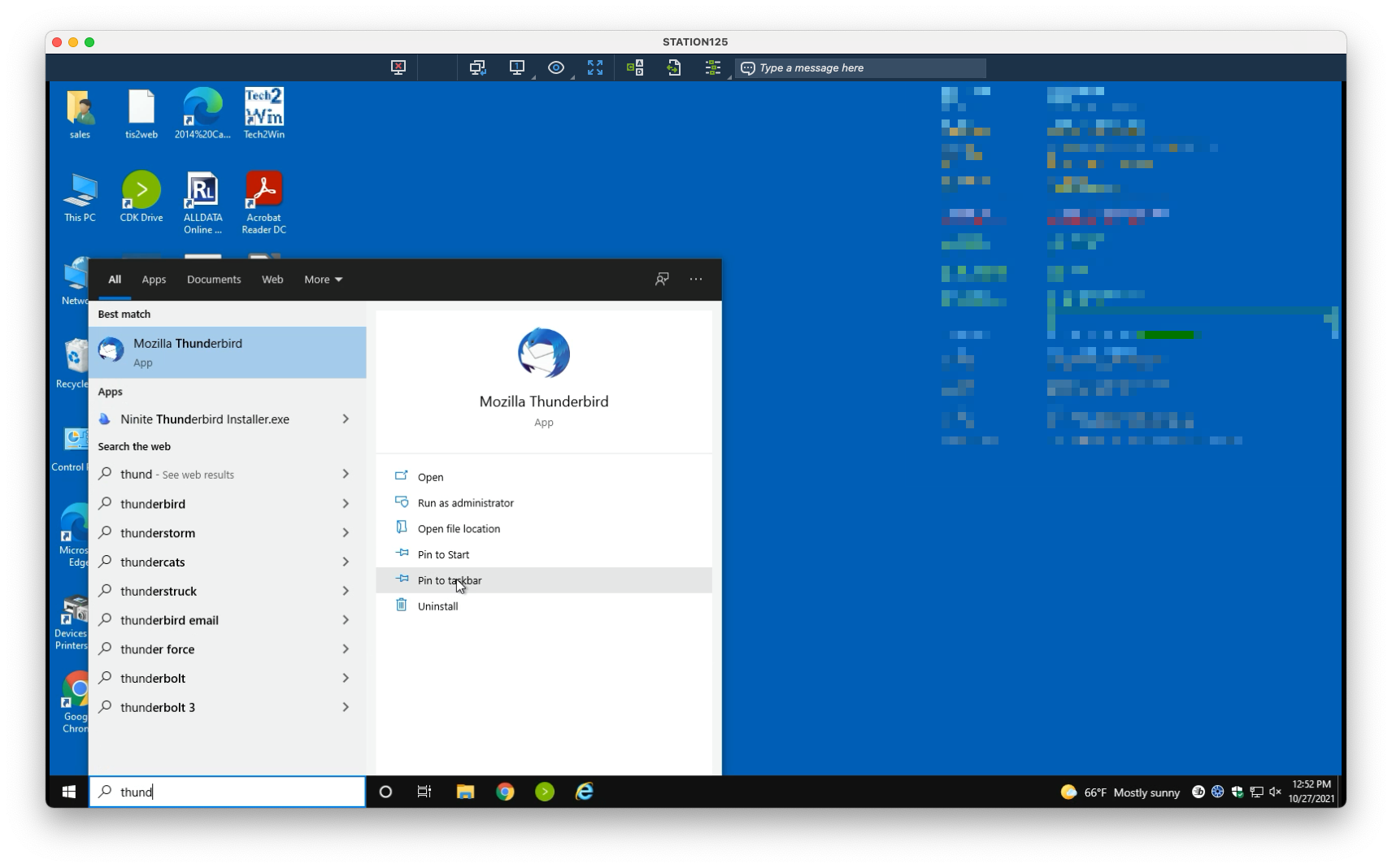
2. Select Pin to taskbar for quicker access in the future
Setting Thunderbird as Default Email Handler
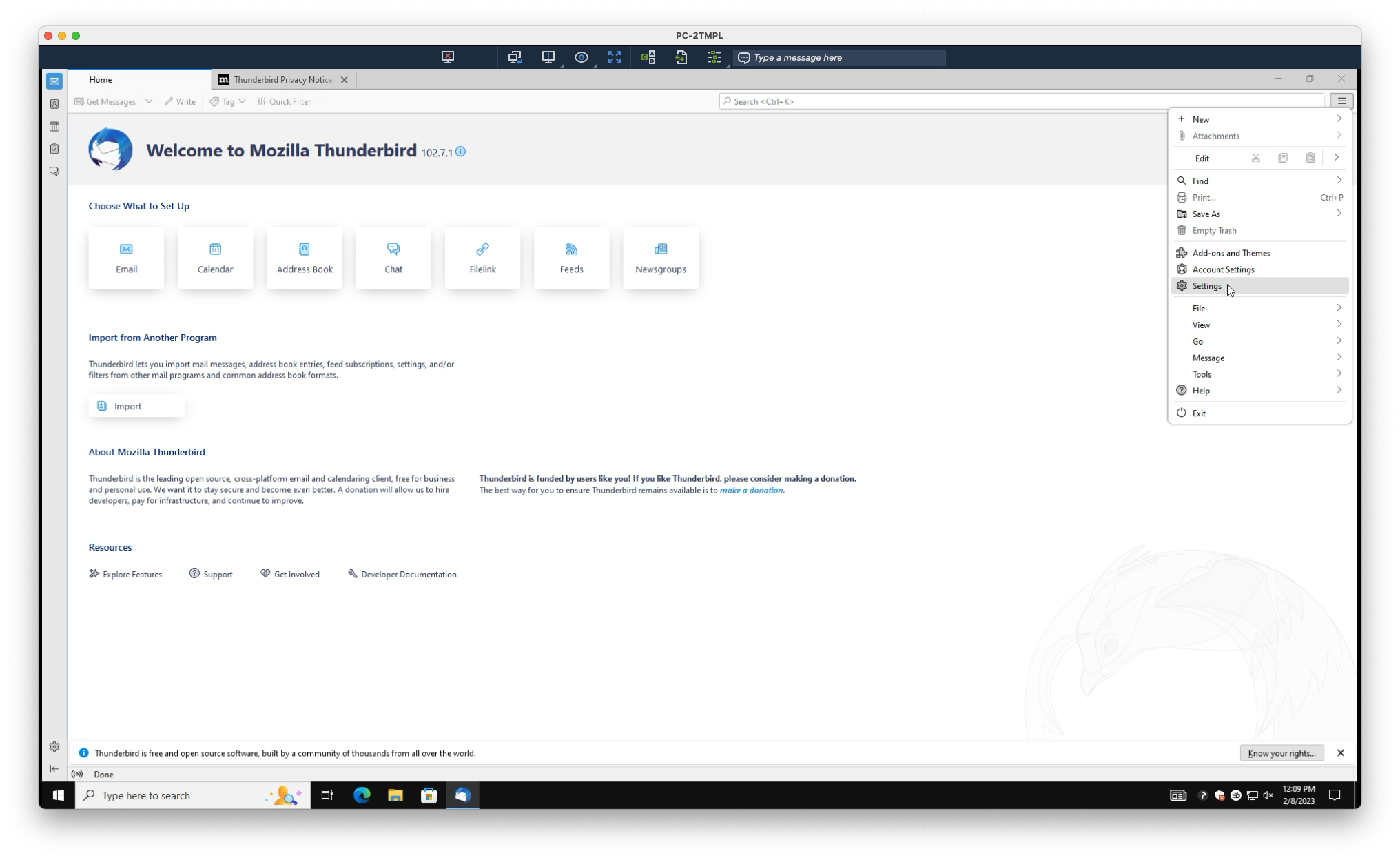
1. Within Thunderbird, navigate to the Menu in the top-right. Select Settings
2. Under System Integration, select Check Now
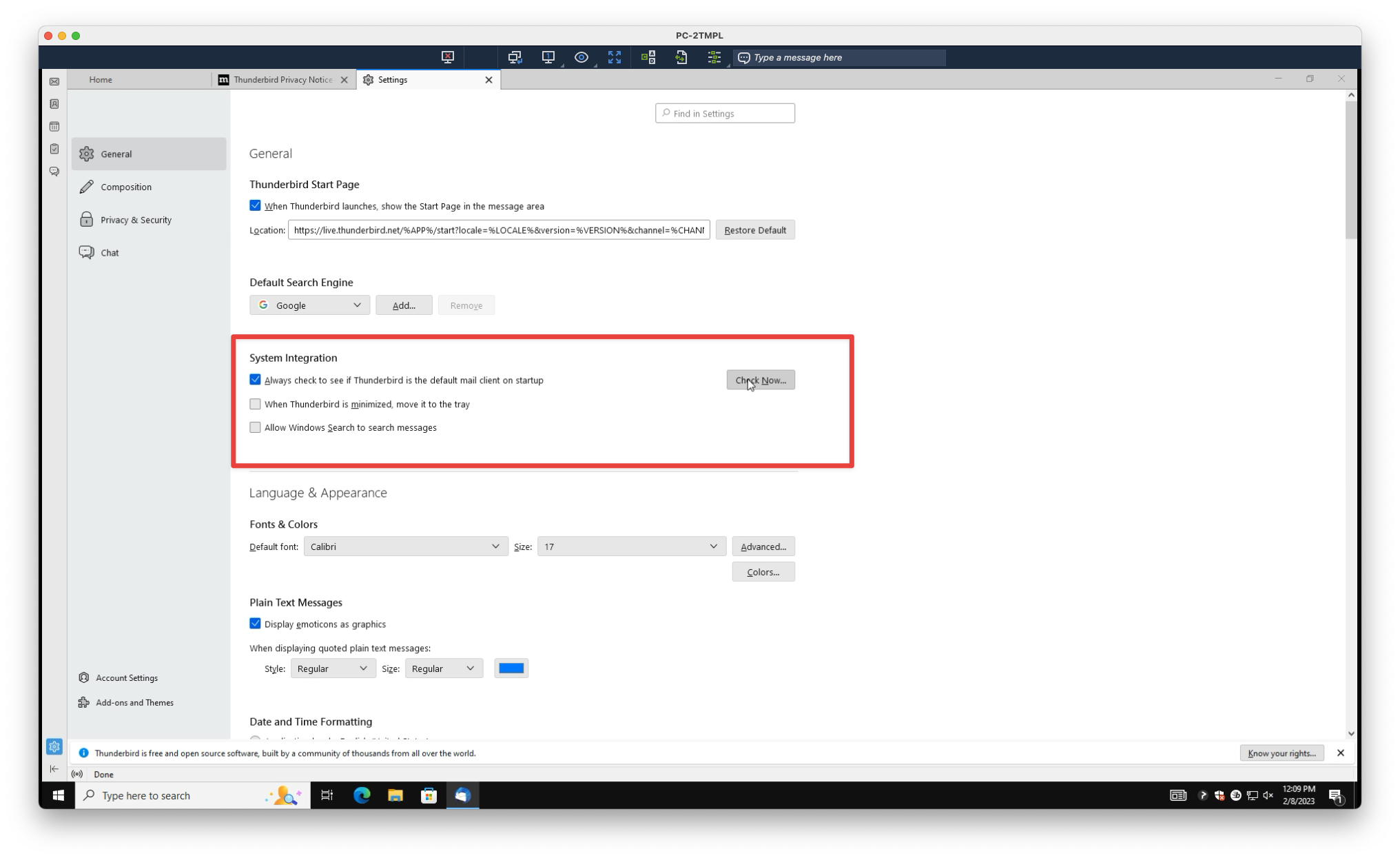
4. Select Email, then select Set as Default
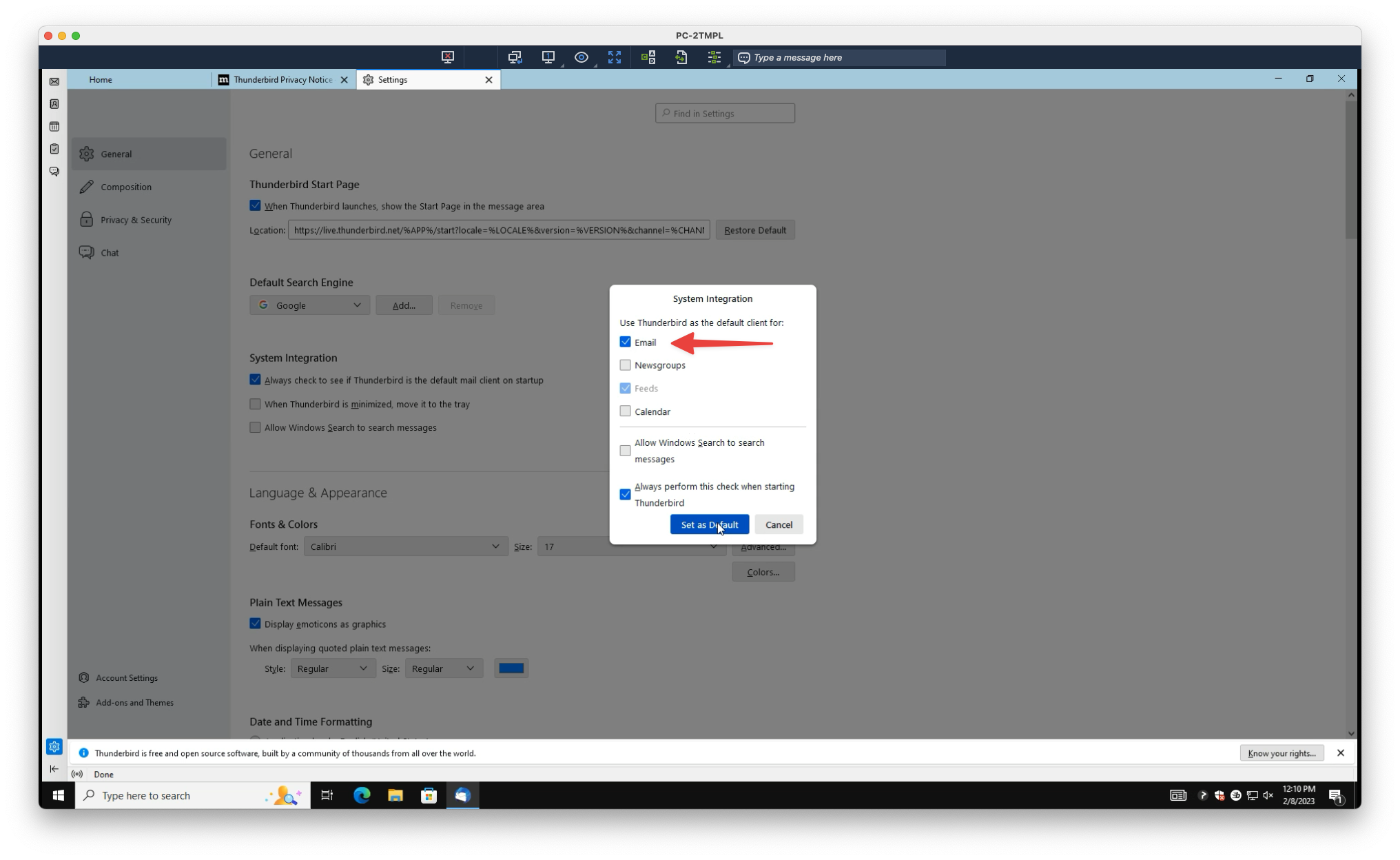
Thunderbird will now handle email compositions within Windows
Removing an Unused Email Account
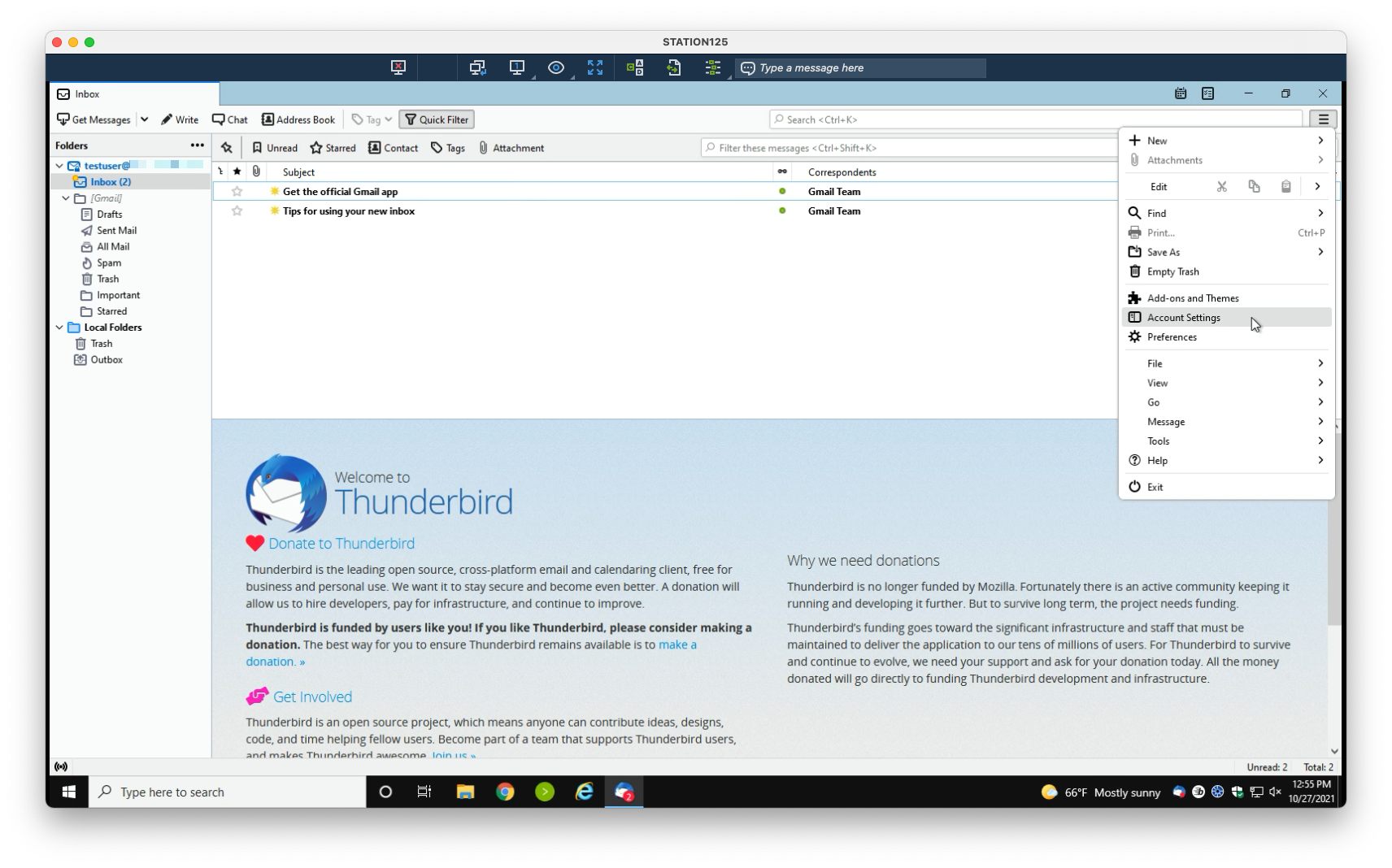
1. Within Thunderbird, navigate to the Menu on the right. Select Account Settings
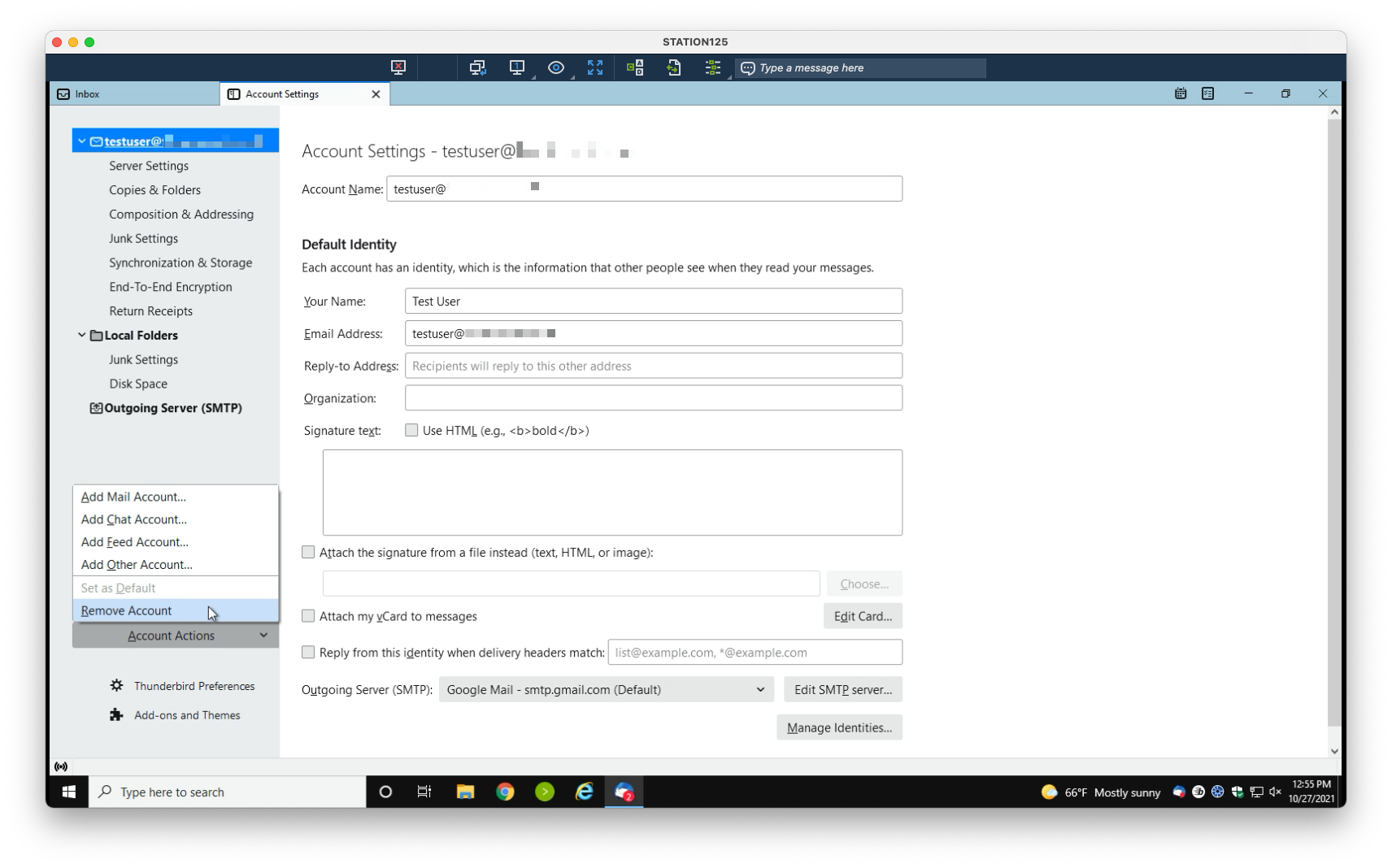
2. Under Account Actions, select Remove Account
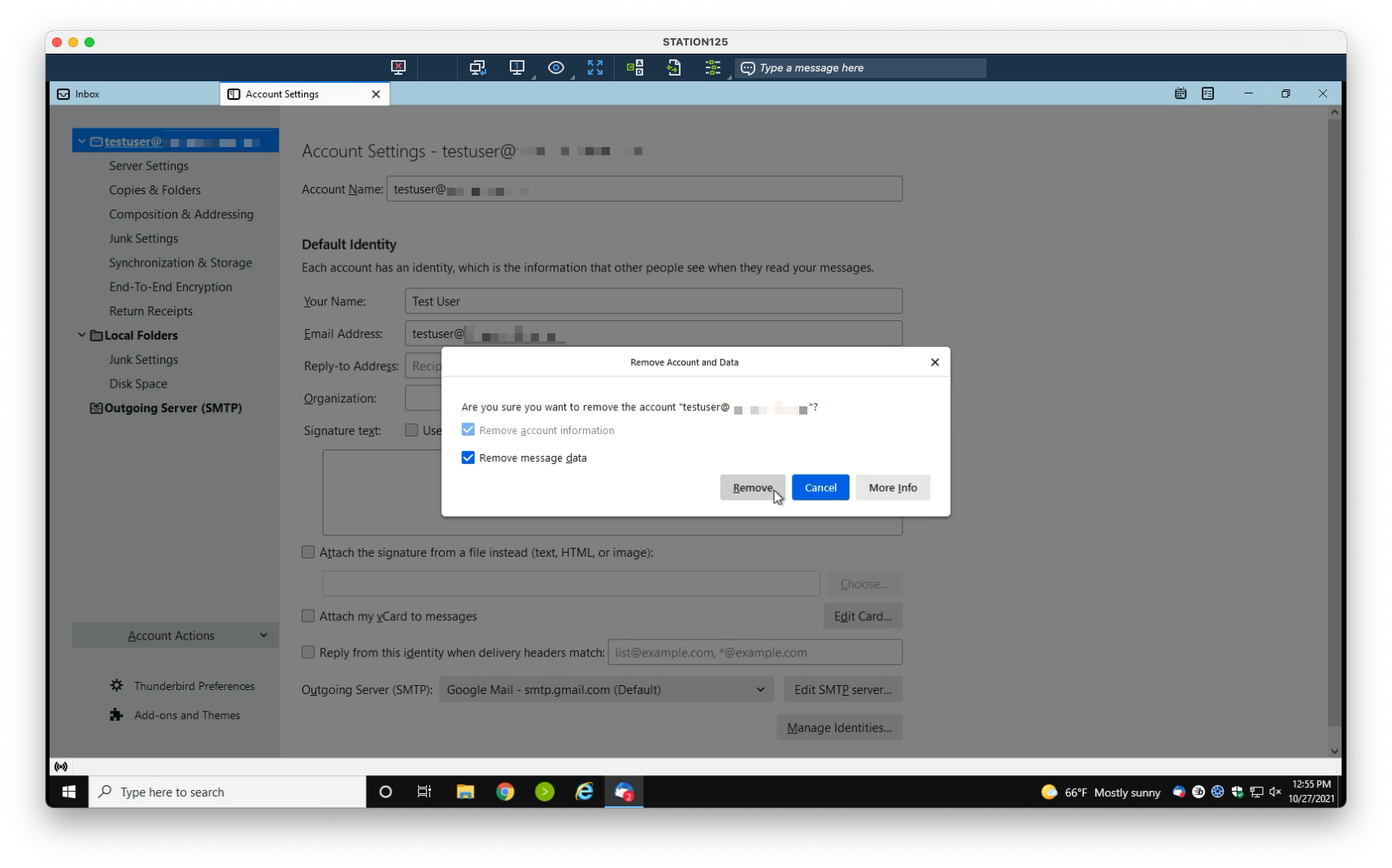
3. Check Remove message data, then select Remove
Adding an Email Account
1. Within Thunderbird, navigate to the Menu on the right. Select Account Settings
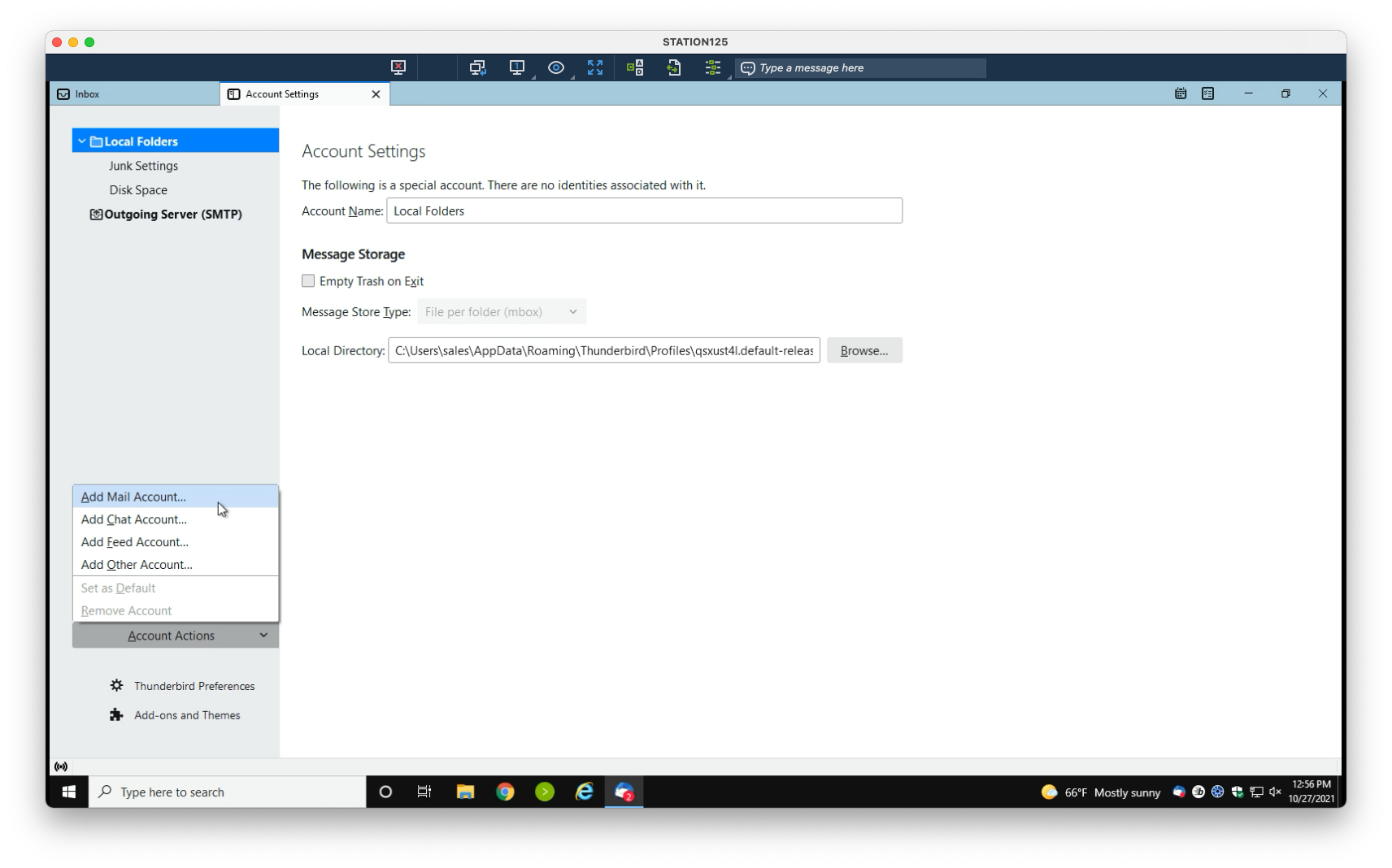
2. Under Account Actions, select Add Mail Account
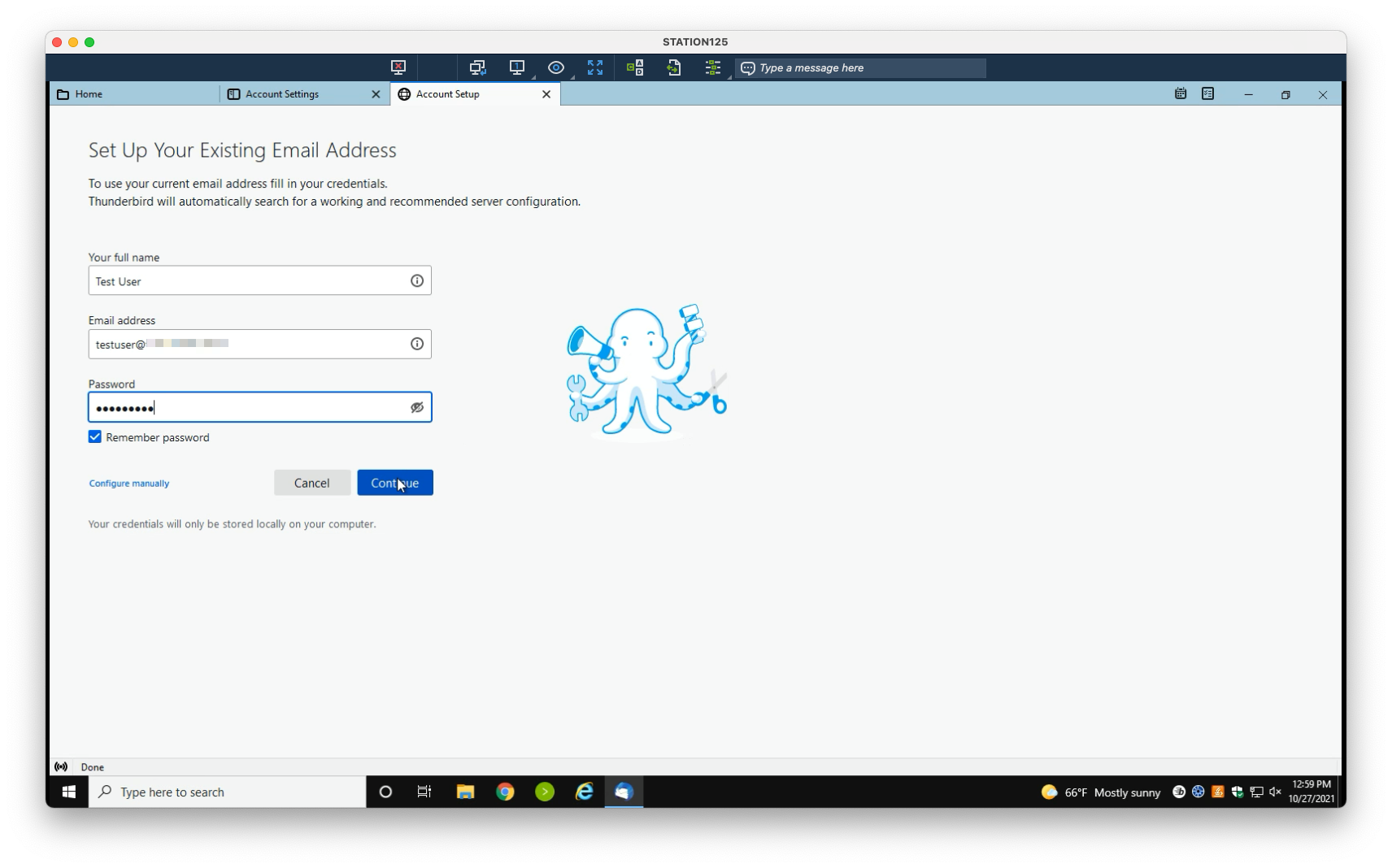
3. Enter your name, email address, and password, then select Continue
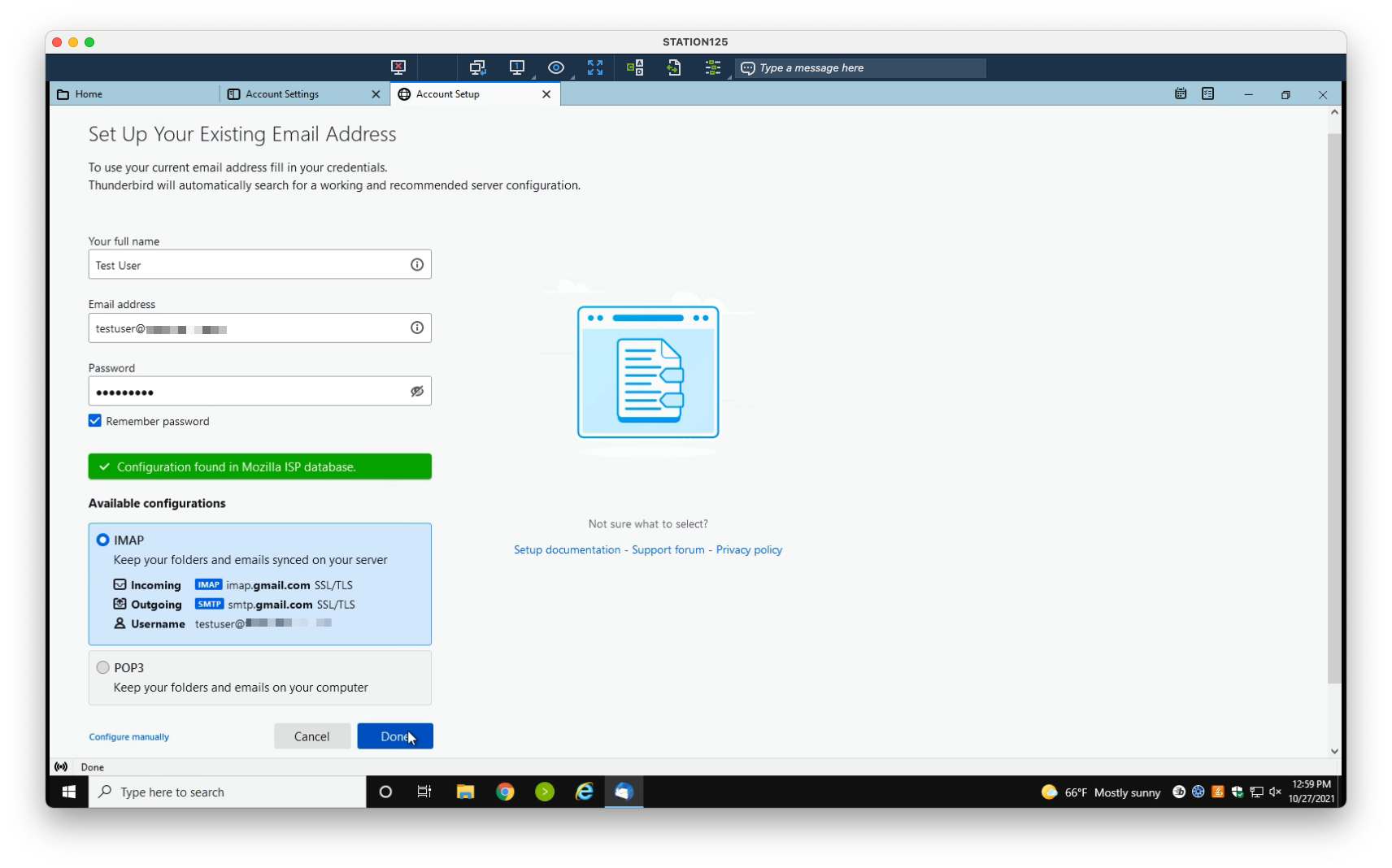
4. Leave default configuration of IMAP. Select Done
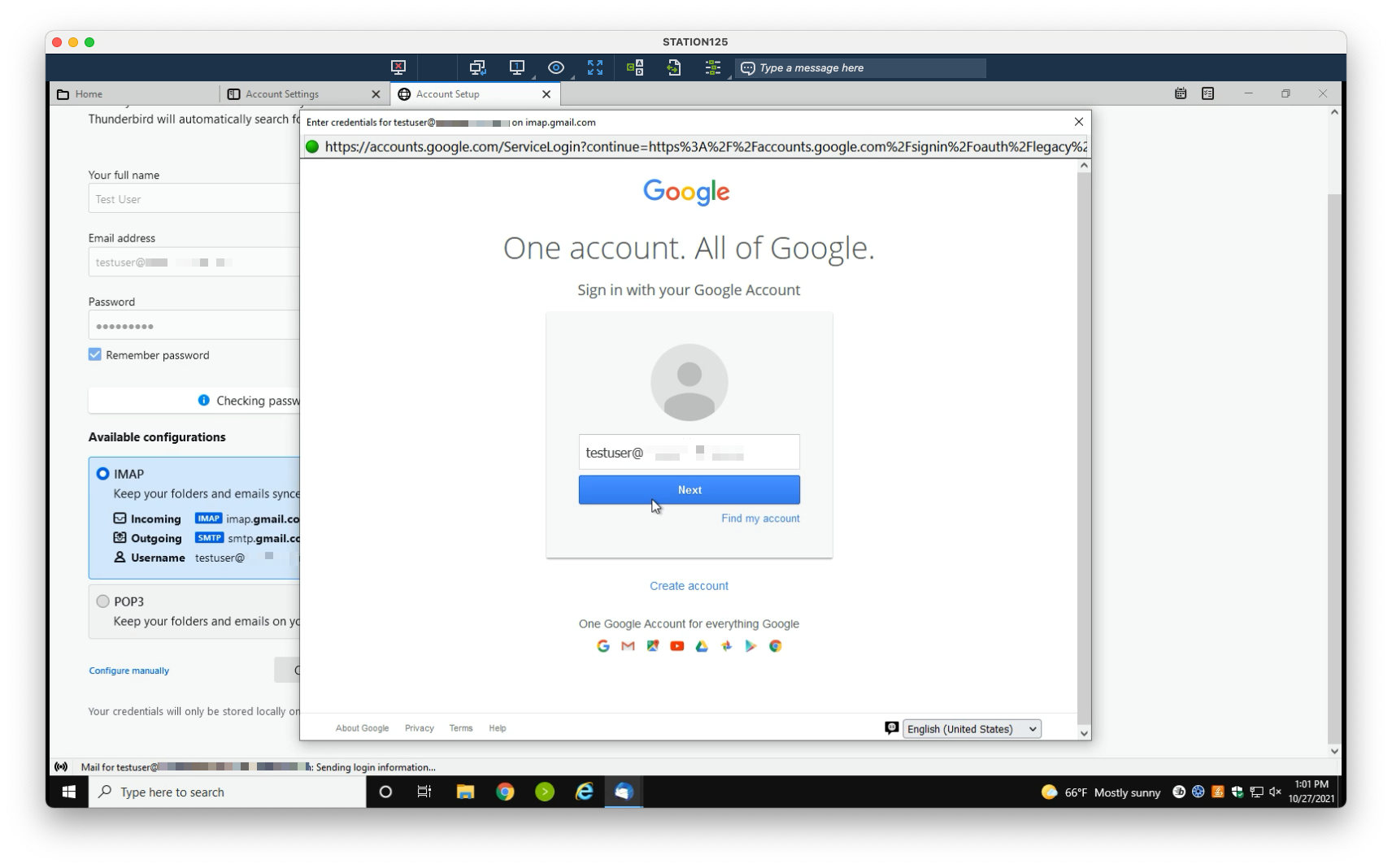
5. You will be prompted again to log in. Enter your email address
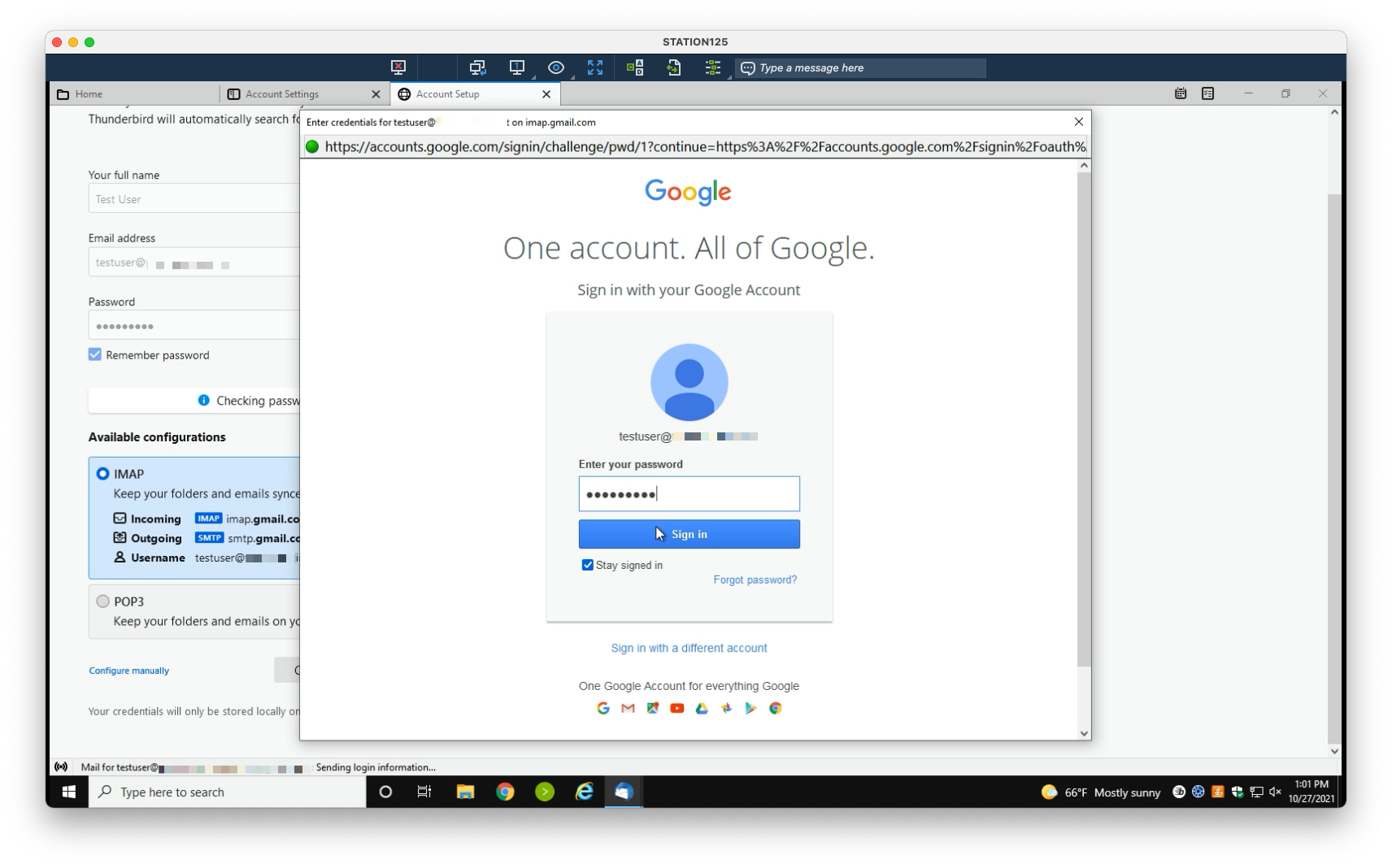
6. Then your password, once more
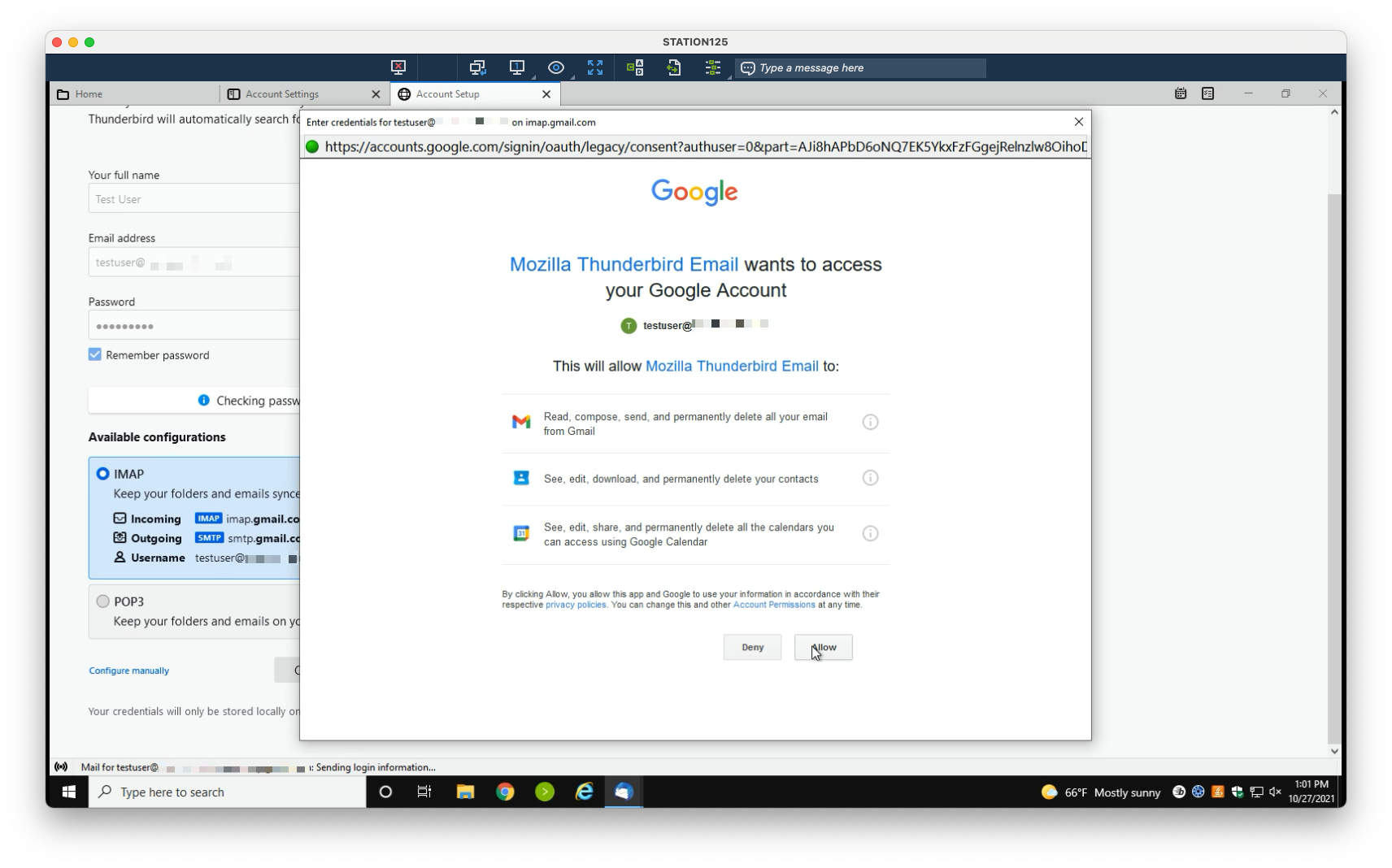
7. Select Allow to permit Thunderbird access to manage your email account
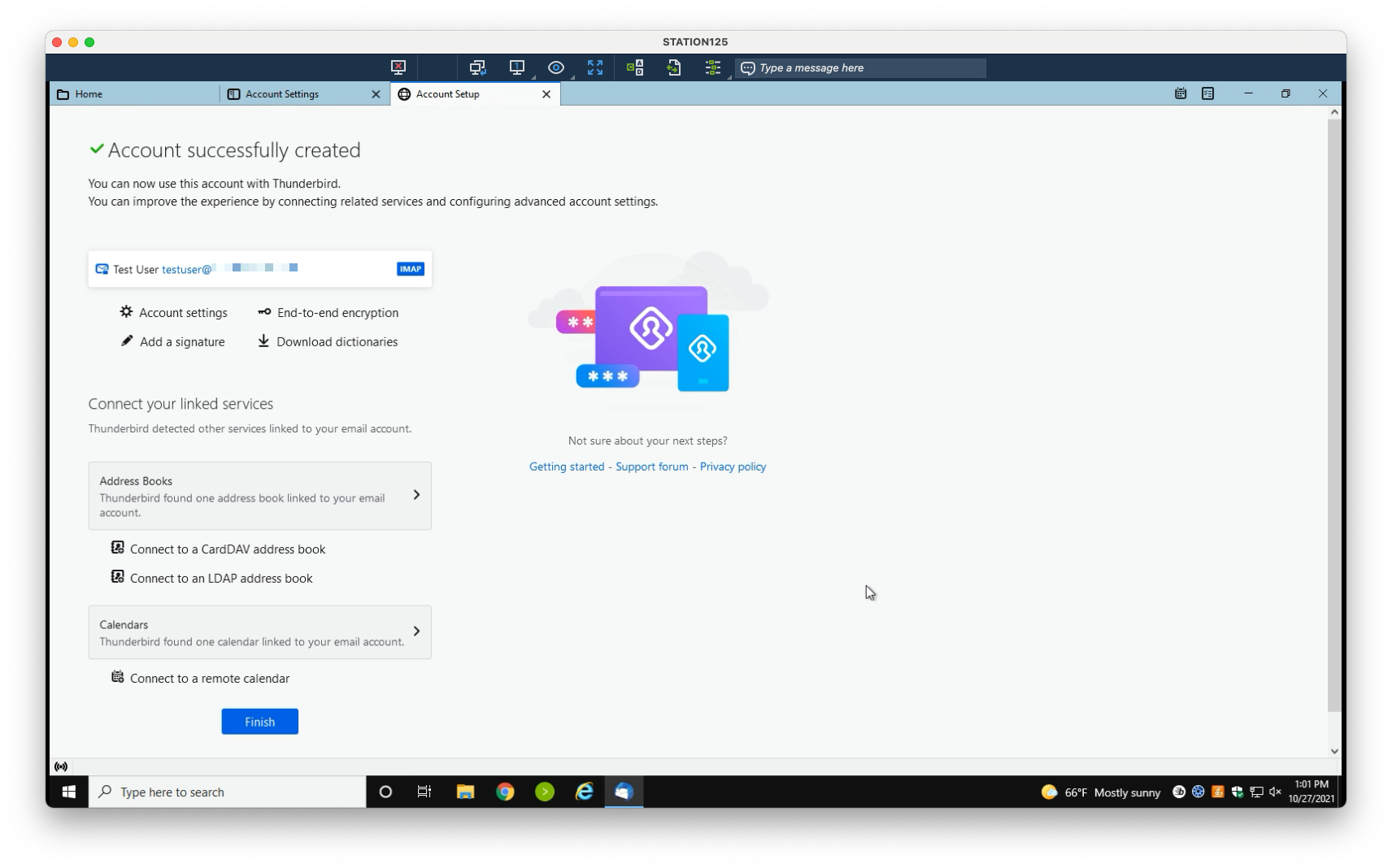
✓ You’re all set. Select Finish to be redirected to your inbox