Submitting a Ticket
| Business Hours |
|---|
| Fully staffed ticket desk: Monday - Friday: 8AM - 6PM EST |
| Limited staff ticket desk: Saturday: 8:30AM - 5:30PM EST Federal Holidays |
Via the Bitstream Agent Icon (Preferred)
Windows 11
1. Click on the Overflow menu, then the Bitstream icon in the system tray (bottom-right hand corner of screen)
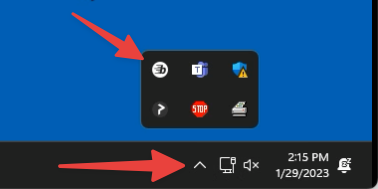
2. Select I Need Help From IT
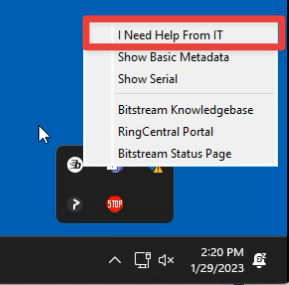
Windows 10
1. Click on the Bitstream icon in the system tray (bottom-right hand corner of screen)
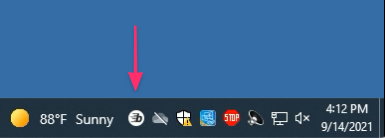
2. Select I Need Help From IT
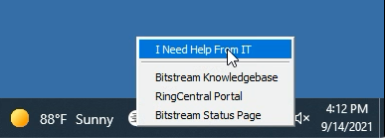
3. A form will appear as shown below. Use the Subject and Body fields to give us a description of the issue you are having. In the email field, use your work email address (tickets will not be accepted from personal email addresses).
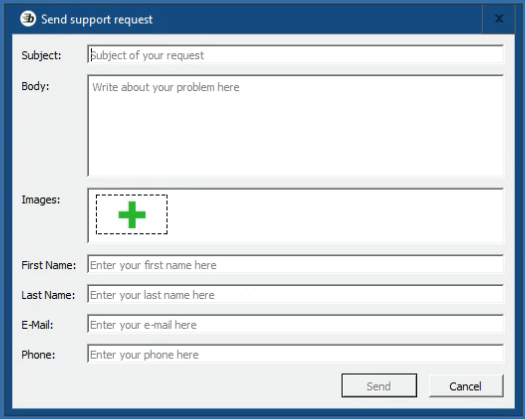
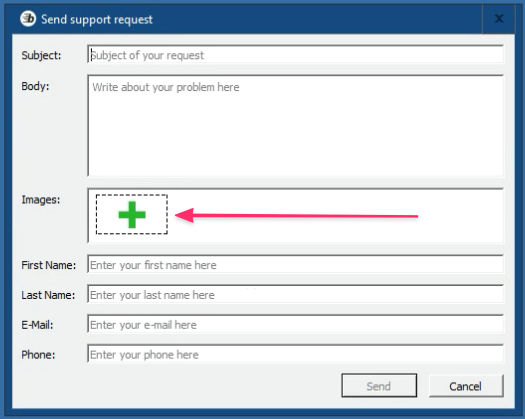
4. The large green plus (+) symbol will take a screenshot of whatever is up on your monitor at the time it is pressed (excluding the form box itself). Screenshots are useful when there is an error message being displayed on your screen.
Via Email
If there is no Bitstream agent icon in the System Icon Tray in the bottom-right corner of your screen, you may need to reboot your computer. If the icon is still missing after a reboot, or you are otherwise unable to submit a ticket using the agent icon, you may create a ticket by emailing support@bitstreamllc.com.
Don’t Trust, Verify
Always verify who you’re talking to, and never divulge sensitive information in an unsolicited/incoming phone call, message, or email.
Learn how to spot phishing attempts, make sure we are who we say we are, and practice good judgement. If something feels off, it might be; reach out to us directly.