Setting up your Deskphone
Network Passthrough Configuration
In certain workstation setups, you will have limited data ports available for use. In this case, the internet connection of your computer will go through your desk phone, so that only one data port is used for both devices. This is known as a “passthrough” setup.
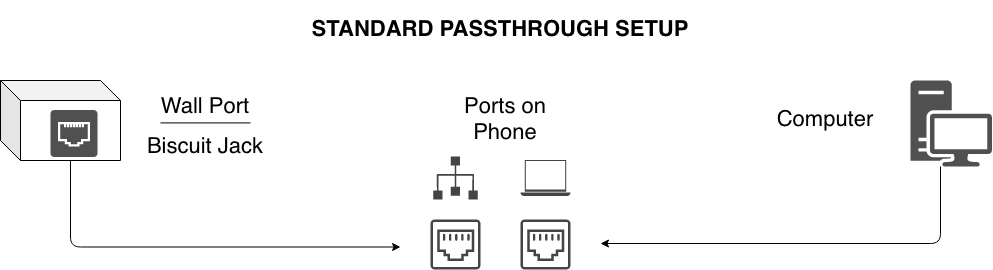
Above is a diagram of how this is accomplished. A cable runs from either a data port in the wall, or in a “biscuit jack” - a modular data port embedded in a (usually beige) box, to the network port of your phone.
Another cable runs from the computer port of your phone to your computer.
If this is correctly set up, your phone should receive power, and your computer should be able to reach the internet.
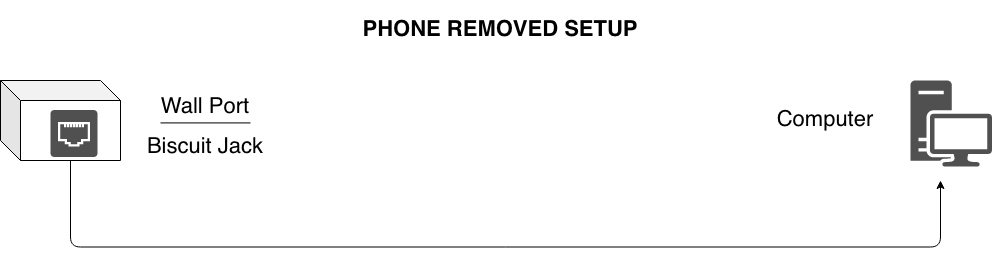
When you need to take your desk phone out of the office, please disconnect the computer cable from your phone, then disconnect the network cable from the wall port/biscuit jack. Next, connect the cable coming from your computer to the wall port/biscuit jack.
You should now have a phone that can be taken out of the office, and a computer that has internet access.
Disable Saturday Power Saving
About Power Saving Mode
Poly phones have an internal “work hours” schedule that is separate from RingCentral. Since Saturdays are considered outside of the default work schedule, it will go into Off Hours Mode. This is simply a power saving state, and does not affect call routing. The phone will still operate as normal.
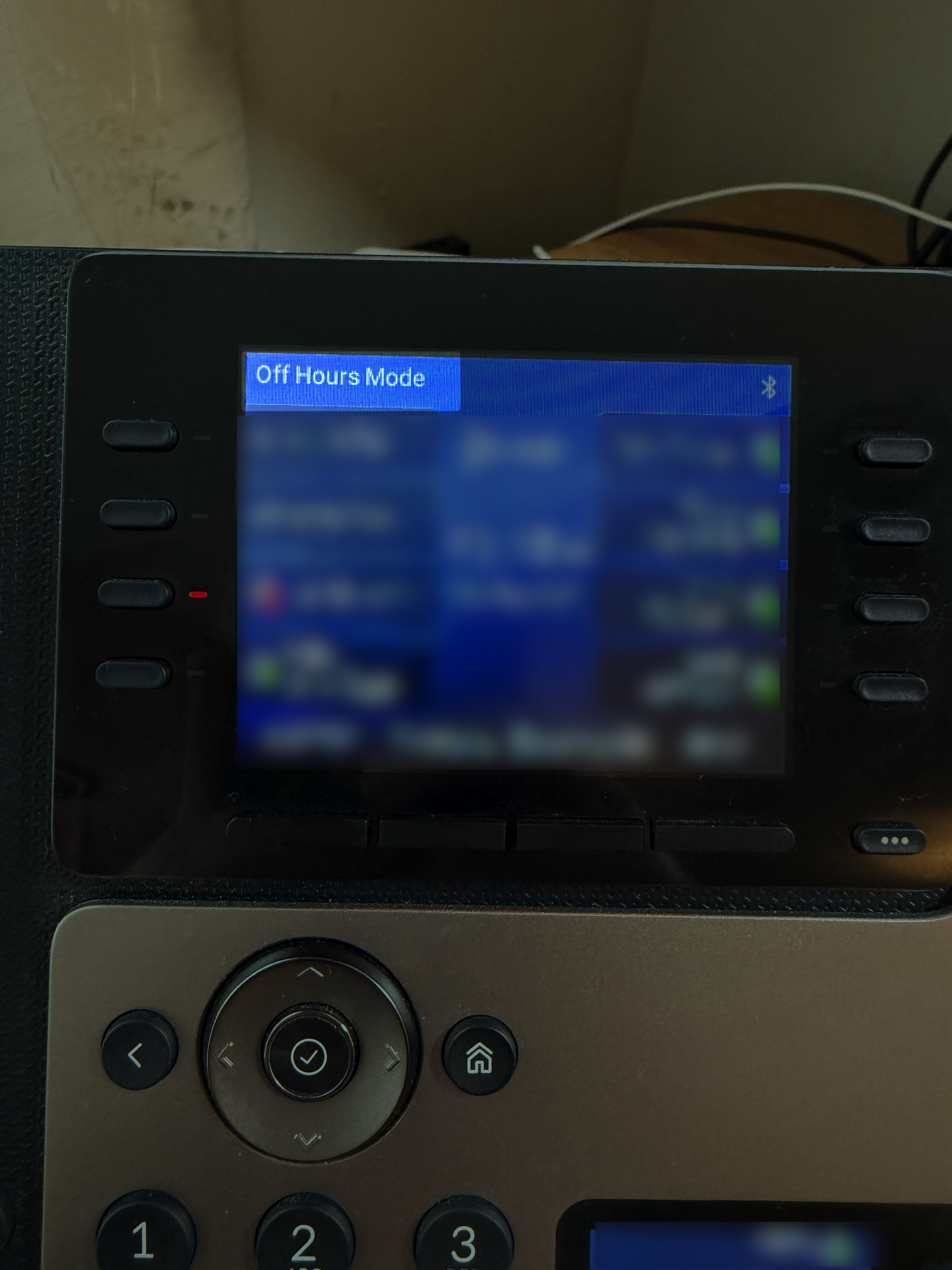
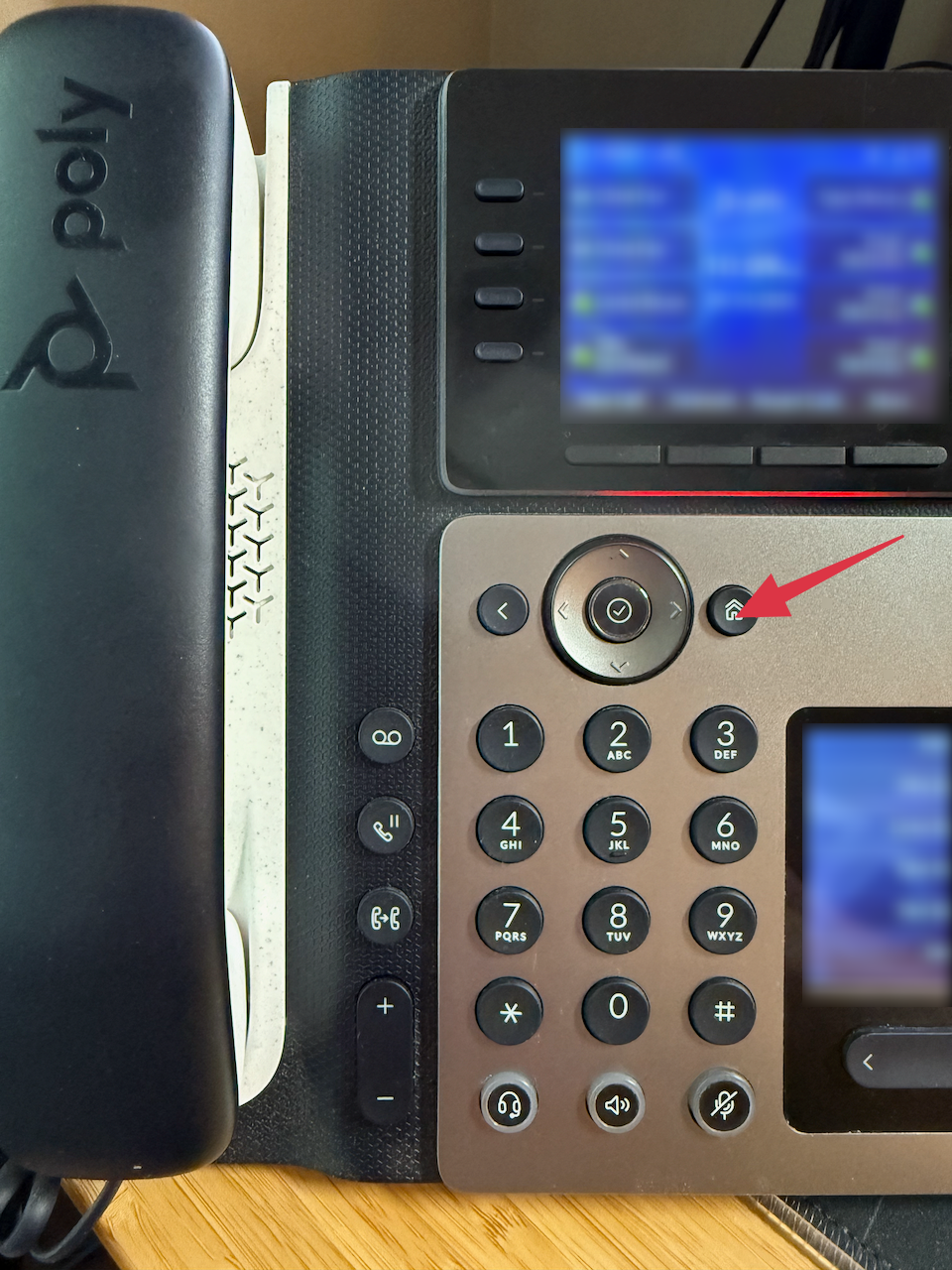
1. From the home screen, press the Home/Menu button (the physical button with a house icon).
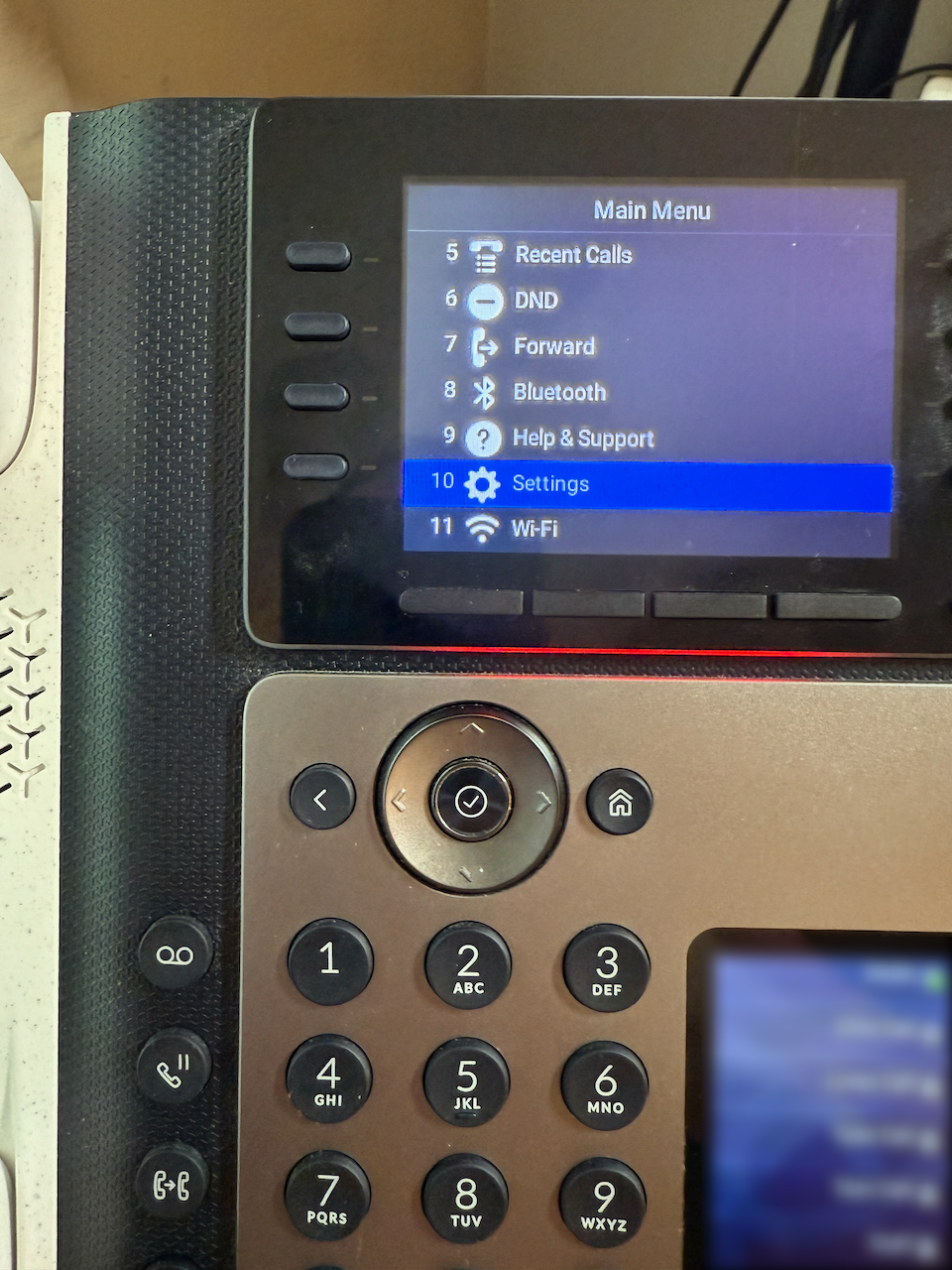
2. Navigate using the arrow keys to find and select Settings.
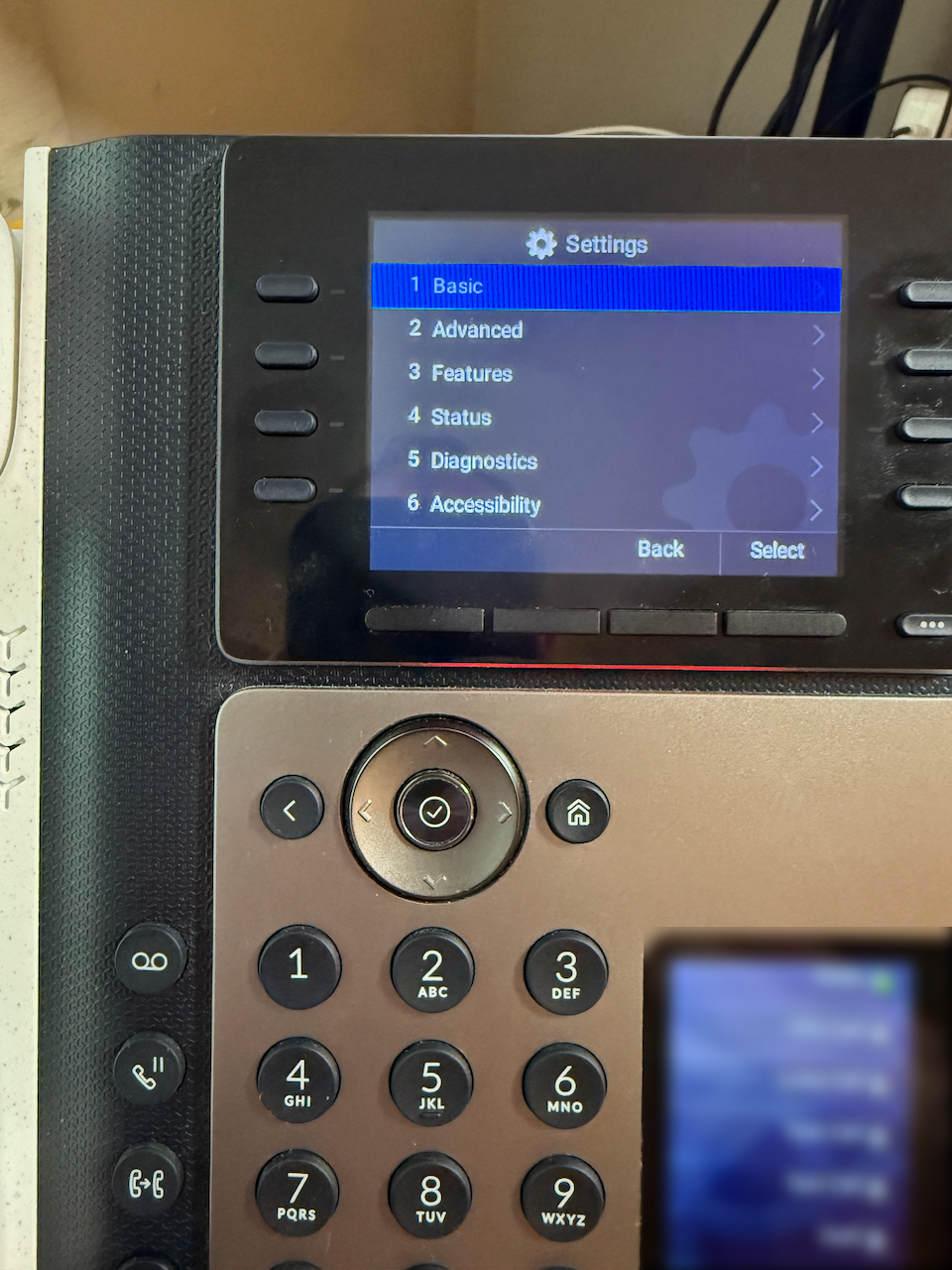
3. Select Basic
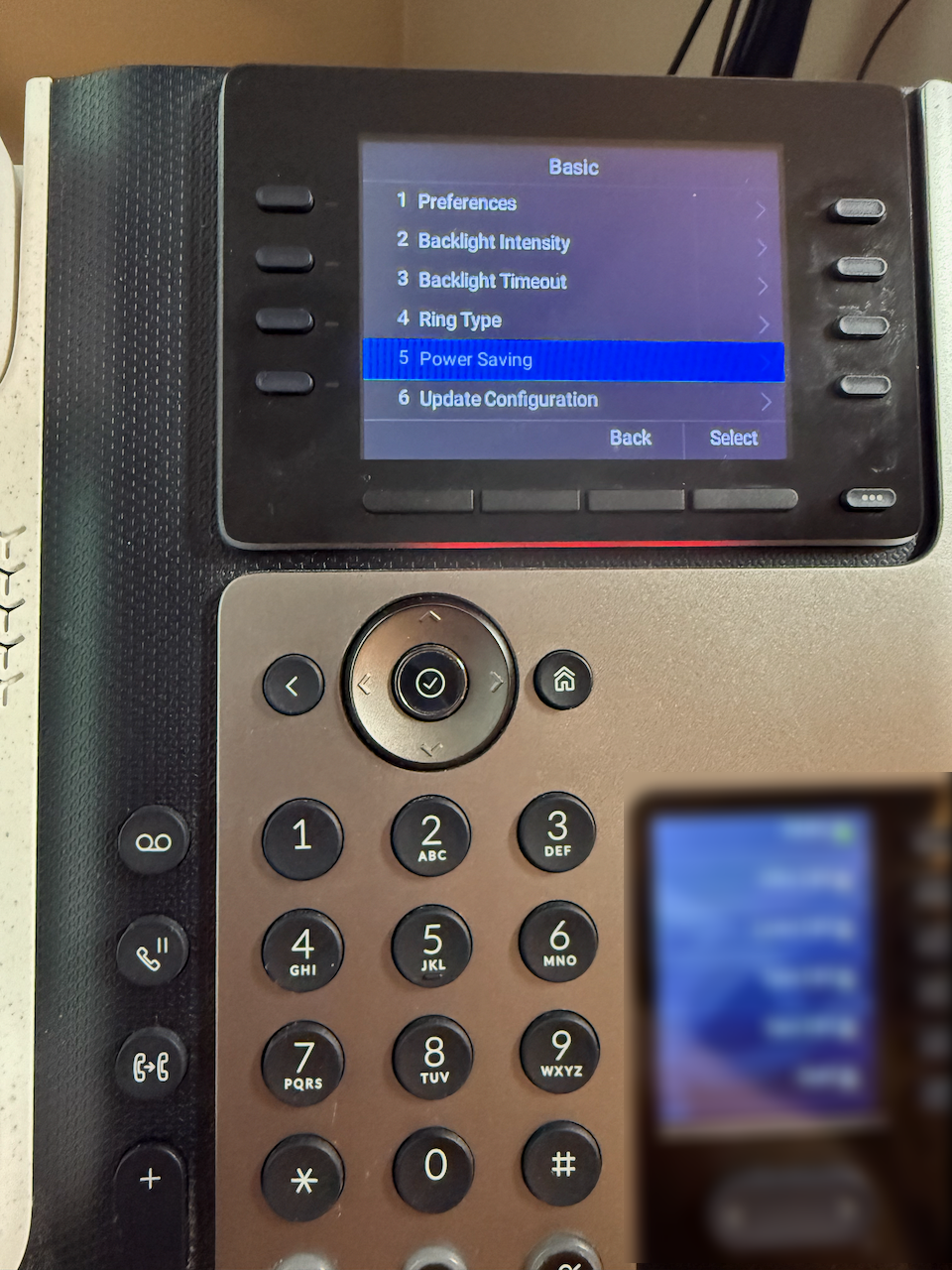
4. Select Power Saving
5. Select Office Hours
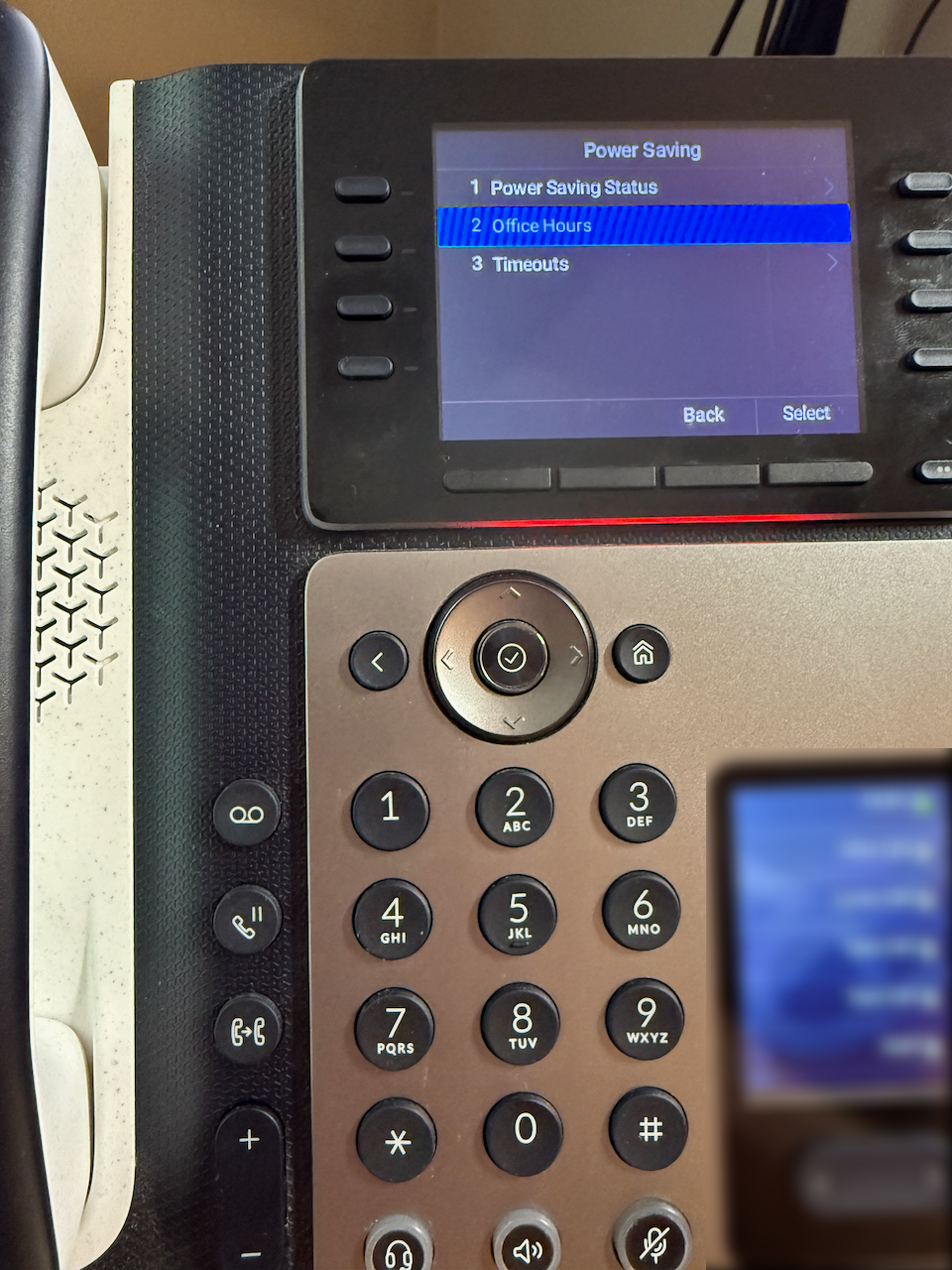
6. Select Duration
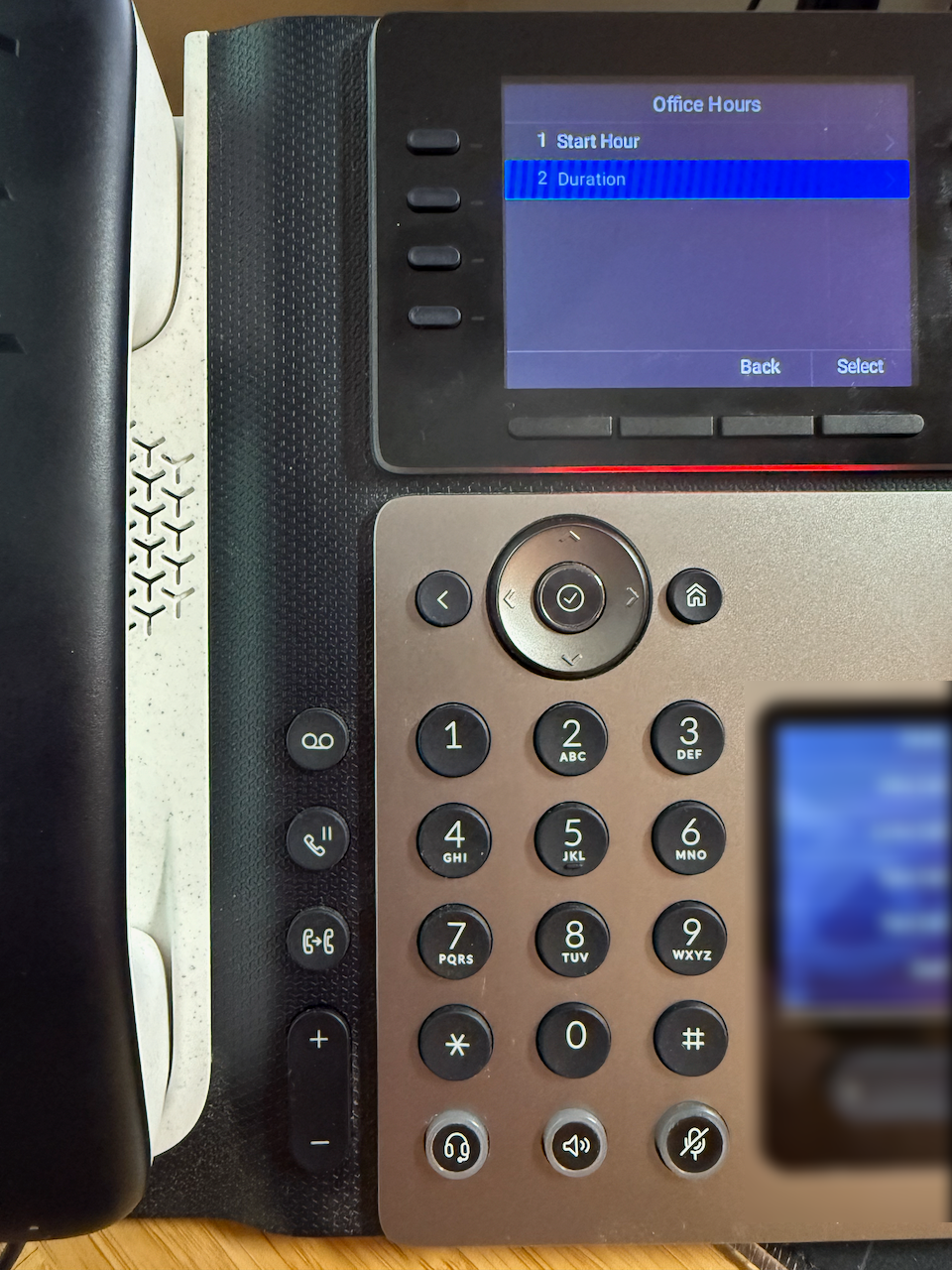
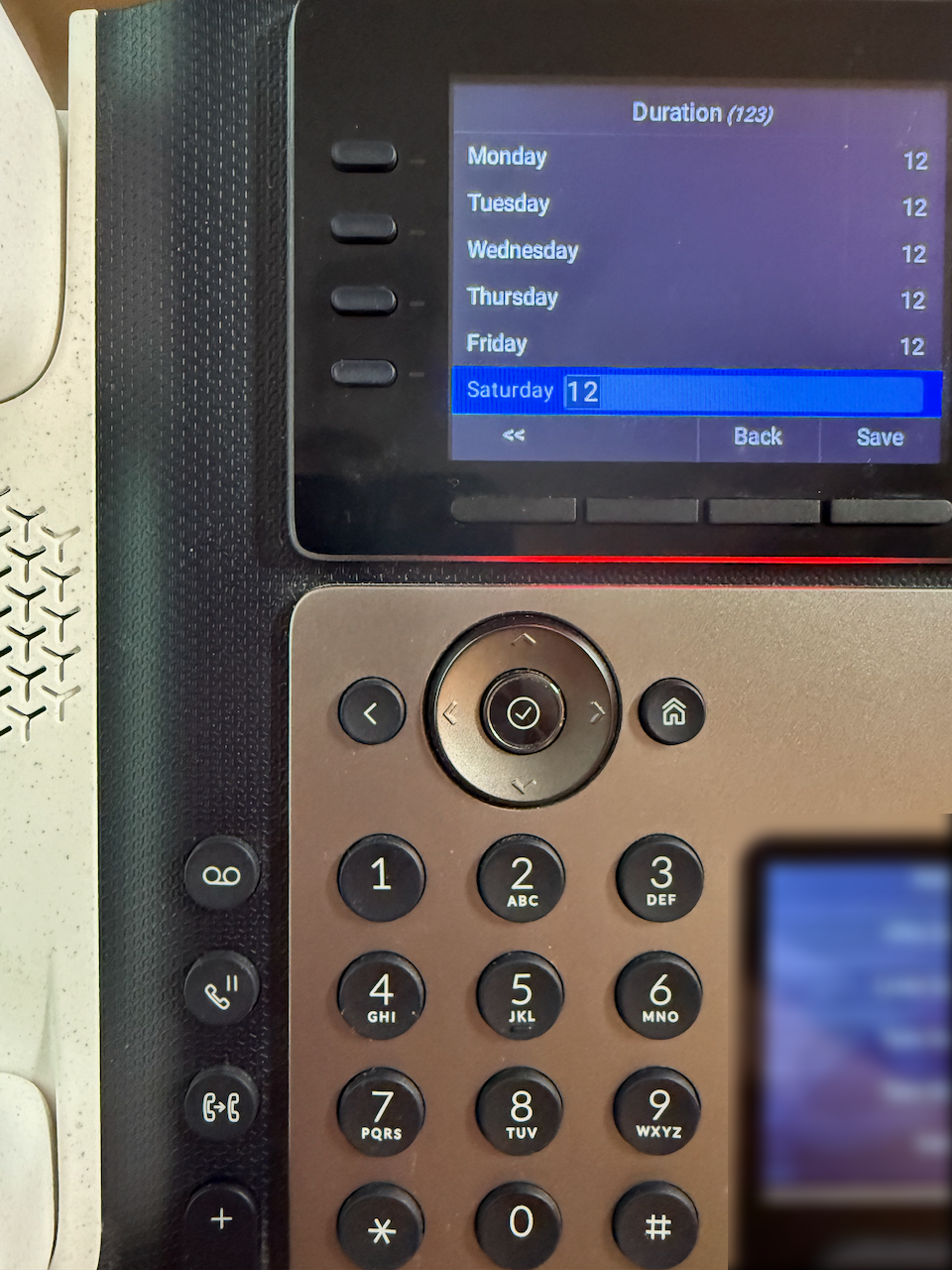
7. Go to Saturday
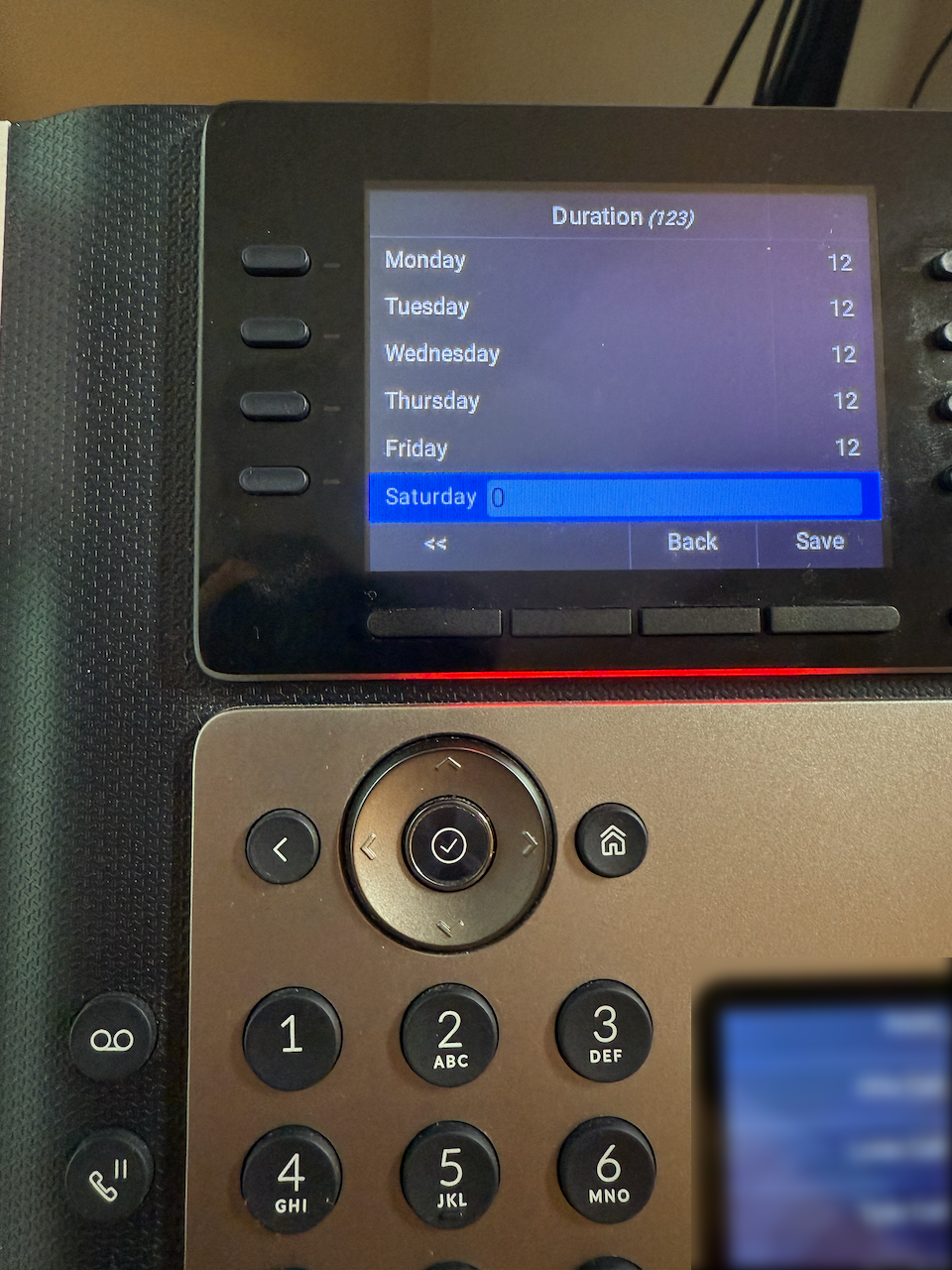
8. Replace 0 with 12 and Save
Once saved, you can press the Home key to navigate back to your main screen.