Web Portal Usage Guide
Signing into RingCentral
1. Navigate to
service.ringcentral.com2. Select Sign in with Google
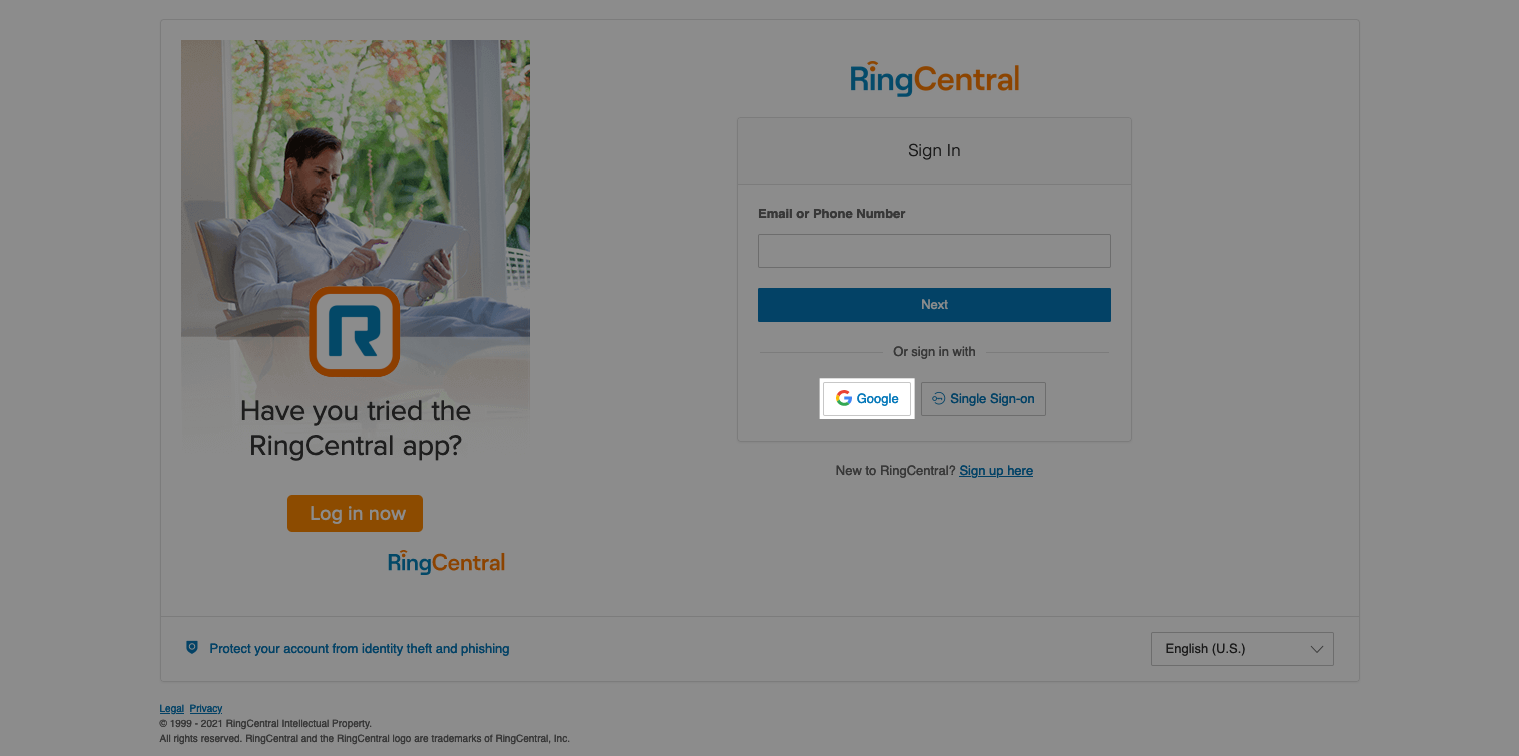
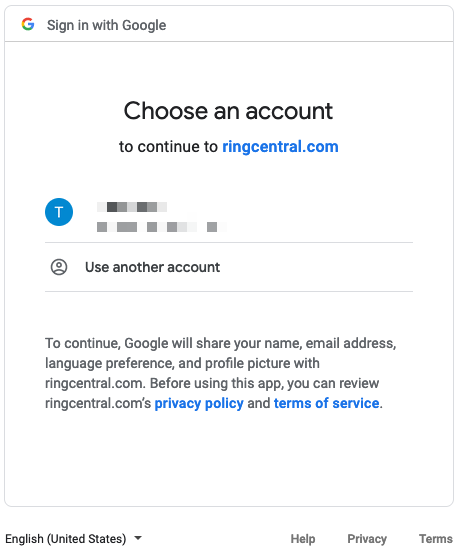
3. Select your Google account. Select Allow if prompted
Using the Web Portal
Here is a screenshot of the Web Portal, highlighting the most useful features:
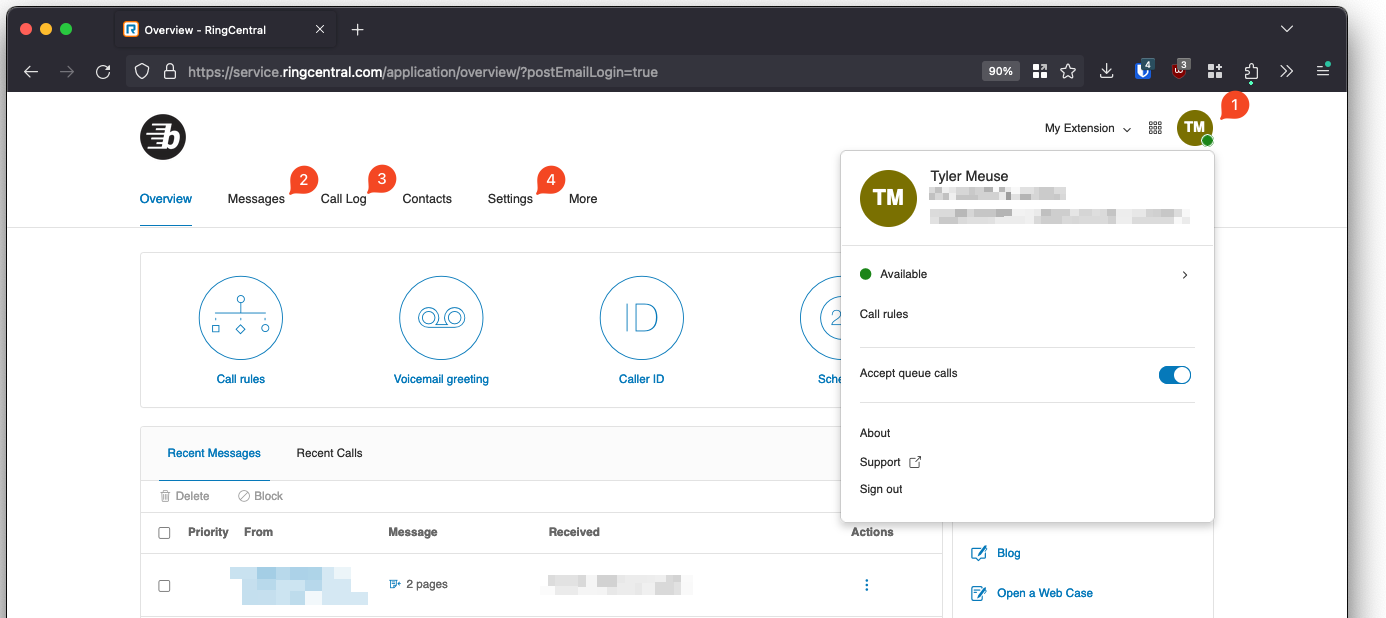
1. Availability Status
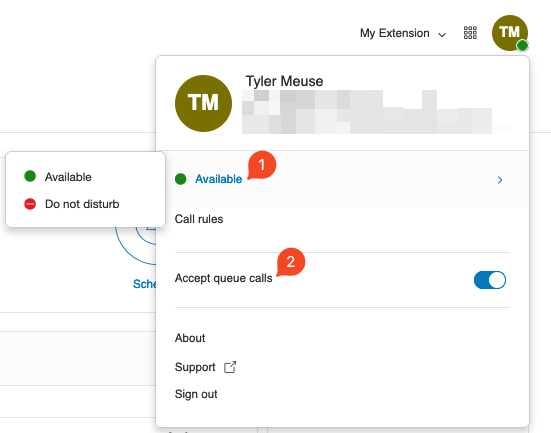
This feature determines your availability to take a call. You can select between Available (default), and Do not disturb (which silences all incoming calls).
You can also toggle Accept queue calls, if you are a call queue (group) member and wish to silence them.
2. Messages
This is the expanded Messages view, showing all messages in your account. You can view your Inbox, Outbox, Sent, and Deleted items, using the navigation menu on the left.
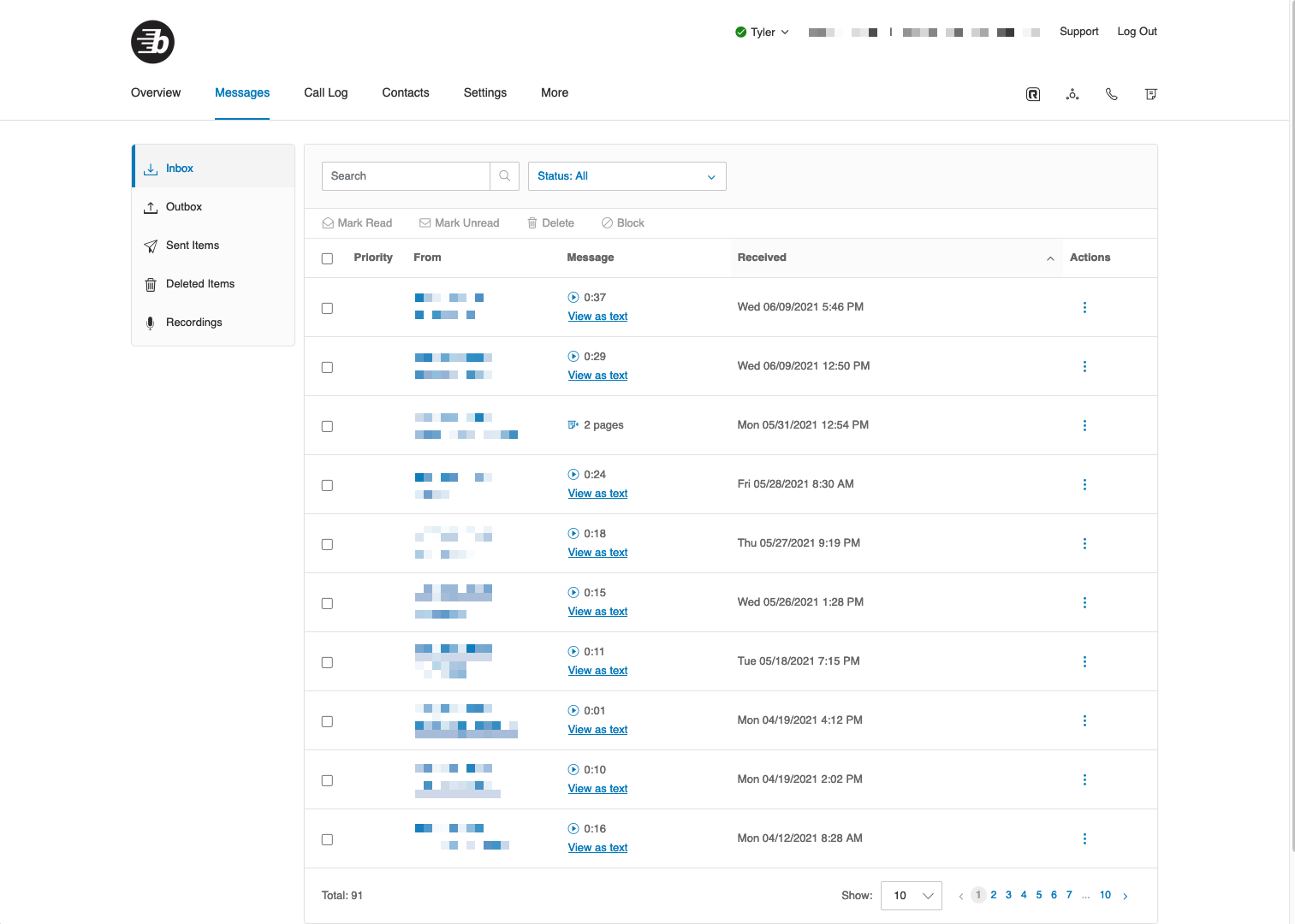
Listen to voicemails by selecting the Play icon. You may also view the voicemail as text, if the transcript is available.
If you have eFax enabled for your direct extension, you may also view a received fax by selecting the Fax icon.
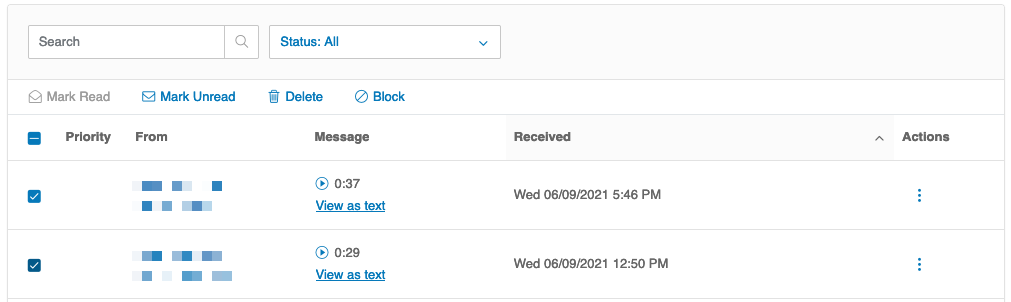
Actions such as Mark as Read/Unread, Delete, and Block Number are available. Select the message(s), then the desired action.
3. Call Log
This tab shows your most recent sent, received, and missed calls.
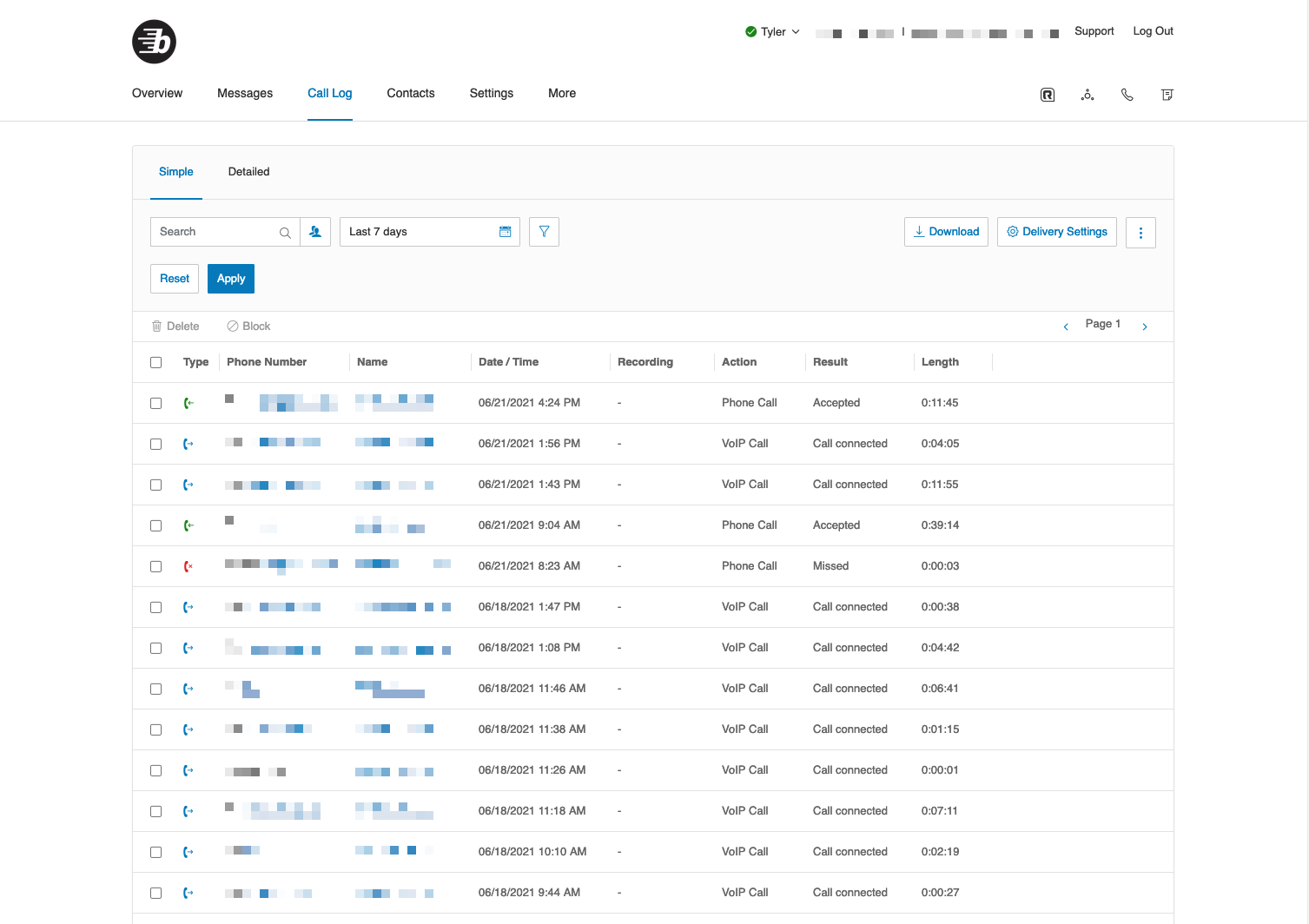
As with messages, you may select a call, and apply the actions Delete or Block Number. If recording is enabled for your extension, you may play an available recording by selecting the Play icon.

4. Settings
This tab allows you to edit your RingCentral settings, and customize the call handling and experience. The following explains the purpose of each section:
User Details
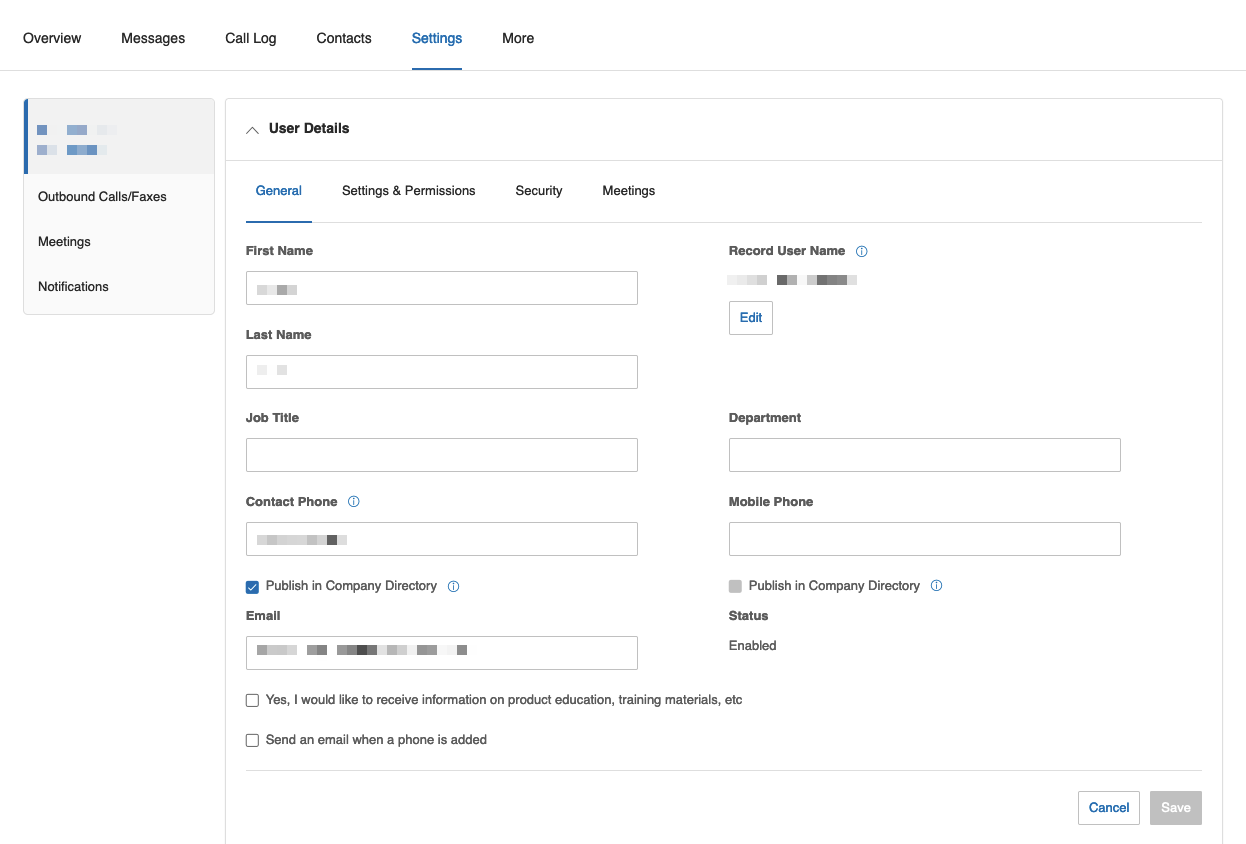
Here, you can edit details about yourself. Use the Settings & Permissions tab to change your active hours. Or, use the Security tab to update your password and/or voicemail PIN.
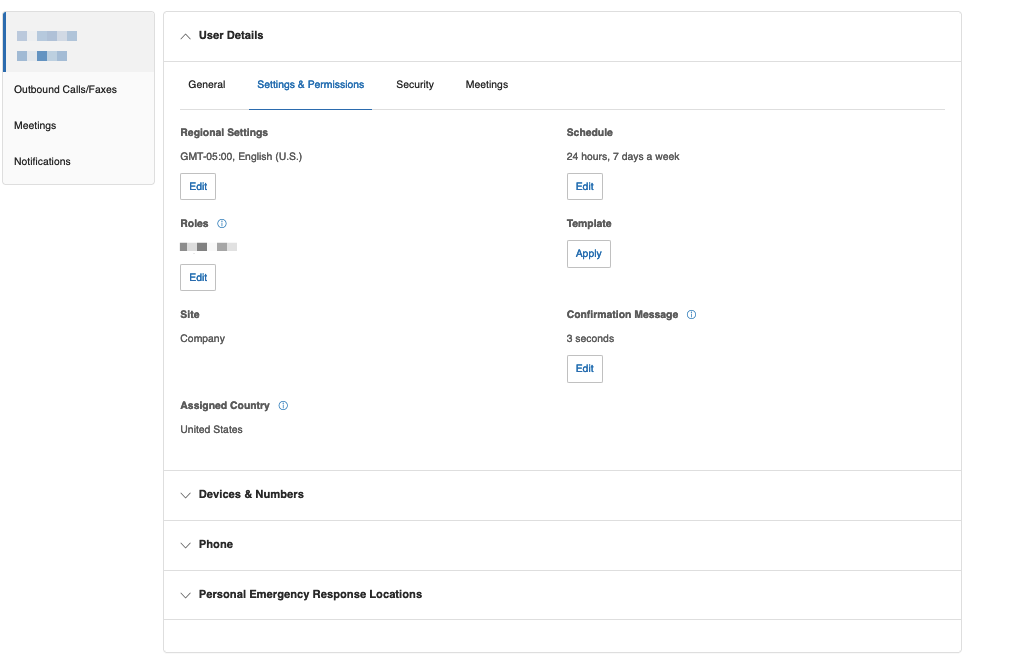
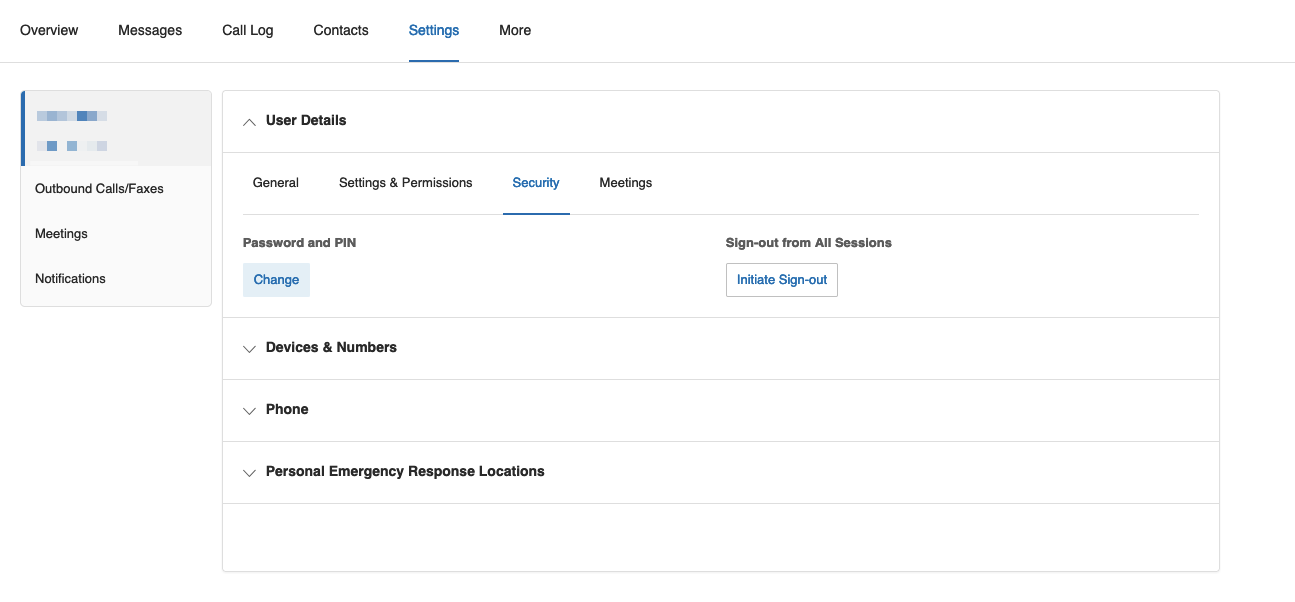
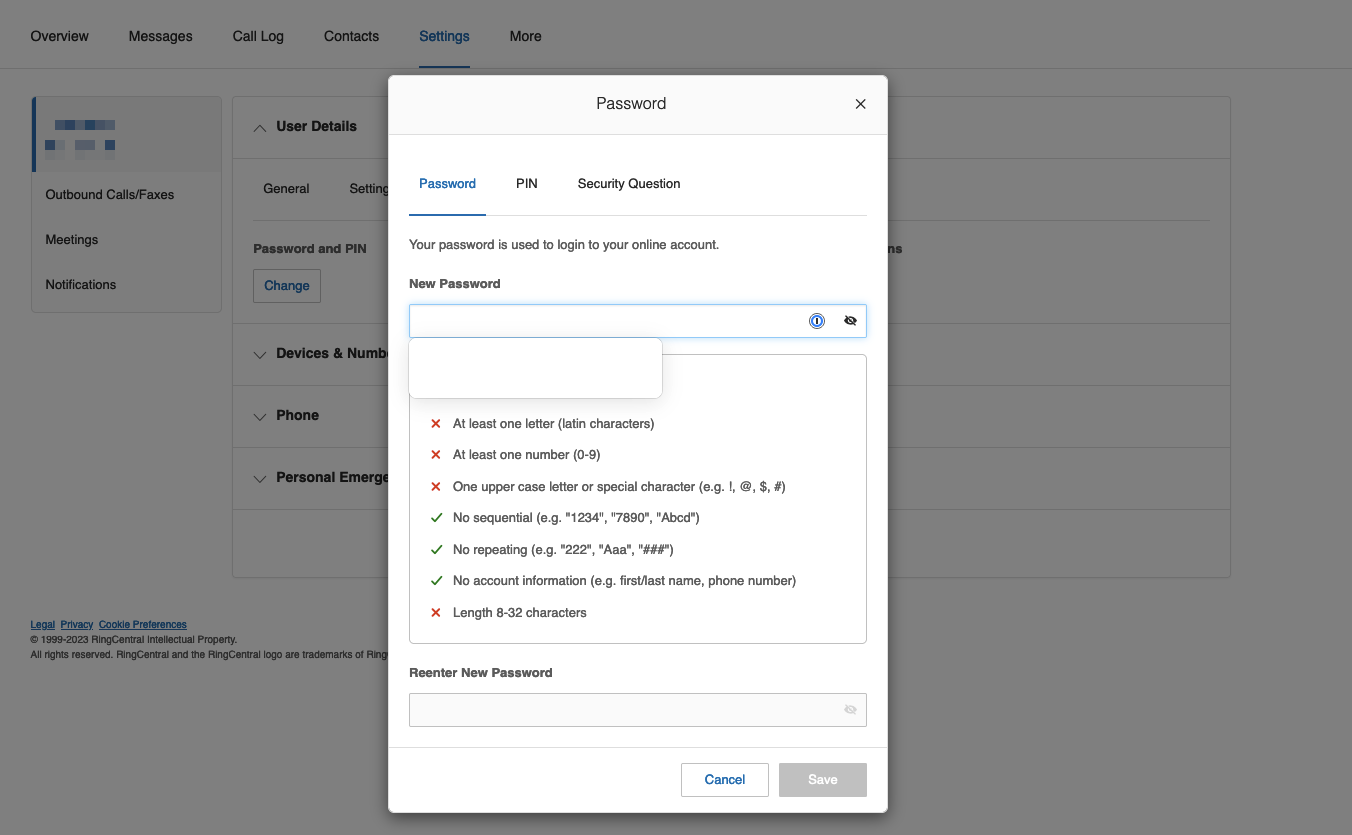
To change your password click Change under Password and PIN.
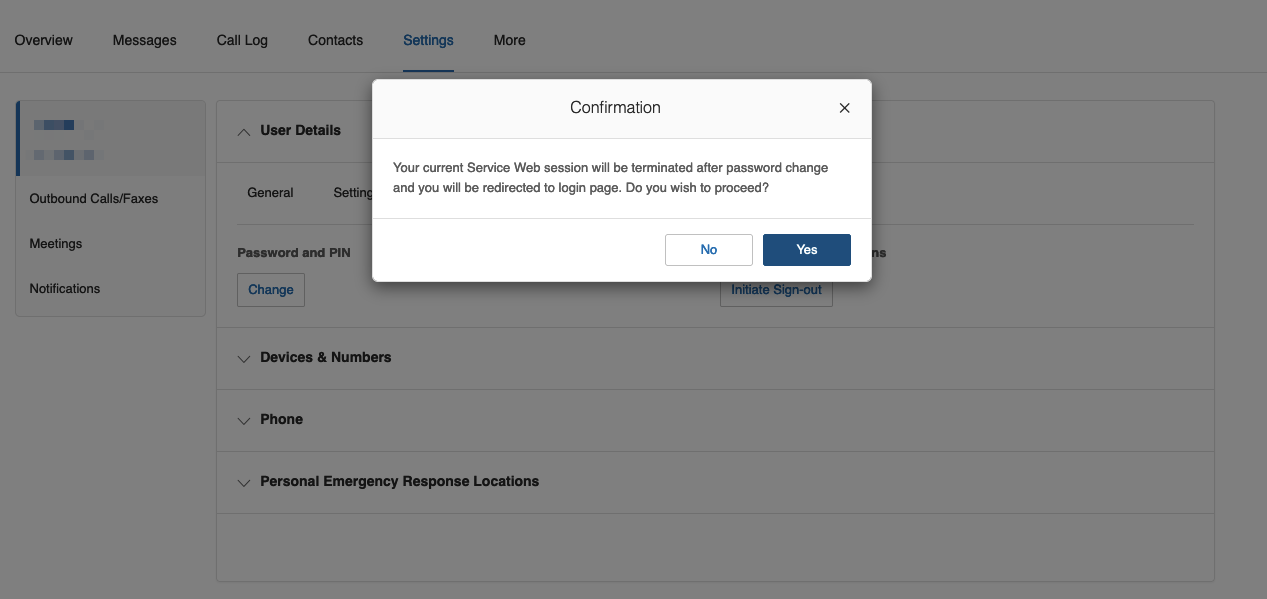
Click Yes in the confirmation box.
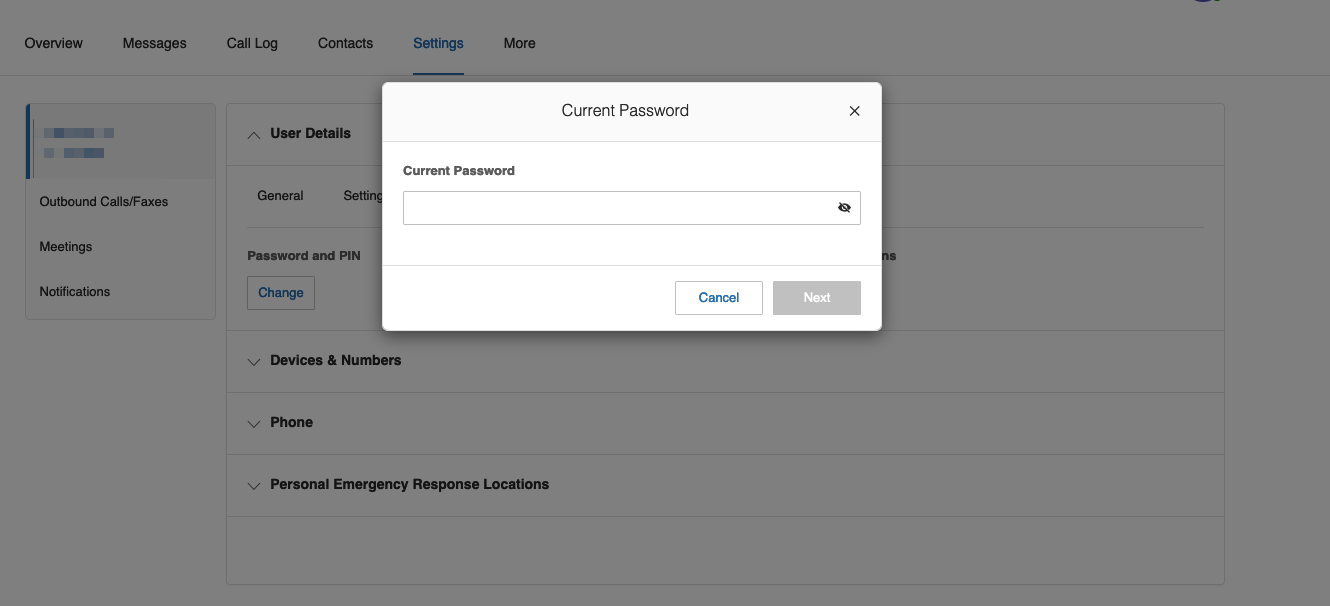
Type your current password and click next.
Type your new password and change PIN on the next tab if desired.
Devices & Numbers
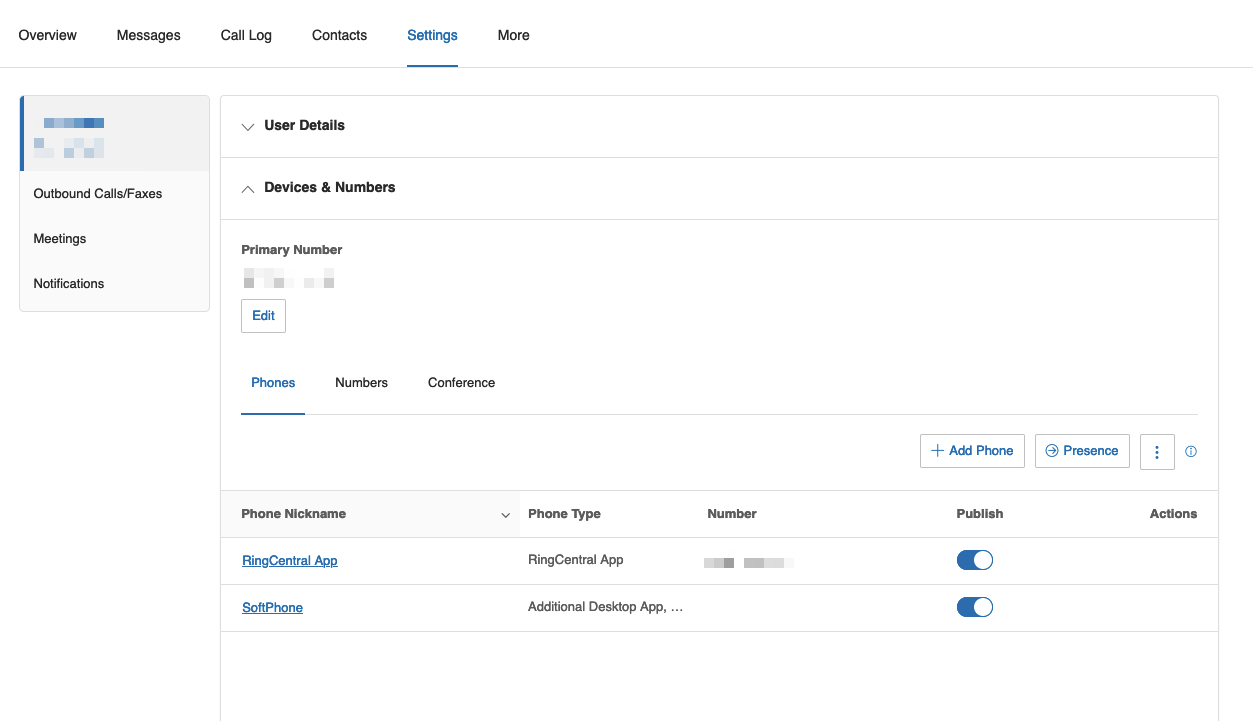
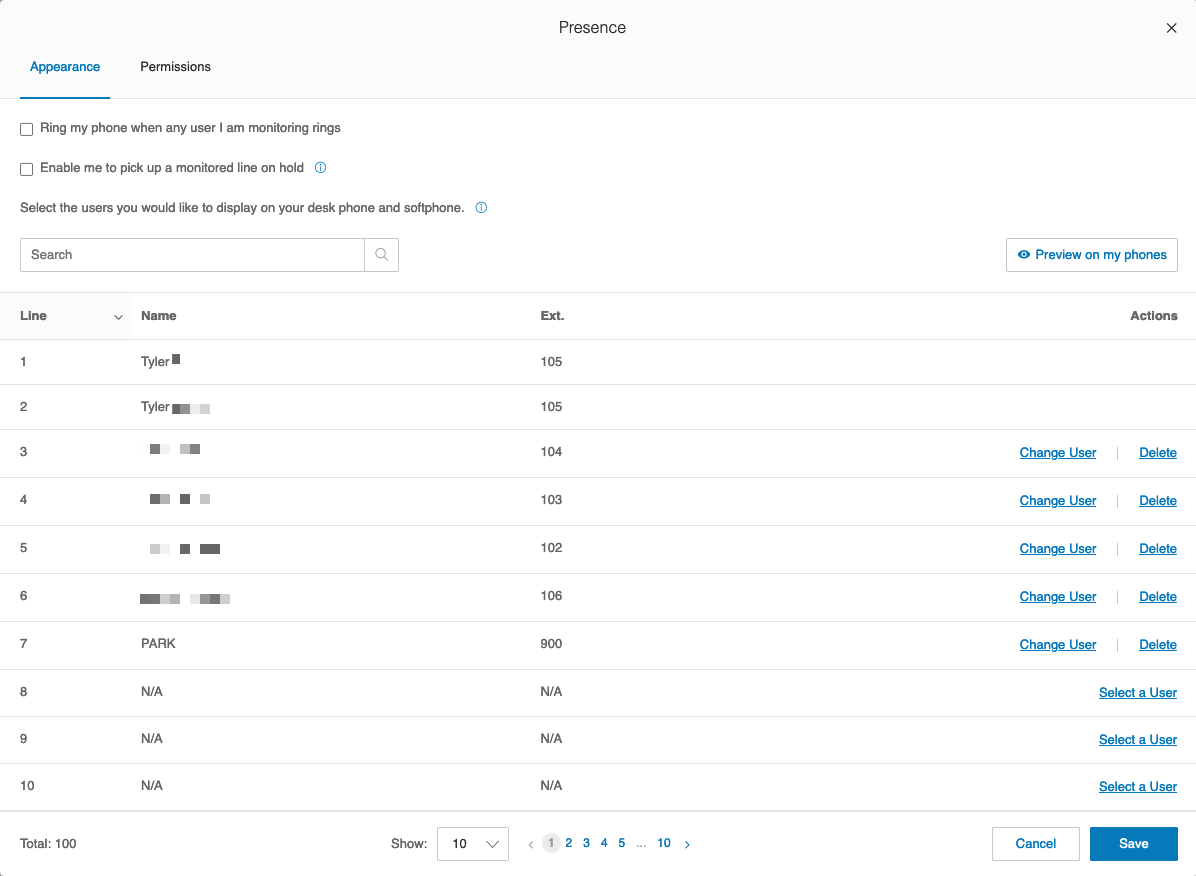
This section displays your direct phone number. You may also manage your Presence settings, by selecting the Presence button:
Phone
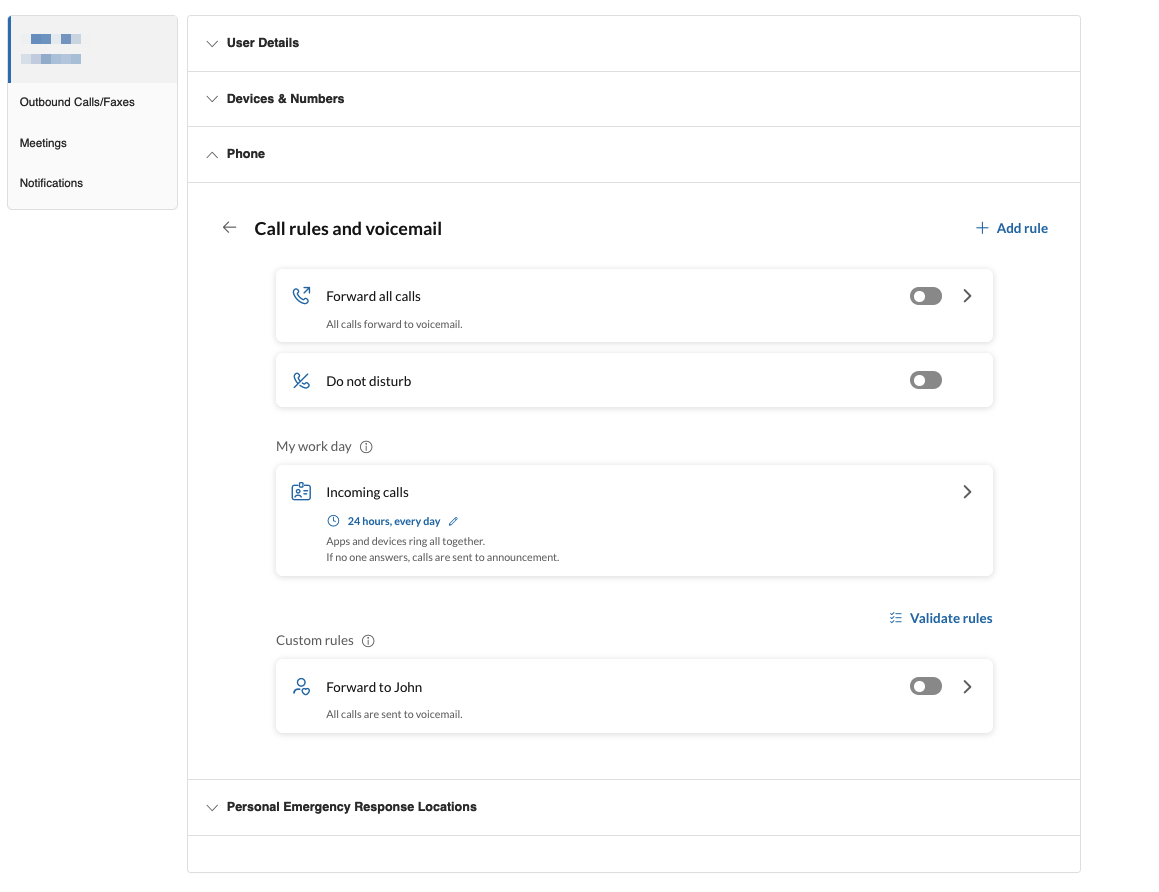
This section controls how calls flow when your extension or direct number is called.
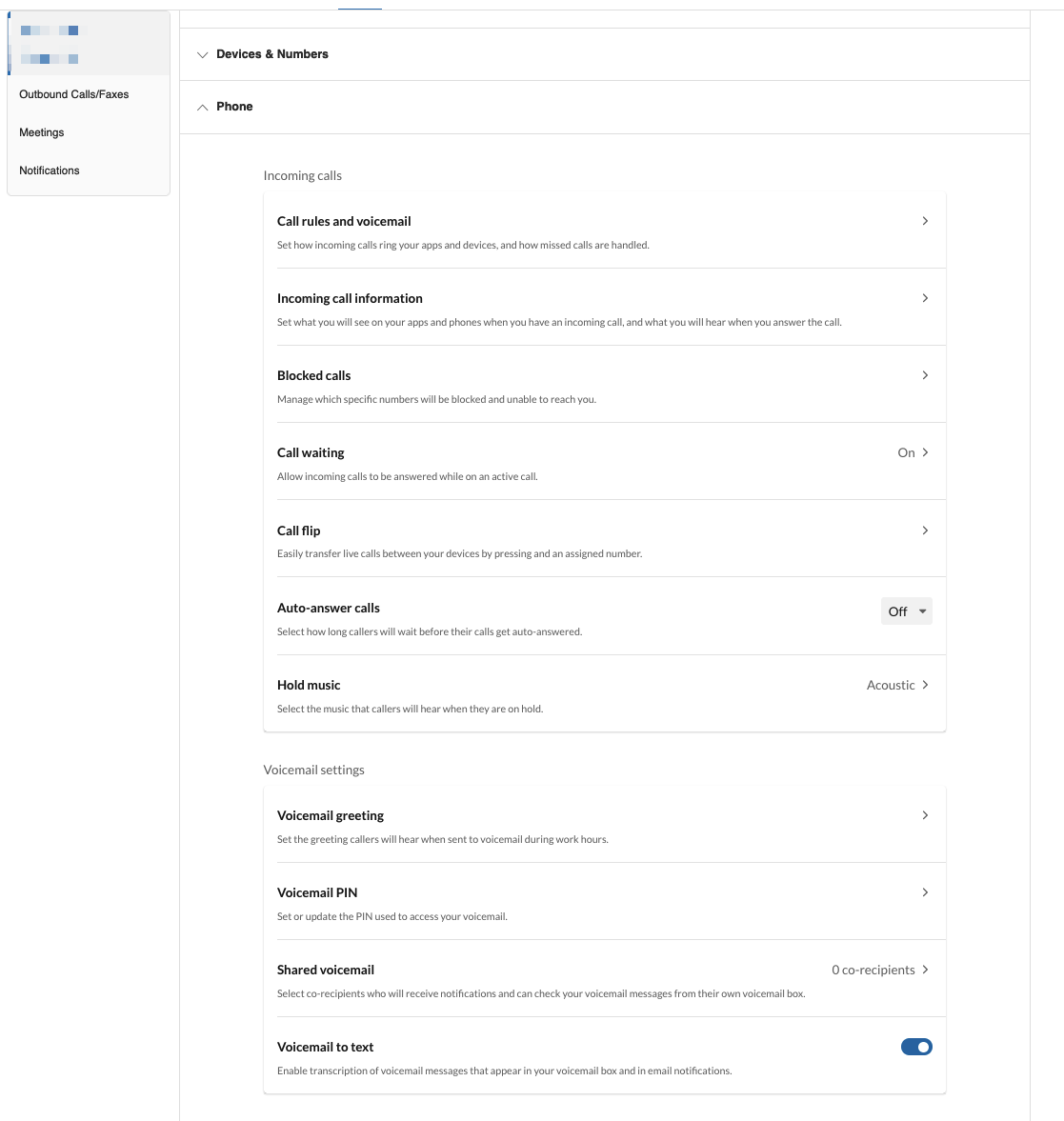
You can activate and deactivate forwarding rules and your DND status from Call rules and voicemail section.
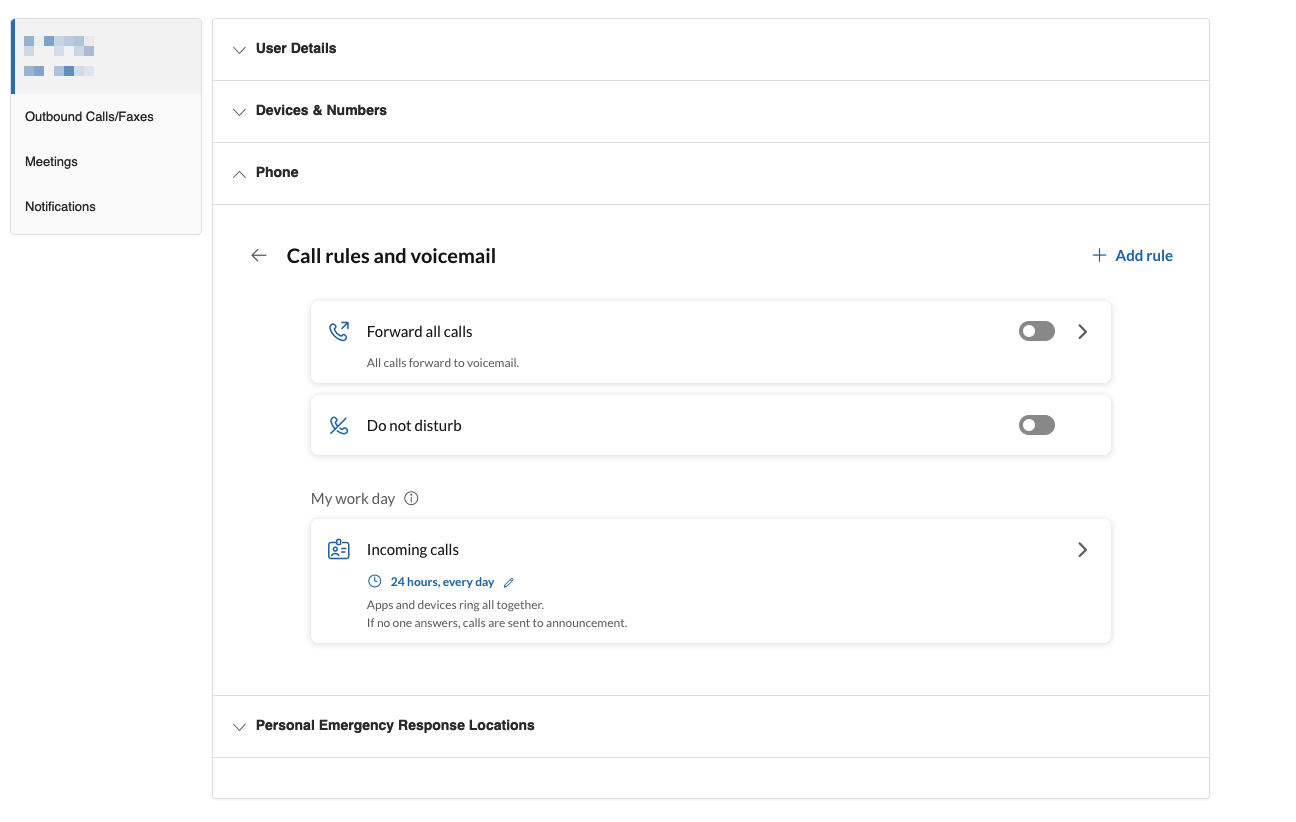
Under Call rules and voicemail you will see the Incoming calls option. Here you can change/add forwarding options, change the amount of time/number of rings that pass before forwarding, and when the call goes to voicemail.
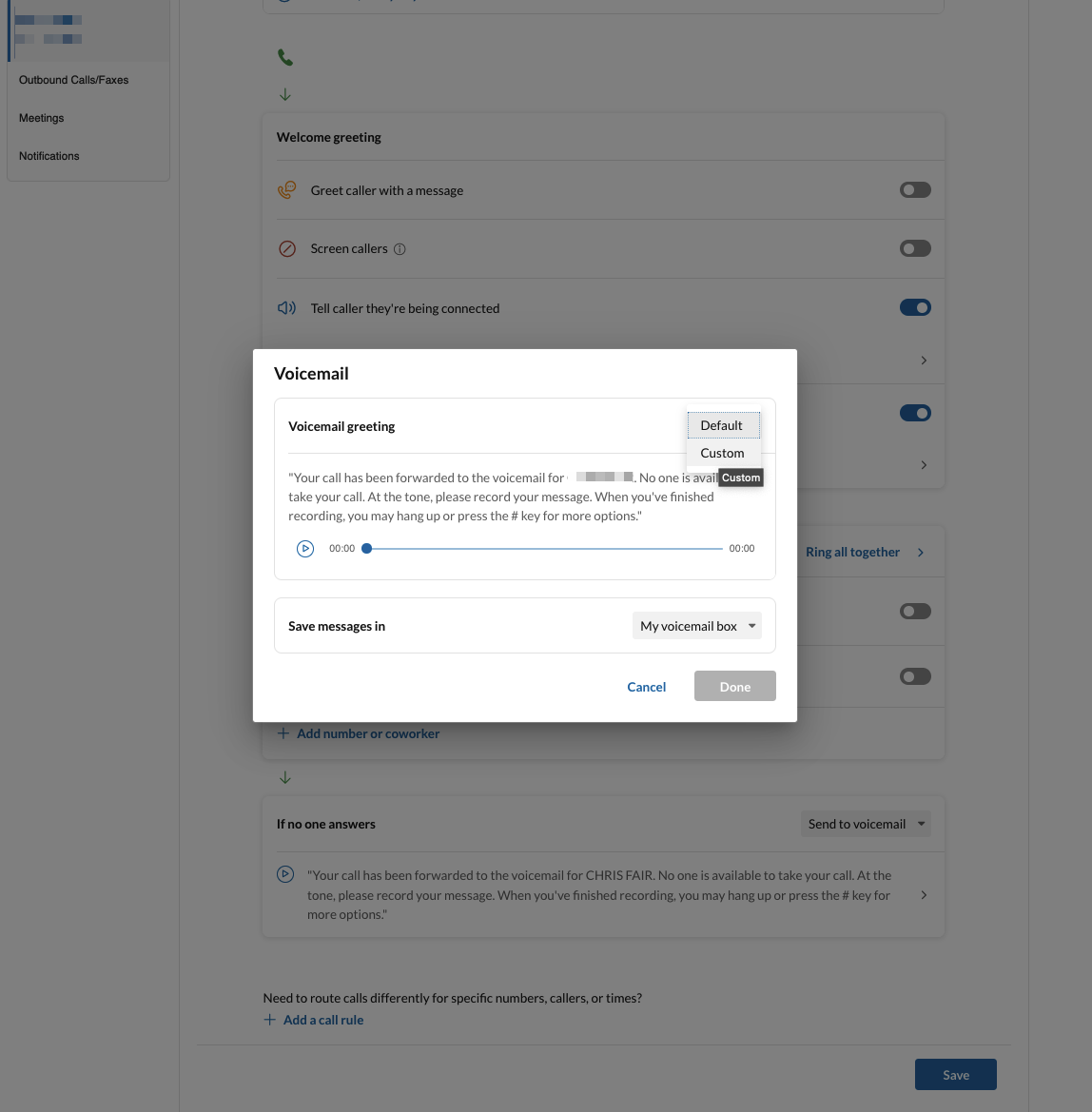
You may also configure your voicemail message from here.
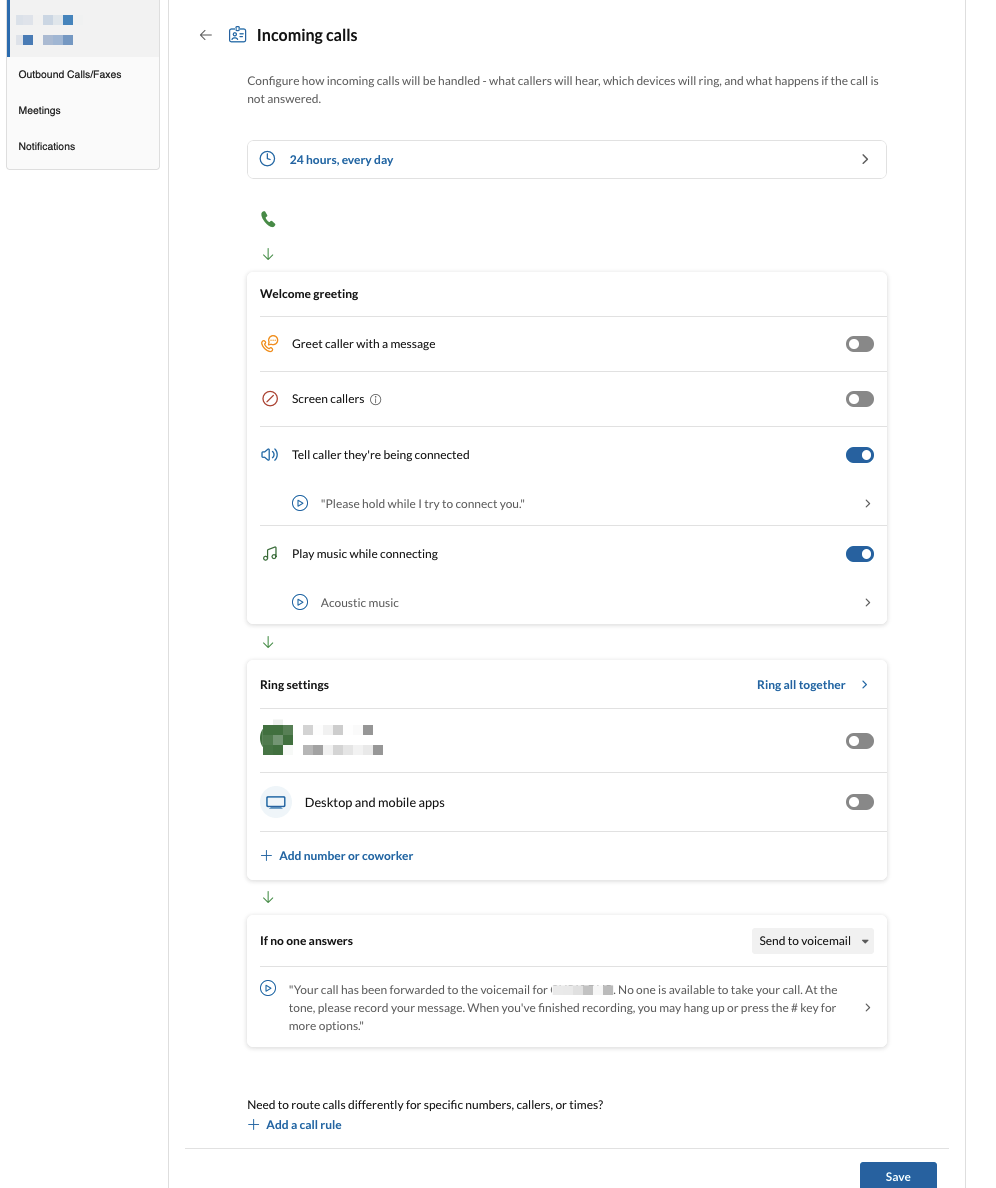
1. Under Voicemail Greeting, select the Edit button. Under Set Greeting, select Custom:
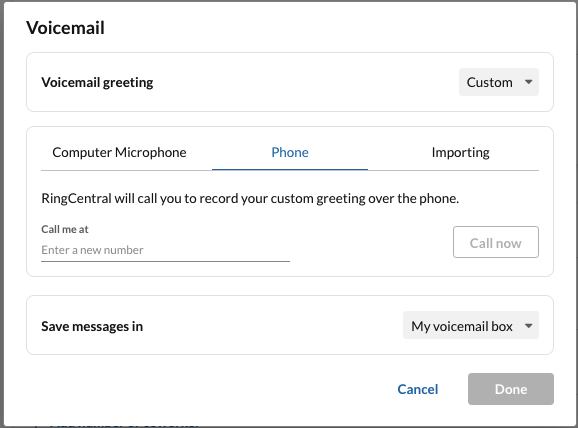
2. Enter your phone number, then select Call Now. You will receive an automated call, where you can record a new voicemail greeting.
If you have Custom Rules set up, you may activate or deactivate them in the Custom Rules sub-section:
Additional settings include Greet caller with a message, Screen Caller, Tell caller they’re being connected and Play music while connecting. Generally, these settings do not need to be adjusted.