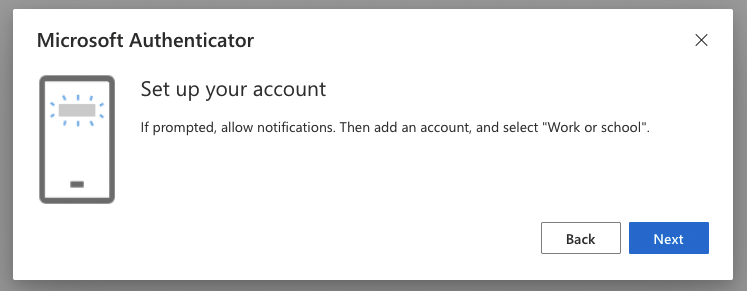
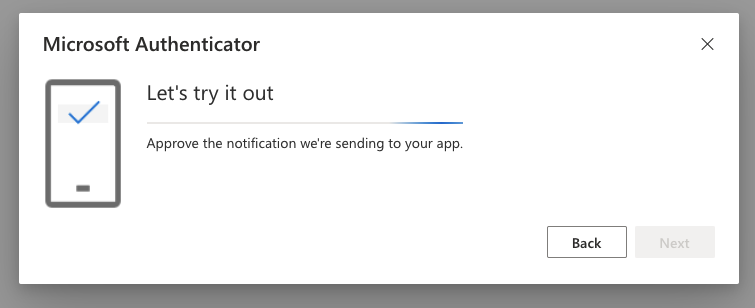
Enabling 2-Factor Authentication (2FA)
2-Factor Authentication (2FA) - also known as Multifactor Authentication (MFA) - is the single-best defense for protecting your online accounts. Using 2FA for your work email account is strongly encouraged, and in some organizations, enforced.
What is 2FA? Why should I use it?
When enabled, 2FA protects your account by verifying that the person attempting to log into your account:
- Knows your account password; and
- Has physical possession of a trusted device (your mobile phone)
Thus preventing unauthorized access to your account, even if your password has been exposed.
2FA codes are private information. You will not be asked to disclose this information by third-party service providers, except for the purposes of identity verification (eg. a code generated by a support representative during a call).
If you need to share sensitive information with Bitstream, learn about verified contact.
Select your email platform:
Using SMS (text messages)
1. Begin by visiting myaccount.google.com. You will be prompted to log in.
2. Select Get Started
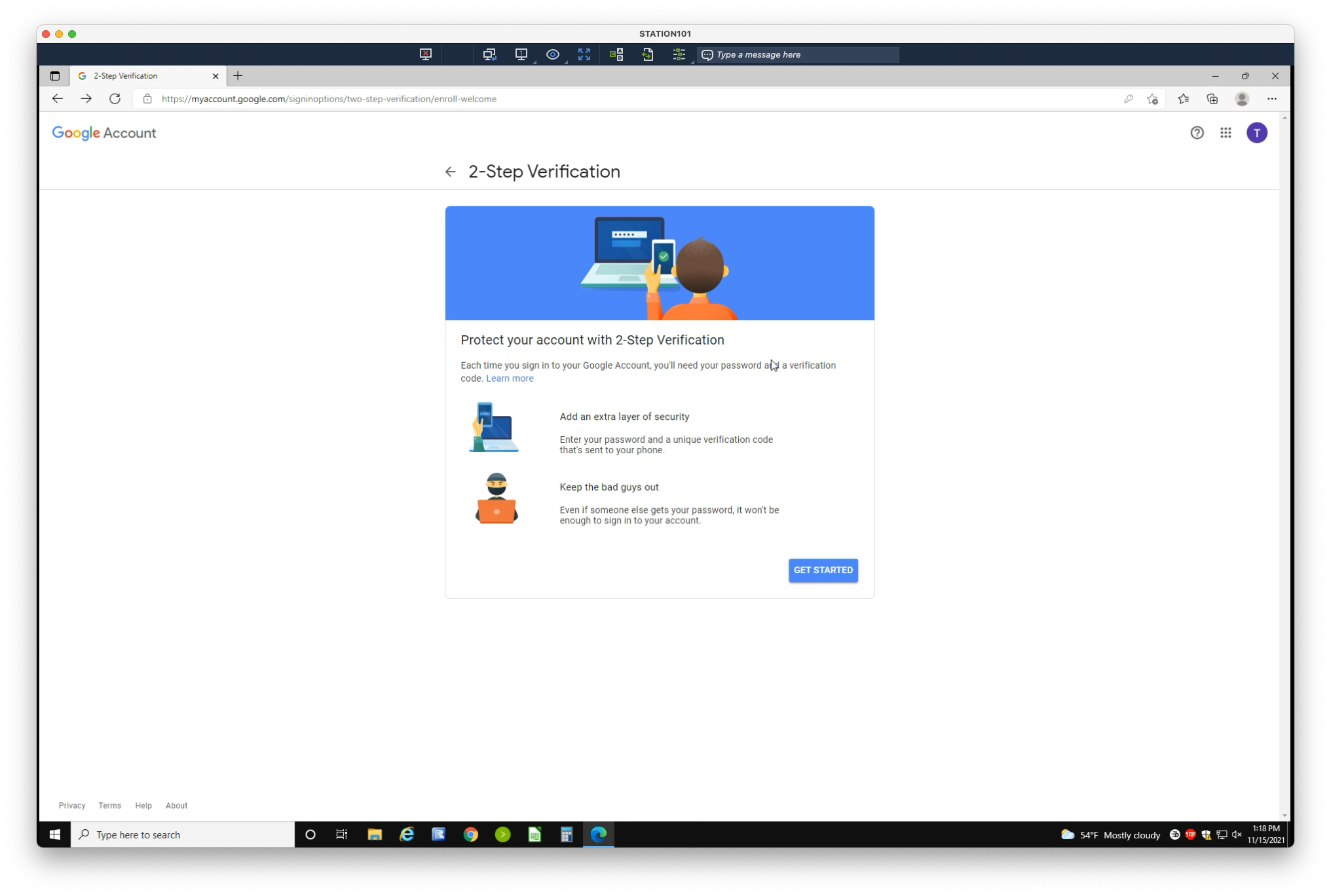
3. Enter your mobile phone number, then select Next
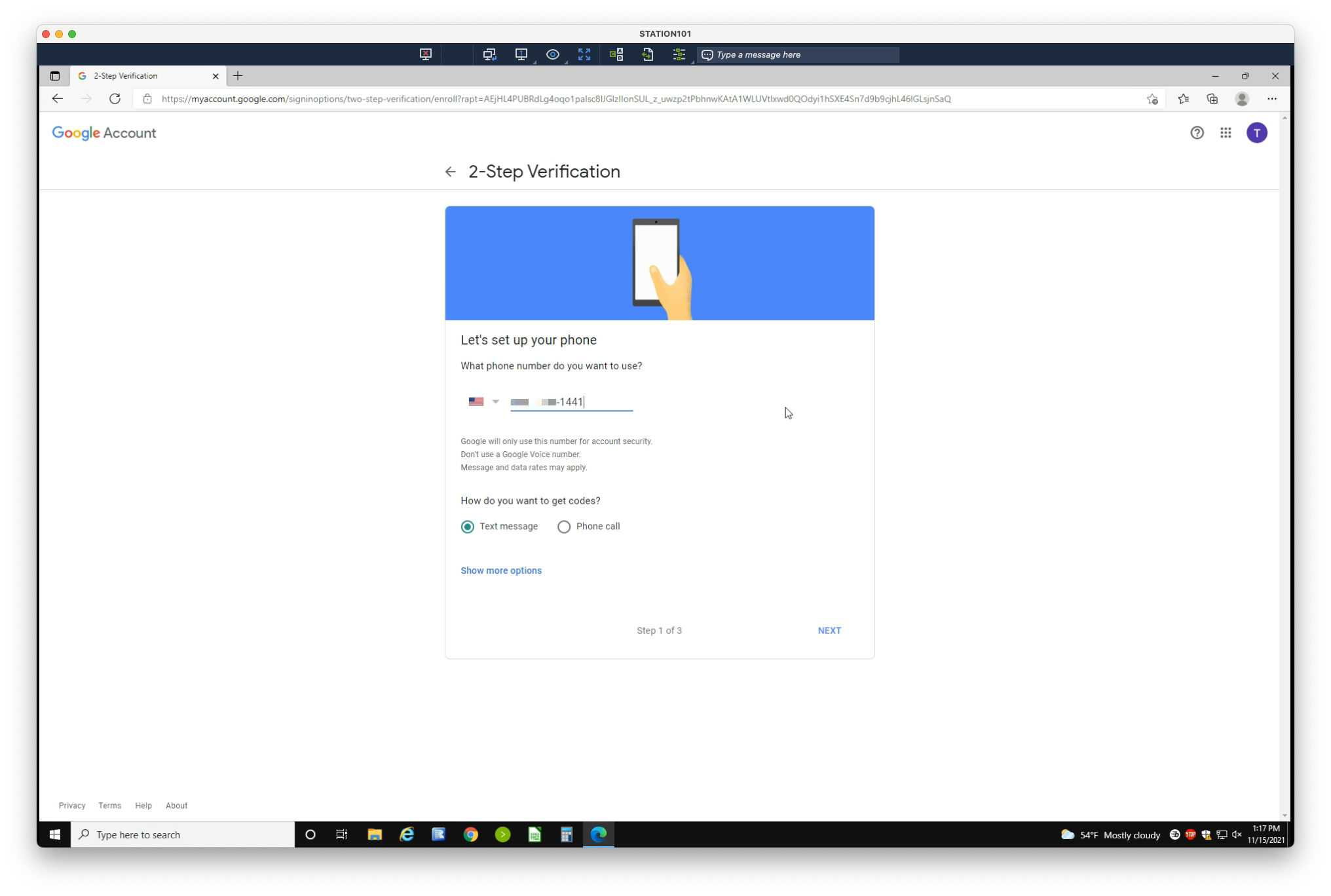
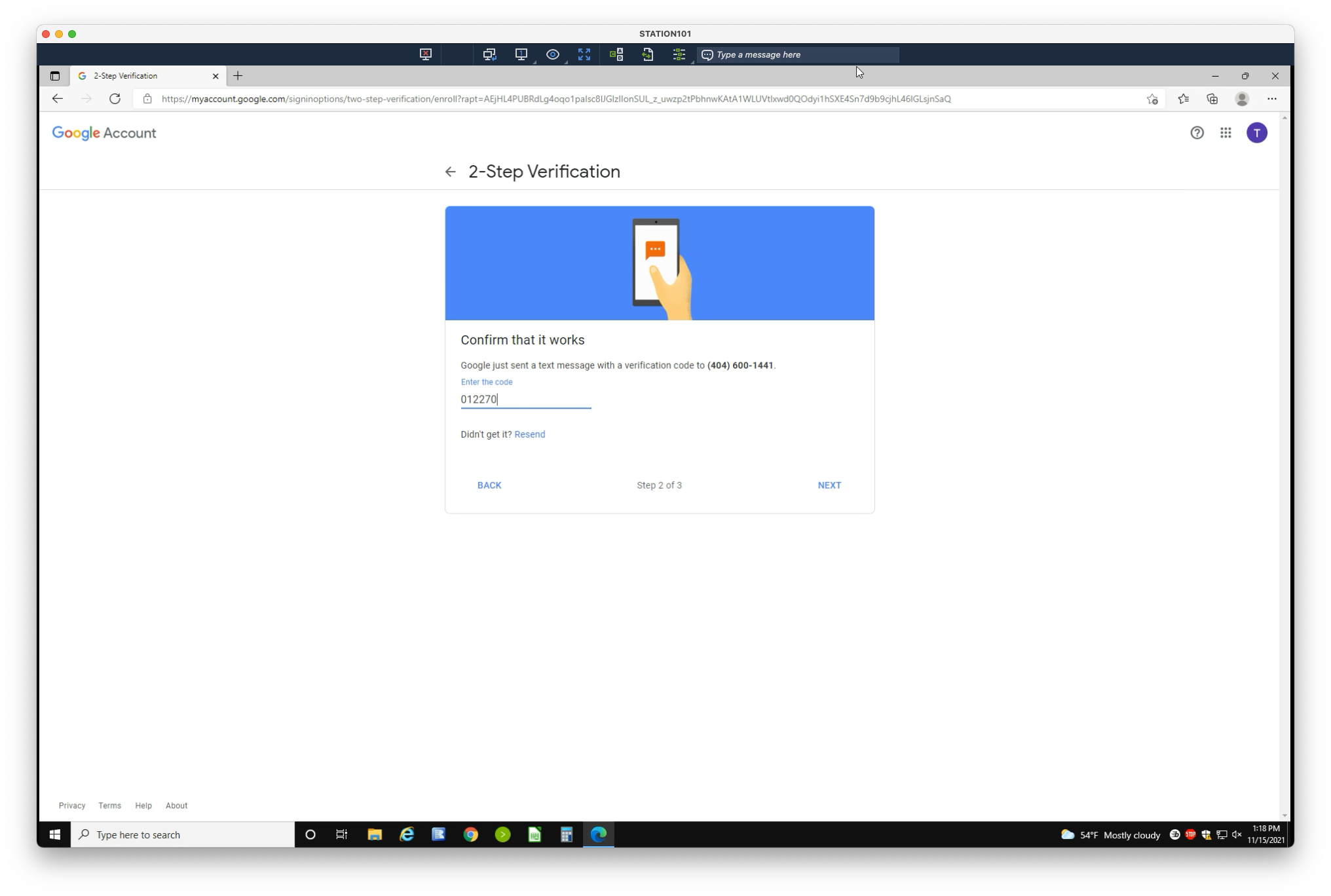
4. You will receive a six-digit code on your phone. Enter the code here.
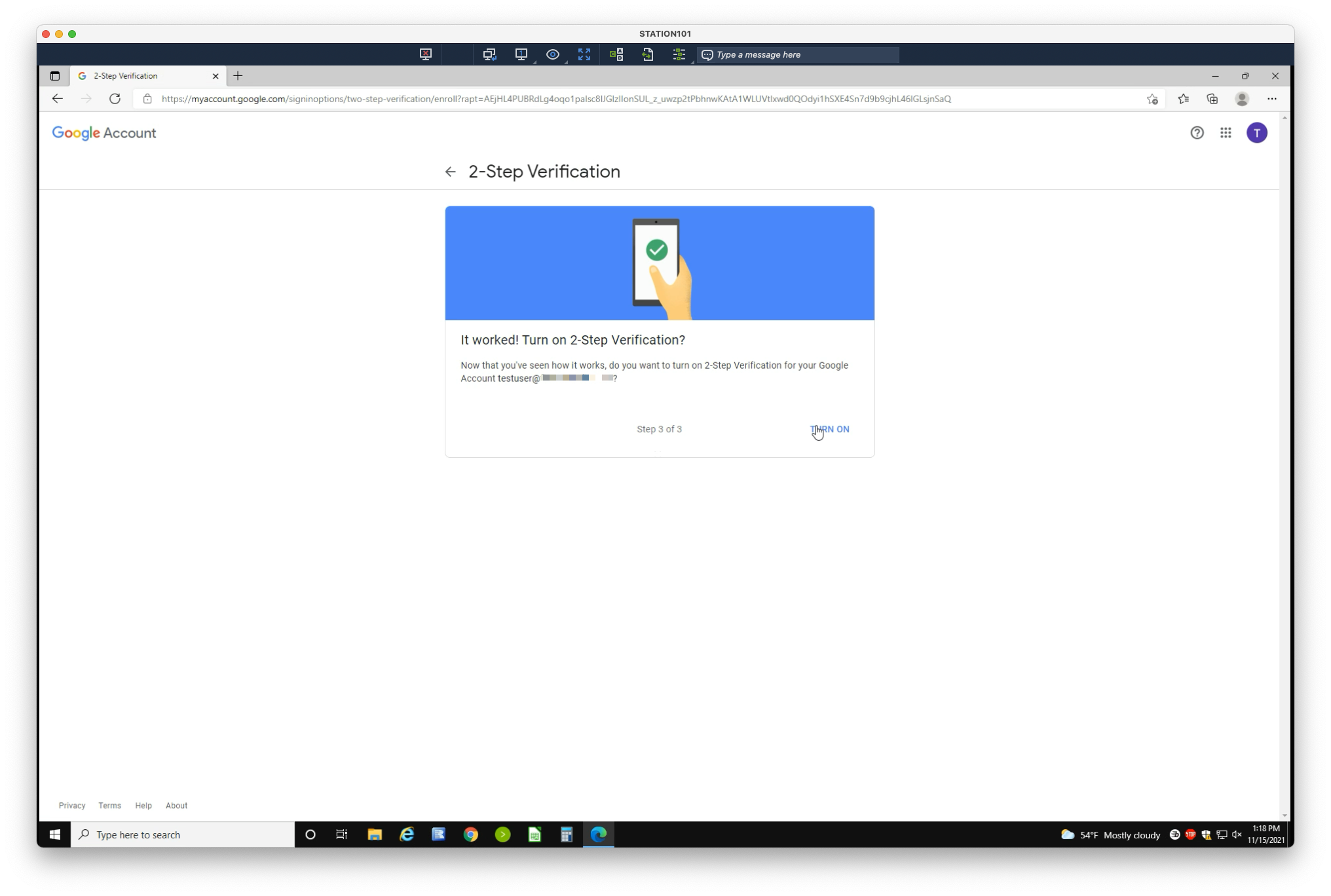
5. Once confirmed working, select Turn on
Using an Authenticator app (Authy)
Many apps exist to facilitate this, but we’ll use Authy for demonstrative purposes.
1. Begin by downloading Authy on your mobile device: Android | iOS
Complete the in-app set up, then select the Add account option.
2. From the same 2FA Settings page, select Authenticator app
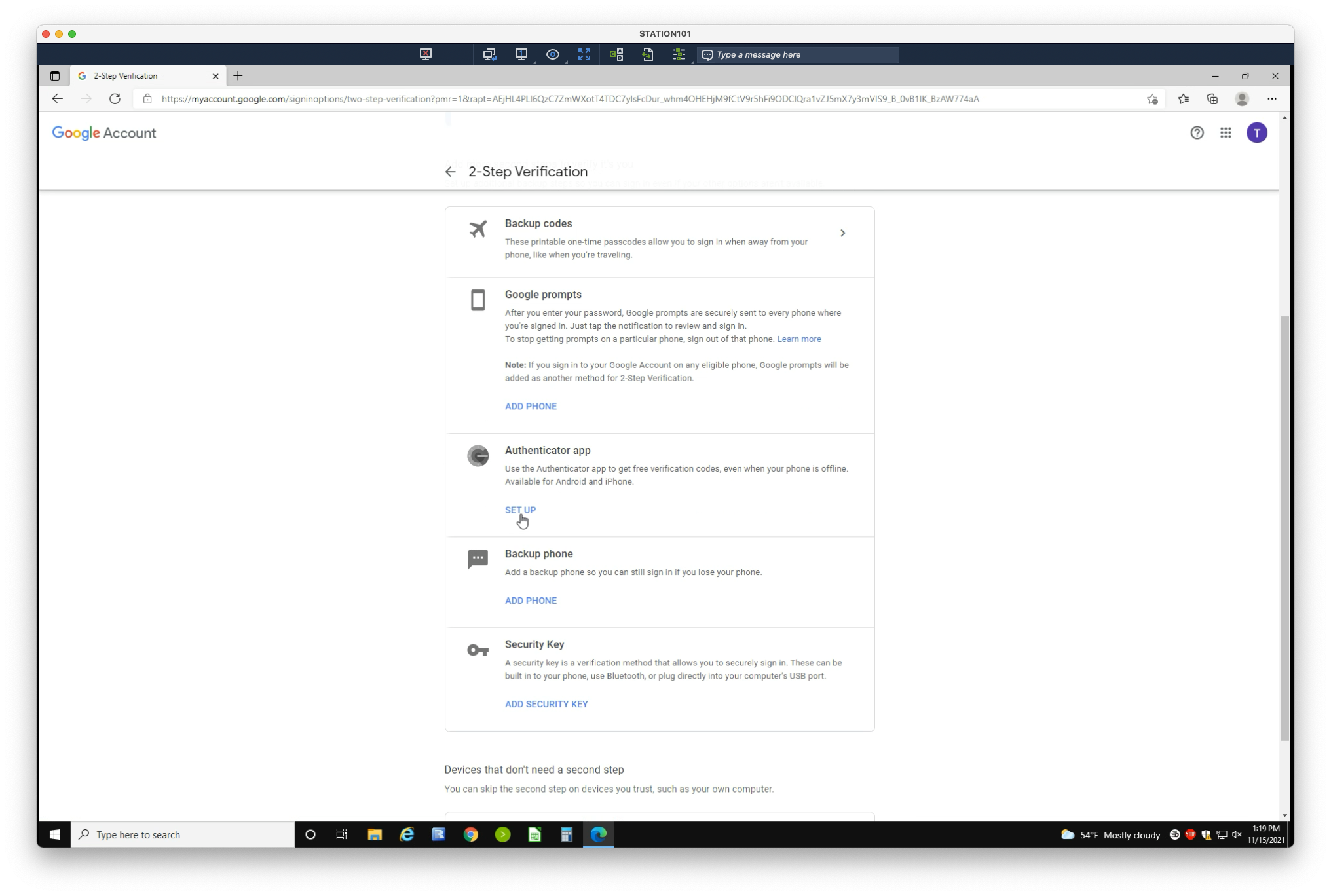
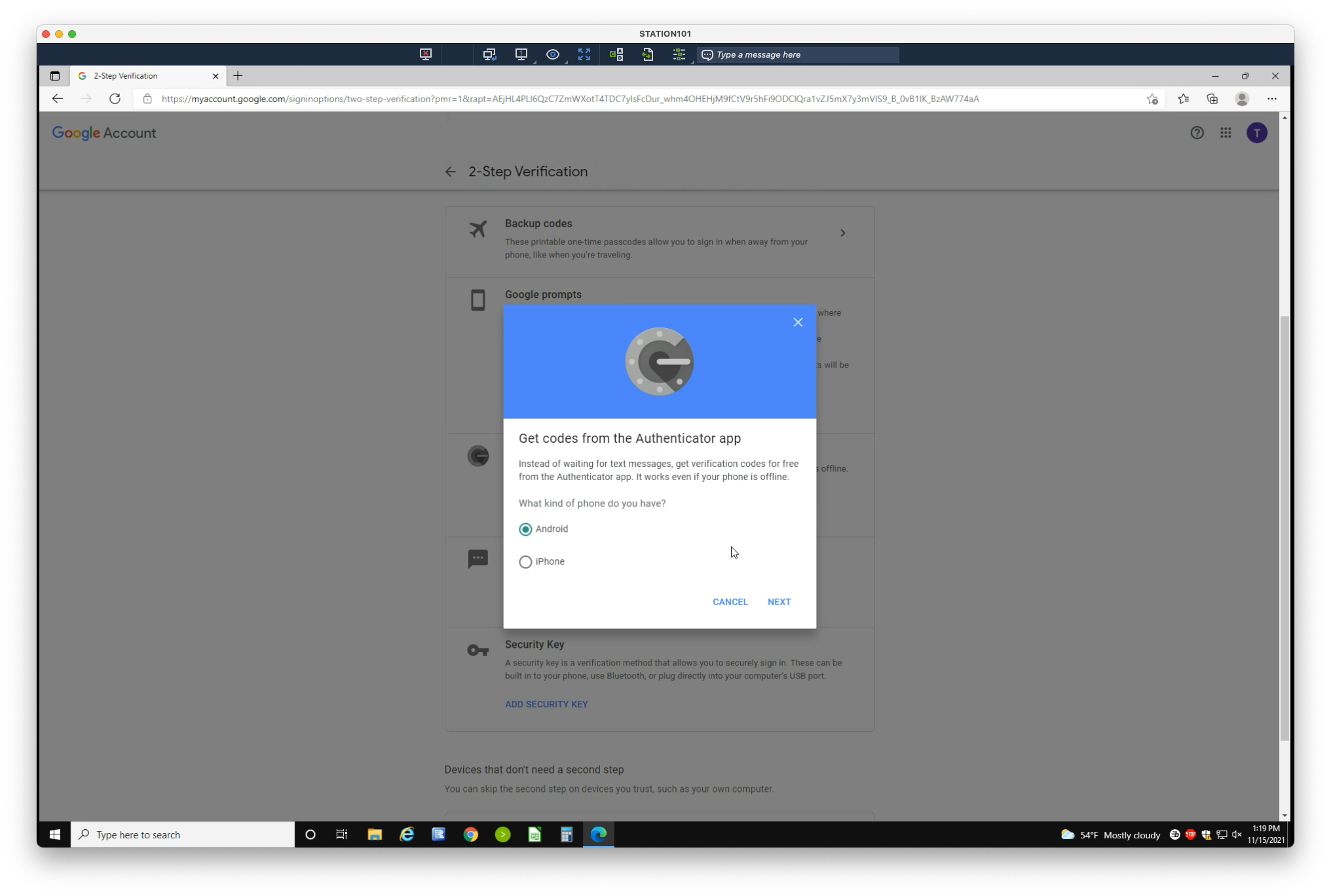
3. Select your mobile device’s operating system
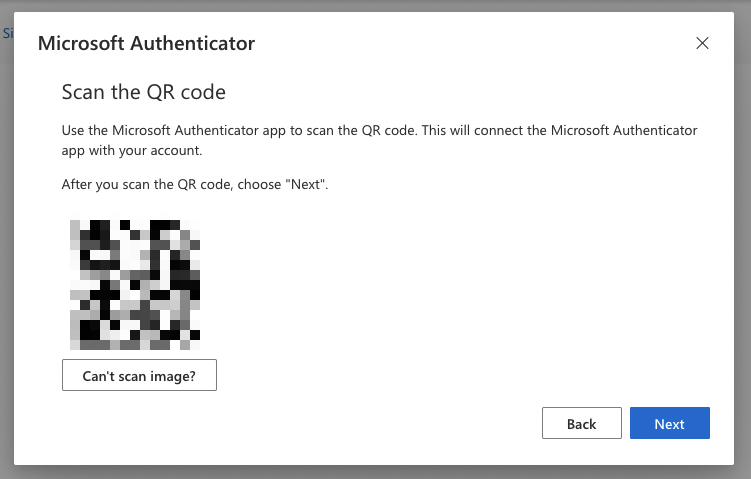
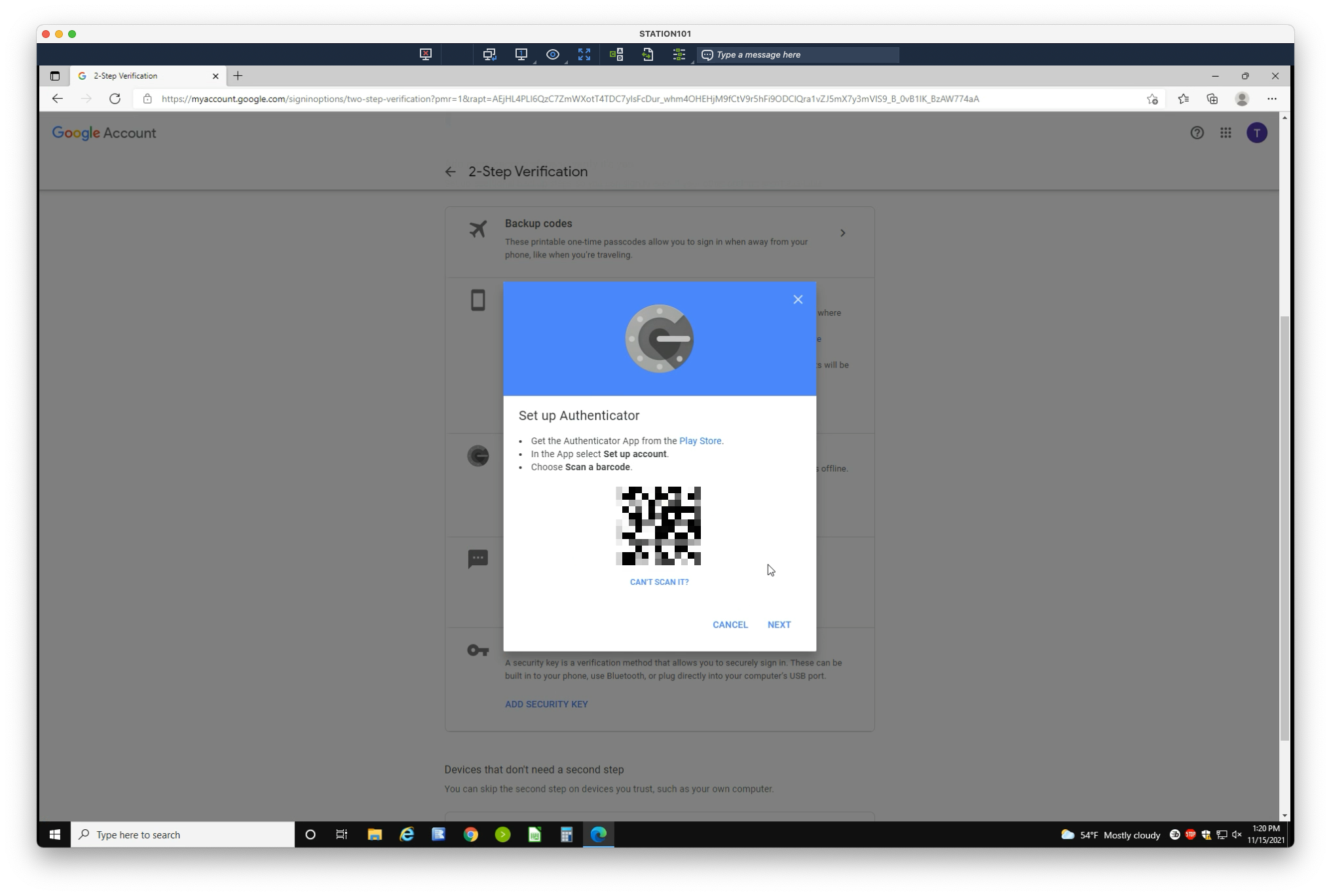
4. You will be presented with a QR Code. Scan the code using your Authy app. Click Next
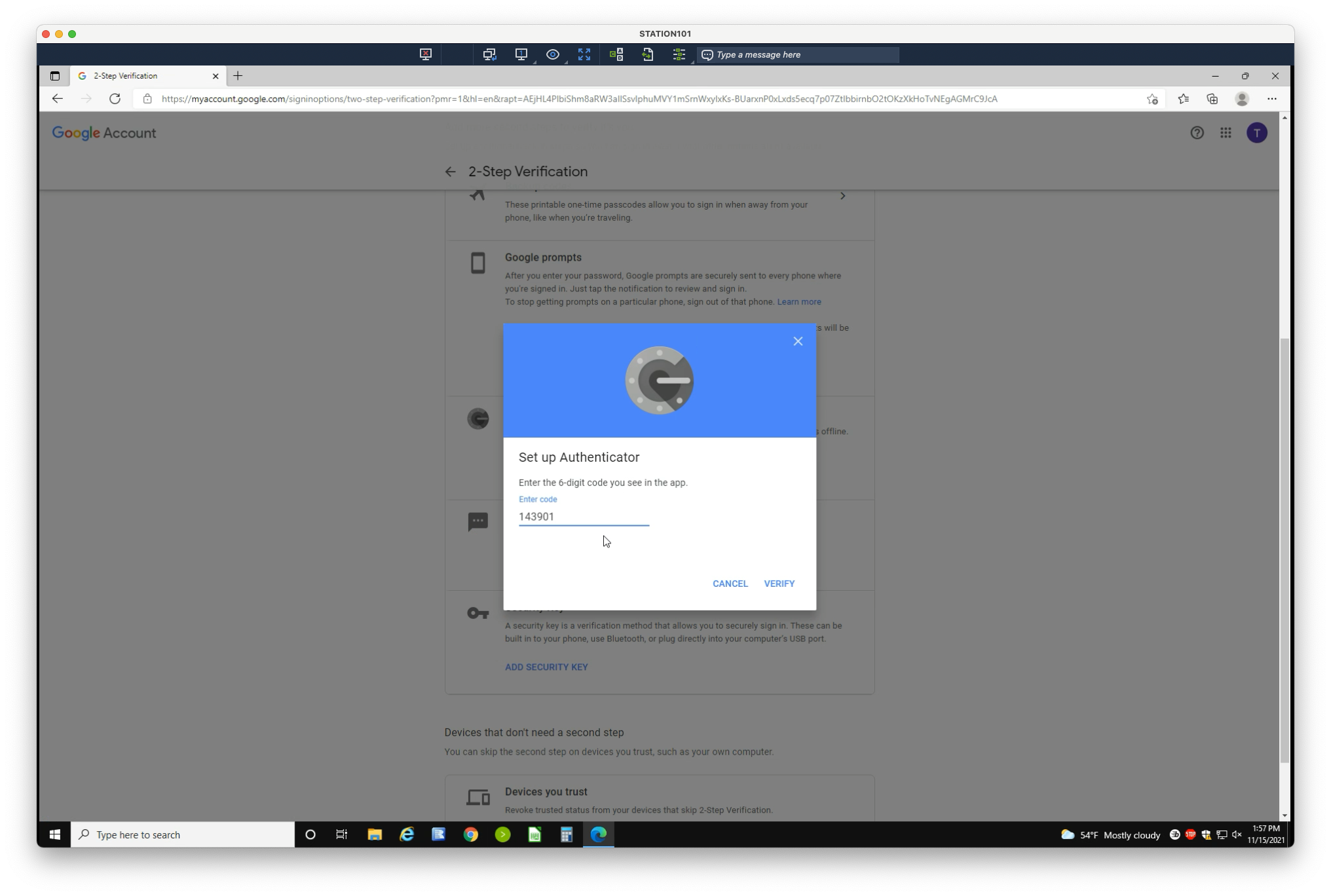
5. Enter the code displayed on your mobile phone
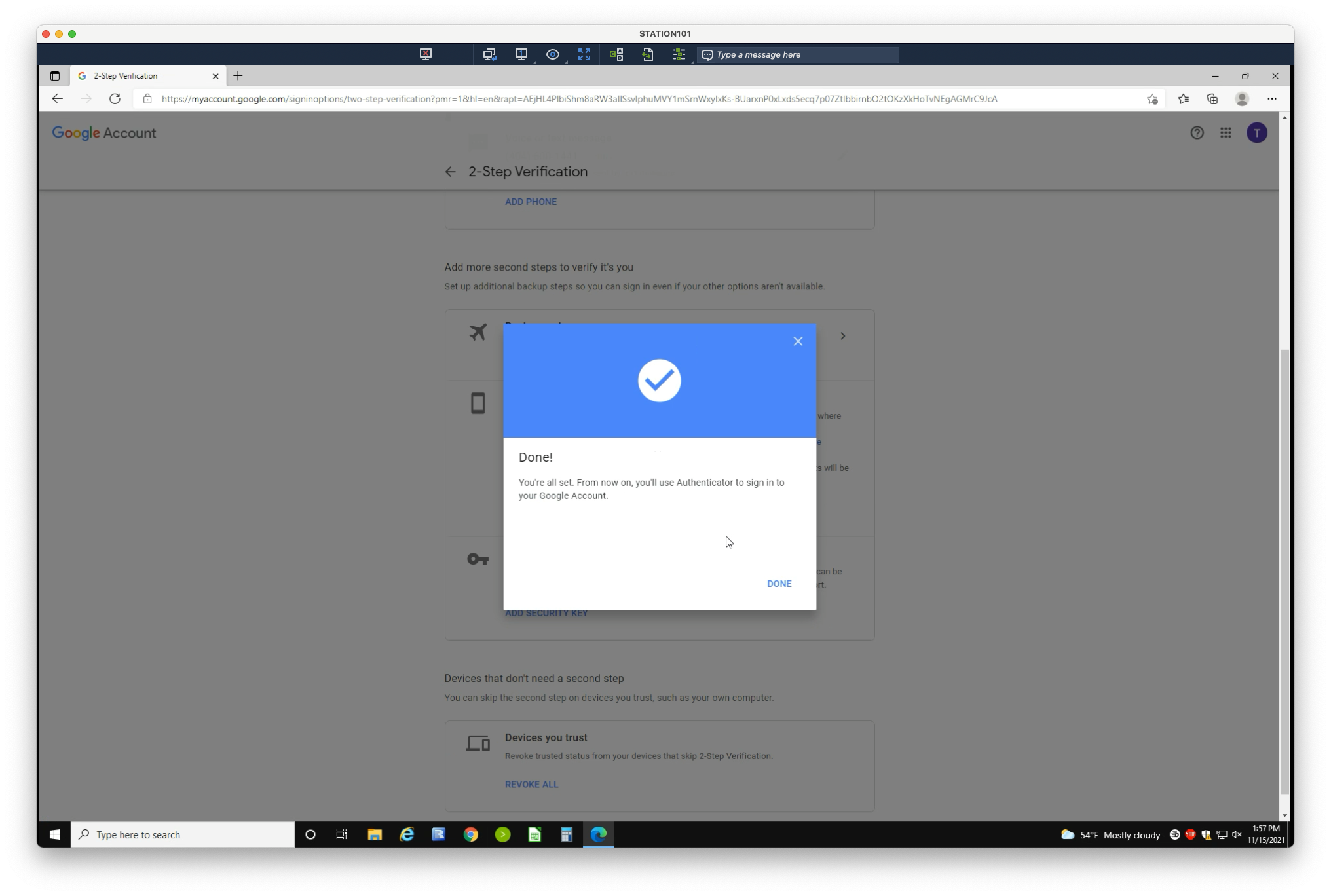
That’s it! You can now use the Authenticator app method when signing in.