Bitstream Managed Remote Desktop (BMRD)
Bitstream Managed Remote Desktop (BMRD) is a service offered by Bitstream, with which you can remotely control your workstation as if you were standing in front of it. A few features include the ability to view your displays (one at a time), control keyboard/mouse, stream audio, and perform file transfers.
You may access this service at the following address:
bitstream.rmmservice.comThink of this as a window to your computer at work. Your local (personal or managed laptop) computer, and your remote (work) computer are separate entities — therefore, you will not have access to your home printer or other devices while in a session. Best practices are to conduct all work tasks within a remote session.

First Time Initial Set Up
Account Set Up
1. First, please create a ticket from the workstation you wish to have remote access to. Doing so provides us with the computer’s hostname that will be associated with your account.
2. Once approvals are in place and the invitation has been sent, you will have received an email from noreply@rmmservice.com, titled “NinjaRMM User Invitation”. Click on the Accept Invitation button to set up your account.
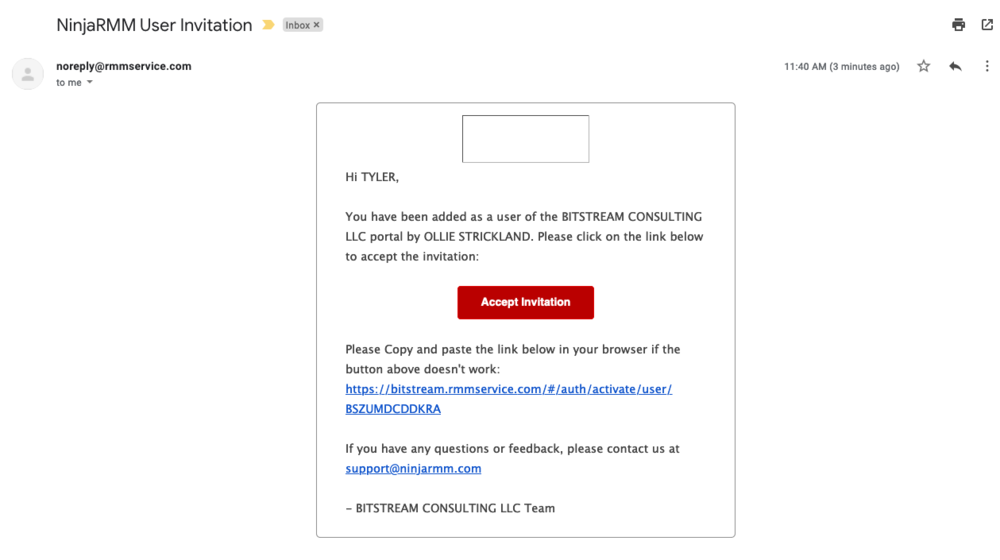
3. The link will bring you to an account set up page, where you will need to create and confirm a password for logging in. Please pay attention to the password criteria.
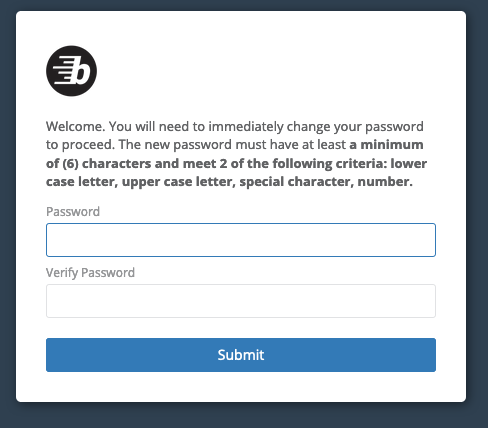
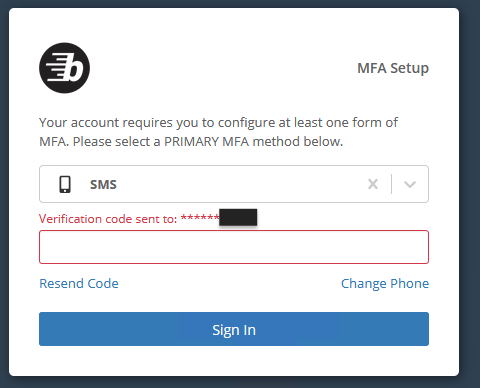
4. You will then be asked to select a form of MFA (multi-factor authentication). Select SMS
A six-digit code will be sent via text message (SMS) to the mobile number you’ve provided. Enter that code to confirm your identity, then click Sign In
You may alternatively choose Authenticator App, if you use one.
Ninja Remote Installation
5. Upon login, you will be presented with your assigned device. Click on the Ninja Remote icon  next to the device name.
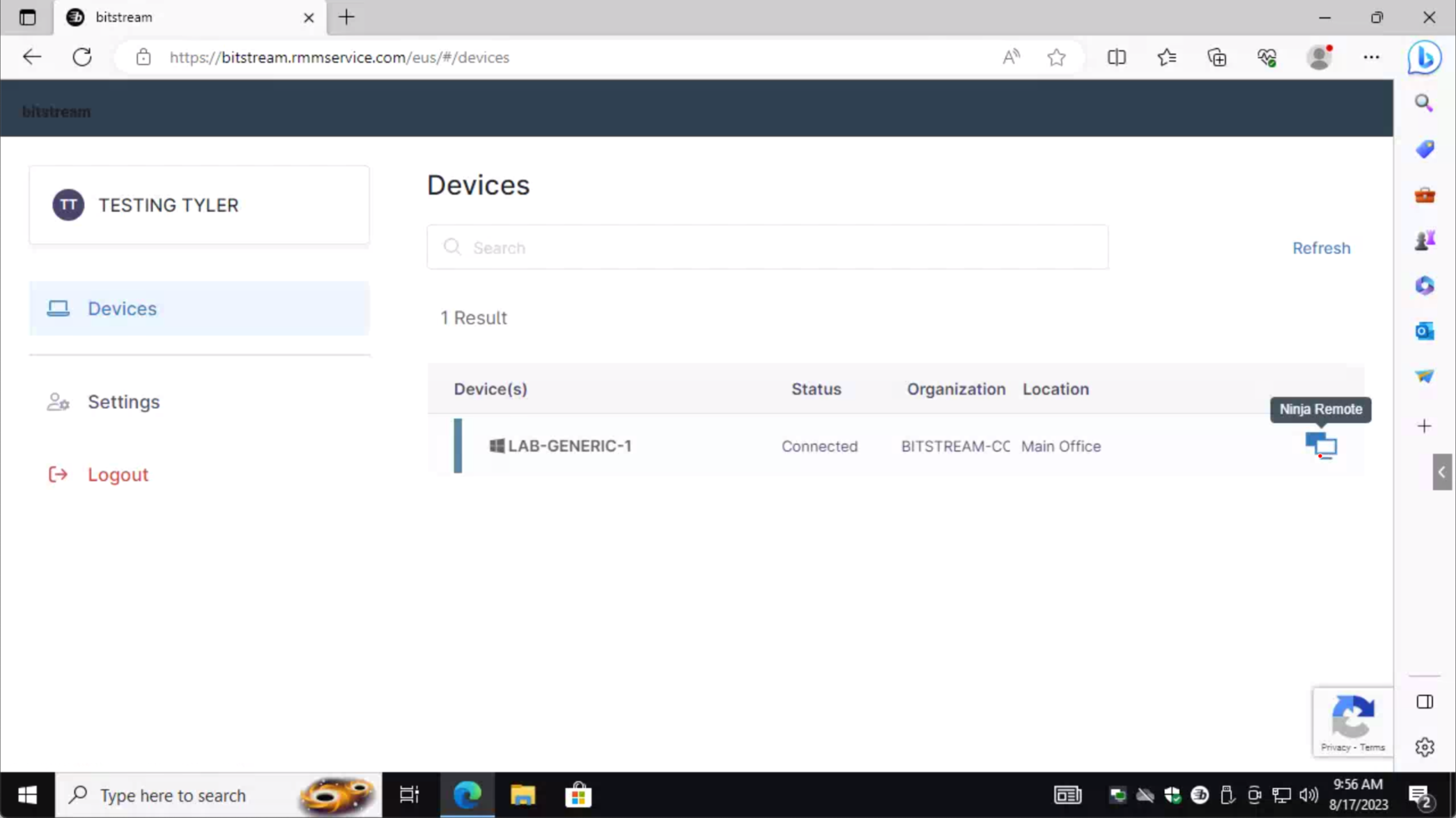
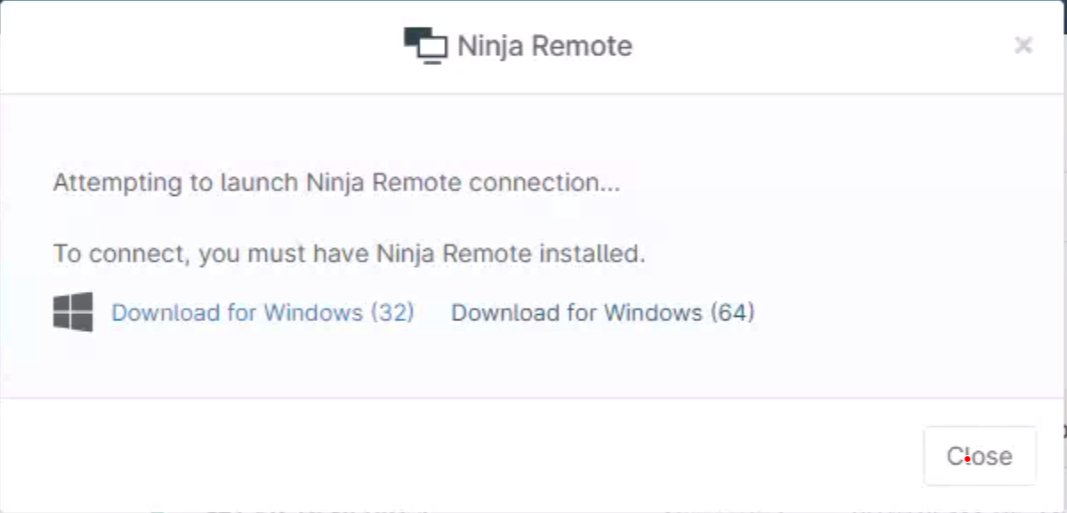
6. A prompt will appear stating “Attempting to launch Ninja Remote Connection…”. Before you can launch the very first connection, you will need to install the Ninja Remote client application on your local (personal) computer.
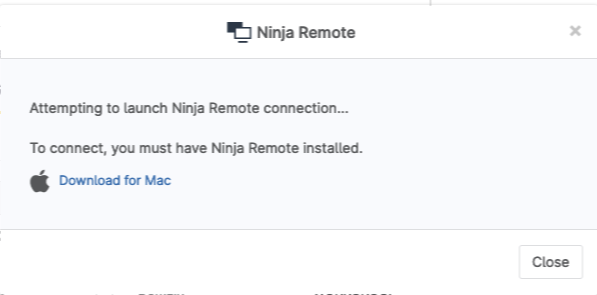
Select your operating system:
Select the Download for Windows (64) link in the prompt to download.
Direct Download — Windows (64-bit), v5.16.4521
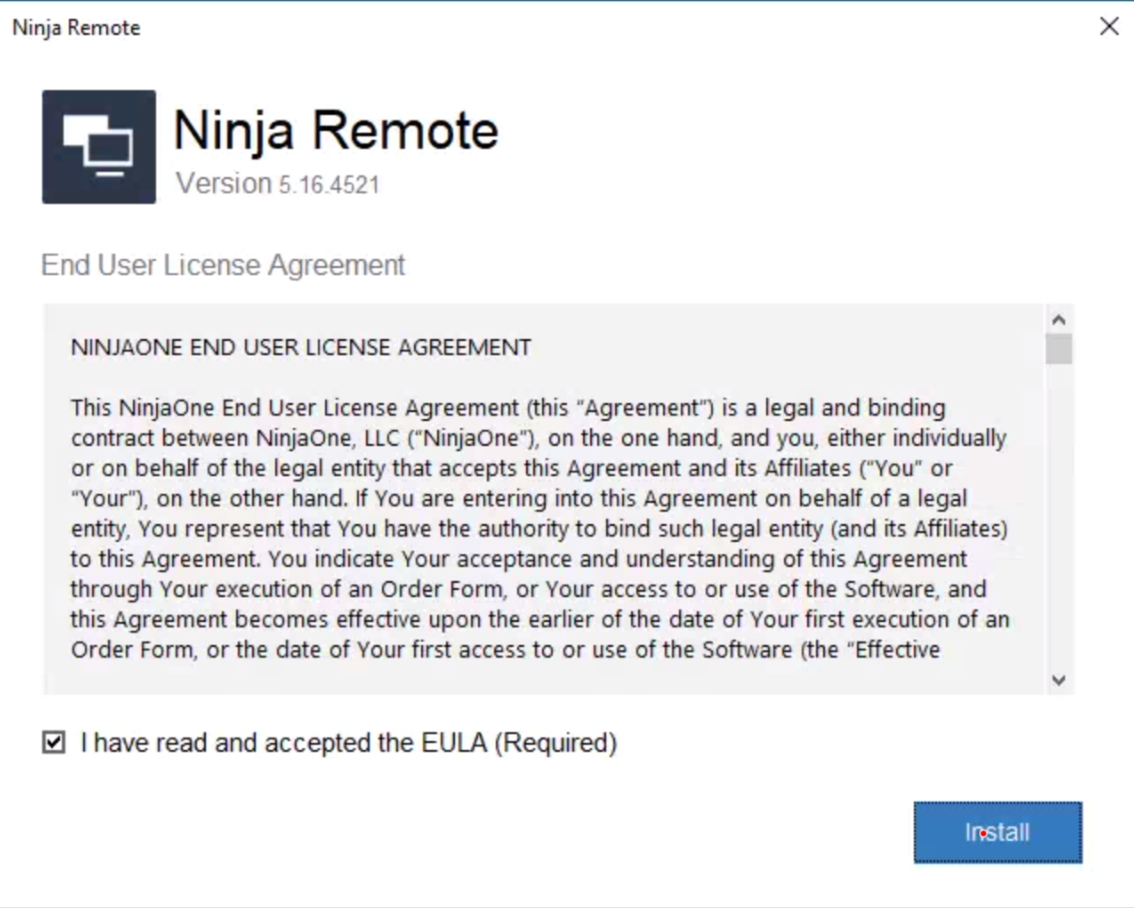
7. Open the installer file and follow the instructions to install. Bitstream is not required for this installation.

8. Now that the Ninja Remote client application is installed, you are ready to launch a connection.
Attempt to launch the connection by clicking the Ninja Remote icon
again.
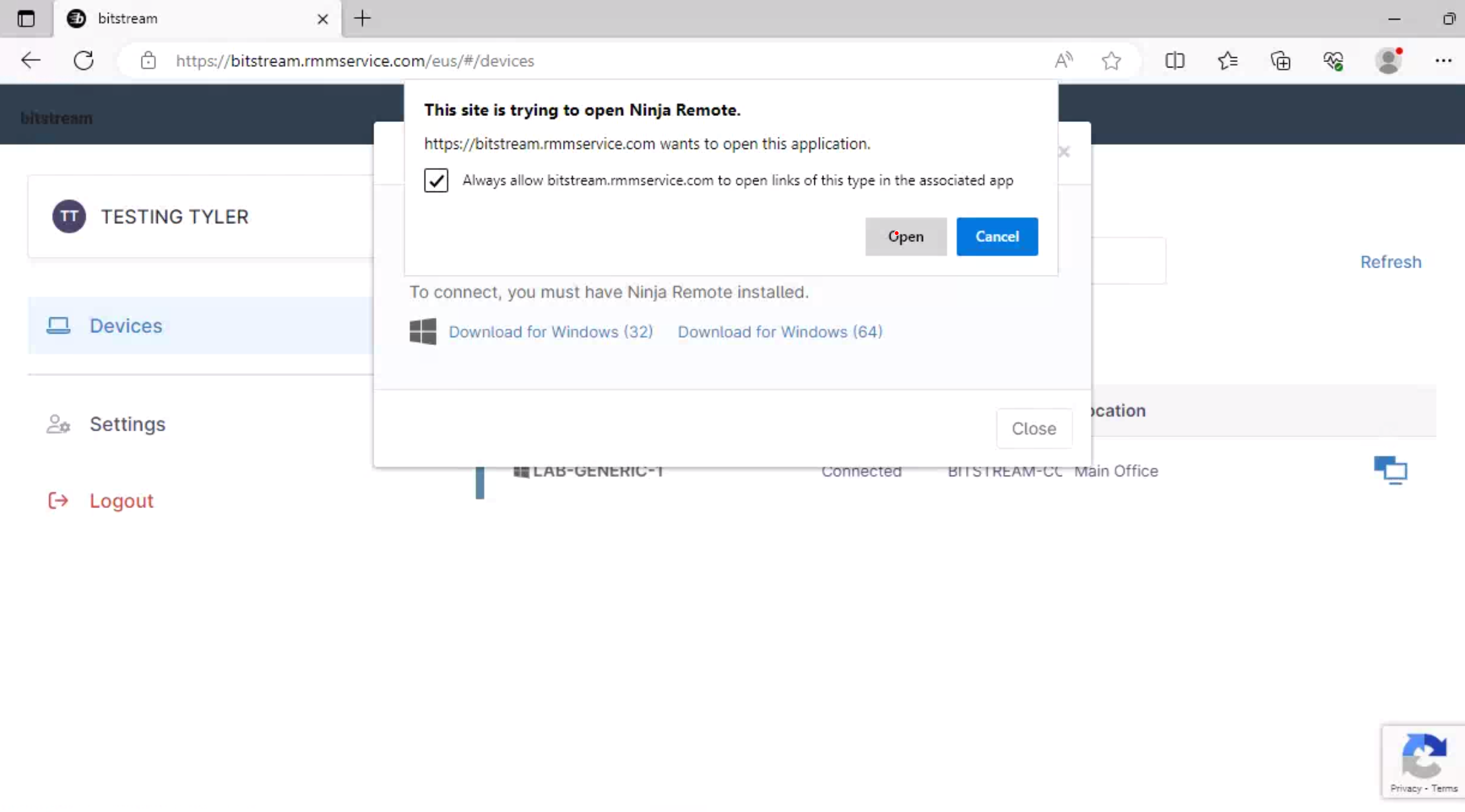
You will likely be met with a prompt; select Always allow… if available, then select the Open button.
BMRD Usage Guide
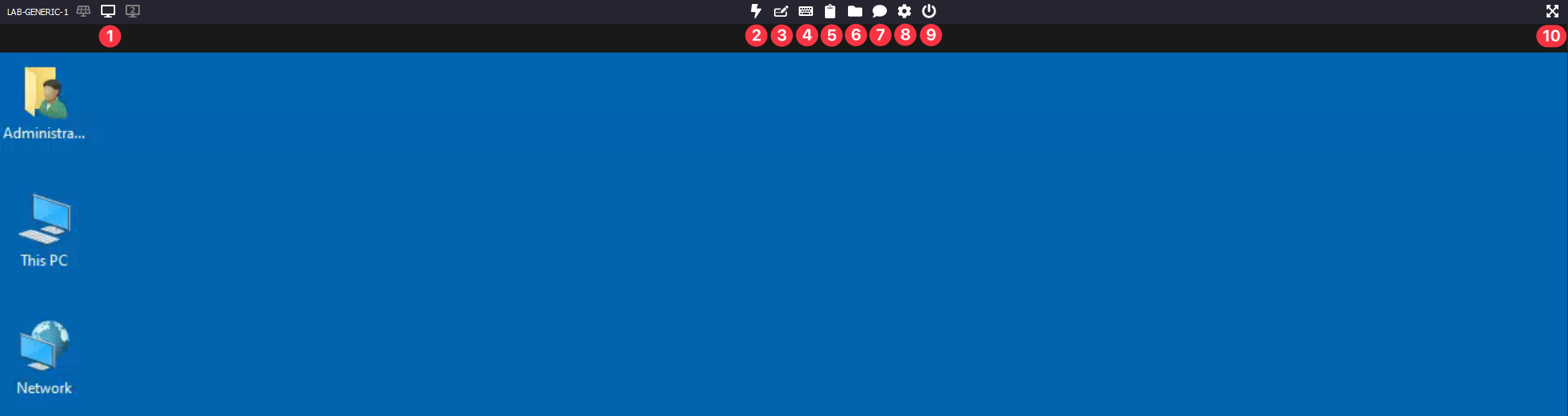
| # | Button | Description |
|---|---|---|
| 1 | Switch Monitor | Switch between monitors on the remote workstation, or show all at once.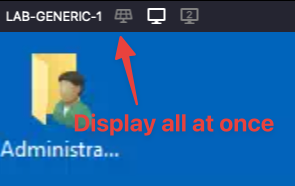 |
| 2 | Ctrl+Alt+Delete | Sends the Ctrl+Alt+Delete command to the remote workstation. |
| 3 | Paste as Keystrokes | Pastes clipboard text as typed keystrokes — useful when an input field doesn’t accept standard paste. |
| 4 | Send Hotkey | Send a keyboard shortcut to the remote workstation.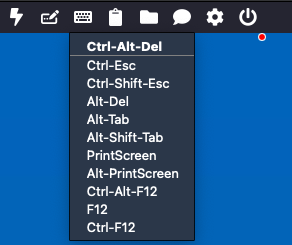 |
| 5 | Clipboard | Copy/paste between your local and remote clipboard. |
| 6 | File Transfer | Upload or download files between your local and remote devices. Do not transfer files to or from an untrusted device. |
| 7 | Chat | Send a chat message to any user present on the remote workstation. |
| 8 | Additional Options | Additional display and connection options.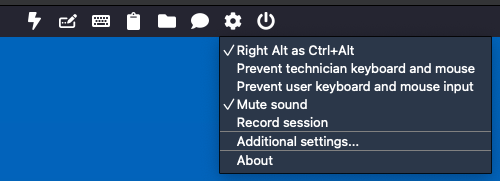 |
| 9 | System Commands | Perform system actions, including disconnect to end your session.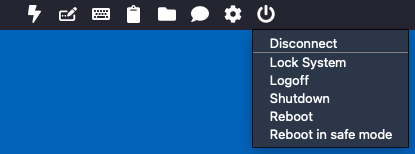 |
| 10 | Fullscreen | Toggle fullscreen mode. |
Keep in Mind
- Bookmark the following URL:
bitstream.rmmservice.com. You will always log into this site in order to initiate a session. - If you need assistance from us, but are unable to create a ticket due to an inability to connect to your managed device, you may contact us at
support@bitstreamllc.com. Please provide as much information as possible, such as the name of the workstation you are trying to connect to. - Occasionally, you may be met with an “unable to connect” error message. This generally means that your computer is offline at the moment. Please ask a colleague at the office to power it on for you.